

Memory that is sold as DDR4-3200 or DDR5-6000 does not run at that speed out of the box. It boots at the JEDEC baseline (often 2133–2666 MT/s for DDR4, 4800 for DDR5) and stays there until someone enables the manufacturer’s rated profile — XMP on Intel platforms, DOCP (or EXPO on newer AMD boards) in ASUS/AMD BIOS menus. BIOS settings to enable XMP RAM profile for emulator workloads matter because emulation is unusually memory-latency-sensitive: the emulator’s translation and rendering threads hammer RAM constantly, and tightening memory from baseline to rated spec is one of the few BIOS changes with a real, if modest, payoff — typically a few percent, occasionally more on Ryzen systems whose Infinity Fabric clock is tied to memory speed. This guide covers entering the BIOS, enabling the profile safely, and stability-testing the result. It does not cover manual overclocking, and it will tell you clearly where the risk boundary is.
Before You Enter the BIOS: Know Your Hardware
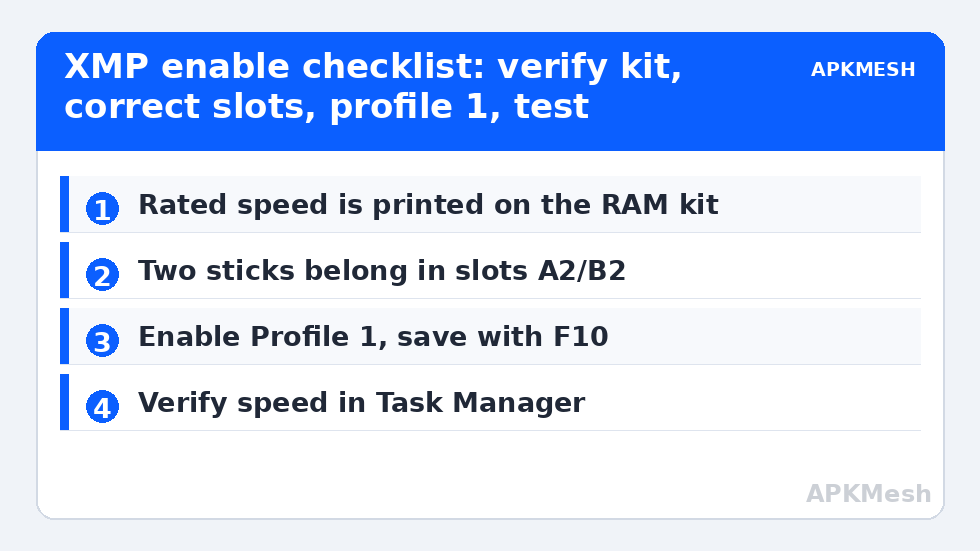
- What RAM you own: Task Manager → Performance → Memory shows current speed and slots used. The kit’s rated speed is printed on the sticks’ labels and box (e.g., “3200MHz CL16”). If your kit is rated 2666, XMP will not invent 3200 — the profile only unlocks what the kit was sold as.
- Mixed kits warning: two different kits (even same brand, different batches) often refuse to run at the faster kit’s XMP. Baseline stability beats theoretical speed.
- Laptops: most gaming laptops expose no XMP option at all, and many business laptops lock memory timings entirely. If your BIOS has no memory profile setting, that is the end of this road — the RAM runs at what the manufacturer chose. A few enthusiast laptops (and most desktops) are the audience here.
- Save your current settings: most BIOSes offer profile saving or at least photograph the main screens with your phone. You want a painless way back.
Entering the BIOS and Finding the Setting
- Restart and tap the setup key during POST — usually Del or F2 (from Windows: Settings → System → Recovery → Advanced startup → Restart now → Troubleshoot → UEFI Firmware Settings).
- Most boards show XMP on the EZ/main page as a dropdown: XMP: Disabled → Profile 1. On ASUS AMD boards it reads DOCP; on newer AMD boards with DDR5 it may read EXPO. Gigabyte calls it XMP under Tweaker; MSI labels it XMP in OC settings with a one-click toggle.
- Select Profile 1 (the kit’s primary rated profile), then Save & Exit (F10).
- Boot Windows and verify in Task Manager → Performance → Memory: the Speed line should now show the rated figure.
Lag risk: —
What Improvement to Expect, Honestly
Going from DDR4-2133 baseline to DDR4-3200 XMP: CPU-bound emulator scenarios typically gain on the order of 3–8%, with Ryzen APUs (whose integrated graphics share system RAM as VRAM) at the high end because iGPU performance scales almost linearly with memory bandwidth. Intel systems with a discrete GPU sit at the low end. DDR5 systems going 4800 → 6000 show smaller relative gains. In other words: worth doing because it is free performance you already paid for, not worth buying new RAM to chase unless capacity is also short. Capacity starvation (paging) costs far more than speed starvation — if Task Manager shows memory near full during play, read our pagefile allocation guide and consider capacity before speed.
Stability Testing: The Step Everyone Skips and Regrets
XMP is technically an overclock of the memory controller — Intel and AMD warrant the CPUs at JEDEC speeds, and a marginal kit or board can pass POST and Windows boot yet corrupt data under sustained load. After enabling:
- Run a memory test: Windows Memory Diagnostic (mdsched.exe) for a quick pass; MemTest86 (bootable USB) or TestMem5/Karhu for a serious one. One full pass minimum; overnight for a machine that also does work you care about.
- Play your emulator for a long session. Memory instability shows as random app crashes, rare blue screens (WHEA or MEMORY_MANAGEMENT), and — nastier — silent file corruption.
- If instability appears: first try Profile 2 if offered (sometimes a looser variant), then update the motherboard BIOS (memory compatibility improves with AGESA/microcode releases — update from the board maker’s official page only, following their instructions exactly), then fall back to a manual speed one step below XMP, and finally to baseline. A stable 3000 beats an unstable 3200 every day of the week.
Adjacent BIOS Settings: What Else Is In There
While in the BIOS you will pass the setting that matters even more for emulation: virtualization (VT-x / SVM Mode) — if that is disabled, your emulator is crippled or refuses to start, and enabling it is worth ten XMPs. Leave CPU overclocking, voltages, and “AI tweaker” automatics alone unless you are deliberately learning that craft; the gains for emulation are small and the stability bookkeeping is real. Disable the splash-screen delay if boot speed annoys you; it changes nothing about performance. Fan curves in BIOS are worth a look on desktops that throttle — the thermal side is covered in our thermal throttling guide, and the full settings family is organised in the PC Optimization hub.
Reading the Result: Single vs Dual Channel and Other Silent Losses
While verifying your speed figure, check two neighbours in Task Manager’s Memory page. Slots used tells you the physical layout Windows sees; Hardware reserved balloons (several GB) sometimes indicate a seating or iGPU frame-buffer issue worth fixing. More important is channel mode, which Task Manager does not show directly: CPU-Z’s Memory tab reports Channel as Single or Dual (or 2×64-bit). A single stick, or two sticks in adjacent wrong slots, halves theoretical bandwidth and can cost more emulator performance than the entire baseline-vs-XMP gap. If you discover single-channel operation with two sticks installed, power down, move the second stick to the manual-specified slot, and re-verify both channel mode and your XMP setting (a CMOS-level change in seating sometimes prompts the BIOS to re-train memory and drop the profile — simply re-enable it).
Frequently Asked Questions
Does enabling XMP void my warranty?
RAM makers sell the profile as the product’s rated specification, so using it is normal operation from their side. CPU makers technically warrant only JEDEC speeds, though in practice XMP use is ubiquitous and does not damage hardware — the voltages involved (typically 1.35V for DDR4 kits) are within the ecosystem’s norms. Manual voltage pushing beyond the profile is where warranty and safety conversations actually begin.
My BIOS shows DOCP, not XMP. Same thing?
Functionally yes: DOCP is ASUS’s name for applying Intel-style XMP profiles on AMD boards. EXPO is AMD’s newer DDR5-native profile standard. All three do the same job — load the timings and voltage printed in the memory kit’s profile instead of the JEDEC fallback.
I enabled XMP and the PC won’t boot. What now?
Do not panic: hold the power button, let the board’s automatic recovery retry (most boards fall back to safe settings after failed boots), or clear CMOS per your motherboard manual (jumper or button) to reset BIOS defaults. Then retry with a BIOS update or a lower profile. No data on your drives is affected by any of this.
Two sticks in the wrong slots — does it matter?
Yes, for both stability and channel mode. On a 4-slot board, a two-stick kit belongs in the slots the manual designates (usually A2/B2, the second and fourth from the CPU). Wrong slots can force single-channel operation (halving memory bandwidth — an emulator disaster) or make XMP unstable. This is the most common physical cause of “XMP doesn’t work.”
Will XMP help if I have plenty of fast RAM already?
If your memory already runs at its rated speed (verify in Task Manager — some prebuilt PCs ship with XMP pre-enabled), there is nothing left to gain here. And if your bottleneck is the GPU, memory speed of either flavour will not move FPS; confirm the bottleneck first.