
The DirectX shader cache exists because compiling shaders is expensive: the first time a game or emulator renders an effect, the driver translates shader code for your exact GPU, and Windows stores the result so the next hundred times are free. When that cache corrupts — after a driver update, a GPU swap, or an emulator changing render paths — the stored results stop matching reality and the symptoms are oddly specific: stutter in scenes that used to be smooth, effects that flicker, occasionally crashes tied to one title while everything else is fine. Learning when to clear the DirectX shader cache on a Windows PC (and when the stutter is actually something else wearing its clothes) saves you the reinstall-everything spiral. The procedure takes two minutes and the only cost is a one-time recompile hitch in each game afterwards.
What the Cache Is, and What Clearing It Does
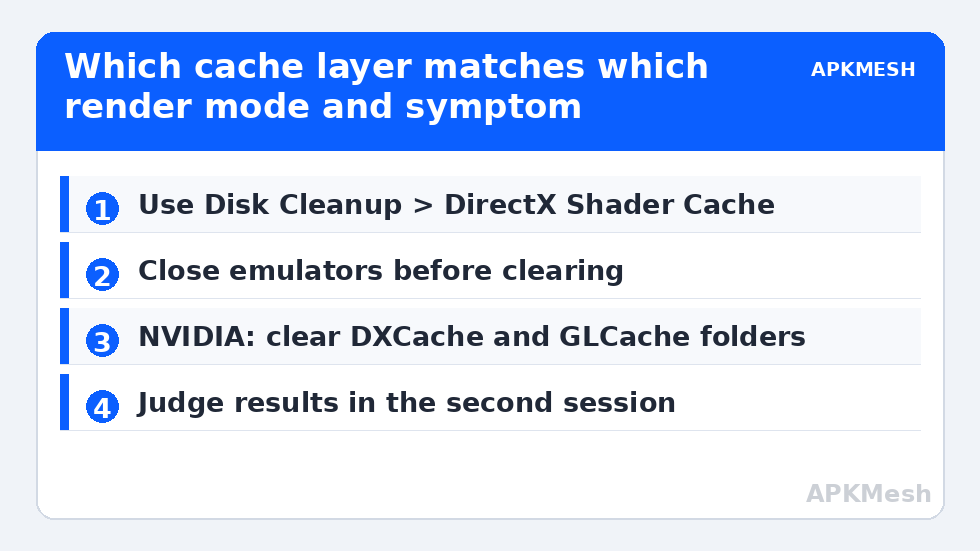
Shaders are small programs that run on the GPU (lighting, materials, post-processing). Each GPU + driver + application combination needs them compiled into native form. Windows and the GPU drivers cache these compiled versions on disk — the “DirectX Shader Cache” Windows exposes in cleanup tools, plus per-vendor caches (NVIDIA’s DXCache/GLCache folders, AMD’s DxCache). Clearing deletes the compiled copies; applications rebuild them on next use. Nothing about your games, saves, or settings lives in these folders. The rebuild is why the first session after clearing often feels worse: every effect compiles once, live, causing micro-stutters that vanish as the cache repopulates. Judging the fix in the first five minutes is the classic mistake — judge it in the second session.
The Right Way: Disk Cleanup
- Open Disk Cleanup (search “Disk Cleanup” or run cleanmgr), select the system drive.
- Tick DirectX Shader Cache in the list. (Other categories are optional; our general junk routine is in the temp files cleanup guide.)
- Click OK → Delete Files. Done — no restart required, though emulators should be closed while you do it.
The alternative path — Settings → System → Storage → Temporary files — lists the same DirectX Shader Cache entry and works identically. Use whichever you open first; they are two doors to the same room.
Lag risk: —
Vendor Caches: The Deeper Layer (When Disk Cleanup Isn’t Enough)
If the symptom survives the standard clear, the per-vendor folders are the next layer. Close the emulator and any games first.
- NVIDIA: delete the contents of %LocalAppData%\NVIDIA\DXCache and GLCache (and %ProgramData%\NVIDIA Corporation\NV_Cache on older driver layouts). A locked file means something is still using the GPU — reboot and retry rather than forcing.
- AMD: Radeon Software → Settings → Graphics → Reset Shader Cache does it officially; the folders live under %LocalAppData%\AMD\DxCache if you prefer manual deletion.
- Intel: the Disk Cleanup route covers the main cache; Intel’s driver also keeps a cache under its AppData folders which clearing via a driver clean reinstall resets.
Do not write scripts that empty these on a schedule. The cache’s entire purpose is to be reused; automated clearing converts a diagnostic tool into a permanent stutter generator.
Diagnosis: Is It Really the Cache?
Suspect the cache when three markers coincide: (1) symptoms began immediately after a driver update, driver rollback, or GPU change — see our driver update guide for why version changes invalidate entries; (2) stutter is worst in the first minutes of a scene and improves within the session as effects repeat; (3) the problem is confined to one render mode (say, DirectX mode stutters while Vulkan mode is clean, or vice versa), pointing at that API’s compiled set. Suspect something else when stutter is constant regardless of session length (thermal or CPU — check with the Afterburner overlay method), when it correlates with new areas loading from disk (storage), or when it began after an emulator update rather than a driver one (the emulator changed its shaders legitimately, and the rebuild cost is one session, not a fault).
Emulator-Specific Note: Two Caches, Not One
Emulators may keep their own shader/pipeline caches inside their data folders, separate from Windows’. Deleting the emulator’s internal cache (some offer a “clear cache” in settings or a cache folder you can remove while closed) has the same rebuild consequence amplified: pipeline caches for heavy games can take a full session to rebuild. Only clear the internal one when corruption symptoms are strong (persistent graphical glitches in one game), and expect the trade knowingly. The broader maintenance family this belongs to is gathered in the PC Optimization hub.
Prevention: Reducing How Often This Becomes Necessary
You cannot stop drivers from updating, but you can stop cache corruption from ambushing you mid-season. Keep one known-good driver version archived (the rollback habit from the driver guide), avoid beta/preview graphics drivers on a machine you rely on for play, and when you do update a driver, clear the shader cache once as part of the same maintenance session before judging the new driver’s performance — this single habit eliminates the most common false conclusion in PC gaming forums, “the new driver is slower,” when the truth is “the cache was stale and the first session paid the rebuild tax.” Similarly, when an emulator announces a renderer overhaul in its changelog, treat the following session as a rebuild session: launch your main games, let the shaders compile in menus and early areas, and only evaluate performance from the second run onward. Patience systematised beats troubleshooting improvised.
A practical footnote for multi-game players: the rebuild tax is per game and per render mode, so a mass clearing before a tournament or a long session of your main title is fine, but clearing on a whim and then rotating through six games means paying the tax six times in an evening. If only one title misbehaves, prefer the targeted layer — that title’s emulator internal cache or the specific API cache — over the full sweep.
And if you administer a shared or family PC, leave a note of what you cleared and when — the next person’s “the games are stuttering today” report will arrive within the rebuild window, and a dated note turns their bug report into a known, self-resolving state.
Frequently Asked Questions
Is clearing the DirectX shader cache safe?
Yes. It is a cache of reproducible data; Windows and the drivers rebuild it automatically. The only cost is temporary first-run stutter while effects recompile. No game data, saves, or settings are stored there. Microsoft exposes it in Disk Cleanup precisely because it is disposable by design.
Why did my game stutter more right after clearing?
Because every shader now compiles on first use, mid-gameplay. That is the expected rebuild cost and it fades within a session or two per game. If stutter persists identically into the third session, the cache was not your problem — move on to thermal, CPU, and storage diagnosis instead of clearing repeatedly.
How often should I clear the shader cache?
Only on evidence: after driver/GPU changes plus symptoms, or when one title shows corruption patterns that fit. As routine maintenance it does nothing except guarantee perpetual first-run stutter. The cache also self-manages its size within limits, so “it must be huge by now” is not a reason either.
Does the DirectX shader cache affect Vulkan and OpenGL in emulators?
The Windows “DirectX Shader Cache” entry mainly covers DirectX pipelines. Vulkan and OpenGL have their own driver caches (NVIDIA GLCache, AMD’s caches, and the emulators’ internal pipeline caches). The clearing procedure in this guide covers each layer; match the layer to the render mode your emulator is actually using.
Can a full shader cache slow my PC down?
Meaningfully, no. It consumes some disk space (hundreds of MB to a few GB across many games), and a bloated cache is an occasional cleanup item on a cramped drive, not a performance problem. Lookup in a large cache is not a bottleneck; corruption, not size, is the failure mode.