The old laptop problem is brutally specific: a spinning hard drive, 4 or 8GB of RAM, and a single storage bay that everything — Windows, the emulator, the pagefile — must share. Shopping for a second ssd readyboost old laptop emulator fix presents you with two very different answers wearing similar marketing. One is a genuine second solid-state drive, fitted in the optical-drive bay or an M.2 slot you did not know you had, which transforms the machine. The other is ReadyBoost, Microsoft’s USB-flash caching feature, which is nearly free and nearly useless for this workload. This guide separates them with evidence, shows where a second SSD actually goes in an old laptop, and gives the pagefile arrangement that makes the most of the result.
ReadyBoost, Honestly Appraised
ReadyBoost arrived with Windows Vista to rescue machines whose bottleneck was a slow hard drive and too little RAM for SuperFetch caching. It uses a USB stick or SD card as a cache for small, frequently read files, and on a 2009-era machine with 512MB of RAM it genuinely helped. The conditions that made it useful have evaporated. If your laptop has 4GB or more of RAM, Windows’ own memory caching does the job better; if the machine has any SSD at all, ReadyBoost disables itself for that drive because flash cannot beat flash. For emulator workloads specifically, the mismatch is total: an emulator’s storage traffic is dominated by large sequential reads from a virtual disk file and by paging, neither of which is the small-random-read pattern ReadyBoost caches. Microsoft’s own documentation positions the feature as a legacy aid, and modern Windows versions have quietly de-emphasised it. Verdict: if a guide’s centrepiece for your emulator laptop is a USB stick and ReadyBoost, close the tab. The money for that USB stick is the first deposit on a real SSD.
The Real Fix: Where a Second SSD Goes in an Old Laptop
Old laptops are often more expandable than their owners realise. Audit yours in this order:
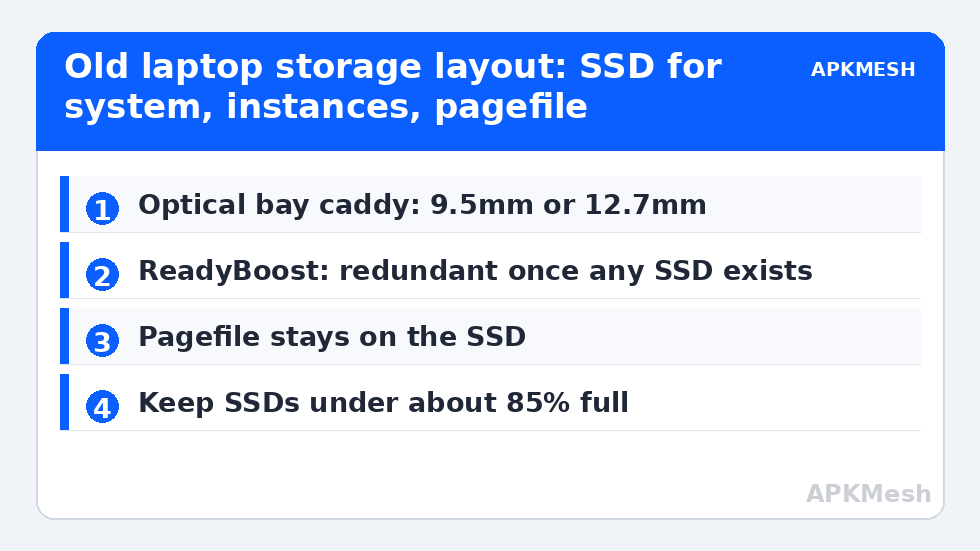
- The optical drive bay. Laptops with a DVD drive can swap it for a caddy (9.5mm or 12.7mm — measure or check the model) that holds a standard 2.5-inch SATA SSD. This is the classic second-drive route, and the emulator-plus-pagefile arrangement below assumes it.
- An unpopulated M.2 or mSATA slot. Many mid-2010s business laptops shipped with an empty WWAN or M.2 slot that accepts a small SSD. Your model’s service manual lists what the slot supports — check whether it is SATA or NVMe before buying.
- Replacing the main HDD outright. If no second bay exists, a single SSD replacing the hard drive is still the best money in this entire guide — cloning tools from the SSD vendors move Windows across intact, and the old HDD can live in a cheap USB enclosure as backup storage.
Capacity guidance is modest because emulator installs are the workload: 500GB is comfortable for Windows, several instances, and a healthy free-space margin; 250GB works if the HDD stays for media. Keep any SSD below roughly 85 percent full — fuller drives slow down, which matters for the paging traffic this setup invites.
Lag risk: —
The Layout That Makes a Two-Drive Old Laptop Sing
With two drives fitted, arrangement matters. Windows and the emulator program belong on the SSD, and the emulator’s instance data — the big virtual disks — belongs there too; that placement is the whole point, and it is the change detailed in our SSD versus HDD emulator guide. The pagefile decision follows from our pagefile sizing guide and our pagefile relocation guide: keep the main pagefile on the SSD alongside everything else. The folk advice to park the pagefile on the hard drive “to save the SSD” inverts the priorities — paging is latency-critical, SSD wear from paging is negligible on modern drives, and every page-in from a spinning disk is a stall you will feel. The HDD’s correct jobs in this build are bulk and backup: media, exported instance archives, downloads, and a system image. Set that division once and the machine stops behaving like its age.
| Workload | Best home | Why |
|---|---|---|
| Windows + emulator program | SSD | Boot, launch, and update speed |
| Emulator instances / virtual disks | SSD | Random I/O latency — the stutter killer |
| Pagefile | SSD | Paging must be fast; wear fears are outdated |
| Media, archives, system image | HDD | Capacity-hungry, latency-indifferent |
| ReadyBoost cache | Nowhere | Redundant once any SSD exists |
Expectations and the Remaining Ceiling
What changes after the upgrade, in the order users notice: the laptop boots in a fraction of the time; the emulator opens promptly instead of staging a protest; game installs and first launches inside the guest stop dragging; and the deep-memory hitches that came from paging to a hard drive soften dramatically. What does not change: the CPU still translates at its old speed and the integrated GPU still renders at its old ceiling, so peak FPS in a demanding title improves modestly at best. You have removed the storage floor from under the machine, not raised its roof — which is usually the correct order anyway, since storage was producing the worst moments. If RAM is also at 4GB, the pairing for this upgrade is a memory bump as described in our dual channel RAM guide; storage and RAM together are the two upgrades that make an old laptop feel like a different computer, and both are covered in the full sequence starting at the APKMesh homepage.
Before ordering anything, spend ten minutes with your exact model number and its service manual, which manufacturers publish free. The manual settles the questions that decide this upgrade: whether a caddy bay exists, what thickness of drive fits, whether an M.2 slot is SATA or NVMe, and whether the RAM is upgradable while you are inside the machine. Buying parts against a generic guide instead of your model manual is how perfectly good SSDs end up in a returns envelope.
Frequently Asked Questions
Does ReadyBoost do anything at all on a Windows 11 laptop?
On a machine with an SSD, nothing — Windows will not use it for that drive. On an HDD-only machine with very little RAM it can slightly smooth small-file reads for general desktop work, but emulator traffic is dominated by large virtual-disk reads and paging, which it does not meaningfully cache. For this workload it is not a substitute for a drive upgrade.
Will an SSD in the optical-drive caddy run at full speed?
Usually at SATA II or SATA III speeds depending on the bay’s wiring — either is an order of magnitude better in latency than the hard drive it complements, which is what emulator storage behaviour actually depends on. Some very old models cap the bay slower or behave oddly with sleep; a quick model-specific forum check before buying the caddy settles it.
Should the pagefile go on the SSD or the old HDD to extend SSD life?
On the SSD. Modern consumer SSDs are rated for hundreds of terabytes of writes; emulator paging writes a tiny fraction of that over the machine’s remaining life. Putting the pagefile on the hard drive trades a theoretical wear concern for very real stalls every time Windows pages — the opposite of this upgrade’s purpose.
Is it worth upgrading a laptop with only 4GB of RAM and a weak CPU?
The SSD upgrade is worth it if the machine is otherwise sound, because storage stalls poison every task, not just emulation. But set expectations: 4GB of RAM will cap you at one modest instance regardless of storage, so the RAM upgrade matters nearly as much. If both are impossible on your model, the machine’s emulator ceiling is low and money is better saved toward a replacement.
Can I run the emulator from an external USB SSD instead?
Yes, over USB 3.0 or better, and it captures most of the latency benefit when no internal option exists. It is less tidy — the drive must stay connected, and a knocked cable mid-session is a crash — so treat it as the fallback for sealed laptops rather than the plan for upgradable ones.