

Real-time antivirus scanning and Android emulators have a structural disagreement: the emulator stores an entire virtual computer inside a handful of enormous files that change constantly, and the scanner wants to inspect those changes as they happen. Setting windows defender exclusions emulator folders correctly resolves that disagreement for legitimate emulator installs — telling Defender to stop re-scanning the virtual disk’s churn while keeping protection fully active everywhere else. This guide is deliberately careful, because exclusions are also a classic piece of bad advice: an exclusion is a hole in your protection, so it must be small, specific, earned by evidence, and paired with habits that keep the risk theoretical. Used that way, it is a recognised, Microsoft-documented configuration. Used carelessly, it is how “performance guides” make machines less safe.
Why Defender and Emulators Collide, and the Evidence Test
An emulator’s virtual disk is a single file that can run to tens of gigabytes, representing every write the Android guest makes. Defender’s real-time protection monitors file activity; when the guest writes heavily — installing a game, caching assets, updating — the monitoring of that giant, ever-changing file can consume surprising CPU, and on a low-end machine that CPU is taken directly from the emulation itself. The signature symptom is specific: stutter and CPU spikes that track guest disk activity, with MsMpEng.exe (Defender’s engine) visible near the top of Task Manager’s CPU list at the same moments.
Insist on that signature before excluding anything. If Defender is not visibly busy during your stutter, the cause lies elsewhere and an exclusion will change nothing except your security. Also distinguish this scenario from Defender actually blocking or flagging an emulator, which is a different problem covered in our Defender blocking emulators guide. One more legitimacy note that matters: this guide assumes an emulator downloaded from its vendor’s official site. Emulator bundles from unofficial download portals are a genuine malware channel, and scanning catching something there is the protection working, not a nuisance to exclude away.
The Safety Rules, Stated Before the Steps
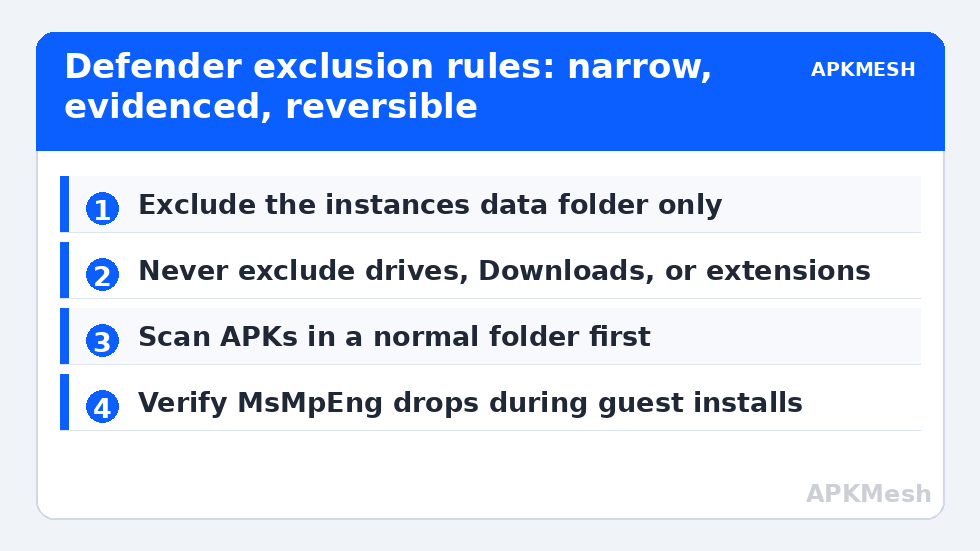
- Exclude the narrowest possible location. The emulator’s own data folder only — never a whole drive, never Downloads, never Desktop, never a generic “games” folder that other content lands in.
- Never exclude file types globally (for example all .vmdk or .exe files everywhere). Folder exclusions scope the risk to one place; extension exclusions follow malware anywhere.
- Download discipline becomes your compensating control. APKs and mods go into a normal, scanned folder first and are checked there before the emulator ever sees them. The exclusion covers the virtual disk’s churn, not your incoming files.
- Revisit the exclusion if you uninstall the emulator. A leftover exclusion pointing at a folder that later gets reused is a quiet, permanent hole.
Lag risk: —
Add the Exclusion: Folder and Process, Precisely
- Find the emulator’s data location first. It is typically a dedicated folder under your user profile or on the drive you installed instances to — check the emulator’s settings or multi-instance manager for the instance path rather than guessing. Copy the exact path.
- Open Windows Security → Virus & threat protection → Virus & threat protection settings → Manage settings → Exclusions → Add or remove exclusions. You will need administrator approval; that prompt is itself a safeguard.
- Choose Add an exclusion → Folder and paste or browse to the emulator instance folder. If the emulator keeps instances in per-instance subfolders under one parent, excluding the parent data folder is acceptable — it is still a single-purpose location.
- Optionally add a Process exclusion for the emulator’s main player executable. Process exclusions stop Defender scanning files that process opens, which targets the same churn more narrowly still; folder plus process together is the belt-and-braces form, and using just one of them is also reasonable.
- Launch the emulator, trigger the workload that used to spike (a game install or first-run asset caching), and watch Task Manager: MsMpEng activity tied to those moments should fall away.
| Exclusion choice | Verdict |
|---|---|
| Emulator instances data folder | Yes — this is the guide’s purpose |
| Emulator player process (.exe by exact name/path) | Yes, as an alternative or addition |
| Whole drive (D:\) or Program Files | Never |
| Downloads, Desktop, or a shared games folder | Never — incoming files must be scanned |
| Extension exclusions (.exe, .vmdk system-wide) | Never |
Verify the Benefit, and Keep the Rest of Defender Strong
Measure honestly. The expected gain appears only in the workloads that were scanner-bound: game installs and updates inside the guest complete without dragging the host, and asset-heavy first runs smooth out. Ordinary gameplay that was never disk-churn-bound will not change, and claiming otherwise would be the usual tweak folklore. If your test shows no difference, the professional move is to remove the exclusion again — an unused hole in protection has cost with no benefit, and removing it is two clicks in the same settings page.
Everything else about Defender stays exactly as it was: real-time protection on, cloud-delivered protection on, automatic sample submission as you prefer, and scheduled scans left alone (schedule them for when you do not play, via Task Scheduler, if full scans have been interrupting evening sessions). Do not follow guides that pair exclusions with disabling tamper protection, real-time protection, or Defender itself — at that point the “optimisation” is simply an unprotected PC, and on a low-end machine a malware infection costs infinitely more performance than the scanner ever did. Keep the surrounding system lean using our startup audit and the background services guide instead, trim OEM extras with our bloatware removal guide, and explore the remaining PC Optimization work from the APKMesh homepage.
Finally, keep a short note of the date you added the exclusion and the exact path you used. Exclusions are invisible in day-to-day use, which is precisely why they are forgotten; a dated note in the same file where you record your other system changes means a future cleanup — or a future owner of the machine — can review the decision with full context instead of discovering a mystery hole in the protection settings.
Frequently Asked Questions
Is it safe to exclude my emulator folder from Defender?
It is a calculated, bounded trade: you lose real-time scanning inside one single-purpose folder, in exchange for removing scanning overhead from a virtual disk that churns constantly. The trade is reasonable when the emulator came from its official vendor, incoming APKs are scanned in a normal folder before use, and the exclusion stays limited to that folder. It is not safe as a blanket habit for arbitrary folders.
My emulator is flagged as a threat. Should I exclude it?
Not as a first response. A detection is information: verify your installer came from the vendor’s official site, check the detection name, and update Defender definitions. Some emulator adware bundles from unofficial portals are flagged because they genuinely contain unwanted software. Only proceed with exclusions for a verified-clean official install whose issue is scanning overhead, not detections.
Will excluding the folder stop Defender scanning APKs I install?
Files you download normally — into Downloads or any other regular folder — are scanned on arrival and on access, outside the exclusion. The risk window is only for files placed directly inside the excluded folder, which is why this guide insists downloads land in a scanned location first and are moved or installed from there consciously.
Should I exclude the pagefile or virtual memory files too?
Windows already handles its own pagefile appropriately, and Defender does not meaningfully scan pagefile.sys in a way that costs emulator performance. Leave system files out of your exclusions entirely. The exclusion in this guide exists for one specific, evidenced behaviour: a third-party virtual disk file under constant guest write load.
How do I remove an exclusion I no longer need?
Return to Windows Security → Virus & threat protection settings → Exclusions, select the entry, and choose Remove. Do this whenever you uninstall an emulator or if your before-and-after test showed no benefit. Keeping the exclusions list short and current is part of the technique, not an optional tidy-up.