Buried in most emulators’ settings is a choice almost nobody touches until something breaks: whether the Android instance hides behind your PC’s address or steps onto your home network as a citizen in its own right. That is the emulator network mode nat vs bridge decision, and it quietly governs three things players care about — whether local multiplayer and media apps can find the instance, whether port-dependent features work, and how your router and firewall treat game traffic. This guide explains both modes without networking mysticism, gives the correct default for low-end gaming PCs, and lists the specific symptoms that justify switching.
NAT Mode: The Guest Behind Your PC
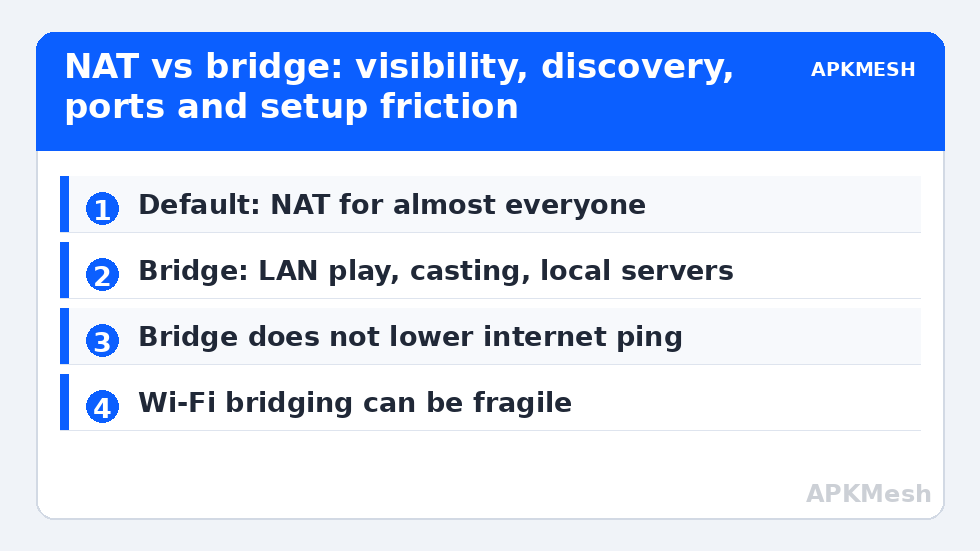
In NAT mode the emulator acts like a miniature router. The Android instance gets a private address on a virtual subnet that exists only inside your PC, and all its traffic leaves wearing your PC’s own network identity. Your router sees one device — the laptop — and knows nothing about the Android guest behind it. Setup cost is zero, which is why every mainstream emulator defaults to NAT, and for the overwhelming majority of play it is completely sufficient: game servers on the internet neither know nor care that an emulator translated the traffic on its way out.
NAT’s limits appear at your own walls. Other devices on your home network cannot initiate connections to the instance, because as far as the network is concerned it does not exist. Local discovery protocols — the handshakes casting apps, LAN multiplayer lobbies, and local file servers use to find each other — stop at the translation boundary. And inbound port forwarding ends at your PC; forwarding onward into the guest requires the emulator to support its own port rules, which most consumer builds handle poorly or not at all.
Bridge Mode: The Guest as a Neighbour
| Aspect | NAT | Bridge |
|---|---|---|
| Instance address | Private, virtual subnet inside the PC | Real address from your router’s DHCP |
| Visible to LAN devices | No | Yes, like any phone on the Wi-Fi |
| LAN multiplayer / discovery | Usually fails | Works as it does between phones |
| Port forwarding | Ends at the PC; guest forwarding rare | Forward to the instance’s address directly |
| Setup friction | None; default everywhere | May need admin rights, driver binding, router cooperation |
| Wi-Fi hosts | No constraint | Some adapters and routers handle bridged Wi-Fi guests poorly |
Bridge mode binds the instance directly onto your physical network adapter, so the router hands it a real local address alongside your phones and consoles. Everything LAN-shaped starts working the way it does between physical devices. The costs are friction and fragility: bridged networking on Wi-Fi is historically crankier than on Ethernet, some security software objects to the virtual adapter binding, and a bridged guest is exposed to your LAN exactly like a real device — one more reason to keep untrusted apps on a throwaway instance rather than your main one, a containment habit explored in installing custom APKs safely.
Lag risk: —
What Neither Mode Fixes: Ping Itself
Here is the honesty paragraph this topic always needs. Switching to bridge mode does not meaningfully lower your ping to internet game servers. The translation NAT performs costs a negligible fraction of a millisecond inside your own PC; your ping is made of distance, routing, and Wi-Fi conditions, none of which the emulator’s network mode touches. The fixes that move online latency live in the connection itself — wired over wireless, router placement, household contention — the same territory as the adapter-level work elsewhere in this project, not in this settings page. If a guide promises bridge mode will cut 30ms, it is selling you a placebo with admin prompts.
Where mode choice can affect online play is edge cases: a handful of titles and voice or peer-to-peer features behave better when the instance owns a routable LAN identity, and strict NAT-type warnings in some games trace back to double translation (your router’s NAT plus the emulator’s). Those are specific, diagnosable symptoms — which is exactly the standard for switching described next.
Switch to Bridge Only for These Symptoms
- LAN multiplayer cannot see your lobby (or you cannot see a friend’s on the same network) while phone-to-phone play works fine.
- Casting or media apps cannot find the instance, or it cannot find your TV or speaker, despite everything sharing one router.
- A local server app inside the emulator — a file server, a streaming source — must be reachable from your phone or another PC.
- A game reports a strict NAT type and its peer features fail, after you have ruled out the router itself with a phone test.
- You develop or test apps that must behave as genuine LAN citizens, where NAT’s fiction changes the behaviour under test.
Switching is reversible and cheap to test: note your current mode, change it, restart the instance fully (network bindings are a launch-time decision), and test the exact symptom that sent you here. If the symptom survives bridge mode, the fault lives elsewhere — router isolation settings, a guest-network SSID doing its job too well, or the app itself. Keep NAT as your documented default in your setup notes alongside your other profiles on APKMesh, and treat bridge as a per-instance tool; a bridged utility instance beside a NAT gaming instance is a perfectly sensible layout, and it pairs well with the separated-instance thinking in location, timezone and sensor settings, where different instances also carry different identities.
Testing the Change Properly
Network changes invite sloppy verification, because everything appears to work — the game loads, the lobby fills — while the specific feature that sent you here quietly still fails. So test the symptom, not the vibe. If LAN discovery was the problem, open the exact lobby or casting flow that failed under NAT and confirm it now completes; if a strict NAT warning was the trigger, return to the same screen in the same game and read the new verdict. The behaviour described in this guide was consistent on the Pie 64-bit setup detailed in our BlueStacks 5 Pie 64-bit tweaks for low-end PCs and on LDPlayer instances in NAT mode, which is reassuring: the modes are a networking standard, not a per-vendor personality.
Write the result down per instance — mode, date changed, symptom it solved. Network configuration is the least visible part of an emulator setup and therefore the first thing forgotten when a router is replaced six months later and the bridge binding silently needs redoing. A one-line note turns that future fault from a mystery into a memory.
VPNs and the Double-Translation Trap
One combination deserves a warning label: running a PC-level VPN beneath a NAT-mode emulator stacks translation and tunnelling decisions in ways that occasionally confuse game region detection and voice services, even though raw connectivity survives. If an online title misbehaves only while your VPN is connected, test once with the VPN off before touching the emulator’s mode at all — the variable is the tunnel, not the guest. Conversely, a bridged instance generally bypasses nothing and inherits your router’s view of the world, VPN or not, unless the VPN is bound in a split-tunnel configuration. Keep a note of which combination each of your online games prefers; network stacks have long memories and short documentation.
Frequently Asked Questions
Does bridge mode reduce ping in online games?
No, not in any way you could measure in play. The NAT translation inside your PC costs a negligible fraction of a millisecond; ping is decided by distance to the server, your internet routing, and Wi-Fi conditions. Bridge mode fixes local-network reachability problems, not internet latency.
Why can my phone not find my emulator for LAN play or casting?
In NAT mode the instance lives on a private virtual subnet inside your PC, invisible to other devices on your home network, so discovery handshakes never reach it. Switching that instance to bridge mode gives it a real address from your router and makes LAN discovery work like it does between phones.
Is bridge mode less secure than NAT?
Slightly, on your local network: a bridged instance is reachable by other LAN devices just like a real phone, while NAT hides it behind your PC. On a trusted home network the risk is small, but keep untrusted or sideloaded apps on a separate instance and prefer NAT for instances that do not need LAN access.
Bridge mode will not enable on my Wi-Fi laptop. Why?
Bridging over Wi-Fi is the historically fragile combination – some adapters, drivers, and routers handle the virtual adapter binding poorly, and security software can block it. Test on a wired Ethernet connection if you can; if bridge works wired but not wireless, the adapter or router is the limitation, not the emulator.
Can different instances use different network modes?
Yes, in emulators that expose the setting per instance, and it is often the best layout: your main gaming instance stays on NAT, while a utility or development instance uses bridge for LAN reachability. Restart each instance fully after changing its mode, since bindings are decided at launch.