Installing an APK from outside the Play Store is sometimes the only route — a region-locked app, an older version that worked better, a developer build you are testing, or an open-source app distributed from its project page. The risk is not the APK format; it is provenance. Learning to install custom apk inside emulator environments safely means treating every file as untrusted until its source and signature check out, and using the emulator itself as a sandbox that protects your real Google account. This guide covers the safe workflow for LDPlayer and BlueStacks specifically.
Rule Zero: Where the File Comes From Decides Everything
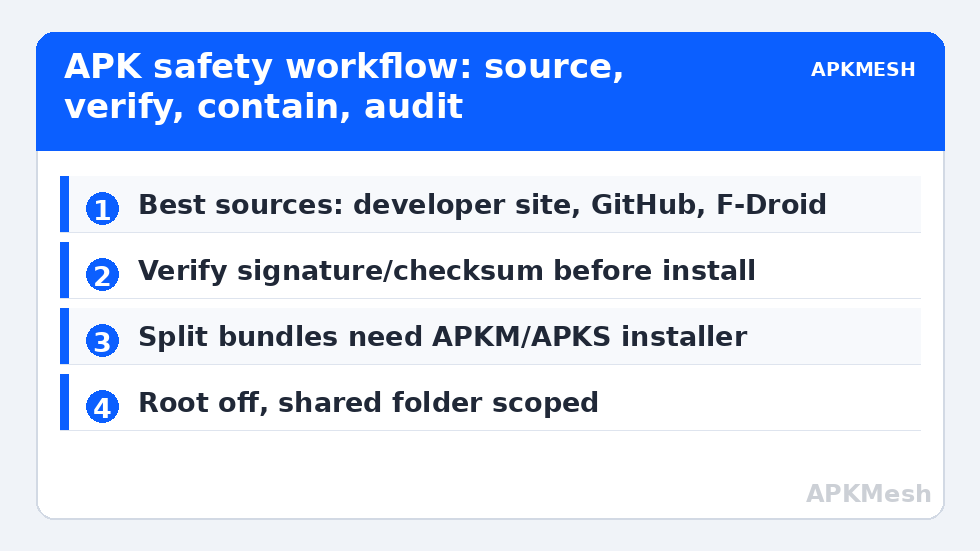
- Best: the developer’s own website or official GitHub releases page (F-Droid builds, open-source projects).
- Acceptable: established repositories that verify signatures against the original developer’s certificate — APKMirror is the standard example; it cryptographically checks that an APK is signed by the same key as the Play Store version.
- Never: “mod APK”, “unlocked premium”, “free coins” sites, random file-host links from forums or video descriptions. These are the primary distribution channel for Android malware, and the emulator does not make a trojaned app harmless — it makes it contained, which is different (see below).
- Your own apps: games and apps you legitimately own can be extracted from your phone (many file managers can back up an installed app’s APK) and installed in the emulator — a clean, legal path for moving your own library.
Verify Before You Install
- Check the signature where the source provides it. APKMirror shows the signing certificate fingerprint on each listing; for developer releases, compare the published SHA-256 checksum of the file (on Windows: certutil -hashfile file.apk SHA256 in a terminal).
- Scan the file. Upload it to VirusTotal before installation; a clean result is not a guarantee, but a flagged result is a hard stop.
- Inspect the size and version against the official listing. A “same version” that is 40MB smaller is not the same app.
- Decide your account exposure in advance. For anything not fully trusted, create the instance with a throwaway Google account or none at all, and never sign banking or primary email accounts into it.
Lag risk: —
Install Custom APK Inside Emulator: LDPlayer and BlueStacks Steps
LDPlayer: drag-and-drop the APK onto the running instance window, or use the APK install button in the right toolbar, or press Ctrl+3-ish shortcuts depending on build. LDPlayer also offers a shared folder (PC shared folder in settings) for moving files in without drag-drop. BlueStacks: drag-and-drop works the same way; alternatively the “Install APK” option lives in the sidebar/Media Manager, and Ctrl+Shift+B opens the file picker on recent builds. Both emulators will refuse an APK whose minimum Android version exceeds the instance — that is a compatibility message, not a security one; use a Pie 64/Android 11 instance for current apps (context in Android 11 vs 9). Split APKs (APKS/APKM bundles) do not install by drag-drop: they need their bundle installer (e.g., APKMirror Installer or SAI — Split APKs Installer, both legitimate tools) inside the emulator.
After Installation: Containment Checks
Open Android Settings > Apps > the new app > Permissions, and review what it asked for versus what it does. A flashlight-class app holding SMS and accessibility permissions is telling you who it works for. In the emulator’s Android settings you can also disable the app’s background data. Because emulators are virtual machines, a bad app cannot reach your Windows files unless you enabled a shared folder with write access or root mode — two more reasons root stays off and shared folders stay read-only or scoped to a quarantine folder. Treat the instance as a lab bench: snapshot/backup a clean instance before experiments (see backup and restore of emulator data) so you can roll back instead of cleaning up.
Updating Sideloaded Apps (the Part People Get Wrong)
An app installed from an APK updates only from the same signing key. Play Store will happily offer updates for it if the listing matches — and those updates are safe because Android enforces signature continuity: a tampered update cannot install over the original. Conversely, if a future “update” from a random site fails with a signature conflict error, Android just saved you: the file was not signed by the original developer. Never uninstall to force such an update through. More installation and Play-related mechanics are covered in installing Google Play on lightweight emulators and the broader Emulator Settings section.
Permissions Triage: A 60-Second Audit That Catches Most Junk
Before first launch, open the app’s permission page and run three questions. Does each permission serve the app’s stated function? A wallpaper app requesting SMS fails. Did it request accessibility services or device-admin rights? For anything except genuine automation/accessibility tools, those two are the keys to the kingdom — deny and reconsider. Does it demand overlay (“draw over other apps”)? Legitimate for chat heads and mapping tools, suspicious for everything else, since overlays are how credential phishing is drawn on Android. Inside the emulator you can also watch the app’s network behavior coarsely: an offline-category app (a notes tool, a local game) that the emulator’s traffic monitor shows phoning home constantly is telling you its business model. None of this requires expertise — it requires the habit of looking, once, before the app becomes furniture.
Keeping a Quarantine Instance
Serious sideloaders keep one named instance — “Lab” — built for exactly this purpose: throwaway Google account, no personal sign-ins, shared folder disabled, snapshotted clean. New APKs graduate from the Lab to the main instance only after a few days of boring behavior. The pattern costs one instance’s disk space and converts every future install decision from a risk assessment into a routine.
Enterprise and Family Machines: Extra Rules
Two contexts deserve stricter defaults than a personal gaming PC. On a work-managed laptop, sideloading into an emulator can violate device policy regardless of the app’s innocence — the emulator is not a policy invisibility cloak, and endpoint tooling sees the same files. Read the policy or ask IT; “it was inside a VM” is not a defense that has ever survived an incident review. On a family PC shared with children, treat the emulator’s store and browser as unfiltered doors: a sideloading habit that is safe in your hands becomes a liability when a child imitates the visible steps with none of the verification ones. Keep the sideloading workflow on your own instance and account, and let shared instances be Play-Store-only by house rule.
Frequently Asked Questions
Is sideloading APKs into an emulator legal?
Installing apps you own or that developers distribute freely (official sites, GitHub, F-Droid) is legitimate. Downloading paid apps or “modded” versions that bypass payment or licensing is piracy and also the highest-risk malware category. The safe sources in this guide are the legal ones.
Why does the emulator reject my APK file?
The usual causes: the app’s minimum Android version is higher than the instance (use a Pie 64/Android 11 instance), the file is a split bundle (APKS/APKM) needing a bundle installer, or the download is corrupt. A signature-conflict message means an existing install was signed by a different key — investigate rather than forcing it.
Can a malicious APK infect my Windows PC?
Not directly — it runs inside the Android VM. The exposure points are bridges you open yourself: writable shared folders, root mode, and accounts you sign into the instance. Keep shared folders scoped, root off, and untrusted apps on a throwaway account.
How do I install split APKs (APKM/APKS files)?
Use a bundle installer inside the emulator: APKMirror Installer for .apkm files or SAI (Split APKs Installer) for .apks/.xapk. Both reassemble the base APK plus its configuration splits into one valid installation.
Will Play Store update my sideloaded app?
If the app exists on the Play Store with the same package name and signing key, yes — and that is safe, because Android refuses updates whose signature differs from the installed app. If an update is ever blocked by a signature error, treat the new file as suspect.