Two toggles sit in every serious emulator’s settings wearing an air of mystery: ADB and root. Guides either worship them as hidden performance switches or warn against them like live wires, and both camps skip the actual question — what each one opens, what each one costs, and which specific jobs genuinely require them. Configuring emulator adb root settings correctly is mostly an exercise in keeping doors closed until a named task needs them open. This guide gives ADB and root separate, honest treatments, because they are separate doors and conflating them is how users end up rooted when they only needed a debug bridge.
ADB: The Workshop Door
Android Debug Bridge is Google’s own developer channel into an Android device: a connection over which a PC can install apps, pull logs, run shell commands, automate taps, and inspect what the system is doing. Emulators expose it as a setting such as ADB debugging or a local ADB connection, and tools on the PC side — scrcpy for mirroring, automation frameworks, log viewers — speak through it. For ordinary gaming, ADB does nothing and improves nothing. Its value appears the day you need to install a split bundle from the PC side, capture logs for a stubborn crash, or drive a testing workflow.
The security shape of ADB is worth understanding plainly: anything that can reach the ADB port can command the instance. On your own PC, with the emulator’s ADB bound locally, the exposure is modest — but it grows teeth the moment network modes or port forwarding enter the picture, which is one more reason the networking choices in NAT vs bridge network modes deserve deliberate thought. Leave ADB off by default; switch it on for the session that needs it; switch it off when the job is done. That rhythm, not a permanent setting, is the professional pattern.
Root: The Master Key, With a Bill Attached
| Aspect | ADB enabled | Root enabled |
|---|---|---|
| What it grants | A developer command channel from your PC | Full administrative control inside the Android guest |
| Legitimate uses | Installs, logs, automation, testing, mirroring | Deep backup tools, system-level tweaks, some modding frameworks |
| Game integrity checks | Generally unaffected | Frequently detected; bans and refusals are common |
| Banking / DRM apps | Usually fine | Often refuse to run at all |
| Risk if misused | Local tools can command the instance | Any app granted root can alter anything in the guest |
| Default advice | On only during tasks that need it | Off; use a separate rooted instance if ever required |
Root means the guest’s apps can be granted permission to bypass Android’s sandbox entirely. A small number of tools legitimately need that depth — certain backup utilities, system inspection apps, old modding frameworks. Everything else pays root’s costs without using its powers: modern games run integrity checks that treat root as a cheating signal, streaming and finance apps decline to open, and a malicious app that would otherwise be contained gets handed the keys if it can socially engineer one permission tap. The mainstream emulators are right to bury the toggle, and the correct home for root, when a task truly demands it, is a dedicated throwaway instance — never the instance carrying your main accounts. That containment instinct is the same one behind safe custom APK installation.
Lag risk: —
Jobs That Genuinely Need Each Door
- ADB, clearly: installing APKs from the PC command line, collecting a logcat for a crash report, mirroring the instance with scrcpy, running any automation or app-testing workflow.
- ADB, sometimes: advanced backup exports and file surgery in app-private folders — attempt the normal export route first.
- Root, clearly: a specific tool whose documentation requires it, used inside a disposable instance whose accounts you can afford to lose.
- Neither, ever: performance. No credible mechanism makes a game faster because ADB is listening or root exists; anyone selling root as an FPS unlock is selling folklore.
That last row cannot be repeated too often, because the myth is commercially useful to the repack and booster economy. Performance lives in allocation, renderer, resolution, and thermals — the settings documented across this category on APKMesh. ADB and root are access settings. Treating access settings as performance settings is how a gaming instance quietly becomes a banned, unbankable one.
The Safe Configuration, Written Down
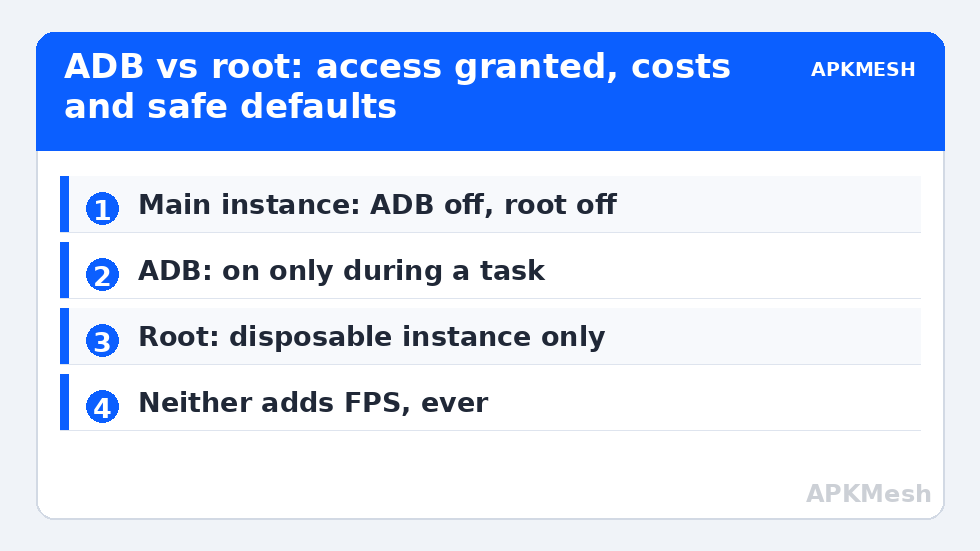
For a main gaming instance: ADB off, root off, and both facts noted in your settings record for that instance. For a utility instance: ADB on during work sessions only. For the rare rooted experiment: a separate instance, built for the purpose, signed into nothing you value, deleted when the experiment ends rather than drifting into daily use. Emulators make creating that disposable instance cheap — a few minutes — which removes the only honest argument for rooting the instance you live in.
Also know the undo path before you need it. Toggling root off and restarting returns most instances to a clean state for integrity purposes, but some games log device history server-side, and a flagged account does not unflag because you tidied the emulator afterwards. Prevention is the whole strategy here; there is no settings-level appeal process. If an app refuses to run and mentions security or integrity, check root first, ADB second, and the emulator build’s own certification status third, in that order, before reinstalling anything.
A Short ADB Session, Done Properly
To make the rhythm concrete, here is the shape of a legitimate ADB job from start to finish. Enable ADB debugging in the emulator’s settings and restart the instance if it asks. Connect from the PC with the emulator’s documented address or its bundled ADB tooling, and confirm the instance answers before running anything consequential. Do the one job — install the app, pull the log, run the test — and verify the result inside the guest with your own eyes rather than trusting a success message. Then disable ADB, restart the instance, and note what you changed in your setup record. The whole pattern takes minutes, and it is the same pattern whether the job is your first sideload or your fiftieth.
One job deserves a pointer rather than a paragraph here: using ADB-adjacent workflows to install Google services components belongs with the full sequence in installing Google Play on lightweight emulators, where install order and variant matching decide success. ADB is the delivery mechanism in that story, never the point of it.
What to Tell Support When an App Objects
Sooner or later a game’s support form will ask about your environment, and honesty is both the ethical and the practical answer: name the emulator and build, state plainly that root is disabled, and describe the exact error and when it appears. Support teams triage emulator reports by specificity, and a report that rules out the usual suspects — root off, current build, unmodified game files — gets investigated rather than bounced. Screenshots of the error beat paragraphs about it. You are far more likely to receive a useful answer, or a placed bug report, than any penalty for the crime of playing on a PC.
Frequently Asked Questions
Does enabling root make emulator games faster?
No. Root changes who is allowed to modify the Android system inside the guest; it has no mechanism to add frames, and no credible test shows an FPS gain from it. Its measurable effects run the other way – integrity checks, app refusals, and account risk. Performance lives in allocation, renderer, and resolution settings.
Why does my game or banking app refuse to run?
Root is the first suspect: many games and finance apps run integrity checks that treat a rooted environment as compromised and refuse or restrict service. A smaller number also object to ADB debugging or to uncertified emulator images. Disable root, restart the instance fully, and test again before reinstalling anything.
What is ADB actually used for in an emulator?
Practical jobs: installing apps from your PC’s command line, capturing system logs when a game crashes, mirroring and controlling the instance with tools like scrcpy, and automation or app-testing workflows. Ordinary gaming needs none of these, which is why ADB belongs off until a specific task calls for it.
Is it safe to leave ADB enabled all the time?
It is an open command channel into the instance for anything that can reach it. Bound locally on your own PC the risk is modest, but it grows with network bridging or port forwarding. The professional habit is simple: enable ADB for the session that needs it, then disable it when the job is done.
If I need root for one tool, how should I set it up?
Create a separate, disposable instance for that tool, enable root only there, and sign it into no accounts you value. Keep your main gaming instance unrooted permanently. When the job is finished, delete the rooted instance rather than letting it drift into everyday use.