

Two PCs can both say “16GB DDR4” on the spec sheet and deliver noticeably different emulator smoothness, because capacity is the least interesting number on a RAM stick. A proper ram timings single vs dual stick emulator diagnosis looks at the three things that actually shape memory behaviour: whether the sticks are running in single or dual channel, what speed they have genuinely negotiated, and whether their timings are the relaxed ones printed on the label or the slow fallback values the system chose when something did not match. This guide is a diagnosis procedure, not an invitation to hand-tune timings — on low-end emulator PCs, finding that you are accidentally in single channel or running 3200-rated RAM at 2133 is worth real performance, while squeezing CAS latency by a cycle is worth almost none and risks instability.
The Three Numbers That Matter, in Order
Channel mode comes first because it multiplies everything else. One stick, or two sticks in the wrong slots, means a single 64-bit path between CPU and memory; two sticks correctly placed means two paths in parallel. Emulators stress this path constantly — guest memory, translated code, frame buffers, and on integrated graphics the frame itself — so the channel mode is the difference between a memory system that queues and one that flows.
Negotiated speed comes second. Your kit is rated for a speed such as 3200 MT/s, but that rate only happens if the board loads the XMP/DOCP profile or the kit’s JEDEC table includes it. Memory that boots at a conservative fallback — 2133 or 2666 are the classic tells — is silently giving away a fifth to a third of its bandwidth, and owners blame the emulator for months.
Timings come a distant third. The CL number and its companions describe how many clock cycles operations take. Loose timings (say CL22 at 3200) cost a few percent versus tight ones (CL16) in latency-sensitive moments — real, but small next to a channel or speed problem, and largely fixed by the kit you bought. Diagnosis respects this order: fix channels, then speed, then stop.
The Diagnosis: Ten Minutes With CPU-Z and Task Manager
- Open Task Manager → Performance → Memory. Note Speed and Slots used. If Speed is far below your kit’s rating, flag it for step four.
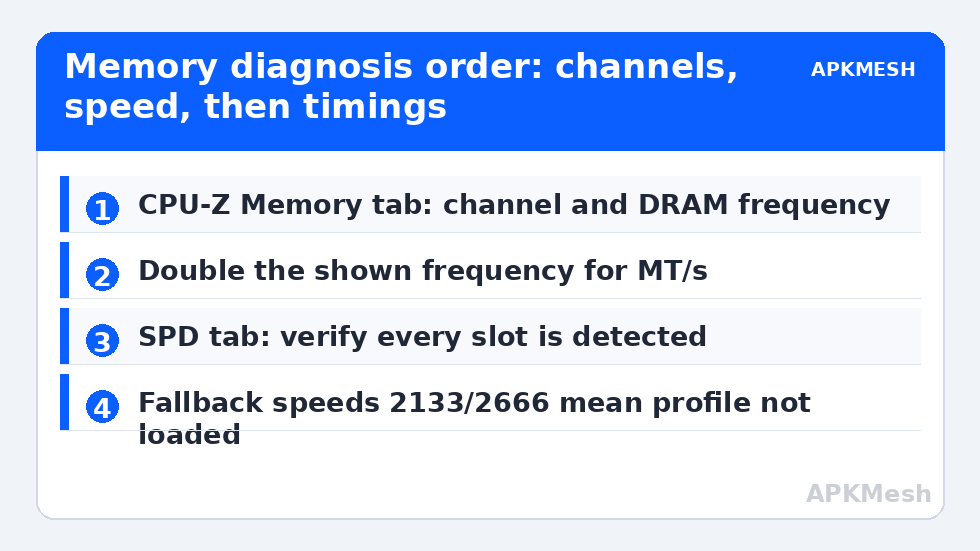
- Open CPU-Z, Memory tab. Read Channel (Single or Dual / 2 x 64-bit), DRAM Frequency (double it for the effective rate — 1600 MHz shown means 3200 MT/s), and the live CAS latency.
- Open the SPD tab and check each slot in turn. Confirm both sticks are detected, and compare their part numbers, sizes, and rated profiles. A slot showing empty that should hold a stick means a seating or slot problem, not a settings problem.
- If speed is at fallback, the profile is not loaded — that is the BIOS fix in our XMP/DOCP enable guide. If channel reads Single with two sticks fitted, suspect slot placement (the manual’s A2/B2 pairing) before suspecting the sticks.
- If one stick of a pair is slower, the pair runs at the slower stick’s speed and timings. That is normal controller behaviour, and the cure, if the gap is large, is a matched stick — see our dual channel upgrade guide.
Lag risk: —
What Each Finding Means for Emulator Behaviour
| Diagnosis | Typical emulator symptom | Fix priority |
|---|---|---|
| Single channel (one stick or wrong slots) | Hitches when assets stream; iGPU titles suffer most | Highest — add or reseat a stick |
| Dual channel but fallback speed (2133/2666) | Generally soft performance everywhere | High — load XMP/DOCP |
| Mismatched sticks, loose timings | A few percent lost; occasional instability if badly mismatched | Medium — consider a matched kit |
| Correct channels, rated speed, CL within kit spec | Memory is not your problem | Stop; diagnose CPU, GPU, or storage instead |
Hold this table against your expectations honestly. A machine that passes all three checks has a healthy memory system, and further RAM spending will not rescue it — the bottleneck sits elsewhere and deserves the investigation. A machine failing the first check has found the cheapest meaningful upgrade in all of emulator computing.
Stability: The Test Nobody Runs Until It Crashes
Any change to memory configuration — a new stick, an enabled profile, a reseat — deserves a stability test, because memory errors do not always announce themselves as crashes. They also appear as an emulator that corrupts a save, a game download that never verifies, or a blue screen once a week that gets blamed on drivers. Run a dedicated memory test (MemTest86 from a USB stick, or the extended Windows Memory Diagnostic as a weaker second choice) for at least one full pass, ideally several hours or overnight after a hardware change. A single error is a failed test — memory is not a component where “mostly fine” exists. If errors appear, work backwards in the usual order: reseat the sticks, confirm slots, drop the profile to the next speed step down, then suspect the individual stick by testing one at a time. And leave manual timing tightening alone entirely on a machine you rely on: the few percent on offer is not worth a configuration whose stability you must re-prove after every BIOS update. Round out memory health by sanity-checking the software side in our memory compression guide, and verify any change with the fixed-scene method in our benchmarking guide, and find the rest of the PC Optimization path from the APKMesh homepage.
Keep your diagnosis notes with the PC, even if everything passed. Recording the channel mode, the negotiated speed, and the timings you observed today gives future-you a baseline when a BIOS update resets the profile or a stick is swapped years from now. Memory regressions are silent precisely because nobody remembers what the numbers used to be — a three-line note in a text file is the entire difference between a five-minute check and a fresh mystery.
Frequently Asked Questions
CPU-Z shows my frequency as half the number on the box. Is something wrong?
No — that is the tool reporting the real clock, and DDR memory transfers twice per clock (Double Data Rate). Double the shown figure to compare with the rating: 1600 MHz in CPU-Z is 3200 MT/s, exactly what a DDR4-3200 kit promises. Something is only wrong if the doubled figure falls well short of the kit’s rating, which points to the profile not being loaded.
Both my sticks are installed but I am still in single channel. Why?
The usual cause is slot placement: on a four-slot board, a two-stick kit must occupy the paired slots the manual specifies (commonly the second and fourth from the CPU). Sticks side by side in the first two slots often land on the same channel. The second cause is one stick not being detected at all — check the SPD tab per slot and reseat.
Do tighter timings (CL16 vs CL22) matter for emulators?
A little, at the margins: latency-sensitive moments can differ by a few percent between a loose and a tight kit at the same speed. It is far smaller than the single-versus-dual-channel difference or a speed fallback, and it is determined by the kit you own. It is a reason to prefer a tighter kit when buying anyway, not a reason to hand-tune or replace a working one.
Can mixing two different RAM brands cause my emulator crashes?
It can, particularly when the sticks differ greatly in speed, timings, or voltage, because the controller must find one configuration both tolerate. Well-matched specifications from different brands usually cooperate. If crashes began when a second, dissimilar stick arrived, test each stick alone with a memory test — the evidence will identify whether the pairing is the problem.
How long should I run a memory stability test?
At minimum one complete pass with zero errors after any change; for a machine you depend on, several passes or an overnight run is the standard worth meeting. Memory errors are often temperature- and pattern-dependent, appearing only after the system is fully warm, which is why a two-minute clean result proves very little.