

The whole PC turns to treacle. Windows take seconds to open, the emulator freezes mid-game, and Task Manager shows the disk pinned at one hundred percent with no sign of mercy. Knowing how to fix emulator 100 percent disk usage problems starts with a distinction the percentage itself hides: that figure measures how busy the disk is, not who is keeping it busy or how much data is moving. Sometimes the emulator’s virtual disk work is genuinely the load. Sometimes Windows is doing maintenance through the same drive and the emulator is merely the most visible sufferer. On a low-end PC with one mechanical hard drive, both feel identical — so measure first, and let the process list, not frustration, choose your fix.
Find the Process That Actually Owns the Disk
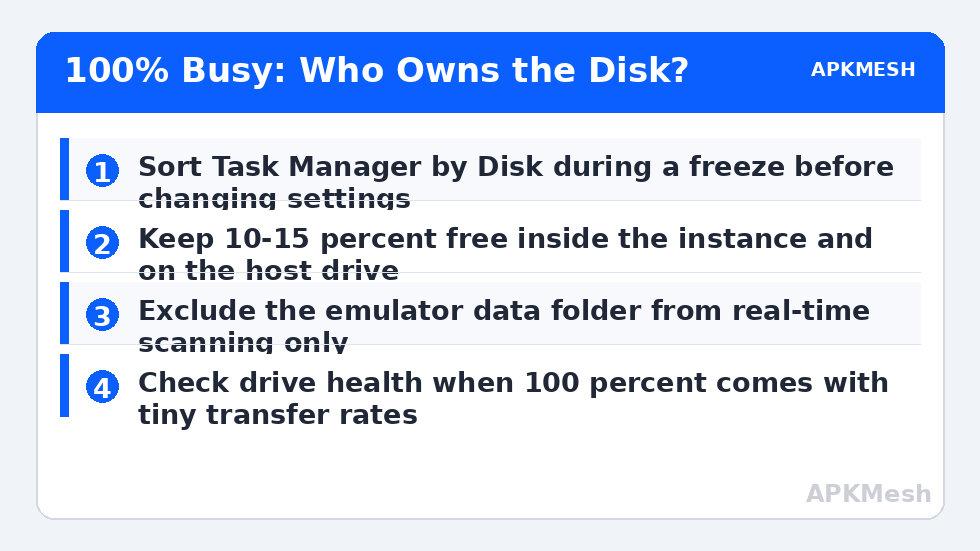
Open Task Manager, go to the Processes tab, and sort by Disk. Note the top process during a freeze, then open the Details or Resource Monitor view for a second opinion with real read and write rates. The emulator’s process writing heavily to its virtual disk file is one pattern. A Windows service, an update worker, a telemetry or indexing process, or a cloud sync client at the top is a completely different pattern with a completely different fix, and changing emulator settings for it achieves nothing except confusion.
- Emulator process on top, high write rates during play: virtual disk pressure — cache writes, downloads, or a nearly full instance.
- Windows services on top: update, indexing or optimisation work; usually temporary, worst in the hour after updates or first boots.
- Antivirus process on top, scanning emulator files: real-time scanning of a huge virtual disk image; exclusion territory, handled below.
- Disk at 100 percent with tiny transfer rates and long waits: the drive itself is struggling — fragmentation, age, or early failure. Check health before tuning software.
If the freezes coincide with an outright busy warning from the emulator itself, the two views combine well with fixing the System is Busy error, which covers the host-contention side of the same crowded machine.
Step 1: Shrink the Emulator’s Own Disk Work
Start inside the instance. A virtual disk that is nearly full makes every write slow and forces Android into constant housekeeping, so check Android Settings, Storage and free space until at least ten to fifteen percent is clear — the audit method is detailed in fixing storage full errors inside virtual disks. Inside games, let large downloads and updates finish while you are not playing rather than letting them write gigabytes in the background of a match. In the emulator settings, avoid enabling aggressive logging or recording features you do not use; continuous capture to the same drive as the virtual disk is a self-inflicted bottleneck on a single-drive PC.
- Free space inside the instance to at least ten to fifteen percent.
- Finish big in-game downloads before playing, not during.
- Turn off always-on recording, logging and screenshot features you do not need.
- Close other instances — each one reads and writes its own virtual disk.
- Restart the emulator and watch whether disk use now settles after startup.
Step 2: Stop Windows From Fighting the Virtual Disk
The most expensive unnecessary work on an emulator PC is real-time antivirus scanning of the virtual disk file. That file can be tens of gigabytes, changes constantly while you play, and scanning it on every change is pure overhead with little security value, because the scanner cannot meaningfully inspect inside it anyway. The standard, proportionate response is to add the emulator’s data folder — the folder containing the virtual disk images — as an exclusion in Windows Security, while keeping real-time protection fully on for everything else. The exclusion process and its safety reasoning are covered in the Defender and antivirus guide; follow it rather than improvising with protection disabled.
Scheduling is the other half. Windows Update, search indexing and drive optimisation prefer idle time, but on a machine used in short bursts they often trigger the moment you sit down to play. Let updates complete and restart when they ask instead of deferring them for days, because a perpetually pending update retries its disk work every session. After major updates, allow the settling period described in the Windows update guide before judging disk behaviour.
Step 3: Check the Drive Itself — Health, Space and Fragmentation
Software tuning cannot rescue a drive that is failing or choked. Confirm the host drive has at least fifteen percent free space; fuller mechanical drives slow dramatically, especially for the large sequential virtual disk file. Check drive health with the manufacturer’s tool or Windows’ drive status, and treat reallocated-sector warnings, clicking sounds, or steadily rising response times as a backup-now signal, not a tuning opportunity. Your emulator instances and their account-linked progress deserve a backup before the drive makes the decision for you.
On a mechanical drive, a heavily fragmented virtual disk file scatters the emulator’s reads across the platter. Windows’ built-in optimise tool can defragment the host drive — never run third-party defragmenters against the virtual disk file from inside tools you do not trust, and never defragment an SSD, which Windows correctly handles with trim instead. If your active instance lives on a hard drive and disk problems are your recurring theme, moving the emulator’s data to even a modest SSD is the closest thing this category has to a permanent fix, transforming startup, switching and loading behaviour together.
While the drive is under suspicion, check that background load elsewhere is not compounding the problem:
Lag risk: —
Verify With a Full Session, Not a Glance
- Disk usage spikes at emulator launch, then settles to modest levels at the Android home screen.
- During gameplay, disk activity rises for loading moments but no longer pins at maximum for minutes.
- Windows remains responsive — Start menu, browser, file explorer — while the emulator runs.
- A full session including app switching and a game download shows no return of the multi-minute freeze pattern.
Disk saturation on a low-end PC is rarely one villain. It is a queue: a big virtual disk, an eager scanner, a pending update and a tired drive, all asking one device for more than it has. Remove the unnecessary requests, schedule the necessary ones, and keep the drive healthy and reasonably empty, and the hundred percent wall becomes a brief startup spike — which is all it was ever supposed to be.
Treat the first quiet week after this fix as probation: glance at the disk graph during your next few launches so you learn what healthy startup saturation looks like on your own machine. That familiarity is what lets you spot the next problem — a failing drive, a runaway service — in its first session instead of its tenth. The APKMesh homepage holds the spec calculator for checking whether a second instance is realistic on a single-drive PC before disk pressure answers for you.
Frequently Asked Questions
Is 100 percent disk usage always the emulator’s fault?
No, and Task Manager’s Details view will show you the truth. Often the emulator is simply the loudest victim: a Windows update, indexing service or sync client saturates the disk, and the emulator — which constantly reads a huge virtual disk file — stutters most visibly. Always identify the actual top process before changing emulator settings.
Why does disk usage spike when the emulator starts and then settle?
Startup is the emulator’s most disk-intensive moment: it opens and verifies the virtual disk, loads the Android system image, and starts services that read their data. A spike lasting one or two minutes on a hard drive is normal behaviour. Usage that remains pinned at maximum long after the home screen appears is the abnormal pattern this guide addresses.
Will moving the emulator to an SSD really fix this?
If your virtual disk currently lives on a mechanical hard drive, yes — it is the single most effective change for disk-related emulator problems, because SSDs handle the random reads and writes of a virtual machine vastly better. It will not fix saturation caused by a failing drive or another process, so confirm the cause first with the process checks.
Should I disable Windows Search and SysMain permanently?
Treat disabling as a diagnostic test, not a lifestyle. Stopping a service temporarily to prove it causes your spikes is sound method. Permanently disabling services has side effects — slower searches, changed app launch behaviour — and modern Windows manages both reasonably. Prefer fixing schedules, exclusions and drive health, and keep any permanent change minimal and documented.
My disk is at 100 percent but data rates look tiny. What does that mean?
The percentage measures how busy the disk is, not how much data moves. Small random requests with long waits — typical of failing hard drives, fragmented virtual disks, or many tiny file operations — can keep a drive fully busy at very low transfer rates. That signature, especially with rising response times, is a reason to check drive health promptly and back up important data.