
It tends to appear at the worst moment: you launch the emulator before a match, or open a second instance, and instead of Android you get a polite, useless warning that the system is busy. Learning to fix system is busy error emulator dialogs comes down to one insight — this is not really an error code at all. It is the emulator admitting that something it needed, usually CPU time, disk access or a background service response, did not arrive quickly enough. On a low-end PC that queue forms easily. Your job is to find what is standing in it, clear it, and stop it forming again, rather than reinstalling an emulator that is honestly reporting a crowded machine.
What the Emulator Is Waiting For
Starting and running an Android instance involves constant hand-offs: the host process asks Windows for CPU threads, reads large chunks from the virtual disk, calls its own background services for input, networking and rendering, and expects each answer promptly. When an answer is late beyond a threshold, many emulators surface a generic busy message instead of freezing silently. That makes the message a symptom with many possible owners, and the timing of its appearance is your best clue to which owner you have.
- It appears at launch: host contention — antivirus scanning, Windows updates, indexing, or another instance still starting.
- It appears when opening a second or third instance: you have hit a real resource ceiling, most often memory or disk throughput.
- It appears mid-game during heavy scenes: a background task woke up, or thermals forced the CPU to slow down under sustained load.
- It appears constantly, even idle at the home screen: something persistent is consuming the machine — check for runaway processes and disk saturation first.
If the busy warning is accompanied by the drive light staying solid and long freezes, treat disk pressure as the prime suspect and cross-check with the 100 percent disk usage fix. If it arrives together with a outright launch failure instead, the engine-start chain in fixing an emulator stuck on starting the engine is the closer match.
Step 1: Catch the Competing Process in the Act
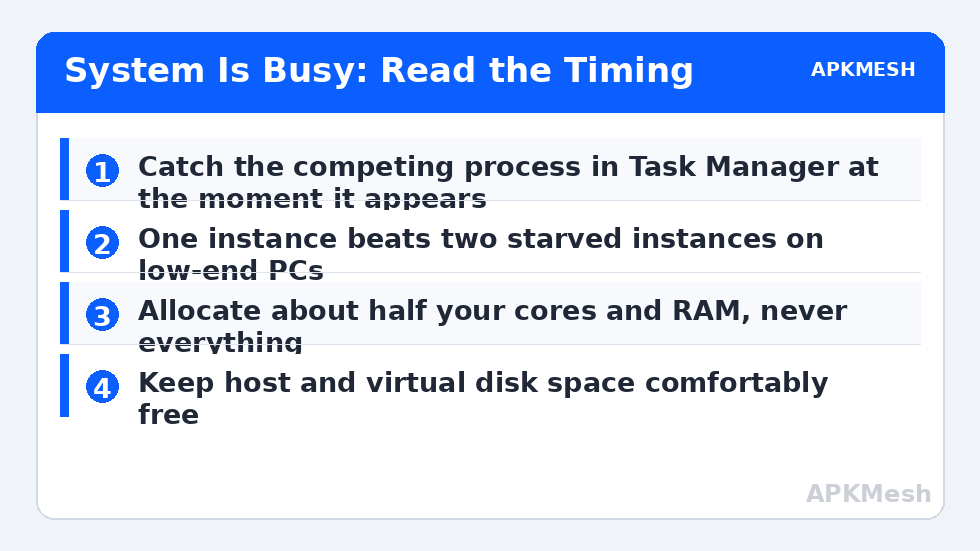
Do not troubleshoot this one from memory. Next time the message appears, leave the emulator open, press Ctrl, Shift and Esc, and sort Task Manager by CPU, then by Disk. You are looking for the process that is busy at the same moment the emulator complains. Common findings include Windows Update downloading in the background, a scheduled antivirus scan, a cloud drive syncing a large folder, a browser with many heavy tabs, or another emulator instance you forgot was minimised.
- Reproduce the message, then immediately open Task Manager.
- Sort by CPU and note the top three processes; repeat sorted by Disk and by Memory.
- If a known background job is responsible, let it finish or pause it properly — updates and scans end on their own.
- Close genuinely unneeded heavy apps before launching the emulator next time.
- Relaunch and confirm the message does not return under a normal load.
Step 2: Reduce the Load the Emulator Itself Creates
Sometimes the queue is of the emulator’s own making. Running two instances on a quad-core, 8 gigabyte machine asks the hardware to host two Android phones and Windows simultaneously, and the busy message is simply arithmetic. Be honest about concurrency: one well-configured instance outperforms two starved ones for almost every real use, including most multi-account routines, which can be run in sequence instead.
Allocations matter in the same direction. Giving an instance every CPU core leaves nothing for the host processes the emulator depends on, so its own requests queue behind its own guest. A widely reliable pattern on low-end systems is to allocate roughly half your physical cores and no more than half your RAM to a single instance, leaving Windows room to serve it. If you previously raised allocations while chasing performance, this is a good moment to test lower values and measure, rather than assuming bigger is better. High host consumption at idle is its own diagnosable pattern — see fixing high CPU and memory usage in emulators if Task Manager shows the emulator burning resources even at the home screen.
Step 3: Clear the Persistent Causes
When the message appears even on a quiet machine, work through the persistent owners. Start with storage: a host drive above roughly ninety percent full slows every write the virtual disk makes, and a virtual disk that is itself nearly full makes Android’s own services stall and retry. Free space on both. Next, check thermals during a longer session. A laptop that runs cool for ten minutes and then throttles will produce busy warnings that mysteriously arrive mid-session; elevated placement, cleaned vents and a frame-rate cap that your cooling can sustain all help more than any software toggle.
Also give the emulator a clean start state. Fully exit it, including its tray agent, restart the PC, and launch the emulator before anything else. If the busy message never appears in that clean sequence but returns later in the day, the owner is something that starts later — an update schedule, a sync client, a backup job — and your Task Manager observations from Step 1 will name it. Schedule heavy jobs for times you do not play, rather than fighting them daily.
Still unsure whether your machine should handle your current instance count at all? Run the numbers before adding more:
Lag risk: —
When the Message Points at the Installation
Only after host load, allocations, storage and thermals are cleared should you suspect the emulator installation itself. A damaged background service or a bad update can make its internal hand-offs slow enough to trip the busy threshold on an otherwise idle PC. Update the emulator first. If the problem began immediately after an emulator update, that timing matters — check the release notes or community reports for your build before performing a clean reinstall. After any reinstall, restore one instance with moderate allocations and test under a deliberately light host load, so your verification actually proves something.
The busy warning also has a close cousin worth recognising: an emulator that appears to load forever rather than complaining, described in resolving BlueStacks stuck at 99 percent loading. The two share host-contention causes, so a machine prone to one is often prone to the other. Keep both patterns in mind, use the APKMesh homepage tools to sanity-check allocations, and your low-end PC will spend its resources on games instead of queues.
Frequently Asked Questions
Does System is Busy mean my PC is too weak for the emulator?
Not necessarily. The message means a background task or resource queue did not finish within the emulator’s expected window. Weak hardware makes that more likely, but the immediate trigger is usually a transient load: a scan, an update, many instances, or a busy disk. PCs well above the minimum requirements can show it when several heavy tasks collide at the same moment.
Why does the error appear when I open a second instance?
A second instance doubles the demand for CPU threads, memory bandwidth and disk access at the exact moment the first instance is already working. On an 8 or even 16 gigabyte system that spike commonly trips the busy check. Start instances one at a time, let the first reach the home screen, and reduce per-instance allocations if you genuinely need two running together.
Is it safe to just keep dismissing the message and retrying?
Dismissing it occasionally is harmless, but repeated retries while the underlying load continues can leave an instance half-started and harder to recover. If it appears twice in one session, stop, check Task Manager for the competing load, close what you do not need, and restart the emulator cleanly instead of hammering the launch button.
Could malware cause repeated System is Busy errors?
Heavy unwanted software can certainly consume the resources that trigger the message, which is one reason to run a reputable scan if the errors began alongside other strange behaviour. More often the consumer is legitimate software updating or indexing. Task Manager will show you which process is responsible either way, so look before assuming the worst explanation.
Will adding more RAM allocation inside the emulator help?
Usually the opposite. Allocating more memory to the emulator leaves less for Windows and the emulator’s own host processes, deepening the contention that triggers the busy state. Keep allocations proportionate to your total RAM, close other instances, and address the competing background load first. Balance, not maximum values, is what makes the message stay away.