The BlueStacks loading bar crawls to 99% — and stays there. Minutes pass, the spinner keeps spinning, and the home screen never arrives. A proper BlueStacks stuck at 99% loading fix starts by understanding what that last percent represents: the engine has started, and the Android instance is in its final boot phase — starting system services, mounting the virtual disk, and initialising graphics. A hang here is almost never “almost loaded, just wait longer.” It is a specific subsystem failing. This guide walks the causes in the order they actually occur on real machines.
Rule Out the Innocent Explanation First
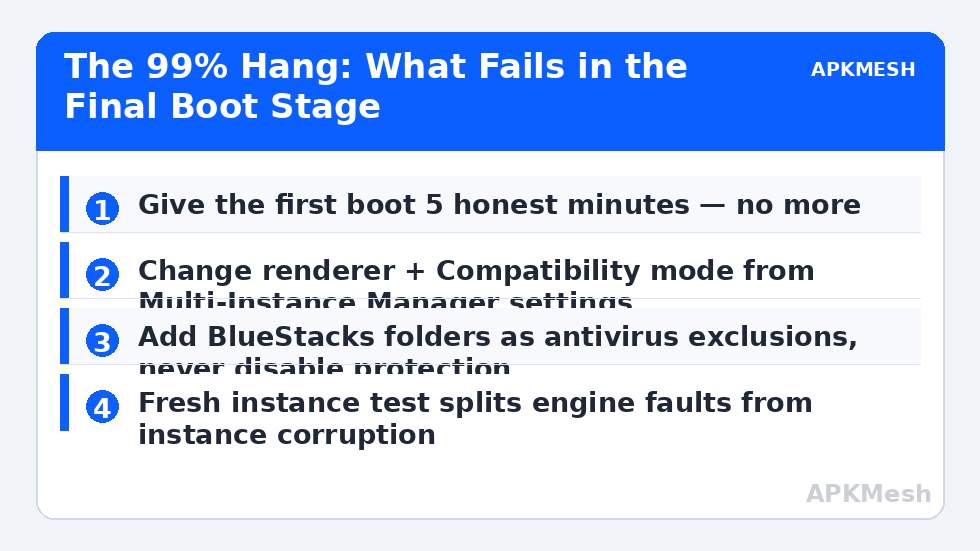
After an update, a first boot, or on a mechanical hard drive, the first load can genuinely take several minutes while caches rebuild. Give it one honest five-minute wait on the first occurrence. If it sticks at 99% on the second launch too, it is a fault, not patience. Note also whether it happens on every instance or just your main one — that single observation splits the diagnosis in half:
- Every instance hangs: engine, graphics, security software, or Windows layer.
- Only one instance hangs: that instance’s data is corrupt. Skip to Fix 4.
Fix 1: Kill the Zombie Process and Cold-Start
BlueStacks that was closed during a hung load often leaves the HD-Player process alive, and the next launch queues behind the corpse. Open Task Manager, end all BlueStacks processes (HD-Player, BlueStacks-related services you recognise), restart the PC, and launch BlueStacks before opening anything else. This is the same zombie-state problem behind engine failures generally — background reading in the hypervisor and engine-start guide.
Fix 2: Change the Graphics Settings From Outside the Instance
The final boot phase is where the renderer initialises, and a renderer/driver mismatch hangs precisely here. You do not need the instance to boot to change it: open BlueStacks Settings from the main window’s side toolbar or the Multi-Instance Manager → Settings → Graphics, and:
- Switch Graphics renderer: OpenGL ↔ DirectX (whichever you are not currently using).
- Set Graphics engine mode to Compatibility if the option is present.
- Reduce the instance resolution temporarily to 1280×720 and DPI to 240 — you can raise them after it boots.
- Save and launch.
If your graphics card is old, drivers deserve suspicion next: update from the GPU vendor’s site, or roll back if the hang started the day a new driver landed. Persistent display-initialisation trouble on elderly hardware is covered deeply in the DirectX initialisation failure guide.
Fix 3: Antivirus Interference at the Worst Moment
Security software scanning the multi-gigabyte virtual disk image as it mounts can stall the boot indefinitely, and some suites intermittently quarantine emulator components. Check your antivirus history/quarantine for BlueStacks files first. The correct remedy is adding the BlueStacks installation and data folders as exclusions in your existing antivirus — then leaving protection fully on. The wrong remedy, disabling the antivirus permanently, trades a loading bug for an unprotected PC; never do it, and ignore any forum post that insists otherwise. Full detail lives in the antivirus blocking emulators guide.
Fix 4: The Instance’s Data Is Corrupt
If only your main instance hangs: its virtual disk took damage (hard shutdowns and full disks are the usual killers). Do this:
- In Multi-Instance Manager, create a fresh instance with the same Android version.
- Confirm the fresh instance boots normally.
- If it does, your engine is healthy and the old instance is the problem. Reinstall your apps on the fresh instance — anything tied to a Google/publisher account restores automatically; local guest saves are the only real loss.
- Delete the corrupt instance through the Manager rather than deleting folders manually.
Also check your host disk space: an instance on a nearly-full drive can hang at mount and later corrupt itself. Keep at least 10–15 GB free on the drive holding BlueStacks data. Storage faults inside instances have their own guide under fixing storage-full errors once you can boot again.
Before assuming corruption, verify your allocations are sane — an instance configured beyond what the host can give can stall at exactly this stage:
Lag risk: —
Fix 5: Clean Reinstall (Last Resort, In This Order)
Only when fresh instances also hang: uninstall BlueStacks, run the official BlueStacks cleanup tool from the official support site to remove leftover services and data, restart, then install the latest build. Reinstalling without the cleanup step preserves the broken components and changes nothing — it is the most common reason “I already reinstalled five times” never helps.
How to Verify the Fix
The instance reaches the home screen on three consecutive cold starts, including once immediately after a full PC reboot, and launches a game. Then restore your preferred resolution/DPI one step at a time — if the hang returns when you raise a specific setting, you have found your ceiling and your culprit in one move.
When This Will Not Work
If the host drive is failing (SMART warnings, other apps corrupting data), no instance will stay healthy. If virtualization is unavailable or the Windows hypervisor state is broken, the engine stalls long before honest troubleshooting helps — confirm VT status first if the hang is accompanied by any virtualization message. And if a fresh, clean install on a healthy machine still hangs at 99% on every instance, you are likely looking at a bug in that BlueStacks build for your hardware combination; the practical move is the previous stable build from the official site, not a download portal.
Prevention: Keeping the 99% Hang From Coming Back
Once it boots again, three habits prevent most recurrences. First, always shut BlueStacks down fully before shutting down Windows — hard power-offs during instance write operations are the leading cause of the virtual-disk corruption behind recurring hangs. Second, keep the host drive at least 15% free; instances grow silently with every game update, and the hang often returns the week the drive crosses into the red. Third, after BlueStacks or Windows feature updates, do one deliberate cold reboot and a test launch before you actually need the emulator — updates occasionally flip the graphics mode or Windows features, and discovering that on your schedule beats discovering it mid-session. If a hang returns despite all three, your log of “what changed this week” will almost always name the culprit faster than any fix list.
If you are collecting several of these faults at once — the 99% hang one week, an engine error the next — treat them as one story rather than separate mysteries: they share the instance-corruption and Windows-state causes that run through this entire lag and error fixes collection. A machine that cycles between them usually settles permanently after one disciplined pass: consistent hypervisor settings, a verified-healthy instance, and a clean install done once, properly, instead of repeatedly.
Frequently Asked Questions
How long should I actually wait at 99% before intervening?
Five minutes on a first boot after install/update, two minutes on routine launches. Beyond that, the boot is hung, not slow — waiting longer has never fixed a stalled service start.
Will a clean reinstall delete my games and accounts?
It deletes local instance data. Anything signed into Google Play or a publisher account re-syncs after reinstall. Guest-account progress stored only in the instance is lost, which is why the fresh-instance test comes before the reinstall in this guide.
The hang started after I changed a setting. Which one?
Most often the renderer or a custom resolution/DPI combination, occasionally an extreme CPU/RAM allocation. Fix 2’s outside-the-instance settings path exists precisely for this: revert graphics first, allocations second.
Does SSD vs HDD matter for this error?
For boot speed, enormously. For the hang itself, only indirectly: a failing or nearly-full HDD causes the corruption and mount timeouts behind several cases. A healthy HDD loads slowly but completely.
Why does it hang at 99% and not earlier?
Because the early percentages are engine and resource loading, which are healthy on your machine. The final stage starts Android’s own services and graphics — the most failure-prone part — so faults concentrate there.