The emulator opens, spins for a moment, and dies with “Hypervisor error,” “Failed to start the engine,” or a prompt to restart the PC that never helps. To fix the hypervisor error and failed-to-start-engine failures you need to understand the layer they live in: the emulator’s engine is a virtual machine, and something between the CPU and the emulator — firmware settings, Windows hypervisor features, a damaged virtual disk, or another virtualization program — is refusing to let it start. The order below goes from the Windows layer down to a clean reinstall, stopping at the first level that is actually broken on your machine.
How This Error Differs From the Plain VT Error
The plain VT error means virtualization is off or unreachable. The hypervisor/engine error usually appears when VT is partially working — the emulator detects the capability, tries to initialise its hypervisor or virtual device, and fails partway. Typical triggers:
- Mixed hypervisor state: some Windows virtualization features on, some off, leaving BlueStacks/LDPlayer unsure which backend to use.
- A leftover process or locked virtual disk from a crashed previous session.
- Corrupt instance data — the virtual disk or config of that specific instance is damaged.
- Conflicting software: VirtualBox/VMware running simultaneously, or an antivirus sandboxing the emulator’s virtual device drivers.
- Outdated emulator build that mishandles a newer Windows build’s hypervisor behaviour.
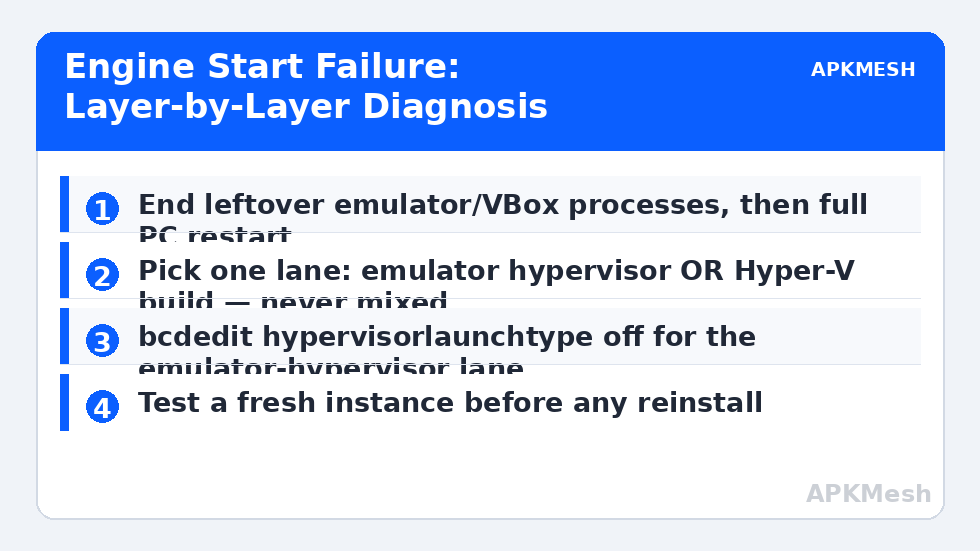
Fix 1: Full Restart and Kill Leftover Processes
Not a soft close — a real cleanup. Close the emulator, open Task Manager, and end any remaining emulator processes (names like HD-Player, LdVBoxHeadless, dnplayer, NoxVMHandle, MuMuVMMHeadless, and any “VBox” entries belonging to the emulator). Then restart the PC. A surprising share of “failed to start engine” cases are simply a zombie VM from a crashed session still holding the virtual disk. If the error returns on a truly clean boot, move down.
Fix 2: Make the Windows Hypervisor State Consistent
Pick one lane and commit to it:
Lane A — Emulator uses its own hypervisor (most common fix)
- Run Windows Features and uncheck: Hyper-V, Virtual Machine Platform, Windows Hypervisor Platform, Windows Sandbox.
- Disable Memory Integrity: Windows Security → Device security → Core isolation → Memory integrity → Off.
- Open an elevated Command Prompt and run:
bcdedit /set hypervisorlaunchtype off - Restart, confirm with Task Manager that Virtualization shows Enabled, then launch the emulator.
Lane B — Emulator runs on top of Hyper-V
Newer BlueStacks builds ship a Hyper-V-compatible version. If you need WSL2, Docker, or Windows Sandbox for work, do not strip features out; install the Hyper-V-specific build from the official site instead and leave the features on, with hypervisorlaunchtype set to Auto. Mixing Lane A settings with a Lane B build (or the reverse) recreates this exact error.
Trade-off honesty: Lane A disables real platform features. Memory Integrity in particular is a security control; turning it off plus disabling the hypervisor reduces isolation for the whole PC. That is acceptable for many home gaming machines, but it is a genuine reduction — do not do it on a machine an employer manages.
Before reinstalling anything, sanity-check that your hardware allocations are even viable, since an engine starved of RAM can fail to start in ways that look identical:
Lag risk: —
Fix 3: Create a Fresh Instance Instead of Repairing the Old One
If the engine starts on a new instance but not your existing one, the instance’s virtual disk is corrupt — reinstalling the whole emulator will not fix data that the installer preserves. Use the emulator’s Multi-Instance Manager to create a fresh instance (same Android version), test it, and only then decide whether to reinstall apps on it or attempt data recovery on the old one. This is also the fastest discriminator between “emulator broken” and “instance broken,” and it takes three minutes. It is the same first move recommended for BlueStacks stuck at 99% loading, because the root causes overlap heavily.
Fix 4: Remove Conflicts and Reinstall Cleanly
- Close VirtualBox, VMware, and other emulators completely — two hypervisors cannot drive the same VT hardware simultaneously outside the Windows hypervisor arrangement.
- Check your antivirus quarantine/history for emulator driver files (the fix for repeated blocking is covered in the antivirus blocking guide) — add the emulator’s install folder as an exclusion rather than disabling protection.
- If a fresh instance also fails, uninstall fully, run the vendor’s official cleanup tool, restart, and install the current build from the official website. Import nothing from the old installation.
How to Verify the Fix
Success looks like: the engine starts three times in a row from cold boots, a fresh instance reaches the home screen, and your main instance (if it survived) launches a game without the error reappearing after a full PC restart. One lucky launch proves nothing — this class of error is intermittent when a leftover process or race condition is the cause, so the restart test matters.
When This Will Not Work
If virtualization is entirely unavailable — disabled by a locked BIOS, absent from the CPU, or hidden inside a host VM without nested virtualization — the engine cannot start on any setting; see the VT error guide for confirming that state. Likewise, severely corrupted Windows system files or a failing disk can prevent any hypervisor from initialising; at that point sfc /scannow and disk health checks come before emulator troubleshooting. Browse the wider lag and error fixes collection if your error text is close to but not exactly this one.
Reading the Clues the Error Leaves Behind
Before reinstalling anything, gather the two pieces of evidence this fault leaves. First, Windows Event Viewer → Windows Logs → System, around the time of a failed start: entries from the emulator’s service or from Hyper-V/VirtualBox-style drivers often state plainly whether the failure was “hypervisor not present,” a device timeout, or a file lock. Second, the emulator’s own log folder (locations vary; the vendor support pages name them per product) — search the latest log for “error,” “failed,” and the engine/virtual-disk filenames. A log line about a locked or missing .vdi/.vmdk file points at instance corruption (Fix 3); a line about the hypervisor points at Windows state (Fix 2). Ten minutes of reading routinely replaces an hour of reinstalling, and if you end up contacting vendor support, these logs are the first thing they will ask for — having them ready turns a week of back-and-forth into one reply.
One last discriminator worth thirty seconds: create a brand-new Windows user account, sign into it, and launch the emulator there. If the engine starts under the fresh profile, your main profile carries the corruption — a broken per-user service registration or profile-level policy — and reinstalling the emulator under your normal account will keep failing for profile reasons, not software ones. That single test has ended many multi-day reinstall loops.
Frequently Asked Questions
Why did the engine error appear after a Windows update?
Feature updates can re-enable Virtual Machine Platform or Memory Integrity, flipping your machine from Lane A to a mixed state. Re-check those toggles after every major Windows update before assuming the emulator broke.
What does the bcdedit hypervisorlaunchtype command do?
It controls whether the Windows hypervisor loads at boot. Setting it to Off stops Windows from claiming the virtualization layer so the emulator’s own hypervisor can use it. Set it back to Auto if you return to Hyper-V-based tools.
Will creating a fresh instance delete my game progress?
Games signed into Google Play, Facebook, or a publisher account restore progress from the cloud. Only guest/local saves live solely in the old instance’s disk — a fresh instance will not have them, so check account linking first.
Can I run BlueStacks and VirtualBox at the same time?
Not reliably outside a consistent Hyper-V arrangement. In the common Lane A setup they fight over the same hardware virtualization. Close one completely (including its background services) before starting the other.
The error names a specific code. Should I search that instead?
Yes — vendor error codes narrow the cause. But most numeric codes for engine-start failures still map back to the same four layers covered here: firmware, Windows hypervisor state, instance corruption, or conflicts.