Every Windows service idling in the background costs a little RAM, a few handles, and occasionally a rude burst of CPU exactly when your emulator is mid-fight. The appeal of “disable background services to boost emulator speed” is real but modest: on a healthy modern PC, services are not your problem; on a 4GB, dual-core machine they can be the difference between playable and not. This guide takes the safe route — audit first, disable only the genuinely optional, use Manual rather than Disabled where there is doubt, and keep a written record so every change is reversible. It deliberately steers you away from the services that break Windows when touched, because the most popular services lists on the internet include several of those.
Ground Rules Before You Touch Services.msc
- Audit before acting. Task Manager → Processes, sorted by memory and CPU at idle, plus Performance → Resource Monitor, shows what is actually consuming. A service using 8MB and 0% CPU is not worth a registry decision.
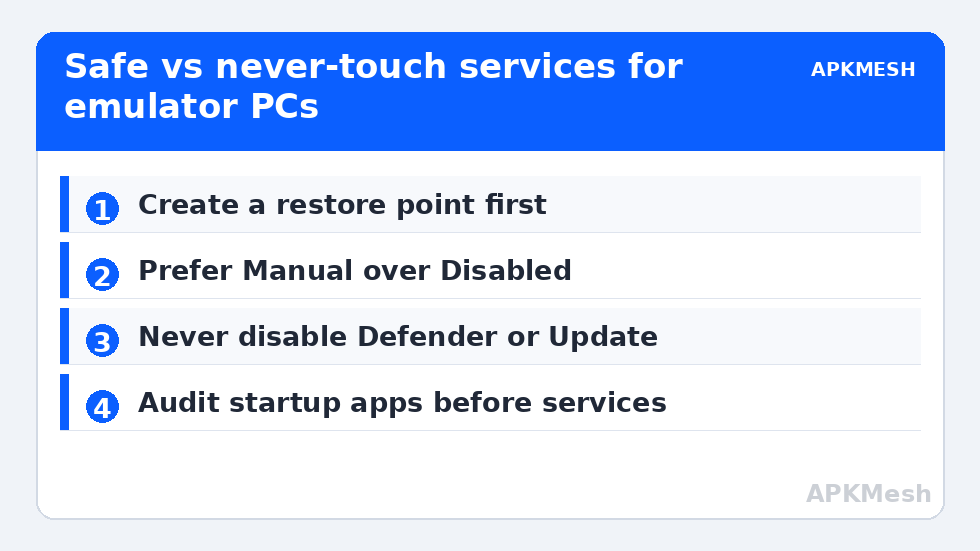
- Create a restore point (Settings → System → About → System protection → Create) and export your change list to a text file: service name, original startup type, new type. This makes the whole exercise zero-risk.
- Prefer Manual over Disabled. Manual services start when something needs them and stop being a permanent resident. Disabled is for the handful you are sure about.
- One batch, then test. Change a group, reboot, run the emulator. If something broke, your notes tell you exactly what to revert.
Services That Are Usually Safe to Set to Manual (or Disable)
| Service | What it does | Suggested setting | Caveat |
|---|---|---|---|
| Print Spooler | Printing queue | Manual (Disabled if you never print) | Printing stops entirely when Disabled |
| Fax | Fax support | Disabled | Essentially unused hardware on modern PCs |
| Retail Demo Service | Store demo mode | Disabled | Only relevant on ex-display machines |
| Xbox Accessory Management / Xbox Live services (4) | Xbox app & Game Pass plumbing | Manual | Set back to Manual/Auto if you use Game Pass PC |
| Remote Registry | Remote registry editing | Disabled | Also a small security improvement |
| Geolocation Service | Location for apps | Manual | Weather/news widgets lose location |
| Downloaded Maps Manager | Offline Maps app data | Disabled if you never use Maps | Harmless either way |
| Touch Keyboard and Handwriting Panel | Touch input | Manual | Keep on tablets/2-in-1s |
| Windows Media Player Network Sharing | DLNA sharing of WMP library | Disabled | Nobody uses this intentionally anymore |
| SysMain (formerly Superfetch) | Preloads frequently used apps into RAM | Test both ways on SSD systems | On SSDs it is usually neutral; on HDD systems it can cause disk churn — measure, do not assume |
Lag risk: —
Services You Must Not Disable
Windows Update (use its own pause/schedule controls instead — disabling it leaves the machine unpatched and it turns itself back on anyway), Windows Defender’s services (Microsoft Defender Antivirus Service, Security Center, Windows Defender Firewall), Windows Audio, DHCP Client, DNS Client, Network Location Awareness, RPC (Remote Procedure Call — Windows will not function without it), DCOM Server Process Launcher, Plug and Play, Power, User Profile Service, Windows Event Log, Cryptographic Services (updates and installs depend on it), and BITS (Background Intelligent Transfer Service — Windows Update and the Store ride on it; Manual is its natural state). Any list that tells you to disable Defender or Update for FPS is trading your machine’s safety for nothing measurable, the same category of bad advice our PC Optimization hub consistently filters out.
The Bigger Fish: Startup Programs and Scheduled Tasks
Honestly assessed, services are the third-largest background cost on most machines. First is startup programs (Task Manager → Startup apps) — vendor updaters, launchers, chat clients with real memory footprints. Second is scheduled tasks that wake at awkward times: while in services.msc you can also open Task Scheduler and look at what runs at logon or hourly; the Microsoft Compatibility Appraiser telemetry task and various OEM updaters are classic mid-game disk spikes. Treat tasks like services: note the original state, disable only named OEM/updater entries, never core Windows maintenance (disk cleanup and Defender scans are features, not bloat).
Measuring Whether It Worked
Reboot, let the machine idle five minutes, and compare idle RAM usage in Task Manager against your pre-change note; a realistic success is 300MB–1GB returned and fewer background CPU spikes in Resource Monitor. Then run your standard emulator scene (method in the benchmarking guide). On a 16GB desktop, expect no FPS change and accept that gracefully — the gain there was never on the table. On a 4GB laptop, idle memory headroom converts directly into fewer pagefile stalls, which connects to the commit behaviour explained in our pagefile guide.
A Worked Example: The 4GB Laptop Audit
To make the method concrete, here is what a typical audit of a neglected budget laptop finds at idle, before any game starts: the vendor’s support assistant and its updater (150–250MB combined), two chat clients set to launch at sign-in (200MB+), a cloud-sync client indexing in the background, an RGB/peripheral suite polling hardware, the Print Spooler waiting for a printer that does not exist, and three separate software updaters (Java’s legacy scheduler, a PDF reader updater, the OEM driver helper) each waking on timers. None of these appears in a services list as an obvious villain — most are startup programs and tray residents — yet together they can claim a quarter of a 4GB machine and produce exactly the “random stutter” pattern users blame on the emulator. The audit fixes that in twenty minutes with Task Manager and the startup tab, no service changes required. Services become the priority only after this low-hanging layer is cleared, and on many machines the service step then finds little left worth doing. That ordering — tray and startup first, scheduled tasks second, services third, each measured — is the difference between optimisation and ritual.
Treat the finished audit as a baseline document, like a known-good driver version. Save the exported service list and your change notes beside it; six months from now, when a Windows feature update quietly resets some startup types (it does happen), you can reapply your decisions in minutes instead of re-deriving them — and you will spot update-driven changes immediately because you know what your machine is supposed to look like.
Frequently Asked Questions
How much FPS will disabling services give me?
On most systems: none directly. The benefit is freed RAM and fewer background interruptions, which shows up as stability on constrained machines (4–8GB RAM, few cores) rather than higher averages on healthy ones. Anyone promising a fixed FPS number for services tweaks is inventing it.
I disabled something and a feature stopped working. What now?
Open services.msc, sort by Startup Type, and compare against the text file you made before changing anything (this is why the guide insisted on it). Restore the changed entries to their original types and reboot. If you skipped the notes, setting the suspects back to Manual resolves the large majority of cases.
Is it safe to use a “gaming services” script or debloat tool that does this automatically?
No. Those scripts typically change dozens of settings without a per-machine audit, sometimes including security services, and provide no clean undo. The manual method in this guide takes fifteen minutes and is fully reversible. Automation is not a virtue when every change needs individual judgement.
Should I disable Windows Search indexing?
Setting the Windows Search service to Manual (or excluding your emulator and game folders from indexing) can help HDD-based systems during play, since index crawls are disk-heavy. On SSDs the impact is minimal. Search inside Explorer becomes slower or falls back to unindexed results — a fair trade only if you feel the disk contention.
What about SysMain — on or off?
It genuinely depends. SysMain preloads apps into otherwise-idle RAM (which is not wasted RAM — it yields it instantly on demand). On SSD systems leave it alone unless Resource Monitor shows it churning the disk during play; on HDD systems it is a legitimate test candidate. Measure both ways before deciding.