The emulator window opens, the loading bar completes — and instead of the Android home screen you get a black rectangle that sits there indefinitely. Learning how to fix the black screen on LDPlayer and BlueStacks startup requires separating three very different faults that all look identical from your chair: the Android system failed to boot, the system booted but the display pipeline failed, or the system booted fine and the window is rendering somewhere you cannot see. The checks below distinguish them quickly, then fix each in safest-first order.
The 60-Second Test That Splits the Problem
With the black screen showing, wait a full two minutes (slow first boots are real), then try these:
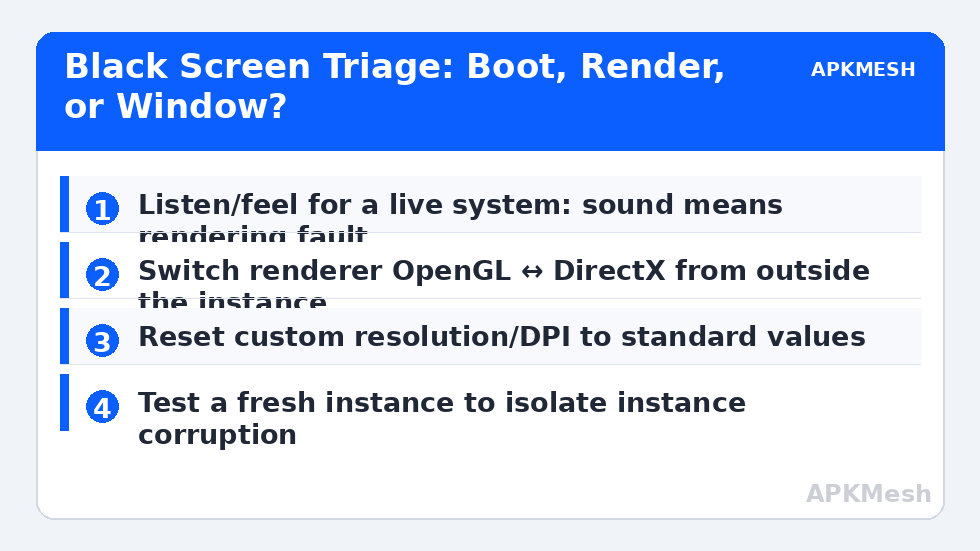
- Does the emulator respond? Click inside the window and press keys. If you hear UI sounds or the cursor changes over areas, Android is alive and this is a rendering problem — go to Fix 2.
- Is disk activity continuing? A hard-drive LED still flickering or Task Manager showing the emulator process using CPU/disk suggests a slow or stuck boot — go to Fix 1 and Fix 4.
- Is there a second monitor or a disconnected display in your past? The window may be opening on a phantom display — go to Fix 3.
- Did it break right after a graphics driver or emulator update? Rollback/renderer issues jump the queue — Fix 2 first.
Fix 1: Restart the Instance Properly and Clear the Cache State
Close the emulator completely, then in Task Manager end any remaining emulator processes so no half-booted VM lingers. Relaunch. If your emulator offers “Repair” or clearing cache from its title-bar menu or settings (LDPlayer has a repair option in its menu; BlueStacks Multi-Instance Manager lets you discard a problematic instance), use the built-in option rather than deleting random folders by hand. A boot that was interrupted mid-update — Windows update reboots are notorious — can leave exactly this state, and one clean full boot cycle often completes whatever was pending.
Fix 2: Switch the Graphics Renderer and Graphics Mode
A black screen with a live system underneath is the classic renderer mismatch. Change it from outside the broken display:
LDPlayer
- Open LDPlayer’s Settings from the title bar (gear icon) — it works even when the Android side is black.
- Under Advanced/Game settings, change the graphics renderer: OpenGL ↔ DirectX.
- If your build offers graphics mode options (compatible vs performance), choose the compatible mode for testing.
- Save, fully restart the instance.
BlueStacks
- Open Settings → Graphics.
- Switch Graphics renderer between OpenGL and DirectX; if “ASTC textures” or dedicated-GPU options are on, also test with the interface renderer set to Auto.
- Restart BlueStacks completely and test again.
Renderer trouble on elderly GPUs is a rabbit hole of its own — if your card is old enough that DirectX itself fails to initialise, the DirectX initialisation guide covers that ground specifically. Note the sibling fault as well: a white screen on MuMu/Nox is the same family with different defaults, handled in the white screen glitch guide.
Fix 3: Display and Window Problems
- Phantom window: Press Win + Shift + Left/Right arrow to drag the window back to the active monitor, or disconnect the second display and restart the emulator.
- Resolution corruption: Set a standard resolution (1920×1080 or 1280×720) and standard DPI in emulator settings rather than exotic custom values; corrupted custom resolutions can produce a black viewport.
- Remote desktop/VM: If you are running the emulator inside RDP or another VM, its virtual display driver may not support the renderer — switch renderer to the software/compatible option or run on the physical console.
Fix 4: GPU Driver — Update or Deliberately Roll Back
If the black screen began immediately after a GPU driver update, roll back via Device Manager → Display adapters → your GPU → Properties → Driver → Roll Back Driver. If your driver is ancient, do the opposite: install the current driver from NVIDIA/AMD/Intel directly, not via Windows Update’s older offering. Change exactly one of these variables, then retest. While you are in emulator settings, also confirm the emulator is actually assigned your discrete GPU and not falling back oddly — most emulators show the active GPU in their diagnostics/about panel.
Allocations matter here too: an instance starved to 1 core/1 GB can fail to bring up its display services. Check headroom before deep troubleshooting:
Lag risk: —
Fix 5: Fresh Instance Test, Then Clean Install
Create a brand-new instance in the Multi-Instance Manager. If the new instance boots to a visible home screen, your original instance’s system image is damaged — migrate by reinstalling apps on the new one (cloud-synced accounts make this painless). If the new instance is also black, the installation or driver layer is at fault: uninstall, run the vendor’s cleanup utility, restart, and reinstall the current build from the official site only.
How to Verify
The instance boots to a visible, responsive home screen three launches in a row, survives a full PC reboot, and a game renders in 3D — not just the launcher. Also test after waking the PC from sleep, since display-driver reinitialisation on wake is a classic relapse trigger for this fault.
When This Will Not Work
A genuinely failing GPU (artefacts in other apps, driver crashes system-wide) will defeat every setting here. So will running the emulator inside a VM whose virtual GPU lacks the needed extensions, and — rarely — a corrupted Windows graphics stack, which shows up as black windows in several unrelated apps. If black screens follow you outside the emulator, stop troubleshooting the emulator and fix the machine. The rest of the lag and error fixes library covers the emulator-side faults individually.
If the Black Screen Only Happens Sometimes
Intermittent black screens — fine on Monday, black on Tuesday, fine after two restarts — deserve their own logic because they rule out most permanent misconfigurations. The usual intermittent causes are: a race between the emulator starting and the GPU driver finishing its own initialisation after boot (wait thirty seconds after login before launching); Windows Fast Startup leaving the graphics stack in a half-resumed state (disable Fast Startup in Power Options → “Choose what the power buttons do” to test); and a second display or TV that Windows intermittently redetects, reshuffling outputs mid-launch. Diagnose by keeping a tiny log of when it happens and what was different — plugged into the TV? first launch after boot? after sleep? Intermittent faults surrender to pattern notes faster than to any single fix, and each of these three causes has a cheap permanent remedy once identified.
Before a clean install, run one isolation test that costs two minutes: use Windows Settings → Display → Graphics to force the emulator’s executable onto the integrated GPU (Power saving) if your machine has one, and launch it. A clean picture on the iGPU convicts the discrete GPU’s driver path or its control-panel profile, while the same black screen on both GPUs points back at the instance itself. Note the result in your log either way — it decides whether Fix 4 or Fix 5 deserves your evening.
Frequently Asked Questions
The black screen has sound. What does that tell me?
Android booted and apps are running; only the video path is broken. That points squarely at the renderer or display settings — Fix 2 and Fix 3 — and almost never requires a reinstall.
Why does it work on my monitor but black-screen on my laptop screen?
Hybrid-graphics laptops route the internal panel through the iGPU and external monitors through the dGPU (or vice versa). The emulator may be rendering on a GPU whose output path is misconfigured. Force the emulator onto one GPU in Windows Graphics settings and retest.
Is deleting the instance folder by hand a good repair?
No. Manual deletion leaves registry entries, services and config behind and can break the multi-instance manager. Use the in-app discard/repair options or the vendor cleanup tool so the removal is complete and consistent.
It only black-screens when I maximise or go fullscreen. Why?
That is display-mode switching: the fullscreen resolution/refresh differs from windowed. Set the emulator’s fullscreen resolution to your monitor’s native values, and if the mouse also vanishes in fullscreen, see the disappearing-cursor guide linked in this category.
Could my antivirus cause a black screen?
Indirectly, yes — if it quarantines the emulator’s virtual display or GPU helper components, rendering dies while the VM runs. Check quarantine history before reinstalling anything.