Smart controls keymapping in LDPlayer for a shooter sounds like a toggle you switch on and forget, but anyone who has lost a gunfight because the crosshair kept sliding past a doorway knows better. LDPlayer’s smart controls system detects when your cursor needs to behave like a free mouse (menus, inventory, map) and when it needs to behave like a camera stick (aiming in a match). The quality of that switch depends entirely on how you map the firing mode key, where you place the look zone, and how your sensitivity values interact with your Windows pointer settings. This guide builds the mapping from an empty profile so every decision is deliberate.
We will use a battle-royale/FPS layout as the working example, because shooters stress every part of the system at once: WASD movement, sprint and slide modifiers, weapon slots, healing items, a scope toggle, and two different sensitivity regimes (hip fire and ADS). The same principles apply to arena shooters and tactical FPS titles with only binding changes. Before touching the editor, set one thing in Windows first: open Mouse Settings, then Additional Mouse Options, Pointer Options tab, and untick Enhance Pointer Precision. LDPlayer translates raw mouse movement into camera movement, and Windows acceleration quietly rewrites your input before the emulator ever sees it, which is the single most common reason a sensitivity value feels different every day.
Opening the Controls Editor and Building a Clean Profile
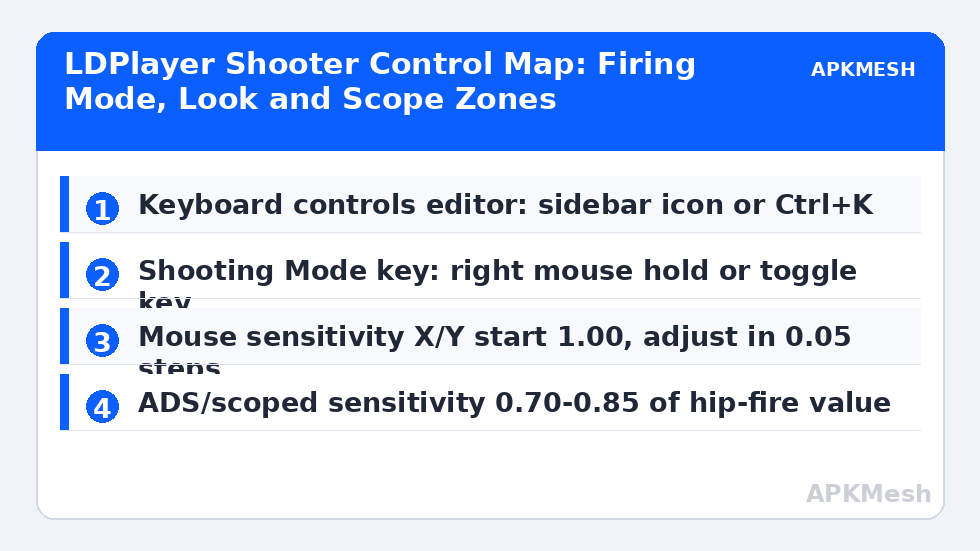
Launch your game once so LDPlayer generates a default profile, then open the keyboard mapping panel from the right sidebar (the keyboard icon) or press Ctrl+K. At the top of the editor you will see the active control scheme name; click the scheme dropdown and choose the option to create a new scheme rather than editing the bundled one. Bundled schemes are overwritten when LDPlayer or the game updates its recommended layout, and rebuilding from scratch after every patch gets old fast. Name yours something specific like FPS-Main-1440 so future-you knows which game and resolution it belongs to.
Resolution matters more than most players realise. Keymapping zones are stored as percentages of the emulator window in LDPlayer, so a profile built at 1280×720 mostly survives a move to 1920×1080, but the on-screen buttons of the game itself move when you change the in-game HUD layout or the emulator’s DPI setting. Fix your emulator resolution and DPI first (for most shooter players 1920×1080 at 240 DPI, or 1600×900 at 200 DPI on weaker PCs), finish the profile, and treat any later resolution change as a reason to re-check the look and fire zones.
Lag risk: —
Placing the Core Zones: Movement, Fire and Look
Drag a D-pad (joystick) control onto the game’s virtual joystick and set its centre precisely; even a few pixels of offset produces diagonal drift that players misdiagnose as sensitivity trouble. Resize the joystick zone so its rim matches the touch area the game expects. Next place a Tap Spot on the fire button and assign Left Mouse Button. Then add the crucial piece: right-click inside the editor canvas (or use the toolbar) to add the Shooting Mode (mouse look) control, which is the heart of smart controls. Position its centre where the game’s camera pivot sits, normally the middle of the screen, and set its activation key. Most players use a hold-to-aim style with the mode always armed during combat; LDPlayer lets the Shooting Mode key toggle the state, and F is a common choice, but leaving it bound to a key you also use for interaction is a guaranteed menu accident.
Smart controls behaviour is configured in the Shooting Mode panel: enable the option that automatically exits shooting mode when the cursor needs to appear (loot screens, map, settings) and re-enters on return. Also enable the setting that shows the cursor position prompt so a small on-screen hint tells you which state you are in. The overlay opacity discussion in our guide to the on-screen key overlay applies here too: keep hints visible during your first week with a new profile, then fade them.
| Action | Key/Mouse | Control type in editor | Notes |
|---|---|---|---|
| Move | W A S D | D-pad / joystick zone | Zone rim matched to in-game joystick size |
| Sprint | Left Shift (hold) | Tap spot on sprint button | Set sprint to hold, not toggle, in game settings |
| Fire | Left Mouse Button | Tap spot | Must sit inside the shooting-mode area |
| Aim / ADS | Right Mouse Button | Tap spot on scope/ADS button | Pair with scoped sensitivity below |
| Shooting mode toggle | F (or mouse side button) | Shooting Mode control | Avoid keys used for interact/loot |
| Jump | Space | Tap spot | — |
| Crouch / slide | C | Tap spot | Slide while sprinting: Shift + C |
| Prone | Z | Tap spot | — |
| Reload | R | Tap spot | — |
| Weapon slots | 1 / 2 / 3 | Tap spots | Grenade on 3 or G depending on game |
| Heal items | 4 / 5 | Tap spots | Bandage vs medkit separated |
| Map | M | Tap spot | Smart controls should release the cursor here |
| Interact / loot | E | Tap spot | Do not share with shooting-mode toggle |
Sensitivity: Hip Fire, ADS and the Scope Problem
Inside the Shooting Mode settings you will find separate sensitivity sliders for the X and Y axes and, in recent LDPlayer 9 builds, a scoped/ADS multiplier. Start both axes at 1.00. Then calibrate against a physical constant instead of a feeling: measure how many centimetres of mouse movement produce a full 360-degree turn in game. Most competitive shooter players land somewhere between 25 and 50 cm per 360 at hip fire; pick a point in that band and tune by outcome, not by what a streamer’s settings screenshot claims. If flicks consistently overshoot targets, lower in 0.05 steps; if you run out of mousepad on wide turns, raise in 0.05 steps. Keep Y slightly lower than X (0.85-0.95 of X) if vertical recoil control feels twitchy, because most recoil patterns demand steady downward pulls rather than fast vertical flicks.
ADS sensitivity deserves its own pass. When you scope, the field of view narrows, so the same mouse movement sweeps more of the visible scene. A scoped multiplier around 0.70-0.85 of your hip-fire value keeps target tracking consistent between the two states. Test in the training ground: track a strafing bot at mid range first unscoped, then scoped, and adjust until the effort feels identical. If your mouse has a DPI button, lock the DPI in the mouse software (800 or 1600 are sane anchors) and do all tuning inside LDPlayer, so the profile stays portable between PCs.
Smart Controls Edge Cases: Vehicles, Looting and Menus
Smart controls earn their name in transitions, and transitions are where profiles break. When you enter a vehicle, the steering keys reuse WASD but the camera behaviour changes; LDPlayer keeps the shooting mode armed, which can make the mouse fight the vehicle’s own camera. Test a short drive in training mode. If the camera feels glued, create a second scheme page for vehicles or bind a quick toggle key within reach (a mouse side button is ideal) and practise pressing it as you enter and exit. For looting, the automatic cursor release should trigger when the inventory opens; if it does not, the game may draw its loot UI without telling Android the input mode changed. In that case use your manual toggle before opening loot and after closing it, and accept the extra keypress as the price of reliability.
One more edge case: emotes, wheel menus and ping wheels are radial UIs designed for a stick. Shooting mode treats them as camera input. Map a tap spot for the wheel key and, while it is open, use number keys if the game supports direct selection; otherwise temporarily toggle shooting mode off, click the segment, toggle back on. Slow, yes, but deterministic, and determinism is what wins repeated fights.
Related Keymapping Guides
More from this category is collected in the Keymapping Guides archive. These companion guides go deeper on the topics touched above:
- mouse sensitivity and acceleration problems
- delayed keys and input lag
- free look controls in battle royale games
Frequently Asked Questions
What is the shooting mode key in LDPlayer and where should I bind it?
Shooting mode is the control that turns mouse movement into camera look. Bind its toggle to a key you never use for interaction — F works for many players, a mouse side button is even better. Avoid E or F if your game uses the same key to loot, because toggling look while looting causes the classic spinning-camera bug.
Why does my aim feel different every session even with the same settings?
Almost always Windows pointer acceleration (Enhance Pointer Precision) or a mouse DPI button being bumped. Disable pointer precision in Windows, fix DPI in the mouse software, and do all sensitivity tuning inside LDPlayer so the profile is self-contained.
Should ADS sensitivity be higher or lower than hip fire?
Lower. Scoping narrows your field of view, so the same physical movement covers more of the screen. A multiplier of 0.70-0.85 of hip-fire sensitivity makes tracking effort feel equal in both states for most players.
My smart controls do not release the cursor in loot menus. What now?
First check the Shooting Mode panel: automatic cursor release must be enabled. If a particular game still does not trigger it, treat your shooting-mode toggle as a manual menu key — toggle off before looting, on afterwards — and keep the binding somewhere your thumb already rests.
Do I need a separate profile for each shooter?
Yes. Button positions, joystick sizes and camera pivots differ per game, so zones rarely line up. Duplicate your finished scheme as a starting template, then re-place the zones for the new game’s HUD instead of rebuilding every tap spot from zero.