To fix key response delay and input lag in an emulator, stop hunting for one magic toggle and instead audit a chain. Your keypress travels through the device (wired, 2.4 GHz or Bluetooth), Windows’ input and scheduling, the emulator’s Android input pipeline, its rendering queue and frame pacing, and finally your display’s refresh and processing. Each link adds a few milliseconds; a neglected link adds thirty. Players feel the sum as ‘delay’, then randomly change graphics settings, which sometimes helps (one link) and sometimes does nothing (the real culprit is elsewhere). This guide measures the chain crudely but honestly, link by link, and fixes what is actually slow. No fake precision: we will use comparative tests — before/after feel in a controlled drill — rather than invented millisecond claims.
Set a baseline first. In your game’s training area, bind nothing new; simply strafe left-right with A/D while watching your character against a fixed background point, and tap fire at a metronome rhythm in your head. Sluggishness you can reproduce is a target; vague dissatisfaction is not. Every change below gets judged against this same drill, one change at a time.
Link 1 and 2: The Device and Its Wireless Path
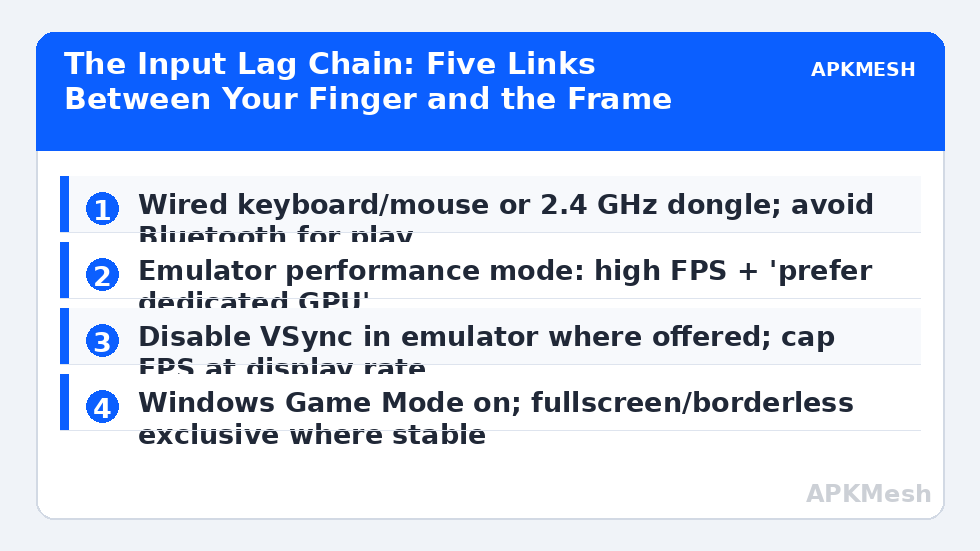
Keyboards and mice reach the PC three ways, in ascending order of latency risk: wired USB, 2.4 GHz dongle, Bluetooth. Wired is the reference. A 2.4 GHz gaming dongle is close behind when it sits near the mouse (front port or the included extender); the same dongle in a rear port behind a metal case can be worse than Bluetooth. Bluetooth is the convenience option and the usual suspect: its power-saving and polling behaviour adds delay and variance, and variance is what humans perceive as lag. For diagnosis, plug in a cable. If the delay vanishes, you have found your link and your budget decision — better dongle placement or a wired play setup — is already made.
Polling rate is the device-side setting that matters: 1000 Hz for keyboard and mouse where offered (125 Hz office gear feels steppy under fast aim, as covered in our sensitivity guide). Wireless keyboards with a ‘gaming mode’ switch sometimes raise polling only in that mode — read the manual once, set it, forget it.
Lag risk: —
Link 3: Windows Scheduling and Background Theft
Windows adds lag mostly by being busy elsewhere. Enable Game Mode (Settings > Gaming) so updates and background installs stop queue-jumping your session. Set the emulator’s process priority to High in Task Manager only as a diagnostic — if it transforms the feel, your real problem is a background hog (cloud sync mid-upload, a browser with forty tabs, an antivirus scan), and the durable fix is closing the hog, not living on High priority. USB selective suspend can also park a hub your dongle hangs from; Device Manager > USB Root Hub > Power Management, untick ‘allow the computer to turn off this device’ for the hub your input devices use.
Full-screen behaviour belongs to this link too. True fullscreen (exclusive) historically bypasses the desktop compositor; borderless passes through it. Modern Windows reduces the difference, but on marginal hardware the compositor is one more queue. If your emulator offers a real fullscreen mode and it is stable on your drivers, test the drill in it; if micro-stutter appears instead, revert — smoothness beats theoretical latency every time, a point the alt-tab glitch guide echoes from another angle.
Link 4: The Emulator’s Own Pipeline
Inside the emulator, three settings dominate. Frame rate: run the emulator’s FPS target at or slightly above your display’s refresh (60/90/120) — a 30 FPS Android cap makes every input wait for a frame that arrives 33 ms late on average. VSync: where the emulator or the GPU control panel forces VSync on the emulator, inputs queue behind the display sync; competitive players typically disable emulator VSync and cap FPS to the refresh rate instead, accepting possible tearing (in practice minimal on high-refresh panels). Renderer and GPU: ‘prefer dedicated GPU’ / high-performance mode in the emulator’s engine settings keeps frames rendering on the fast path; a game rendering on integrated graphics while a discrete GPU idles is a surprisingly common cause of ’emulator lag’ that is really render lag — our emulator-settings category covers the per-emulator toggles in depth.
CPU allocation interacts here as well. An emulator starved of cores (or given so many it fights Windows for them) delivers inputs late because the Android input thread waits for a time slice. The allocation rules from our homepage guide — cores equal to your physical performance cores minus headroom, RAM generous but not total — are input-lag settings as much as FPS settings.
| Change | Link fixed | Expected effect | Watch out for |
|---|---|---|---|
| Bluetooth to wired/dongle | Device | Removes variance; delay feels consistent | Dongle placement matters more than brand |
| Polling 125 Hz to 1000 Hz | Device | Smoother aim and key timing | Cheap wireless may not truly sustain 1000 Hz |
| Game Mode on + close background hogs | Windows | Kills random spikes | Priority hacks mask, not fix |
| Emulator FPS cap to refresh rate | Emulator | Inputs land on the next frame, not the one after | Uncapped FPS can overheat laptops |
| VSync off + FPS cap | Emulator/Display | Removes sync queue delay | Possible tearing on 60 Hz panels |
| Dedicated GPU + performance mode | Emulator | Render queue shortens | Verify the dGPU is actually engaged |
Link 5: The Display, and Honest Verification
The last link is the panel. A 60 Hz display shows a new frame every 16.7 ms; no software fix beats physics, so on 60 Hz your optimisation goal is consistency, not miracles. TVs are the trap: outside their Game picture mode, TV processing can add more delay than everything else combined — if you play on a TV, enable its game mode before touching any other setting in this guide. Monitors: use the native resolution and the panel’s overdrive setting one notch below maximum (max overdrive often trades ghosting for inverse ghosting without net gain).
Verify with the baseline drill plus one addition: a responsiveness partner test. In a shooter training ground, peek a corner with A/D and fire at a target dummy the instant it appears; repeat ten times before and after each major change and keep a rough hit count. Crude, human, and exactly the quantity you care about. Log what you changed in the profile note described in our profile export guide, because lag fixes are settings too, and the next driver update will happily unmake them.
Related Keymapping Guides
More from this category is collected in the Keymapping Guides archive. These companion guides go deeper on the topics touched above:
- mouse polling and sensitivity layers
- alt-tab glitches and focus problems
- unresponsive keys during multiplayer
Frequently Asked Questions
What is the single biggest cause of input lag in emulators?
There is no universal one, which is why the chain audit matters. The most frequent offenders we see are Bluetooth input devices, an emulator FPS cap below the display’s refresh, forced VSync, and background CPU hogs — test in that order and keep the changes that move your drill results.
Does capping FPS increase or decrease input lag?
A cap at your display’s refresh rate, with VSync off, usually gives the best balance: frames are produced as late as possible before display, so inputs are fresher when rendered. An uncapped emulator can build a render queue on weak GPUs, while a cap far below refresh wastes entire frames.
Is Bluetooth really that bad for gaming on an emulator?
For casual play it is acceptable; for diagnosing lag it is the first suspect because its delay varies, and variable delay feels worse than slightly higher constant delay. Plug in a cable for ten minutes — if the problem leaves with Bluetooth, you have your answer.
Should I set the emulator to High priority in Task Manager permanently?
Use it as a diagnostic only. If High priority transforms responsiveness, something else on the PC is stealing CPU — find and close that (sync clients, scans, browser tabs). Permanent priority tweaks starve Windows services the emulator itself depends on.
My inputs feel fine in menus but delayed in matches. Why?
Menus run at low load; matches stress CPU/GPU, so render and input queues grow under load. That pattern points at the emulator link: raise the FPS cap to refresh rate, engage the dedicated GPU, and check core allocation rather than replacing your keyboard.