This guide shows how to setup swipe gestures on a keyboard and mouse inside an emulator by respecting what a gesture is: a touch that moves. A tap has one coordinate; a swipe has a start point, a path, a duration and a release point, and games read meaning into all four — a slow drag scrolls a menu, a fast flick turns a camera or dodges, and a two-finger-style double-tap zooms a map. Emulator editors give you a dedicated Swipe control for this, plus repeat-capable tap spots for double-taps, but each genre uses gestures differently, so this guide first builds the mechanics (one swipe, tuned properly), then applies them to the three cases players actually need: interface scrolling, combat flicks, and map gestures. The mouse can also perform gestures directly, and for some games that is better than any key — we will be explicit about which is which.
Prerequisite honesty: gestures are where emulator input is least like a phone. A thumb accelerates and decelerates through a swipe; a key-triggered editor swipe moves at the profile the editor gives it. Tuning duration and distance is how you close that gap, and the training-mode drills below are how you know you have.
The Swipe Control: Points and Duration
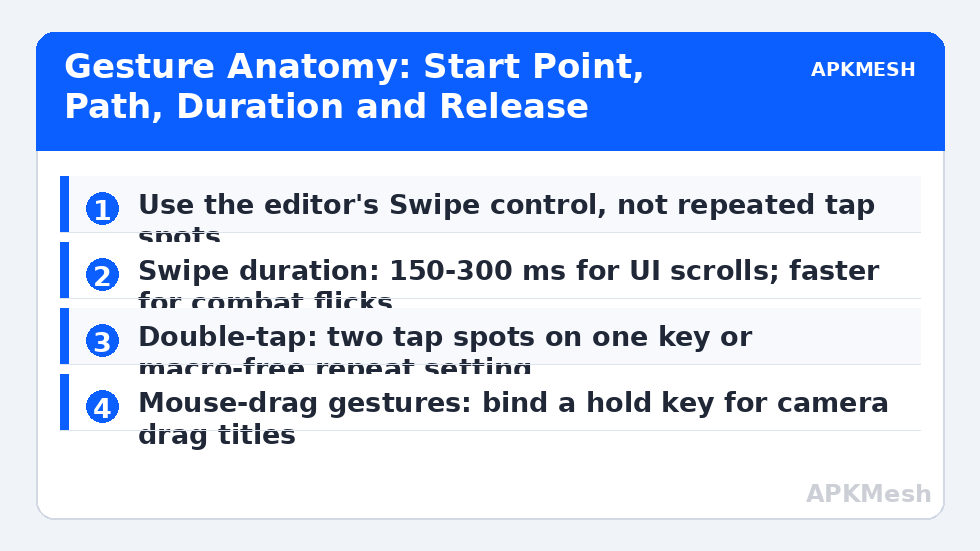
In LDPlayer’s keymapping panel and BlueStacks’ Controls Editor, the Swipe control is placed by setting its start and end points on the game screen; the editor then performs that exact swipe when its key is pressed. Direction and distance are literal: for a menu that scrolls content upward, the swipe runs from lower start to upper end (the finger pushes content up). Duration is the hidden variable — editors expose it directly or through a speed setting. UI swipes want 200-300 ms: faster and some games read the gesture as a fling that overshoots the setting you wanted; slower and scroll-snapping menus may treat it as a drag-and-hold. Combat flicks (a dodge roll, a 180-degree camera whip bound to a swipe-based camera) want 120-180 ms so the action completes inside the animation window you are dodging.
Place swipes by watching the game’s own tutorial or a touch demonstration: the start point should be where a thumb would land, which is rarely the screen centre. For list scrolling that is the middle of the list; for a carousel it is on the card itself. One key per direction (Q/E for left/right flicks, or two keys for up/down in a settings menu) keeps the model mental-simple, and because a swipe is one control with one key, your scheme stays readable months later.
For continuous gestures — scrolling a long settings list to the bottom, for instance — some editors let a swipe control repeat while its key is held, or you can simply bind a second, longer swipe for the same direction. Prefer the longer dedicated swipe: repeated short swipes compound fling physics unpredictably, while one calibrated long swipe behaves identically every time, which is the standard this whole guide is aiming at.
Lag risk: —
Double-Taps Without Macros
Double-tap gestures (map zoom, sprint-by-double-tap-W in some runners, special interactions) can be mapped two legitimate ways. The editor way: BlueStacks tap spots offer a repeat/tap-count behaviour in their advanced settings, and a spot set to double-tap on one keypress reproduces the gesture as a single input action — one physical press, one defined game action, the same class as ordinary keymapping. The two-keys way: bind two different keys to spots on the same screen point and drum them; slower, but transparently manual. What to avoid is solving double-taps with a looping macro in competitive titles — chained automation is a different risk category, as our macro guide’s fair-play section explains; the editor’s built-in repeat exists precisely so you do not need it.
Timing is the whole game in double-taps: most games read two taps within roughly 250-350 ms as a double. If your spot’s repeat interval is adjustable, start near 120 ms between taps; too fast (under ~60 ms) and some games merge it into one long press, too slow and it reads as two singles. Verify in the game’s own gesture playground (map zoom is the safest test) before a match.
| Gesture need | Control to use | Key suggestion | Duration / interval |
|---|---|---|---|
| Menu scroll up/down | Swipe | Mouse wheel is better; else PgUp/PgDn keys | 200-300 ms swipe |
| Camera flick / dodge | Swipe (short) | Q / E | 120-180 ms |
| Map zoom (double-tap) | Tap spot with double-tap repeat | Z or middle mouse | ~120 ms between taps |
| Rhythm game taps | Plain tap spots | DFJK-style rows | No repeat; one press per note |
| Drag-and-hold (slingshot, aim drag) | Mouse with hold key (shooting mode variant) | Hold LMB | Manual |
| Carousel / banner swipe | Swipe (long) | Arrow keys | 250-350 ms |
When the Mouse Should Just Do the Gesture
Some gestures resist key mapping because their value is analogue: map navigation (pinch aside, drags of arbitrary length), photo/crop tools in apps, and any ‘draw a path’ interaction. For those, both emulators let the mouse act as the finger directly — click-drag is a swipe with your own timing — optionally with a hold key that puts the cursor into touch mode if the scheme otherwise uses the mouse for aiming. Do not force these onto keys; a scheme that maps what keys do well and leaves the rest to the mouse is shorter, clearer and more reliable than a total-mapping ideology. The minimap in MOBAs is the borderline case: dragging it benefits from the mouse, while pinging wants a key — our MOBA keybinding guide splits exactly that difference.
Genre Recipes and a Gesture Drill
Endless runners: left/right lane swipes on A/D or arrow keys at 130 ms, jump swipe-up on W/Space, slide swipe-down on S. Rhythm games: no gestures at all — plain tap spots only, since any inserted duration smears timing. Strategy maps: double-tap zoom on Z, plus mouse wheel zoom if you have set that up (our mouse-wheel zoom guide pairs with this one). Puzzle (match-3 style) games: keys are a trap; play these with the mouse as finger.
Drill before ranked: open the game’s practice space and run each gesture ten times at game speed, counting failures honestly. A gesture mapping that works nine times in ten is not finished — in a match, the tenth is the one that mattered. Shorten duration for missed flicks, lengthen for overshoots, and re-place start points a few millimetres toward where your thumb would actually begin. Then write the final durations into your profile note so an export carries the reasoning, not just the numbers.
Related Keymapping Guides
More from this category is collected in the Keymapping Guides archive. These companion guides go deeper on the topics touched above:
- mouse wheel zoom for strategy and map games
- macro fair-play boundaries
- MOBA bindings and minimap handling
Frequently Asked Questions
Why does my swipe key scroll too far in menus?
The swipe is too fast or too long for that menu’s physics, so the game treats it as a fling. Lengthen the swipe duration toward 250-300 ms and shorten the distance; scroll menus want a deliberate push, not a flick.
How do I double-tap without using a macro?
Use the tap spot’s built-in repeat/double-tap behaviour in the editor’s advanced settings — one keypress, one defined double-tap action. Start with about 120 ms between taps and test on a safe gesture like map zoom.
Can one key perform swipes in two directions?
No — one swipe control encodes one start-to-end path. Create a second swipe control for the opposite direction on its own key (Q/E is a natural pair). Keeping directions as separate controls also keeps the scheme readable later.
Why do rhythm games feel off even with tap spots?
Any added duration or repeat behaviour smears timing, and rhythm games judge in tens of milliseconds. Use plain tap spots with no repeat, keep overlays minimal, and check the input chain guidance in our lag guide if notes feel late.
Should map dragging be on keys or mouse?
Mouse. Map drags are analogue and variable-length; keys would need a dozen fixed swipes to approximate one drag. Reserve keys for discrete gestures (zoom double-tap, ping) and let the mouse be the finger for continuous ones.