Setting up MOBA skill cast keybindings in BlueStacks 5 is less about which keys you pick and more about which casting model each skill uses. A targeted nuke, a skillshot and a global ultimate behave completely differently when the same key both aims and fires. BlueStacks ships a dedicated MOBA skill pad control for exactly this reason, yet most players drag ordinary tap spots onto their ability buttons and then wonder why their skillshots fire toward the hero instead of the cursor. This guide assigns the right control type to each ability class, sets camera movement that does not fight your mouse, and finishes with item actives and a testing routine in a bot match.
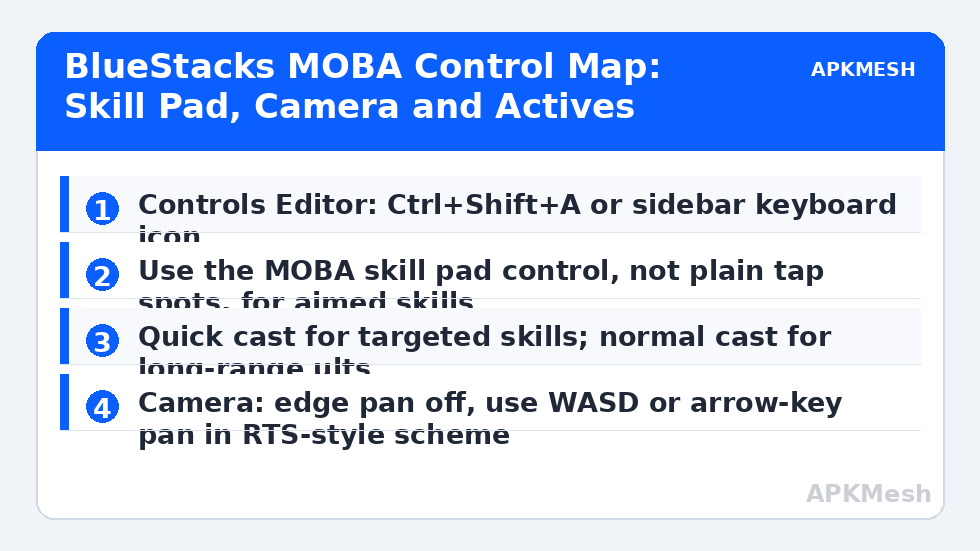
Open the Controls Editor with Ctrl+Shift+A or the keyboard icon on the sidebar, then switch the scheme selector to the MOBA profile if your game offers one; otherwise create a new scheme and name it after your main hero pool. MOBA profiles are hero-agnostic at the operating level: one good scheme should serve every hero whose skills sit in the standard Q-W-E-R positions, with per-hero changes limited to cast-mode choices, which BlueStacks lets you store as separate schemes sharing the same base layout.
The MOBA Skill Pad: The Only Control That Aims Properly
From the editor’s control palette, drag the MOBA skill pad (sometimes labelled MOBA Skill Pad / cast with aiming) onto each ability button. Double-click the control to open its settings. You will see fields for the ability key, the cast mode, and in newer BlueStacks 5 builds a cancel key and a radius/centre offset. The skill pad replicates what a twin-stick MOBA expects: press the ability key and a targeting indicator appears relative to your hero; move the mouse to aim; release (or click, depending on mode) to cast. A plain tap spot cannot do any of that, because it only presses the screen at a fixed point — the game interprets it as a tap on the ability icon, which in most mobile MOBAs either self-casts or fires straight ahead.
Position the pad’s centre exactly on the ability button and make sure the pad’s activation circle covers the button fully. If the pad is offset, the game reads the initial touch outside its expected joystick area and the indicator jumps. After placing all four skills, add the two summoner/passive buttons if your game has them, using plain tap spots for instant effects and small skill pads for aimed ones.
Lag risk: —
Quick Cast vs Normal Cast, Skill by Skill
BlueStacks exposes cast behaviour in the skill pad settings and in the game’s own options, and the two must agree. The practical rule: targeted abilities (point-and-click damage, heals on allies) go on quick cast — press the key, the skill fires at the cursor’s current target with no confirmation. Skillshots benefit from quick cast too once your aim is trained, because the saved 150 ms is real, but during learning use normal cast so you can read the range indicator. Long-cooldown global or map-wide ultimates belong on normal cast permanently: an accidental global ult is a four-minute punishment for a moment’s haste.
Set a cancel behaviour and learn it. On PC MOBAs, right-click cancels; in the emulator scheme, bind cast cancellation to the right mouse button or S (stop) in the skill pad’s cancel field, consistently across all four pads. Consistency is what turns cancellation into reflex. If your game supports smart cast with indicator (show range while held, fire on release), it is the best of both worlds for skillshots — enable it in game, set the pad to match, and your keybindings stay quick without going blind.
| Slot | Example key | Control type | Cast mode | Reason |
|---|---|---|---|---|
| Skill 1 | Q | MOBA skill pad | Quick cast | Spam ability; speed matters most |
| Skill 2 | W | MOBA skill pad | Smart cast with indicator | Aimed skillshot; see the range while learning |
| Skill 3 | E | MOBA skill pad | Quick cast | Mobility/defensive; instant response |
| Ultimate | R | MOBA skill pad | Normal cast | Long cooldown; no accidental casts |
| Summoner/active 1 | D or mouse wheel click | Tap spot | Quick | Flash-style escape or smite equivalent |
| Summoner/active 2 | F | Tap spot | Quick | — |
| Item actives | 1-6 or side buttons | Tap spots | Quick | Put the most-used active on a mouse side button |
| Attack move | A + left click | MOBA move/attack control | — | Prevents misclick dives into tower range |
| Stop / cancel | S or right click | Skill pad cancel field | — | Same cancel on every pad |
| Camera to hero | Space (hold) | Tap spot / camera control | — | Recentres during chaotic fights |
Camera Movement That Does Not Fight Your Mouse
Mobile MOBAs assume a thumb-drag camera or a locked hero cam, while PC players expect edge pan or key pan. BlueStacks offers camera controls inside the scheme: enable keyboard pan with WASD or the arrow keys if your game supports a free camera, and disable edge panning entirely — edge pan plus mouse-aimed skills is a contradiction, because aiming a long skillshot means pushing the cursor to the screen edge, which then drags the camera away mid-aim. If the game’s camera is hero-locked with an offset minimap camera (common in Mobile Legends-style titles), bind a camera-unlock tap spot and use Space-hold to re-centre, mirroring PC MOBA habits.
The minimap deserves its own control. Place a tap spot over the minimap’s ping button if separate, and make sure clicking the minimap to move the camera (where supported) does not conflict with the skill pads’ mouse capture. If clicks near the minimap get eaten by a pad, shrink the pad radius: pads only need to cover their ability buttons, not half the bottom HUD.
Actives, Shop and Communication Keys
Item actives decide fights as often as skills do. Map them in priority order to the easiest physical keys: mouse side buttons and the mouse wheel click first, then 1-3 for the remaining actives; leave 4-6 for consumables you use out of combat. The shop should be one key (P or B depending on the game) placed so you never reach for it mid-fight. For pings and quick chat, reuse the game’s wheel: bind G for the ping wheel tap spot and alt-modifiers are unreliable in some emulator builds, so prefer dedicated keys over chords for anything time-critical.
If you also play shooters on the same PC, resist the urge to unify every binding across games. MOBA actives on number keys plus shooter weapon slots on number keys is fine; MOBA camera keys on WASD plus shooter movement on WASD is also fine because they live in different schemes. Collisions only matter inside one scheme, and inside one scheme every key should do exactly one job.
Related Keymapping Guides
More from this category is collected in the Keymapping Guides archive. These companion guides go deeper on the topics touched above:
- exporting and sharing your finished control profiles
- smart controls for shooter layouts on LDPlayer
- trigger and bumper mapping for action RPGs
Frequently Asked Questions
Why do my skillshots fire in the wrong direction with tap spots?
A tap spot only presses a fixed screen point, so the game treats it as tapping the ability icon — usually a self-cast or straight-ahead cast. Replace tap spots on aimed abilities with BlueStacks’ MOBA skill pad control, which tracks your mouse for aiming before the cast lands.
Is quick cast always better than normal cast?
No. Quick cast wins on targeted and defensive abilities where milliseconds matter, but long-cooldown ultimates and map-wide skills are safer on normal cast, and smart-cast-with-indicator is the best training mode for skillshots because you still see the range while holding the key.
How do I stop the camera moving when I aim long skillshots?
Turn off edge panning in the scheme and use key pan (WASD or arrows) or hero-lock with Space to re-centre. Edge pan moves the camera exactly when your cursor touches the screen edge — which is where aiming a max-range skillshot puts it.
My item actives are too far from my fingers. Where should they go?
In priority order: mouse side buttons, mouse wheel click, then number keys 1-3. Put the active you use in fights (a stasis or cleanse equivalent) on the single easiest input, and leave deep number keys for out-of-combat consumables.
Do I need a new scheme for every hero?
Rarely. Keep one base scheme for the standard QWER layout and only fork it when a hero has a skill that genuinely needs a different cast mode — for example an ultimate you want on normal cast while the rest stay on quick cast.