Knowing how to export and share a custom keymapping profile in an emulator turns a one-off setup session into a reusable asset: your shooter layout can move to a new PC, a second instance, or a friend’s machine in minutes. But players who have tried it know the disappointment — the file imports fine, yet half the buttons feel wrong on the other machine. That happens because a profile export carries the bindings (which key, which screen position) but not the context those bindings assumed: the emulator’s resolution and DPI, the game’s HUD layout, the mouse DPI and Windows pointer settings, and sometimes the emulator version itself. This guide covers the export/import mechanics in BlueStacks and LDPlayer, then the context checklist that decides whether a shared profile lands perfectly or lands as a suggestion.
First principle: share the whole recipe, not just the file. Every export you send should travel with three companions — a screenshot of the layout with the overlay on, a short note of the assumed settings (emulator resolution/DPI, in-game HUD preset if the game has one, mouse DPI and sensitivity values), and the date plus game version. It takes two minutes and eliminates the entire category of ‘your profile does not work’ messages.
BlueStacks: Exporting and Importing Schemes
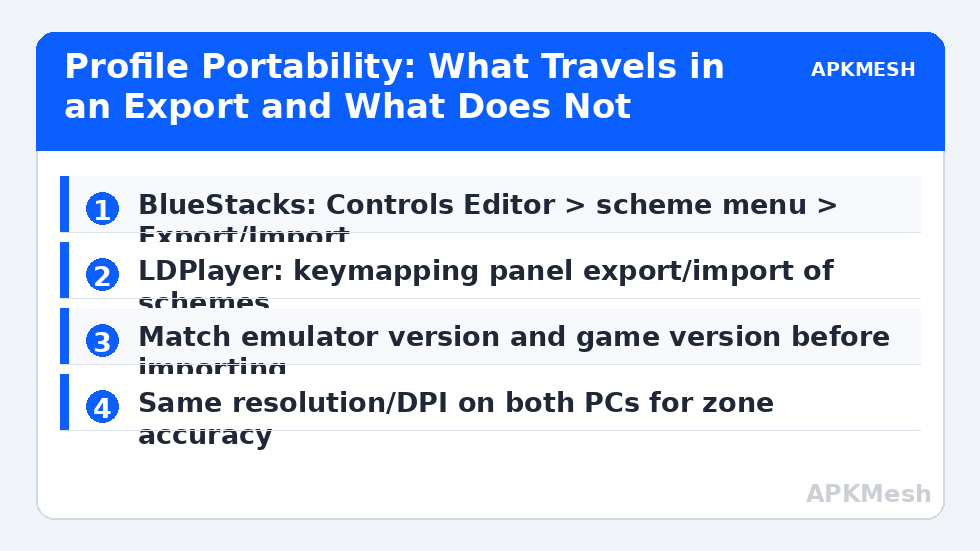
Open the Controls Editor (Ctrl+Shift+A), click the scheme dropdown, and use the scheme menu’s Export option on your named custom scheme — never the bundled default, which may not export cleanly and should stay factory-fresh anyway (the reasoning is in our keymapping-reset guide: defaults are BlueStacks’ to refresh, copies are yours to keep). Save the file somewhere deliberate, not the desktop: a ‘Emulator Profiles’ folder with subfolders per game keeps versions straight. Importing is the mirror: on the target PC, open the same game’s Controls Editor, scheme menu, Import, and pick the file; the scheme appears in the dropdown under its exported name. If the import option seems missing, you are likely looking at the quick settings panel instead of the full editor — the import lives in the editor’s scheme menu.
Version reality check: scheme files are generally forward-compatible within BlueStacks 5, but a scheme exported from a much older build can import with its advanced controls (MOBA pads, free look) degraded to plain tap spots. After any cross-version import, walk the layout once with the overlay on and confirm the special controls still show their proper types before playing.
Lag risk: —
LDPlayer: Scheme Files and the Folder Method
LDPlayer’s keymapping panel (Ctrl+K or the sidebar keyboard icon) offers scheme export/import from the scheme controls at the top of the panel in LDPlayer 9 builds: export writes the selected scheme to a file; import reads it back on another machine or instance. Where a build hides the buttons, the schemes also exist as files under the LDPlayer installation’s data folders — copying raw files works but is fragile across versions, so prefer the in-panel export whenever it exists and treat folder-copying as a recovery technique for a machine that no longer boots the emulator properly. LDPlayer schemes are per game (keyed to the game’s package), so an imported scheme only appears when that game is installed and selected — a friend who imports your file before installing the game will think the import failed.
| Context item | Travels in export? | Fix if mismatched |
|---|---|---|
| Key bindings and zone positions | Yes | — |
| Advanced control types (MOBA pad, free look) | Usually | Inspect after import; rebuild degraded controls |
| Emulator resolution & DPI | No | Match settings on target PC before testing zones |
| In-game HUD layout | No | Use the same HUD preset / default HUD |
| Mouse DPI & Windows acceleration | No | Send your calibration note; see sensitivity guide |
| Emulator sensitivity sliders | Partially (scheme-dependent) | Re-enter values from your note |
| Game version assumptions | No | Re-export after major game UI updates |
Making a Profile That Survives the Trip
Design for portability at creation time. Build zones against the game’s default HUD preset at a mainstream resolution (1920×1080 or 1600×900), because that is what your friend most likely runs; exotic custom HUDs make beautiful personal layouts and unshareable files. Name schemes with game, layout and date (‘PUBGM-FPS-1080p-Oct’), and keep the in-editor overlay hints consistent so your screenshot documentation matches what the importer sees. If your scheme leans on unusual mouse side buttons or a macro pad, note the plain-keyboard fallback in your settings note; a profile that only works on your exact mouse is a profile only you can use.
On the receiving side, the routine is: install the same game, set emulator resolution/DPI and the game’s HUD preset from the note, import, select the scheme, open the training area with the overlay visible, and test the ten highest-frequency actions (our reset guide’s five-minute checklist doubles perfectly as an import checklist). Adjust only zone positions if the HUD differs slightly; never ‘fix’ a shared profile by dragging sensitivity sliders until you have matched the documented mouse settings first.
While you are in that training-area pass, turn the key overlay on at high opacity and simply look at the layout before testing it. Imported profiles occasionally arrive with a scheme from a game update the sender had not applied, and the overlay exposes stale zones instantly: markers hovering over blank HUD, or a fire zone sitting on the new event banner. Two minutes of looking, then ten test actions, is the whole acceptance procedure — a shared profile that passes both is genuinely received, not just imported.
Sharing Etiquette and Safety
Only import profiles from people you trust, and treat scheme files like any downloaded configuration: import through the emulator’s own dialog from a file you obtained directly, not from random ‘pro config’ bundles on file-sharing sites, which occasionally package unrelated junk installers alongside. A keymapping file itself cannot contain a game cheat, but the download page around it can contain plenty of other things. Conversely, when you share, strip nothing and add context: your name in the scheme title is fine, your PC’s file paths in screenshots are not sensitive but are noise — crop screenshots to the emulator window.
Finally, version your generosity. When a game update moves its HUD, update your export, bump the date in the name, and tell the friends running the old one. Profiles rot quietly; a dated export with a note is the difference between a community asset and a recurring support burden — the same lesson applies to emulator macros, which travel under similar rules in our macro guide.
Related Keymapping Guides
More from this category is collected in the Keymapping Guides archive. These companion guides go deeper on the topics touched above:
- fixing keymapping resets after game updates
- macro recording and sharing discipline
- mouse sensitivity numbers to include in your note
Frequently Asked Questions
Where is the export option in BlueStacks?
In the Controls Editor (Ctrl+Shift+A): open the scheme dropdown/menu for your custom scheme and choose Export; Import is in the same menu on the target PC. Export your named copy, not the bundled default scheme.
My friend imported my profile but the buttons are all slightly off. Why?
Zone positions assume your resolution, DPI and in-game HUD layout. Have them set the emulator resolution/DPI and HUD preset from your settings note, then test in the training area. Small offsets after that are genuine HUD differences — nudge those zones only.
Does the export include my mouse sensitivity?
Bindings travel; your full input context does not. Mouse DPI, Windows pointer settings and sometimes the emulator’s sensitivity values live outside the file, which is why a shared profile should always come with a settings note and a layout screenshot.
Can I share an LDPlayer scheme for a game my friend has not installed?
The scheme is keyed to the game’s package, so it will only appear once that game exists in their LDPlayer. Have them install the game first, then import, then select the scheme from the keymapping panel.
Is it safe to download popular players’ profile files?
The file itself is low-risk when imported through the emulator’s dialog, but the sites hosting ‘pro config’ bundles are a common source of junk installers. Prefer files shared directly by people you know, and verify the layout in a training area before playing.