To fix a keymapping reset after a game update in BlueStacks, it helps to know which of three different things actually happened, because players use one phrase — ‘my controls reset’ — for all of them. Sometimes the game updated and its HUD moved, so your scheme exists but its tap spots now press the wrong pixels. Sometimes BlueStacks updated its recommended scheme for that game and your selector quietly switched back to the bundled default, leaving your custom scheme untouched in the list. And sometimes a scheme file genuinely was overwritten because the custom layout was saved into the default scheme, which BlueStacks treats as replaceable. Each cause has a different fix, and the first is the most common: before rebuilding anything, open the scheme dropdown in the Controls Editor and look for your scheme by name.
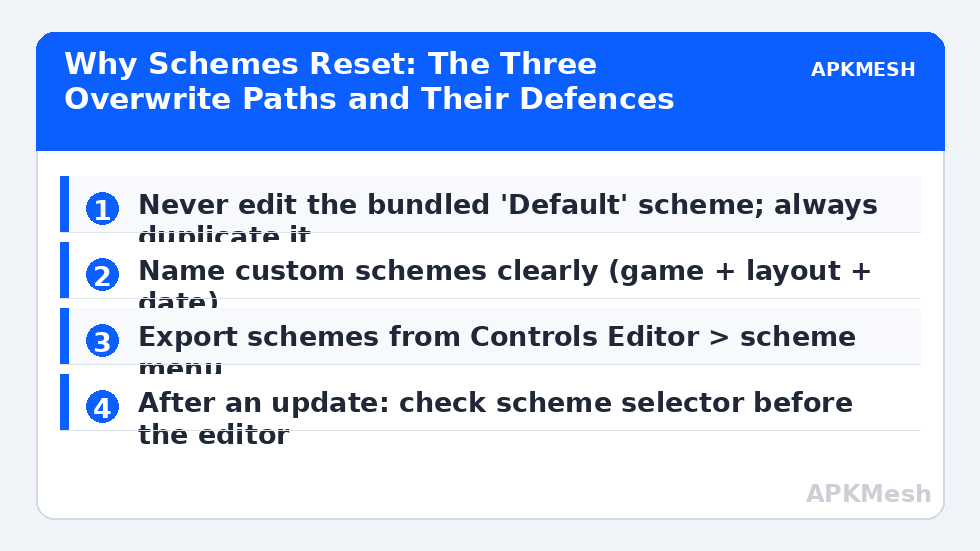
The permanent defence is boring and total: never play on the default scheme, duplicate it the day you install a game, give the copy a real name, and export it. The rest of this guide is the five-minute version of that discipline, plus the recovery routine for each failure mode.
Diagnose First: Which Reset Actually Happened?
Open the Controls Editor (Ctrl+Shift+A), and before touching a single control, read the scheme name at the top. If it says the game’s default scheme and your named scheme still exists in the dropdown, nothing was lost at all — BlueStacks applied its updated recommended scheme after the game update, a behaviour intended to help new players. Select your scheme, close the editor, and play. If your scheme is selected but the bindings hit wrong places (fire button presses the minimap, joystick drifts), the game moved its HUD: your scheme survived and its coordinates did not. If your scheme is missing from the list entirely, the file was overwritten or the instance’s data was reset — that is the only true loss, and it is the one the export habit makes trivial.
Also check the obvious impostor: BlueStacks can switch schemes per game update when the game package changes version, and multi-instance users sometimes edit the scheme on instance 1 while playing on instance 2. Confirm you are looking at the instance you actually play on before concluding anything vanished.
Lag risk: —
The Update-Proof Setup: Duplicate, Name, Export
From the scheme dropdown, choose the option to create/copy a scheme, base it on the current default, and rename it in the format GameName-Layout-Date (for example, ‘CODM-FPS-Oct’). Play only on named schemes. The bundled default is BlueStacks’ property; yours is the copy, and updates are free to overwrite theirs. Inside the scheme menu you will also find Import and Export: export writes your scheme to a file you choose. Save exports outside the BlueStacks installation — a cloud folder or your documents folder — with the game’s version noted, because an export made after a HUD redesign is a different artefact from the one before it.
Take a screenshot of your layout with the editor open and the overlay visible, and keep it with the export. It costs ten seconds and converts even a total data loss into a fifteen-minute rebuild instead of an evening of archaeology. The same export-and-screenshot habit powers painless sharing with friends, as our profile export guide describes; your future self is just the first friend you share with.
| Failure | Symptom | Recovery | Time |
|---|---|---|---|
| Scheme selector switched | Default bindings active; your scheme still listed | Select your named scheme in the editor dropdown | 30 seconds |
| Game HUD moved | Your scheme active; tap spots press wrong spots | Re-place the moved zones; save as a new dated copy | 5-15 minutes |
| Played on default scheme | Custom layout gone after update | Rebuild from screenshot; this time duplicate and name it | 15+ minutes |
| Scheme file lost/corrupt | Scheme missing from list | Import your exported scheme file | 2 minutes |
| Wrong instance edited | Changes ‘do not apply’ in game | Open the editor on the instance you play | 1 minute |
After a Game Update: The Five-Minute Checklist
Game updated overnight? Run this before queueing a match. One: open the editor and confirm your named scheme is selected. Two: start a training or bot session and test the five highest-frequency actions — move, primary fire/action, jump/interact, reload/special, and your menu key — because HUD redesigns move popular buttons first. Three: check any control whose game button sits near screen edges; edge buttons are the ones developers resize. Four: if anything moved, fix the zones, then immediately save the scheme under a new dated name and export it; keep the old export too, since games occasionally revert a UI change in a hotfix. Five: only then play for real.
Major BlueStacks version updates deserve the same checklist plus one more step: release notes for emulator updates sometimes mention control scheme migration. If a scheme behaves oddly only after an emulator (not game) update — sensitivities feeling scaled, for instance — re-check your mouse numbers against the calibration values from our sensitivity guide before assuming the scheme is corrupt; input pipeline changes can rescale feel without touching bindings.
Preventing the Quiet Killers: Sync, Instances and Cloud Saves
A few environmental habits cause repeat ‘resets’ that are not updates at all. Running registry cleaners or aggressive ‘PC optimizer’ tools can delete or corrupt the scheme files stored under the BlueStacks data folders; whitelist the BlueStacks directories in any such tool, or uninstall the tool — it is not helping your emulator either. Syncing the entire BlueStacks data folder through a cloud drive while the emulator runs can also corrupt scheme files mid-write; sync only your exports folder, which is the portable artefact. Finally, after any Windows reinstall or emulator reinstall, import schemes before launching games, so first-run default-scheme prompts do not tempt you into ‘fixing it later’ on the default scheme — later is where layouts go to die.
One more post-update habit is worth forming: BlueStacks sometimes prompts to apply a newly recommended scheme the first time you launch an updated game, and that prompt is where many careful players undo themselves with one agreeable click. Read it as an offer, not an instruction. Decline, check your named scheme in the editor, and only if the publisher has genuinely redesigned the controls should you compare the new default against yours — in a bot match, with your export already saved, so the experiment can be abandoned the moment it disappoints.
Related Keymapping Guides
More from this category is collected in the Keymapping Guides archive. These companion guides go deeper on the topics touched above:
- exporting and sharing control profiles
- mouse sensitivity calibration values
- MOBA keybindings setup that survives patches
Frequently Asked Questions
Did the game update delete my BlueStacks controls?
Probably not. Most ‘resets’ are the scheme selector switching to BlueStacks’ updated default scheme, or the game moving its HUD so your zones miss. Open the Controls Editor and check the scheme dropdown first — your named scheme is usually still there, untouched.
How do I stop my custom scheme being overwritten?
Never edit or play on the bundled default scheme. Duplicate it, rename the copy (game + layout + date), play on the copy, and export it to a folder outside the BlueStacks installation. Updates may replace the default freely; your copy is separate.
My scheme is selected but buttons press the wrong places after an update.
The game redesigned its HUD, so your tap spots now sit over different buttons. Re-place only the moved zones in the editor, save the scheme under a new dated name, and export it. Keep the old export in case a hotfix reverts the UI change.
Where are BlueStacks schemes stored and can I back up the folder?
Schemes live inside the BlueStacks instance data on your PC, which is why exports matter: the built-in Export function produces a portable file without hunting through folders. Back up exports plus a screenshot of each layout, not the raw data directory.
Should I re-import my old scheme after every game update?
Only if the in-editor scheme is missing or broken. Normally you just reselect your named scheme and adjust any zones the game’s new HUD moved. Importing is the recovery path for genuine loss, not a routine step.