
To use JoyToKey with an Android emulator, think of it as a translator sitting between your controller and a program that only speaks keyboard. Lightweight emulators — the under-500MB builds players install on old laptops — often omit a gamepad mapper entirely, or include one so basic it cannot handle sticks. JoyToKey, a long-running Windows shareware utility, fills that hole: it watches any DirectInput/XInput controller and emits keyboard presses, mouse movement and clicks in response. The emulator never knows a pad exists; it just receives the keys its own keyboard scheme expects. That indirection is the strength (it works with anything) and the weakness (two mapping layers to keep consistent), and this guide manages both sides of it.
You will need JoyToKey installed, your controller proven working in Windows (the joy.cpl check from our controller connection guide takes two minutes and eliminates the pad as a suspect), and the emulator’s keyboard scheme written down. That last item is not bureaucracy: JoyToKey emits whatever keys you assign, so its profile is only as meaningful as the keyboard layout it feeds.
How the Translation Model Works
JoyToKey profiles map physical inputs (Button 1, Stick 1 left, POV hat up) to outputs (a key, a mouse action, or a combination). Open JoyToKey and your controller’s inputs light up in the list as you press them — this live view is how you learn your pad’s numbering, which differs between Xbox-style and generic DirectInput pads. The mapping rule for emulator work is simple: JoyToKey output keys must equal the keys your emulator scheme binds to game actions. If the emulator scheme fires with Space, JoyToKey’s A button emits Space. Change the binding in exactly one layer (we recommend the emulator scheme as the source of truth, because it is per-game and exportable) and keep JoyToKey as a dumb, faithful translator.
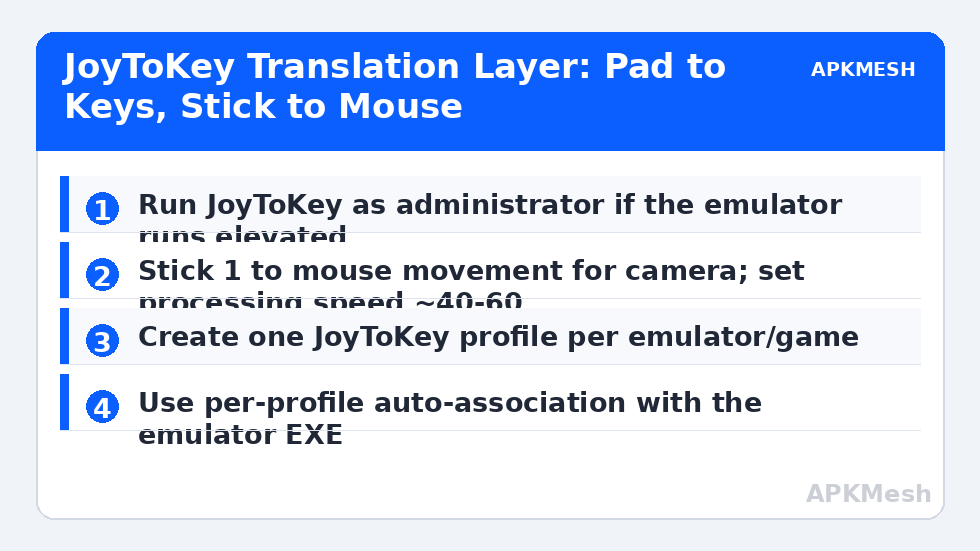
Create one JoyToKey profile per game and use the Settings > Associate profiles with applications feature to bind each profile to the emulator’s executable. Caveat: all your emulator games share one EXE, so per-application association cannot distinguish games inside the same emulator. Workaround used by most players: one JoyToKey profile per game, switched manually from the tray icon, with emulator schemes named to match (GameA-J2K inside the emulator, GameA in JoyToKey). Two small switches before a session, zero mid-game surprises.
Lag risk: —
Mapping Sticks: Movement and Mouse-Look Aiming
For the left stick, JoyToKey’s keyboard mode with an analogue threshold works well for movement: set the stick to emit WASD beyond a threshold of about 30%, so gentle pushes walk (if the game distinguishes) and full pushes run. Diagonal handling is automatic since two keys can be emitted at once. For the right stick in games with a virtual joystick camera, keyboard output is clumsy; the better route is mouse mode: assign Stick 2 to mouse cursor movement in JoyToKey’s mouse settings, with processing speed tuned so full deflection sweeps the screen at a comfortable rate — start around the middle of the slider and calibrate against a wall in game, then set a button (usually right trigger or a stick click) to the emulator’s shooting/look mode key so the mouse only drives the camera while held, exactly the pattern from our LDPlayer smart-controls layout translated into JoyToKey terms.
Deadzone discipline matters twice here because two systems sample the stick. Set a modest deadzone in JoyToKey (enough to kill idle drift, around 10-15% for a worn pad) and leave the emulator’s own gamepad settings alone, since the emulator never sees the pad. If your pad drifts, fix it in joy.cpl calibration or JoyToKey’s deadzone — not by raising thresholds until movement feels like pushing through mud.
| Pad input | JoyToKey output | Emulator receives | Purpose |
|---|---|---|---|
| Left stick | WASD keys (30% threshold) | Movement bindings | Character movement |
| Right stick | Mouse movement | Shooting-mode camera | Aim/look (hold RT to engage look key) |
| A / Cross | Space | Jump tap spot | Jump |
| B / Circle | Esc | Back / cancel | Menus and cancel |
| X / Square | R | Reload tap spot | Reload |
| Y / Triangle | F | Interact tap spot | Interact |
| RT | Hold F9 (example look-mode key) | Shooting mode toggle key | Engages mouse look while held |
| LB / RB | Q / E | Skill or lean keys | Game-specific |
| D-pad | 1 / 2 / 3 / 4 | Item and weapon slots | Quick select |
| Start | M or P | Map / pause | System screens |
Focus, Elevation and Other Ways It Silently Fails
JoyToKey only sends input to the focused window in its default behaviour, and it must have sufficient privilege to inject keys into the emulator: if the emulator runs as administrator and JoyToKey does not, Windows silently blocks the input and the pad appears dead. Rule: run both at the same level — simplest is to run JoyToKey as administrator (its settings offer a start-up option) or run neither elevated. The second silent failure is fullscreen: some lightweight emulators use an exclusive fullscreen that swallows synthetic input on certain GPU drivers; if the pad works windowed and dies fullscreen, prefer borderless/windowed at your monitor’s resolution and treat it as a driver quirk, not a mapping error.
Latency is the honest cost of translation: one extra hop through JoyToKey’s processing loop. In practice, with the processing speed set sensibly and a wired pad, the added delay is small compared to the emulator’s own frame pipeline — our input-lag guide explains how to budget the whole chain — and for the casual and mid-core games lightweight emulators target, it is not the limiting factor. Competitive shooter players on low-end emulators should still prefer an emulator with a native mapper when the hardware allows.
A Repeatable Session Checklist
Because two layers are involved, keep a three-line routine: controller lit in joy.cpl, correct JoyToKey profile selected (tray icon shows it), correct emulator scheme selected. Tape it to the monitor if you share the PC. When something breaks mid-session, the culprit is almost always a profile that auto-switched (or failed to) after an alt-tab — which, if alt-tab is itself part of the problem, our alt-tab glitch guide covers from the emulator side.
Related Keymapping Guides
More from this category is collected in the Keymapping Guides archive. These companion guides go deeper on the topics touched above:
- controller connection and XInput basics
- input lag: measuring the whole chain
- fixing alt-tab glitches in emulators
Frequently Asked Questions
What is JoyToKey actually doing to my controller input?
It translates controller events into keyboard and mouse events at the Windows level. The emulator receives ordinary keys, so its normal keyboard scheme applies. That is why JoyToKey works with emulators that have no gamepad support at all.
My pad lights up in JoyToKey but nothing happens in the emulator. Why?
The classic causes are privilege mismatch (emulator elevated, JoyToKey not — run both at the same level) and focus (JoyToKey targets the focused window). Also confirm the output keys match the emulator’s scheme bindings; a faithful translator sending the wrong keys looks exactly like a dead pad.
Can JoyToKey give me mouse-look aiming in shooters?
Yes: map the right stick to mouse movement and bind a held button (often a trigger) to the emulator’s shooting-mode key, so the camera only follows the stick while you hold it. Tune the mouse processing speed in game, and set a small deadzone so idle drift does not rotate the camera.
Is JoyToKey allowed in online games?
JoyToKey itself is a generic input translator, equivalent in spirit to ordinary keymapping — one physical input producing one standard input. Using it to build automation or macros is where game rules can bite; keep mappings one-to-one and check the game’s terms for competitive titles.
Do I need a separate JoyToKey profile for every game?
Practically, yes: games bind different keys in the emulator, so the translation must match. Name JoyToKey profiles after the game, name emulator schemes the same way, and switch both before a session. Per-application auto-association cannot tell games apart inside one emulator EXE.