Trying to connect a gamepad controller to an emulator on PC usually fails in boring ways: the pad works in Windows menus, lights up in Steam, and then does nothing in the game you actually opened. The reason is that three separate layers must agree — the Windows driver layer, the input API layer (XInput versus DirectInput), and the emulator’s own gamepad engine, which may poll the pad directly or wait for the game to request it. Xbox controllers speak XInput natively. PlayStation controllers (DualShock 4 and DualSense) speak DirectInput over USB and Bluetooth, which many emulators read imperfectly or not at all without a translation layer. This guide connects both families, in the right order, and then verifies each layer before you map a single button.
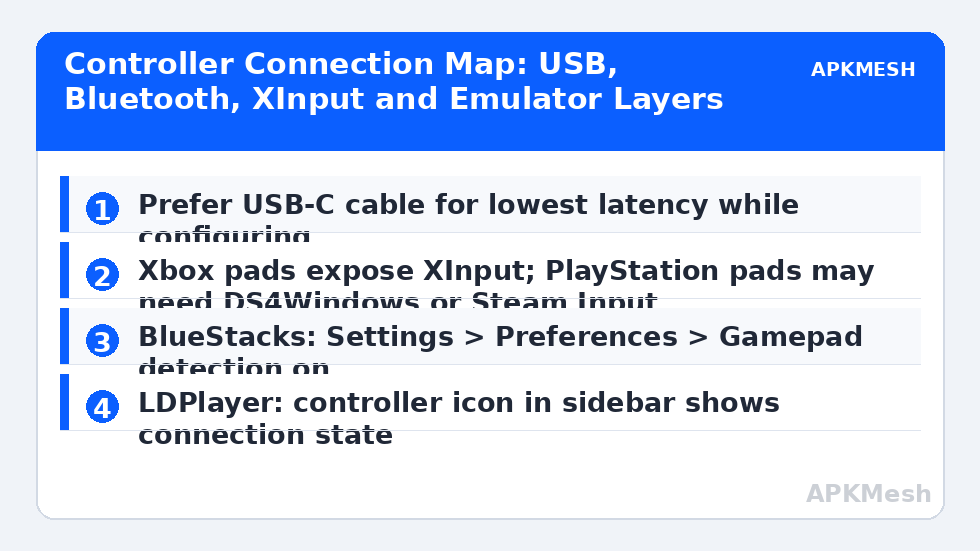
Work with a cable first. Bluetooth pairing introduces its own failure modes (adapter drivers, interference, power saving), and you want exactly one suspect at a time. Once the pad is proven over USB, repeat the verification over Bluetooth and keep the cable profile as your known-good fallback for ranked sessions and firmware updates.
Layer One: Prove the Pad in Windows
Connect the controller by cable and open joy.cpl (press Win+R, type joy.cpl, Enter). Your pad should appear in the list; open Properties and move every stick, trigger and button. Dead zones, a stuck trigger axis or a missing button discovered here will never be fixed inside an emulator, so settle hardware questions at this layer. Xbox pads that fail to appear usually need the Xbox Accessories app from the Microsoft Store for a firmware update; connect, update, and retest. For DualSense, Sony’s PlayStation Accessories app performs the same role for firmware.
Note what joy.cpl calls the device. An Xbox pad typically lists as ‘Controller (XBOX 360 For Windows)’ or ‘Bluetooth LE XINPUT’ — the word XINPUT is your confirmation that games and emulators will see standard triggers as separate axes. A PlayStation pad lists as ‘Wireless Controller’ or ‘DualSense Wireless Controller’, which is DirectInput: buttons and sticks work, but the two triggers share one axis in many older engines, and rumble plus the touchpad are not exposed without help.
Lag risk: —
Layer Two: XInput Translation for PlayStation Pads
If your emulator only understands XInput (several Android emulator builds still do), translate the PlayStation pad before the emulator starts. Two maintained routes exist: DS4Windows (works for DualShock 4 and DualSense, presents a virtual Xbox 360 pad) and Steam Input (add the emulator or game as a non-Steam game, enable PlayStation controller support in Steam Settings > Controller). Pick one translator and stick to it; running DS4Windows and Steam Input simultaneously double-registers every press, producing the classic ‘menus scroll twice’ bug. In DS4Windows, enable the ‘Hide DS4 Controller’ option (or use the HidHide tool it offers) so the emulator sees only the virtual Xbox pad, not the raw DirectInput device as well.
BlueStacks 5 and LDPlayer 9 have both improved native PlayStation pad support in recent builds, so test the native route before installing translators: plug in, open the emulator’s controller settings, and check whether the pad appears by name. Native support keeps things simpler and survives reboots better; translation remains the fallback for older builds and for games that demand an Xbox layout on screen.
| Pad | Connection | Windows sees | Emulator-ready? | Extra step |
|---|---|---|---|---|
| Xbox Series / One | USB | XInput | Yes | None |
| Xbox Series / One | Bluetooth | XInput (LE) | Yes | Pair in Bluetooth settings; keep adapter close |
| Xbox 360 (wired) | USB | XInput | Yes | None |
| DualSense | USB | DirectInput | Usually | Translator if the emulator ignores it |
| DualSense | Bluetooth | DirectInput | Usually | Steam Input or DS4Windows for stubborn titles |
| DualShock 4 | USB/Bluetooth | DirectInput | Usually | Same as DualSense; check trigger axis behaviour |
Layer Three: Emulator-Side Detection and Mapping
In BlueStacks 5, open Settings (gear icon) > Preferences and make sure gamepad detection is enabled (‘Enable gamepad detection’); a connected pad then shows a toast and appears in the Controls Editor as a gamepad scheme you can edit alongside the keyboard scheme. In LDPlayer, the controller icon on the sidebar indicates connection state; clicking it opens gamepad mapping where buttons are bound by pressing the physical button while the target screen zone is selected — the same zone logic as the keyboard editor described in our LDPlayer keymapping coverage. MuMu and Nox expose similar panels; in all of them the workflow is identical: select the on-screen control, press the physical input, save the scheme with a distinct name.
Map movement to the left stick by placing the joystick control, not four tap spots on the D-pad zone; the whole point of a pad is analogue movement. Put face buttons on their natural counterparts (Xbox A/B/X/Y mirrors Android’s usual confirm/cancel positions), triggers on game actions that benefit from analogue pull (accelerate/brake, ADS), and reserve one button (View/Share or the touchpad click) as your scheme’s utility key for menus or screenshots. Then walk our trigger-mapping layout for action RPGs if you play pad-first titles, since trigger/bumper choices follow the same logic on console pads and telescopic controllers alike.
Bluetooth Pairing Without the Usual Pain
For Bluetooth, remove old pairings first: a pad remembered by both a console and the PC will keep choosing the console. Put the pad in pairing mode (Xbox: hold the Pair button until the Xbox light flashes rapidly; PlayStation: hold Share/Create + PS until the light bar strobes), then add it in Windows Bluetooth settings. If inputs stutter beyond a metre or two, the adapter is the problem more often than the pad: plug the Bluetooth dongle into a front-panel or extension-cable port away from USB 3.0 hubs, which are notorious 2.4 GHz noise sources. Disable USB selective suspend for the adapter in Device Manager if the pad vanishes after idle periods — that is a power policy, not a broken controller.
Finally, keep a session checklist taped to the monitor if you swap pads often: translator running (for PlayStation), correct scheme loaded in the emulator, joy.cpl test passed, cable within reach. Ninety percent of ‘my controller stopped working’ reports end at one of those four lines.
Related Keymapping Guides
More from this category is collected in the Keymapping Guides archive. These companion guides go deeper on the topics touched above:
- trigger and bumper mapping for action RPGs
- D-pad and joystick sensitivity for platformers
- delayed key response and input lag fixes
Frequently Asked Questions
Why does my controller work in Windows but not inside the emulator?
Windows seeing the pad only proves the driver layer works. The emulator must also detect it (enable gamepad detection in its settings) and, for PlayStation pads, the input may need translation to XInput. Test in joy.cpl, then check the emulator’s controller panel, then the translation layer, in that order.
Do I need DS4Windows for a DualSense on BlueStacks or LDPlayer?
Not always — recent builds read DualSense natively over USB and often over Bluetooth too. Try native first. If the pad is invisible, triggers behave as one shared axis, or a game demands Xbox prompts, run DS4Windows or Steam Input as the translator and hide the raw device to avoid double inputs.
Why is every menu press registering twice?
Two input paths are active at once — typically the raw DirectInput device plus a virtual Xbox pad from a translator, or two translators running together. Keep exactly one translator, enable its hide-device option (Hide DS4 Controller / HidHide), and the doubling stops.
Is USB or Bluetooth better for emulator gaming?
USB for configuring and for competitive play: it removes adapter, interference and battery variables and has the lowest latency. Bluetooth is fine for casual sessions once it is proven stable on your adapter; if inputs stutter, move the dongle away from USB 3.0 ports before blaming the pad.
Can I use a keyboard scheme and a gamepad scheme together?
Yes. BlueStacks and LDPlayer keep both schemes active, so you can steer with the pad and still press keyboard keys for menus, push-to-talk or recording shortcuts. Just avoid binding the same game action twice in conflicting ways.