To setup free look controls in an emulator battle royale, start by understanding what the feature actually is on mobile: the eye button. Holding it lets you swing the camera around your character — checking behind you while running, scanning a ridge while prone — without changing your direction of movement or aim. On touchscreens it is a thumb-hold that competes with every other action, so mobile players underuse it. On an emulator with a mouse and spare keys, free look becomes one of the highest-value binds in the whole scheme, but only if three things are right: the control zone must sit exactly on the eye icon, the activation key must be hold-style and thumb-reachable, and the camera return behaviour must match what you expect when you release. This guide sets all three and folds free look into the wider shooter layout from our LDPlayer smart-controls guide without breaking it.
A note on scope: free look in this guide means the in-game eye feature of games like PUBG Mobile and Free Fire. It is different from mouse-look aiming (shooting mode) and from the spectator free camera; confusing the three in the editor is the root of most failed setups.
Placing the Eye Control: The Zone Is the Feature
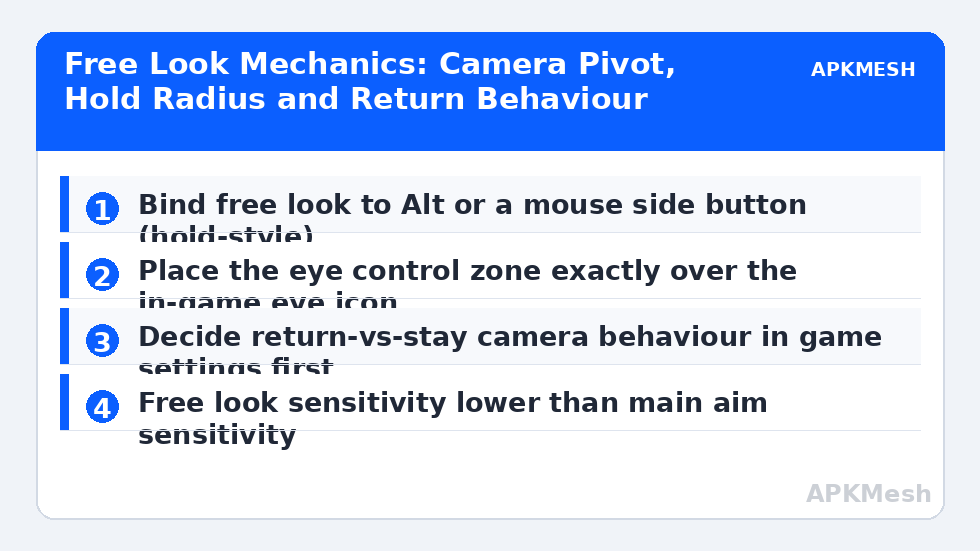
Mobile BR games implement free look in one of two ways: a dedicated on-screen eye icon you hold and drag, or a mode toggled in settings where a key/button activates it. Emulators handle the first kind with a specific control: LDPlayer’s editor and BlueStacks’ Controls Editor both include a ‘Free Look’ / ‘Look Around’ control type in recent versions — use it rather than improvising with a tap spot, because the dedicated control presses the eye icon and routes your mouse movement to the camera while it is held. Drag it onto the eye icon and size the zone to the icon, not larger: an oversized zone overlapping the fire or joystick area will steal touches and produce the classic bug where aiming also swings the free camera.
If your emulator build lacks the dedicated control, the workaround is a tap spot on the eye icon bound to your chosen key plus the game’s own setting that makes free look follow the mouse while the button is held — support for that second half varies by game, which is why the dedicated control exists. Either way, finish placement with the game running in the training area and the overlay visible, then verify the icon visually depresses when you hold your key; a zone that is off by a centimetre fails silently because nothing on screen complains.
Lag risk: —
Choosing the Activation Key and Hold Behaviour
Free look must be a hold, not a toggle. You use it in bursts of one to three seconds while moving, and a toggle left on by accident leaves you running blind in the wrong camera state. The key must be reachable while your left hand owns WASD and your right hand owns the mouse, which leaves exactly two good candidates: Left Alt (thumb, if your thumb is not your jump) and a mouse side button (thumb of the mouse hand). Alt is the traditional PC choice and the one most BR veterans bring from desktop titles; the side button is better if you also use Alt combinations elsewhere in the scheme. Avoid binding it to a key you hold for other reasons during movement — Shift (sprint) and Space (jump) disqualify themselves.
Set the same hold discipline in the game’s settings: many BR titles offer ‘hold to free look’ versus ‘tap to toggle’ for the eye button itself, and the emulator key simply holds the button for you. If the game-side setting is on toggle, your hold key appears to latch the camera — players misdiagnose this as an emulator bug weekly. Align both sides to hold.
| Choice | Recommendation | Why |
|---|---|---|
| Activation key | Left Alt or mouse side button | Reachable while moving; no conflict with WASD/mouse aim |
| Activation style | Hold (both in emulator and in game settings) | Bursts of 1-3 s; toggle causes stuck-camera accidents |
| Control type | Dedicated Free Look control in the editor | Routes mouse to camera only while held |
| Zone size | Match the eye icon exactly | Oversized zones steal fire/joystick touches |
| Free look sensitivity | 70-90% of main look sensitivity | Wide scans without losing orientation |
| Camera on release | Return to aim (most games’ default) | Your gun stays where the fight is |
Camera Return Behaviour and Sensitivity
When you release free look, the camera either snaps back to your aim direction or stays where you left it, depending on the game and its settings. Return-to-aim is the sane default for emulator play because your mouse is your aim: after a scan, gun and camera reunite instantly. The stay-put variant suits vehicle passengers and prone campers who scan repeatedly from one position; if you use it, you must build the habit of a small mouse flick to re-centre, or your next sprint goes somewhere your eyes are not. Whichever you choose, choose it in the game settings deliberately and test it during the parachute phase of a bot match, where a wrong camera costs nothing.
Free look sensitivity is a separate value in most implementations (in the game, and sometimes mirrored in the emulator control). Set it a little lower than your main look sensitivity — around 70-90% of it — because free look is for scanning wide arcs calmly, not for flick shots. If scanning feels seasick-fast, the problem is this value, not your main sensitivity; do not wreck a calibrated aim setup to fix a scouting control. Our sensitivity calibration method (cm/360) applies to the main look; free look just needs to feel proportional to it.
Integrating Free Look Into Your Full Layout
Free look interacts with three neighbours. Sprint: in most BRs, auto-sprint or sprint-lock frees your thumb-equivalent (Shift) so Alt remains comfortable; if you hold Shift to sprint and Alt to scan, test that your keyboard and the emulator handle the chord without dropping the sprint. ADS: free look while scoped is blocked or unhelpful in most titles, so no binding conflict exists, but your brain should file them as mutually exclusive states. Vehicles: as a driver, free look is how you check flanks without steering into a tree — since movement keys drive, your scan key must be the mouse side button if Alt conflicts with vehicle controls in your scheme; as a passenger you can lean and shoot, and free look retains its scouting role.
Practise the skill deliberately: in training, sprint a straight line and scan left, release, scan right, release, ten times; then the same while strafing. The motion should become as automatic as reloading. Players who bind free look and never drill it simply own an unused key with extra steps.
Related Keymapping Guides
More from this category is collected in the Keymapping Guides archive. These companion guides go deeper on the topics touched above:
- LDPlayer smart controls full shooter layout
- mouse sensitivity calibration
- on-screen overlay hints for state awareness
Frequently Asked Questions
What key is best for free look on an emulator?
Left Alt or a mouse side button, used as a hold. Both are reachable while your hands stay on movement and mouse. Avoid Shift and Space (busy during movement) and avoid any toggle arrangement — free look is a burst tool, not a mode.
Why does my camera stay turned after I release the free look key?
The game-side free look setting is on tap/toggle behaviour or its camera-return option is set to stay. Switch the in-game eye-button setting to hold mode and, if offered, enable return-to-aim so the camera rejoins your crosshair on release.
My free look also fires my weapon or moves the joystick. What is wrong?
The free look control zone in the editor is too large or misplaced, overlapping the fire button or joystick zones. Shrink the zone to exactly cover the eye icon and re-test with the overlay visible in the training area.
Should free look sensitivity match my aim sensitivity?
Slightly lower is better for most players — about 70-90% of your aim value — because free look is for calm wide scans. If scans feel frantic, reduce this value rather than touching your calibrated aim sensitivity.
Does free look work while driving?
As a driver, yes for scanning (steering stays on keys), and it is genuinely useful for checking flanks. As a passenger you can typically lean and shoot as well. Make sure your scan key does not conflict with vehicle controls in your scheme.