To troubleshoot unresponsive keys in an emulator multiplayer session, start with the pattern that defines the problem: the keys work in menus, in training, and in the first calm minutes — then a team fight erupts, effects stack, voices shout, and suddenly your ultimate does not fire or your movement key sticks. Load-dependent failure has a short list of physical causes, and multiplayer sessions are simply where all of them peak at once: the keyboard itself cannot report that many simultaneous keys (rollover/ghosting), the PC’s CPU saturates so the emulator processes input late or not at all, USB or wireless paths drop under electrical noise and hub contention, and Windows or the emulator loses track of key states when overlays and voice apps join in. This guide isolates each cause with a test you can run between matches, applies fixes in order of likelihood, and finishes with a five-second mid-match recovery kit, because the best troubleshooting is the kind you can do while respawning.
Do not start by rebinding keys. Unresponsiveness under load is almost never a scheme problem, and rebuilding a good scheme to chase a hardware or load fault is how players end up with two problems. Diagnose first; the scheme is the last suspect, not the first.
Cause 1: Keyboard Rollover and Ghosting (The Hardware Ceiling)
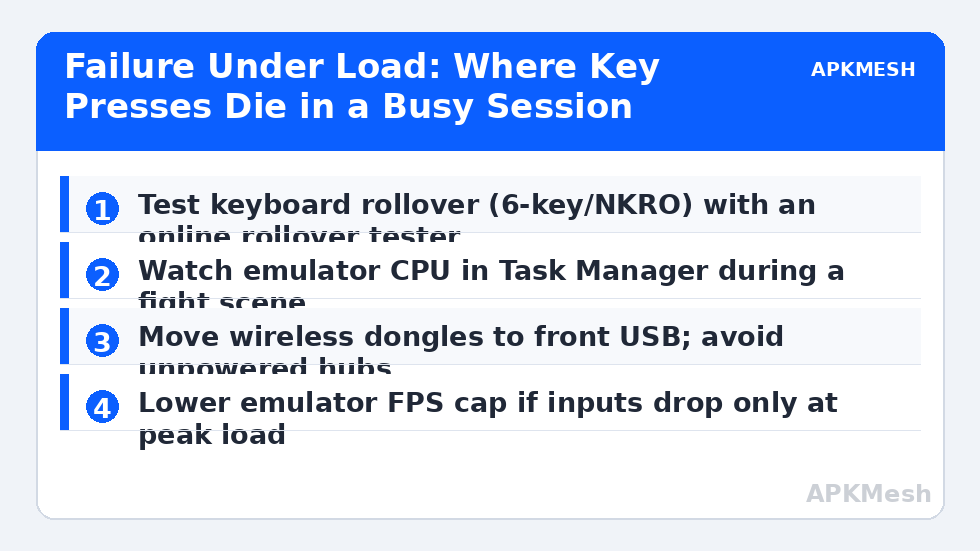
Every keyboard has a limit on how many keys it can report simultaneously, and cheap membrane boards often fail at three or four keys in the same cluster — exactly the WASD neighbourhood where movement (2 keys) + sprint (Shift) + an ability (Q) + crouch (C) can demand five at once. The symptom is specific: a particular combination fails while others work, repeatably, even in a text editor’s rollover test page. Test outside the emulator: open any online keyboard rollover tester, hold your fight combination, and watch which key never registers. If the hardware ghosts, no emulator setting will save it; the fixes are choosing combinations that avoid the dead cluster (move one action to the mouse), or a keyboard with proper N-key rollover for gaming. This is also why our layouts put critical actions on mouse buttons where possible — the mouse has no shared matrix with WASD.
Related but distinct: some keyboards drop a held key during rapid repeats because of aggressive debounce or a failing switch. If a single key alone (hold W in a corridor) stutters, that is the switch or the connection, not rollover; test the same key in a document (hold it and watch the character stream) to confirm before spending money.
Lag risk: —
Cause 2: CPU Saturation and the Emulator’s Input Thread
When the whole PC is at 100% — emulator rendering a chaotic fight, voice chat encoding, a browser or recording software in the background — the emulator’s input handling waits like everything else, and under real saturation some key events effectively arrive too late to matter, feeling identical to dropped keys. Diagnose with Task Manager open on a second screen (or logged after) during a heavy scene: if CPU or GPU pins at 100% when the drops happen, treat it as a load problem. Fixes in order of impact: close the true background hogs (the usual podium is a browser with hardware-accelerated video, a cloud sync mid-upload, and Windows Update); reduce the emulator’s rendering load one notch (FPS cap to your display’s rate instead of unlimited, resolution one step down — the frame pipeline and input pipeline share the same CPU); and check core allocation, because an emulator given too few cores starves its own input thread while an emulator given all cores starves Windows’ USB and audio stacks. The allocation balance is covered in our emulator settings coverage on the homepage.
Recording and streaming deserve a specific mention: software encoding (x264) on the same CPU is a classic multiplayer-session hog. If your drops align with going live, switch the encoder to your GPU (NVENC/QuickSync/AMF) or record at a lower preset; your keys will return and your viewers will not notice the difference nearly as much as you notice your ultimate firing.
| Symptom pattern | Most likely cause | Confirm with | Fix |
|---|---|---|---|
| One key combo never works, even in menus | Keyboard rollover/ghosting | Online rollover tester with your combo | Rebind off the dead cluster; NKRO keyboard |
| Keys die only in big fights | CPU/GPU saturation | Task Manager during a heavy scene | Close hogs; cap FPS; one notch down on resolution |
| Held movement stutters alone | Switch fault or wireless drops | Hold-key stream test in a document | Cable the keyboard; replace/retire the switch |
| Everything lags after alt-tab | Focus/key-state mismatch | Return-routine test | Five-second routine (see alt-tab guide) |
| Keys fine wired, dead wireless at range | Dongle path/interference | Move dongle to front port/extender | Front USB, away from USB 3.0 hubs |
| Drops start when streaming starts | CPU encoder overload | Toggle recording mid-session | GPU encoder or lighter preset |
Cause 3: USB Paths, Hubs and Wireless Contention
Input devices plugged into an unpowered hub share bandwidth and power with everything else on that hub — during a match, a headset dongle, a capture device and your keyboard can contend exactly when the game is loudest. Give keyboard and mouse their own motherboard ports (rear I/O direct, or front panel), move wireless dongles to the included extender near the mousepad, and keep them away from USB 3.0 storage devices whose signalling is a known 2.4 GHz noise source. The pattern that indicts this cause: failures correlate with other USB activity (a backup drive spinning up, a phone fast-charging on the same hub) rather than with anything on screen.
Power management is the software half of this cause: Windows can suspend USB devices it deems idle, and a ‘held’ key from a suspended-then-woken keyboard can vanish. In Device Manager, for your USB root hubs and the keyboard/mouse devices themselves, clear ‘Allow the computer to turn off this device to save power’ — a two-minute change that permanently removes a whole species of mid-session weirdness, echoed in our input-lag guide’s Windows section.
The Mid-Match Recovery Kit (Five Seconds, While Respawning)
When keys misbehave mid-match, run this in order, all of it possible during a respawn timer: one, click once inside the game window (restores true focus if an overlay stole it); two, tap Shift, Ctrl and Alt once each (releases stuck modifier states); three, tap the opposite of any stuck movement direction; four, if a key seems dead rather than stuck, glance at the scheme indicator — voice or streaming software hotkeys occasionally toggle emulator schemes or overlays, and reselecting your named scheme restores sanity; five, if the whole keyboard feels wrong, a quick unplug-replug of a wired board (or dongle) re-enumerates it without leaving the match for more than a few seconds. What not to do mid-match: open the controls editor, change bindings, or restart the emulator — those are between-match tools, and the discipline of separating the two is what keeps a bad minute from becoming a bad evening.
Between matches, log the incident in your profile note with the fight context (what else was running, wired or wireless, which keys). Three logged incidents reveal a pattern that memory alone smooths into ‘sometimes it just breaks’. Multiplayer sessions will always be the harshest environment your setup faces; treat them as the load test they are, and let the fixes above harden the setup until the test passes boringly, session after session.
Related Keymapping Guides
More from this category is collected in the Keymapping Guides archive. These companion guides go deeper on the topics touched above:
Frequently Asked Questions
Why do my keys only fail during big team fights?
Because that is when every load peaks together: your keyboard may hit its rollover limit with fight combinations, the CPU saturates with effects and voice chat, and USB contention rises. Test each cause separately — rollover tester for combos, Task Manager during a fight for load — and fix the one your tests indict.
How can I tell if my keyboard is ghosting?
Open an online rollover tester and hold your exact fight combination (for example W+A+Shift+Q). If one key never lights while held in the combination but works alone, that cluster ghosts on your board. Rebind one action off the cluster (a mouse button is ideal) or use an N-key rollover keyboard.
The emulator shows high CPU only in matches. What should I lower first?
Cap the emulator FPS at your display’s refresh rate and close genuine background hogs before touching resolution. If drops persist, reduce the emulator resolution one step and check core allocation — too few cores starve the emulator, too many starve Windows’ input and audio handling.
Could my headset or streaming software really eat my keys?
Yes — indirectly. Software audio/video encoding competes for the same CPU the emulator needs, and voice apps can also capture hotkeys that overlap your bindings. Switch encoders to the GPU, audit voice-app hotkeys for overlaps, and give the keyboard and mouse their own USB ports.
What is the fastest mid-match recovery when keys stick?
Click into the game window, tap Shift/Ctrl/Alt once each to clear stuck modifiers, tap the opposite direction for a stuck movement key, and confirm your named scheme is still selected. Save editor work and restarts for between matches.