GameLoop looks deceptively simple: a small installer, a short settings panel, and a library built around Tencent titles. On a low-end laptop that simplicity hides two engines, a memory mode most users never touch, and a rendering cache that decides whether a match feels smooth or ragged. Getting the gameloop best settings low end pc configuration right means tuning the AOW engine for a machine that also has to run Windows, not copying a desktop screenshot from a forum. This guide works through the engine, display, and game tabs in the order they actually affect frame stability.
Start With the Engine Tab, Not the Game Tab
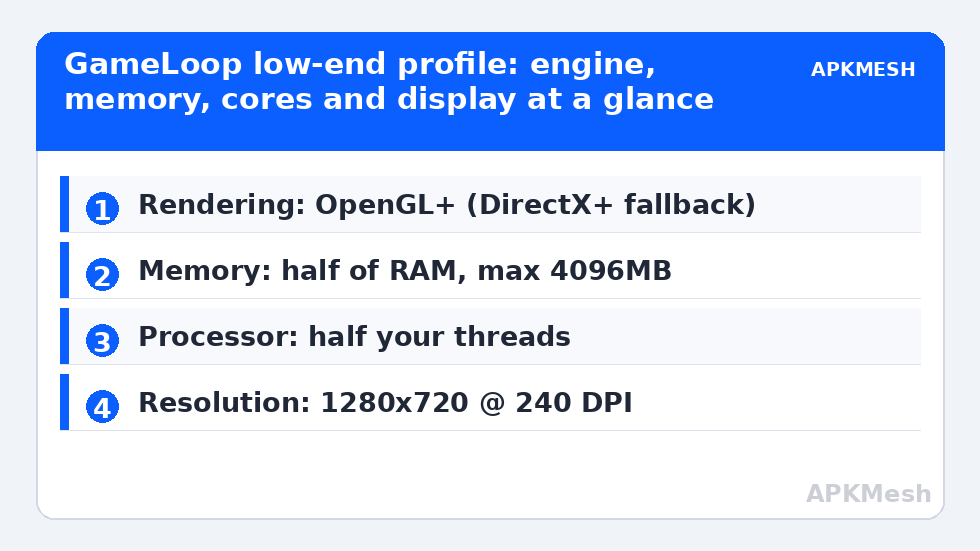
Open GameLoop Settings and go to Engine first. The choices here load before any game does, so they shape everything downstream. On integrated graphics, set Rendering to OpenGL+ if it is offered and stable; fall back to DirectX+ when you see flickering textures or a black lobby. Enable the rendering cache and prioritise the discrete GPU only if your laptop genuinely has one — on a single-iGPU laptop that toggle changes nothing, and forcing it on dual-GPU machines can add heat without adding frames. Keep anti-aliasing off at this level; in-game options handle it more predictably.
| Setting | Low-end value | Reason |
|---|---|---|
| Rendering mode | OpenGL+, DirectX+ as fallback | Matches the translation path to your iGPU driver |
| Memory | Half of system RAM, capped at 4096MB | Leaves Windows and the game cache room to breathe |
| Processor | Half your logical threads | Prevents the engine starving Windows services |
| Resolution (engine) | 1280×720 | The realistic ceiling for integrated graphics |
| DPI | 240 | Keeps menus and HUD elements readable at 720p |
| Audio | Default device, enhancements off in Windows | Avoids resampling crackle under load |
If your laptop has 8GB of RAM, the memory row matters most. GameLoop will happily accept a larger allocation, but the game then competes with its own shader cache and with Windows for the same pool. Half-and-half is the split that survives a full evening of matches rather than the first ten minutes.
Memory and Processor: The Half Rule Applies Here Too
GameLoop exposes its allocation as simple dropdowns, which invites the same mistake people make in larger emulators: selecting the maximum on both. On a four-thread Core i3 or Ryzen 3, choose two processor cores and 4096MB or less. The engine uses the allocation as a ceiling for its Android guest, and an oversized guest does not run faster — it just makes Windows page when a browser, a voice app, and the game are open together. The general reasoning is identical to how to allocate CPU cores and RAM correctly in Android emulators, and it is worth reading once even if GameLoop is the only emulator you keep installed.
There is one GameLoop-specific wrinkle: the AOW engine and the newer Turbo AOW builds schedule threads slightly differently, and the Turbo build tends to reward a clean two-core assignment over a greedy four-core one on older chips. If you migrated an old install rather than installing fresh, check which engine your library entry launches; mixing settings advice between the two engines is a common source of contradictory forum tips.
Lag risk: —
Display Settings for Integrated Graphics
Set the game resolution to 1280×720 and the display quality to Smooth or Balanced inside the title itself, then lock the frame rate to the highest tier your laptop holds for a full match rather than the highest tier it touches in the lobby. Lobby frame rates flatter every machine; drops happen in final circles, in smoke, and when several squads converge, and those are the moments the settings are for. If your panel is 60Hz, chasing a 90 FPS tier only adds heat.
GameLoop also carries a screen-capture and anti-aliasing set under its Game tab that many guides ignore. Disable any built-in recording or highlight capture on low-end hardware — the encoder shares the same integrated GPU you are trying to protect — and set Windows to use GameLoop’s executable with the High performance graphics preference only on dual-GPU laptops. Single-GPU owners should instead spend the effort on drivers, following the same driver logic covered in our emulator settings for Intel UHD graphics guide if the laptop is Intel-based.
The Tencent Lane: Where GameLoop Genuinely Wins
Honesty about scope helps here. GameLoop is at its best with the titles it was built for, where keymapping presets, sensitivity defaults, and update testing are done by the publisher. Outside that lane — general apps, newer non-Tencent shooters, productivity tools — a mainstream emulator with per-game control is usually the better home. Readers weighing that trade-off often pair this guide with a look at MSI App Player settings for budget laptops, which sits at the opposite end: a full emulator that borrows BlueStacks technology but ships leaner defaults.
Within its lane, though, GameLoop’s update discipline is a real feature. Game patches are tested against it, so the day-one experience after a big title update is typically calmer than on a general emulator waiting for a profile fix. On a low-end PC, where you have no performance headroom to absorb a bad patch week, that predictability is worth real frames.
A Ten-Minute Verification Routine
- Restart GameLoop after changing engine settings; rendering and memory changes do not fully apply to a running guest.
- Play one full match in your busiest mode, not a training round, with Task Manager open on a second screen or recorded in the background.
- If total RAM use sits above 90 percent, drop the memory allocation one step before touching anything else.
- If the GPU graph is pinned at 100 percent while CPU sits moderate, lower in-game effects and shadows before lowering resolution.
- If frame drops arrive in regular waves every few minutes, suspect thermal throttling or a background scan, not the renderer.
Change one variable between matches. GameLoop’s menus make it tempting to flip five toggles at once, but then a genuine improvement cannot be credited to anything, and the next game update leaves you unable to reconstruct what worked. Keep a note of your final values — engine mode, memory, cores, resolution, and in-game tier — somewhere outside the emulator, alongside the rest of your setup notes on APKMesh.
What Not to Install Alongside It
Search results for GameLoop tweaks are full of repacked installers, registry cleaners, and game boosters. None of them belongs on a low-end machine. A repacked GameLoop build is a security risk and often an outdated engine; a booster that kills Windows services indiscriminately will break voice chat, updates, or both. The settings in this article, a current graphics driver, and a tidy startup list deliver everything those downloads promise, without the bundled extras. If a tip requires disabling your antivirus to work, the tip is the problem.
Seasonal Maintenance for a GameLoop Install
GameLoop installs age quietly: shader caches grow, game updates pile temporary files into the guest, and the virtual disk expands to hold it all. Once a month, clear the in-emulator cache from the settings or centre tools, uninstall titles you have stopped opening, and confirm Windows still shows healthy free space on the drive holding the install. None of this is glamorous, but on a low-end laptop the difference between a maintained install and a neglected one is the difference between the settings in this guide working as tested and mysteriously stopping. Treat any sudden slowdown after a game patch as a cache event first and a settings event second.
Frequently Asked Questions
What are the best GameLoop memory and processor settings on 8GB RAM?
Set memory to 4096MB or the closest option at or below half your RAM, and processor to half your logical threads – two cores on a four-thread CPU. Larger allocations make Windows page during matches, which feels like random stutter, while smaller ones starve the game cache and lengthen loading between rounds.
OpenGL+ or DirectX+ in GameLoop on integrated graphics?
Start with OpenGL+ on most integrated GPUs and test a full match. Switch to DirectX+ only for concrete symptoms such as flickering textures, black models, or a lobby that will not render. Restart GameLoop completely after switching, because the guest caches its graphics pipeline at launch.
Can GameLoop run well on a 4GB RAM laptop?
Only for its lightest supported titles, and only with expectations set honestly: 720p, Smooth quality, 2048MB allocation, and everything else on the PC closed. Heavier shooters will page and stutter on 4GB no matter which toggles you change, because Windows itself needs most of that memory.
Why does GameLoop feel smooth in the lobby but drop frames in matches?
The lobby renders a small static scene, so almost any settings look fast there. Matches add players, vehicles, and effects that saturate the integrated GPU and fill the shader cache. Judge every settings change by the busiest minute of a real match, never by lobby or training-ground numbers.
Should I use a game booster or registry tweak with GameLoop?
No. Boosters that kill services indiscriminately tend to break voice chat, updates, or Windows features, and repacked GameLoop installers are a genuine security risk. Current drivers, the allocations in this guide, and a clean startup list give you the same benefit safely.