The emulator window opens, the splash screen appears, and then nothing moves. No Android home screen, no error code, just a message about starting the engine that sits there until you give up and close the window. Learning to fix emulator stuck on starting engine problems means understanding that this screen is not one step but a chain: the virtualization driver loads, the virtual disk mounts, Android services start, and only then does the interface appear. A break at any link looks identical from the outside, which is why random reinstalls so often change nothing. Work the chain in the order below, testing after each stage, and you will find the broken link instead of guessing at it.
What Starting the Engine Actually Does
When you press launch, the emulator is doing far more than opening an app. It reserves CPU cores and memory, talks to its hypervisor driver, opens a virtual disk file that can be tens of gigabytes, boots a full Android kernel, and starts dozens of system services before the launcher can draw anything. On a low-end PC each stage is slower, but slow and stuck are different things. A slow boot still shows disk activity, changing status text, or a moving progress bar. A stuck boot repeats the same state indefinitely.
- A leftover process holds the lock. A previous session that crashed or was force-closed leaves a background process that still owns the virtual disk or the hypervisor session.
- The hypervisor driver failed to load. A Windows update, a disabled service, or a conflict with another virtualization tool stops the engine before Android even begins.
- The virtual disk will not mount. Corruption, a full host drive, or an antivirus scan locking the disk image blocks the boot at the storage stage.
- Android services stall during boot. A damaged instance, a bad recent setting change, or a failed system update leaves Android looping before the home screen.
If your machine instead stops with a specific virtualization warning, that is a different fault with its own path — see the guide to fixing the VT virtualization error in BlueStacks 5. The engine hang in this article assumes no such clear message appears.
Step 1: Do a Clean Restart of the Emulator Processes
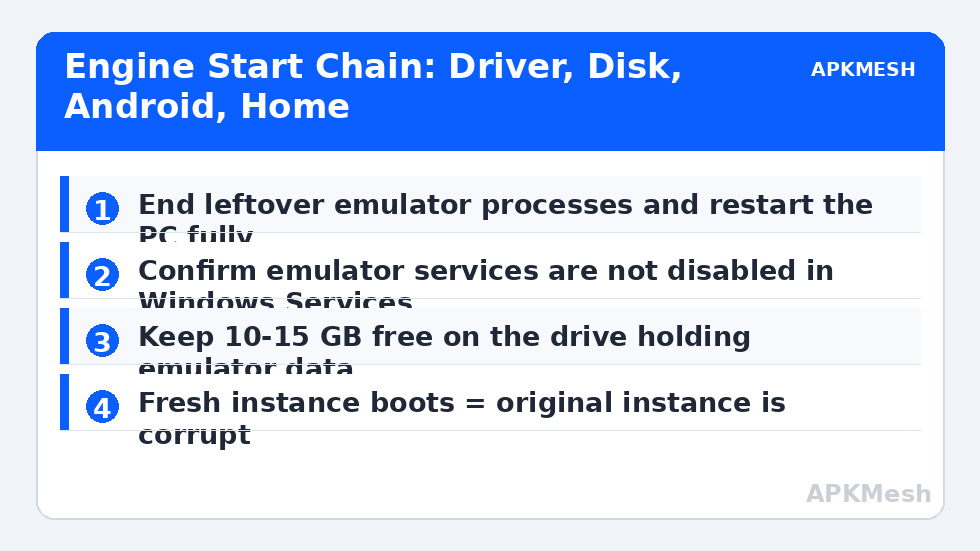
Before changing any setting, prove you are starting from a genuinely clean state. Close the emulator window, then check the system tray near the clock and exit the emulator from there as well, because many builds keep a background agent running after the window closes. Open Task Manager with Ctrl, Shift and Esc together, look for emulator, hypervisor and virtual machine processes, and end any that remain. Then restart the whole PC once. That restart matters: it clears driver states and file locks that ending processes alone cannot release.
- Close the emulator and exit its tray icon completely.
- In Task Manager, end leftover emulator and virtualization helper processes.
- Restart the PC — do not use sleep or hibernate as a substitute.
- Launch the emulator once, before opening browsers, launchers or other heavy apps.
- Watch for two honest minutes, checking whether the disk activity light or Task Manager disk graph shows work happening.
If it boots cleanly now, the cause was a stale lock or process, and the practical fix is habit rather than surgery: close the emulator fully after sessions and avoid force-closing it from Task Manager during normal use. If it hangs again in exactly the same place, move on — the fault survives a clean start, so it lives in the driver, the disk, or the instance itself.
Step 2: Check the Driver, Services and Host Drive
The engine depends on Windows services and a kernel driver that must both be running before Android exists. Open the Services app from the Start menu, find your emulator’s service entries, and confirm they are not disabled. If one is stopped, try starting it manually and note any error message, because that message is often more specific than anything the emulator itself shows. A driver that fails after a Windows feature update may need the emulator updated or repaired so a compatible driver is installed again.
Storage deserves equal attention at this stage. Confirm the drive holding the emulator data has at least ten to fifteen gigabytes free. A virtual disk that cannot grow or write its temporary files during boot can stall without a clear storage warning. If disk usage sits pinned at maximum during the hang, work through fixing the emulator using 100 percent disk as well, since the two faults feed each other. Also pause any scheduled antivirus full scan and test once more; scanning a huge virtual disk image at the exact moment it mounts is a classic low-end PC bottleneck, though you should re-enable protection immediately after the test.
Step 3: Test With a Fresh Instance Before Reinstalling
Every major emulator can create a second, clean Android instance alongside your existing one. Do that now, using modest default settings: two or three CPU cores, around four gigabytes of memory on a typical low-end system, and the default graphics mode. A fresh instance is the single most informative test in this whole guide because it shares the same driver, disk and Windows installation as the failing one.
- The fresh instance boots: your engine and driver are healthy, and the original instance is corrupt. Migrate account-linked games to the fresh instance rather than repairing the damaged one indefinitely.
- The fresh instance hangs identically: the fault is below instance level — driver, emulator installation, or host storage. A repair install is now justified.
- The fresh instance boots once, then hangs: suspect a setting or app you carried over, or host disk pressure that grows as the new disk file expands.
Resist skipping this test. Reinstalling the emulator without it destroys evidence and, if the real fault was a corrupt instance, the reinstall often imports or recreates the same problem. Not sure whether your core and memory choices are realistic for your hardware in the first place? Check them with the calculator before you create the test instance:
Lag risk: —
Step 4: Repair the Installation and Graphics State
If the fresh instance also hangs, repair the emulator itself. Update to the latest stable build from the official website first, because engine-start hangs are a common target of maintenance releases. If you are already current, use the installer’s repair option if offered, or uninstall, restart, and reinstall to the default location on your fastest drive. During reinstall, leave the graphics renderer at its default. If you recently switched rendering modes, that change belongs at the top of your suspect list — a related pattern is covered in fixing graphics rendering mode crashes, where the engine loads but the display path fails.
After reinstalling, create one default instance and boot it before restoring anything else. Only when that default instance reaches the home screen twice in a row should you sign in, reinstall games, and raise allocations gradually. Changing five settings at once before the first successful boot makes the next hang impossible to attribute, and attribution is the whole game on a low-end machine where several marginal factors combine.
How to Verify the Fix and Keep It Fixed
- The emulator reaches the Android home screen on three consecutive launches, including one immediately after a full PC restart.
- Startup time is consistent rather than alternating between fast and endless.
- Task Manager shows CPU and disk activity rising during boot and settling after the home screen appears.
- Closing and reopening the emulator does not recreate the hang, which rules out the zombie-process pattern.
Keep the setup stable afterwards: leave some free space on the host drive, let Windows updates finish and restart properly instead of postponing them for weeks, and shut the emulator down cleanly before shutting down the PC. Most engine hangs are not dramatic hardware failures. They are the accumulated result of locks, half-finished updates and marginal storage — all preventable once you know which link in the chain broke on your machine.
Keep perspective while you work: an engine hang feels catastrophic, but it sits alongside far more ordinary faults in this category, and a machine that idles with the emulator consuming resources at the home screen deserves the separate check in fixing high CPU and memory usage in emulators. When your instance boots reliably again, return to the APKMesh homepage to size any future allocation changes against your real hardware before you make them.
Frequently Asked Questions
How long should the Starting the Engine screen normally take?
On an SSD, most emulators reach the Android home screen in twenty to sixty seconds. On a hard drive or a very low-end CPU, ninety seconds is still plausible. Beyond two minutes with no change in the progress indicator or disk activity, treat it as a hang rather than slowness and work through the restart, service and fresh-instance steps in order.
Will deleting and recreating the instance lose my games?
It removes local instance data, including guest saves and downloaded files stored only inside that instance. Games signed into Google Play, Facebook or a publisher account restore progress from the cloud after you sign in again. Check that your important games are linked to an account before you discard any instance, and export local saves where the game offers that option.
Why does the engine start fine after a restart but hang on the second launch?
That pattern points to a leftover background process or service that did not exit cleanly the first time. The second launch then waits on a lock held by a zombie process. Ending the emulator processes in Task Manager or restarting the PC clears it temporarily, while updating the emulator and closing it fully from the system tray usually stops it returning.
Does running the emulator as administrator fix engine hangs?
Occasionally, if a permission problem is blocking access to the virtual disk or a driver, but it is a diagnostic clue rather than a permanent fix. If administrator mode is the only way it starts, repair the installation folder permissions or reinstall to a standard location instead of running elevated every day, which weakens Windows security boundaries.
Can a slow hard drive alone cause this hang?
A healthy hard drive makes startup slow, not permanently stuck. A failing drive, a nearly full drive, or heavy background disk activity can push service timeouts over their limit and produce a genuine hang. Check drive health and free space, and rule out the disk saturation covered in the 100 percent disk guide before blaming the drive hardware itself.