One game runs for hours. Another closes the whole emulator the second a match loads, and the only thing you changed recently was a graphics option with an innocent name. Learning to fix graphics rendering mode crash emulator failures means treating OpenGL, DirectX and Vulkan not as quality settings but as three different translation layers between Android and your graphics card. Each layer leans on different driver features. On a modern discrete GPU all three may work. On an older integrated GPU — the reality for most low-end PCs — one layer is usually solid, one is shaky, and one falls over the moment a game uses an effect it handles badly. Your task is to identify your solid layer methodically, not to chase the fastest one.
What the Rendering Mode Actually Changes
Android games issue graphics commands written for mobile GPUs. Your PC GPU speaks a different dialect, so the emulator translates every frame through the API you select. OpenGL translation is the oldest and most widely tested path. DirectX routes through Microsoft’s stack and often suits older Intel integrated graphics. Vulkan is the newest path, capable of excellent performance on current hardware and drivers, but far less forgiving of old drivers and entry-level integrated GPUs. The game itself does not change between modes — only the translator does — which is why a crash that follows the mode, not the game install, is almost never the game’s data at fault.
- Crash at the first 3D scene, every time, on one mode: that mode’s translation of the game’s rendering calls is failing. Switch modes before touching anything else.
- Crash after minutes of play, getting worse over time: heat or memory pressure in the graphics path; the mode may be an accomplice rather than the cause.
- Crash in every mode, in every game: look below the emulator — driver, GPU stability or failing hardware.
- Crash in one game in every mode, other games fine: that title’s own graphics setting or data; see the per-game pattern in fixing low FPS in only one game.
Black and white screens are close relatives of this fault. If your symptom is a blank display rather than a crash to desktop, compare with fixing black screen issues on startup before working this guide, because the triage there separates boot failures from display failures in one quick test.
Step 1: Change the Mode Properly and Test One Variable
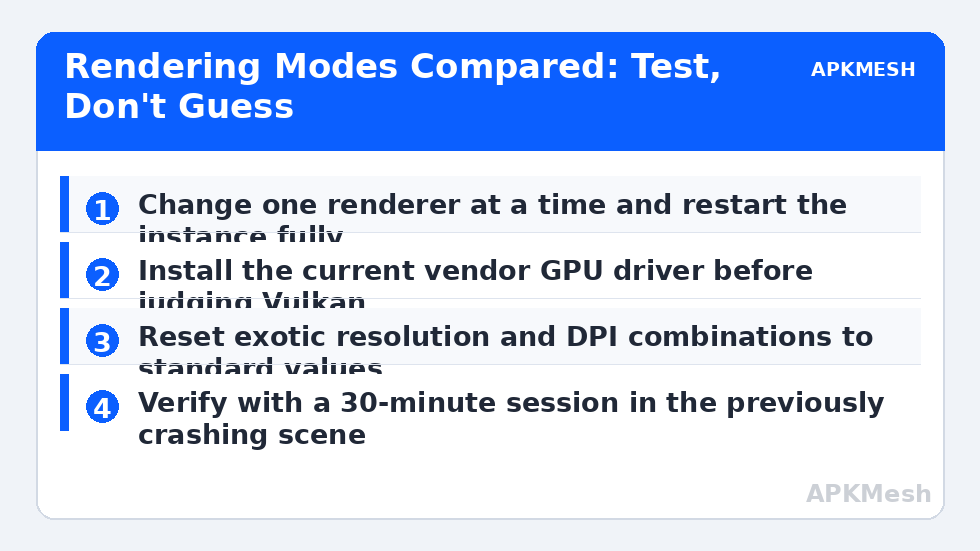
Most emulators require a full instance restart for a renderer change to take effect, and changing it from inside a running game session invites exactly the instability you are trying to remove. Close the game, open the emulator settings from the home screen or the multi-instance manager, select a different graphics renderer, save, and restart the instance completely. Then test the precise scene that crashed before, for at least ten minutes.
- Note your current mode, resolution and DPI so you can return to them.
- Switch to exactly one alternative renderer — no other setting changes in the same test.
- Restart the instance fully and launch the problem game.
- Play through the previously crashing scene; record crash or no crash, and where.
- Repeat with the third mode only if the second also fails.
Step 2: Fix the Driver Layer Underneath the Mode
A rendering mode is only as good as the driver implementing it. Integrated graphics drivers bundled with Windows are frequently years behind the vendor release, and Vulkan support in particular suffers. Download the current driver for your exact GPU from Intel, AMD or NVIDIA, install it, and restart. Then repeat the mode test that failed before. A surprising number of Vulkan crashes vanish at this point, because the mode was never broken — the old driver’s Vulkan implementation was.
Work in the other direction too. If rendering crashes began the day your driver updated, use the vendor installer or Device Manager to return to the previous driver version and retest. Stability beats novelty for an emulator PC. While you are in display settings, also reset any custom resolution or very high DPI you set inside the emulator to a standard pairing such as 1920 by 1080 at a moderate DPI, or 1280 by 720 on weaker integrated graphics. Exotic combinations can push a marginal translation path over the edge even when the mode itself is sound.
Step 3: Match the Mode to Your Hardware Class
General guidance, offered as a starting point for testing rather than a law: older Intel HD and UHD integrated graphics usually behave best on DirectX, with OpenGL as the fallback. AMD integrated graphics on current drivers handle OpenGL well and are worth a Vulkan test. Discrete NVIDIA and AMD cards with current drivers can use any mode, so pick by per-game stability. Entry-level hardware of any brand should avoid stacking a demanding mode with a high resolution — the combination, not either choice alone, is what produces crashes under load.
If a game offers its own internal graphics API or quality toggle, change that separately and later. Two graphics variables moving at once makes results unreadable. Get the emulator stable on one mode with the game’s default settings first, then tune the game. Frame pacing problems such as tearing that remain after stability is fixed are a separate display issue, handled in fixing screen flickering and tearing.
Choosing a mode also interacts with how much of your PC the emulator can use, so verify your allocation is not starving the graphics path:
Lag risk: —
Step 4: Prove It With a Verification Session
- Play the previously crashing title for thirty minutes, including the exact scene that failed.
- Launch a second game on the same mode to confirm the fix is not title-specific luck.
- Restart the instance and repeat a short session, confirming stability survives a cold start.
- Write down the winning combination of mode, driver version and resolution for future updates.
If every mode crashes in every game even after a driver reinstall, stop changing emulator settings. At that point suspect GPU hardware stability, system RAM errors, or a corrupt emulator installation, in that order, and test a fresh instance to complete the picture. Rendering mode crashes feel mysterious only while several variables move together. Isolate the mode, fix the driver beneath it, and match both to the hardware you actually own, and the pattern almost always resolves into one stable configuration.
Record your stable combination somewhere you will find it after the next driver release, because rendering stability is a relationship between a specific game, mode and driver version. If a future title instead dies at its logo in every mode, switch to the crash-point method in fixing games crashing on startup rather than reopening settled graphics settings. More emulator tools and calculators live on the APKMesh homepage for the next time a single setting change has outsized consequences.
Frequently Asked Questions
Which rendering mode should I try first if games keep crashing?
There is no universal winner, which is why testing matters more than recommendations. On older Intel integrated graphics, DirectX is often the most forgiving. On newer hardware with current drivers, Vulkan or OpenGL may be both faster and stable. Change to one alternative mode, restart the instance fully, and test the same game scene for ten minutes before judging the result.
Why does the crash happen in the game menu on one mode and mid-match on another?
Different screens exercise different parts of the graphics pipeline. Menus stress video and interface rendering, while matches stress shaders, textures and effects. A mode that survives the menu can still fail on a shader path the match uses. That is useful diagnostic information: note exactly where each mode fails instead of treating all crashes as the same event.
Will switching rendering mode delete my game data?
No. The rendering mode is an emulator display setting, not game storage. Your installed apps, accounts and saves remain in the instance. You may notice shaders recompiling during the first session after a switch, which causes temporary stutter, but that settles as the new cache builds and is not data loss.
My driver is already the latest version. What else could it be?
Latest is not always most stable for a specific emulator and game combination. A recently released driver can contain a regression that an older build did not. If crashes began immediately after a driver update, rolling back one version is a legitimate test. Also check resolution and DPI combinations, which can trigger rendering failures that look like driver faults.
Can I use different rendering modes for different instances?
Yes, most emulators store graphics settings per instance, and that is a practical way to handle one demanding game. Keep your stable general-purpose instance on the mode that works broadly, and give the problem game its own instance on the alternative mode. It costs disk space but avoids compromising every other game for one title.