No error. No warning. The emulator opens, you see the home screen or sometimes only the splash logo, and then the window simply ceases to exist. Of all emulator faults this is the most unsettling, because there is nothing to search for — no code, no message, just absence. Learning to fix emulator closes immediately after launch cases is really learning to manufacture evidence. Windows recorded the closure even if the emulator said nothing, your antivirus kept a history even if it showed no popup, and the timing of the disappearance — before the home screen, at the home screen, or when a game starts — is itself a diagnosis. Gather that evidence first and the invisible fault becomes an ordinary one.
Pin Down the Exact Moment of Closure
Launch the emulator three times and watch like a scientist rather than a frustrated player. Does it die during the splash or engine phase, before Android appears? Does it reach the home screen and close within seconds? Or does it survive indefinitely at the home screen and die only when a game or app launches? Each timing convicts a different layer, and confusing them leads people to reinstall emulators for graphics faults and swap renderers for corrupt instances.
- Dies before the home screen: engine, driver, instance corruption or a security termination during startup — overlapping the territory of the starting-engine hang, except the process ends instead of waiting.
- Dies at the home screen within seconds: a background component, an overlay conflict, or the rendering surface failing as the launcher draws.
- Survives the home screen, dies on app launch: graphics path or that app’s checks; test a lightweight app like Settings to separate the two.
- Dies after a variable few minutes: treat it as a crash under load — thermals, memory pressure or driver stability — rather than a launch fault.
Step 1: Read the Evidence Windows Already Recorded
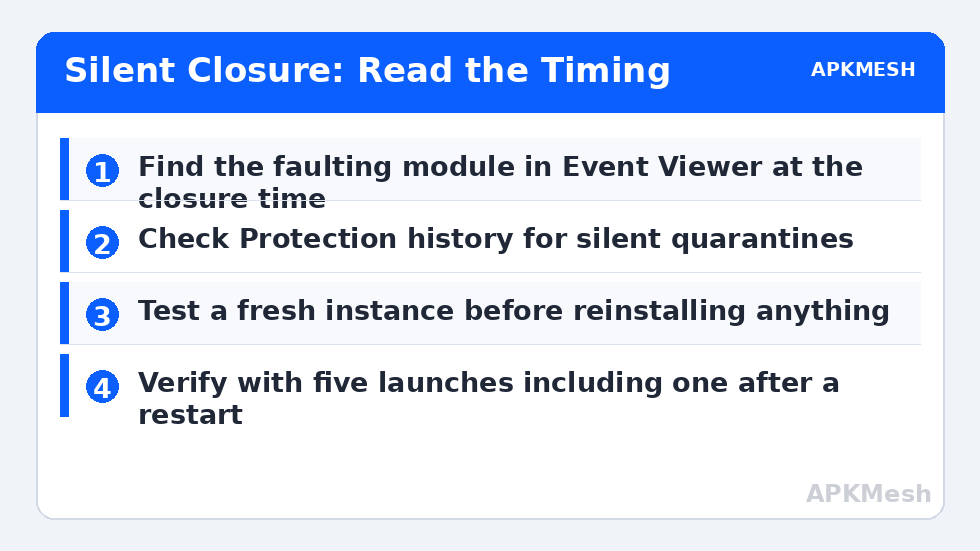
Open Event Viewer from the Start menu, go to Windows Logs, Application, and find the error entry timestamped at a closure. It will name the faulting application and, crucially, the faulting module. A graphics driver file in that field sends you to driver work. The emulator’s own executable suggests application or instance corruption. A system library suggests a damaged Windows component or a conflict with injected software such as overlays. You do not need to understand every code in the entry; the module name alone routes the rest of this guide.
- Note the time of a fresh closure, then find the matching Application error.
- Record the faulting module name before changing anything.
- Check Windows Security, Protection history for quarantines at the same time.
- Close overlays, recorders and tuning utilities, then test one clean launch.
- If it now survives, reintroduce utilities one per session to find the injector.
Step 2: Rule Out Silent Security Termination
Emulators use virtualization drivers and process techniques that security software watches closely, and some suites terminate first and notify subtly — or log the action where nobody looks. If Protection history or your antivirus quarantine shows an emulator component removed at a closure time, verify your installation is the genuine official build, restore the component, and add the emulator folder as an exclusion so the cycle ends. The full reasoning and safe procedure live in the antivirus blocking guide. What you must not do is install an unofficial pre-modified emulator to dodge the block; that exchanges a fixable false positive for a real compromise risk.
Step 3: Isolate Instance, Graphics and Installation in Order
With logs read and security cleared, run the isolation ladder. First, create a fresh instance with default settings and launch it. Survival there convicts your original instance’s data; migrate account-linked games and leave the corrupt instance behind. If the fresh instance also closes before the home screen, change the graphics renderer for it from the multi-instance manager — outside the running instance — choosing the most conservative option for your GPU class, and test again; renderer faults at first draw are a known cause of silent closure and connect to the wider pattern in rendering mode crashes.
If a fresh instance on a conservative renderer still closes, update the emulator, then update or cleanly reinstall the graphics driver named in your Event Viewer evidence, restarting between steps and testing after each single change. Only at the bottom of the ladder — fresh instance, alternate renderer, current emulator, clean driver — is a full emulator reinstall the rational move, and by then it usually works, because everything that could imitate an installation fault has been eliminated with evidence.
One host-level check belongs in this ladder too, because silent closure under memory pressure mimics everything: confirm your allocation leaves Windows breathing room, especially on 8 gigabyte systems:
Lag risk: —
Verify Across Real Launches
- The emulator survives five consecutive launches, including one immediately after a full PC restart.
- Your main game launches and plays for at least twenty minutes in the verified configuration.
- Event Viewer shows no new application errors for the emulator during those sessions.
- Protection history shows no new quarantines, confirming the security layer is settled rather than silently fighting.
A closure without a message feels like the emulator refusing to explain itself. In practice it explained everything — in the event log, in the quarantine history, and in the precise second it chose to disappear. Read those three witnesses before changing settings, and this most opaque of faults becomes one of the most reliably diagnosable in the whole category.
There is one more pattern worth separating before you finish: a closure that happens only when the engine is asked to start under another virtualization tool points back to the shared-layer conflict in fixing hypervisor and failed-to-start-engine errors, where two hypervisors compete for the same hardware. Keep only one such tool active at a time on a low-end PC. And when the emulator finally stays open across restarts, revisit the APKMesh homepage to confirm your allocations suit your hardware, because a machine that was closing under memory pressure often closes quietly, without ever naming memory as the reason — steady, balanced settings are the long-term protection against a repeat.
Frequently Asked Questions
The emulator closes with no error message at all. How can I find the cause?
Use Windows Event Viewer’s Application log and look for an entry at the exact time of a closure; it names the faulting module, which separates emulator, driver and system causes. Reproducing the closure once while watching Task Manager also helps: note whether the process vanishes instantly or after a resource spike, since those patterns point in different directions.
Why does it close only when I launch a game, not at the home screen?
The home screen barely uses the graphics pipeline or the game’s anti-tamper checks. Launching a game is the first moment rendering, larger memory allocation and integrity checks all engage, so faults in those layers appear exactly then. Test the rendering mode swap and a lightweight app launch to separate a graphics cause from a game-specific check.
Could my antivirus be closing the emulator silently?
Yes — security software sometimes terminates or quarantines a component without a prominent notification, leaving the emulator to vanish. Check Windows Security protection history and your antivirus quarantine around the time of a closure before reinstalling. If a genuine emulator file from an official install was removed, restore it and add the proper exclusion instead of disabling protection.
Is running the emulator in compatibility mode a good fix?
Compatibility mode occasionally helps very old emulator builds on current Windows, but for current builds it more often causes odd behaviour than it cures. Treat it as a quick reversible test, not a destination. If a current emulator only survives in compatibility mode, that signals a driver or system conflict worth fixing at its own layer.
How do I know if a fresh instance really fixes it or just delays it?
Use the fresh instance the way you used the old one: same first game, similar session length, across at least two separate launches including one after a PC restart. Immediate closures tied to corrupt instance data do not return in that pattern. If the fresh instance begins closing after you restore a particular app or setting, that restored item is your cause.