The fastest way to map keyboard shortcuts in an Android emulator is to decide which of two jobs you are doing: driving Android’s system navigation (Back, Home, Recents, volume, screenshots) or typing text into apps (chat, search boxes, login forms, notes). The two jobs conflict more often than players expect — a key bound as a game tap spot will happily fire while you are trying to type that letter into a chat box, which is why every emulator maintains separate control schemes and a typing mode. This guide sets up a dedicated ‘desktop’ scheme for app use: navigation keys where your fingers expect them, a real keyboard input path so shortcuts like Ctrl+C work as they should, and clipboard sharing so long text never has to be typed twice.
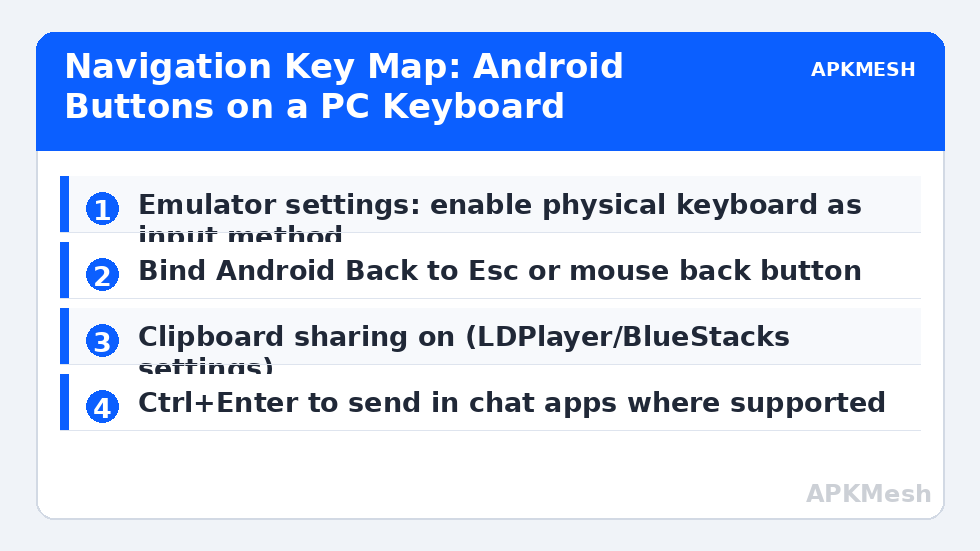
Two settings decide most of the experience before any binding happens. First, in the emulator’s settings, enable the option to use your physical keyboard as the input method (BlueStacks: Settings > Advanced > ‘Use physical keyboard’ style options vary by version; LDPlayer exposes keyboard input in its settings and via the IME selector inside Android). Second, inside Android’s own Settings > System > Languages & input, confirm the on-screen keyboard behaviour: for desktop-style use you want the physical keyboard active and the soft keyboard to appear only when no hardware keyboard is present, otherwise a giant keyboard eats half the screen on every tap.
The Navigation Layer: Back, Home, Recents and Friends
Android’s three-button navigation maps naturally onto a keyboard if you place the keys by frequency. Back is used constantly, so give it Esc and also the mouse’s back (thumb) button if your mouse has one — Esc is the Windows convention for ‘leave this screen’ and your fingers already know it. Home belongs on a key you can hit without looking; many players use F1 or a dedicated tap spot bound to the Windows-adjacent key their emulator offers. Recents (the square/task switcher) is used least, so it can live on F2 or Tab-adjacent real estate. In the controls editor these are system controls, not tap spots: BlueStacks’ editor and LDPlayer’s mapping panel both include built-in entries for Back/Home/Menu so the emulator sends the real Android keycode, which behaves correctly in every app instead of only where a button happens to be drawn.
Add the supporting cast while you are in the editor. Volume up/down (media and in-call volume), a screenshot key, and a ‘shake’ action if your apps use shake gestures. Pin the scheme as the default for non-game use, and set the emulator to auto-switch schemes when your games launch — BlueStacks can switch per app, and LDPlayer lets you pick the scheme per game icon, so the desktop scheme never contaminates your shooter layout.
| Android action | Suggested key | Editor control type | Notes |
|---|---|---|---|
| Back | Esc + mouse back button | System: Back | Bind both; mouse button is fastest in apps |
| Home | F1 | System: Home | Avoid the Windows key; it leaves the emulator |
| Recents / app switcher | F2 | System: Recents | Double-tap behaviour not needed on PC |
| Menu / overflow | F3 or tap spot | System: Menu | Rare in modern apps |
| Volume up / down | F10 / F9 or Ctrl+arrows | System: Volume | Useful for media apps and calls |
| Screenshot | Ctrl+S or Print Screen (emulator hotkey) | Emulator hotkey | Set in emulator settings, not the scheme |
| Rotate screen | Emulator hotkey | Emulator hotkey | For apps that lock orientation wrong |
| Send message (in chat apps) | Enter (app setting) | In-app option | Set ‘Enter is send’ inside the chat app itself |
Lag risk: —
The Typing Layer: Making Text Behave Like a PC
With a physical keyboard active, most Android text fields accept standard editing shortcuts for free: Ctrl+A/C/X/V, Ctrl+arrows to jump by word, Shift+arrows to select. Where players get stuck is autocorrect and suggestions designed for thumbs: Gboard will ‘helpfully’ capitalise and substitute while you type passwords and search terms. For emulator use, open the keyboard’s settings inside Android and turn off auto-correction and next-word suggestions for the physical keyboard profile, but keep them for the on-screen keyboard you may use in games’ chat boxes. Also choose your language layout deliberately in Android’s physical keyboard settings (it maps your PC’s layout, so a German or AZERTY keyboard needs its matching entry, or Y and Z will swap in the classic way).
Clipboard sharing is the single biggest quality-of-life win: enable shared clipboard in the emulator’s settings (both LDPlayer and BlueStacks support it), and long links, 2FA codes and addresses become paste operations instead of typing exercises. Remember the security flip side — anything you copy on Windows lands in the Android clipboard, including passwords from a password manager; get into the habit of copying something harmless afterwards if the machine is shared.
Chat, Forms and the Scheme-Switching Habit
The recurring disaster is typing into a game with its combat scheme active: WASD walks your character while your message to the team becomes a series of jumps. Both emulators handle this with a chat/typing mode — BlueStacks shows a keyboard state toggle and LDPlayer schemes include typing-aware behaviour — but the robust habit is structural: launch chat-heavy apps under the desktop scheme and games under their own schemes, and let per-app scheme selection do the switching. Test your setup in this order: open a notes app and type a paragraph with shortcuts; open a browser form and tab through fields (Tab and Shift+Tab work in most WebView forms); open your game, tap its chat box and confirm the scheme prompt or behaviour changes; dictate nothing, because voice input through a PC mic into emulator apps is its own adventure and outside today’s scope.
If keys double-type or drop characters inside the emulator while typing fast, suspect the emulator’s keyboard repeat handling rather than the app: lower the load (a second emulator instance or a macro recorder running will do it), and check the input-lag checklist in our delayed-key guide — the same pipeline serves typing and gaming, and its faults do not care which you are doing.
Related Keymapping Guides
More from this category is collected in the Keymapping Guides archive. These companion guides go deeper on the topics touched above:
- recording legitimate menu macros
- fixing delayed key response and input lag
- troubleshooting unresponsive keys in multiplayer
A companion habit keeps typing schemes from quietly breaking: mind the clipboard. Host-to-guest clipboard sharing is the fastest way to move long text — passwords, search terms, sentences from notes — into the emulator, but long or richly formatted pastes occasionally arrive truncated or stall the sync entirely. Paste demanding text into a plain-text editor on the host first, copy it fresh, and paste promptly. If clipboard sync misbehaves repeatedly, restart the emulator before blaming the app, and keep a shared notes file as the manual fallback for anything important.
Frequently Asked Questions
Why do my game controls fire while I am typing in chat?
The game’s control scheme is active and its tap spots listen to the same keys. Use a separate desktop scheme for apps, enable per-app scheme switching in the emulator, and use the emulator’s typing/chat mode in games so letters type instead of triggering bindings.
How do I copy and paste between Windows and the emulator?
Enable shared clipboard in the emulator’s settings (available in both LDPlayer and BlueStacks). After that Ctrl+C / Ctrl+V work across the boundary. Remember the Android clipboard then holds whatever you copied on Windows, including sensitive text.
Android keeps swapping my Y and Z keys. What is wrong?
The physical keyboard layout inside Android does not match your real keyboard. In Android Settings > System > Languages & input > Physical keyboard, select the layout that matches your PC keyboard (for example German QWERTZ), and the mapping corrects itself.
Can I use Esc for Android Back everywhere?
Yes, if you bind the editor’s System Back control to Esc rather than a tap spot. The system control sends the real Android Back keycode, so it works in every app, closes dialogs correctly and backs out of text fields the way a phone’s Back button does.
Why does the on-screen keyboard keep covering half the screen?
Android shows the soft keyboard because it thinks no hardware keyboard is attached or the setting to hide it is off. Enable the physical keyboard input option in the emulator and in Android’s input settings choose to show the on-screen keyboard only when no physical keyboard is present.