
The emulator starts, tries to bring up its display, and reports that DirectX failed to initialise — or it falls back to a black window, or it crashes the moment a 3D app opens. Cards from the GeForce 600/700 era, older Radeon HD series, and early Intel HD Graphics are where this lives. To fix DirectX initialisation failures on older graphics cards, you need to separate three different shortages that all produce the same error text: the card’s DirectX feature level is too low for the mode requested, the driver is a generic Microsoft one that cannot expose what the card has, or the emulator is asking DirectX to do something your Windows/driver combination broke. Each has a different cure, and one of them — the honest one — is switching renderers.
Understand “DirectX Version” vs “Feature Level”
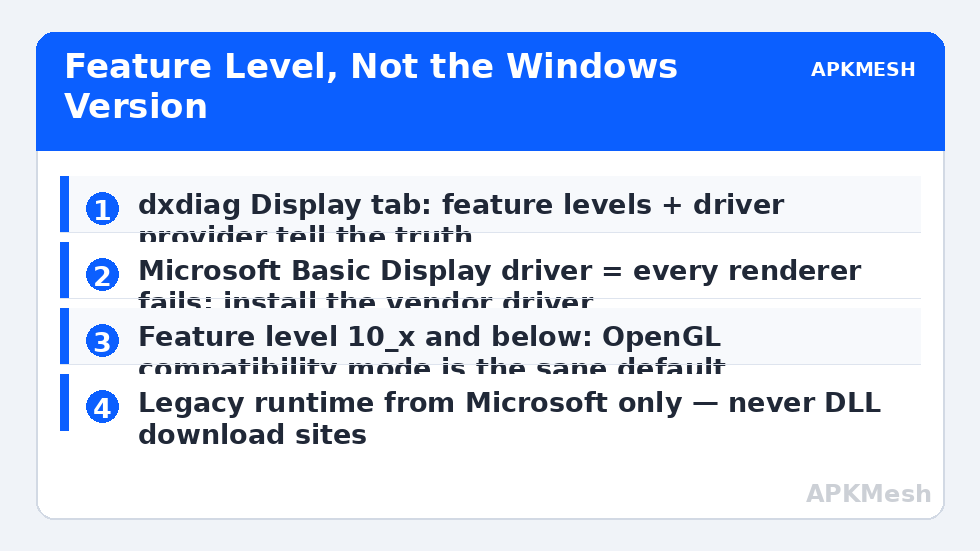
Windows will happily report “DirectX 12” on a machine whose GPU only supports feature level 10_0 or 11_0 — the OS runtime is new; the silicon is not. Emulators and games care about the silicon. Check yours:
- Press Win + R, type
dxdiag, Enter. - On the Display tab, read Feature Levels (e.g. 12_1, 12_0, 11_1, 11_0, 10_1, 10_0, 9_3) and the driver model (WDDM version) and driver date.
- Note the driver provider: if it says Microsoft and the date is ancient, you are on the generic driver — the single most fixable cause in this entire guide.
As a rule: feature level 11_0+ runs emulator DirectX modes comfortably; 10_x is marginal and build-dependent; 9_x cannot and should not be argued with — it should use OpenGL mode (more below).
Fix 1: Install the Real Vendor Driver (Not the Microsoft One)
The generic Microsoft Basic Display driver exposes minimal DirectX and no usable OpenGL/Vulkan to speak of — emulators fail in every mode on it, which is a diagnostic gift: if all renderers fail identically, suspect the driver before anything else.
- NVIDIA: download the last driver branch supporting your card (for Kepler-era cards, the 470-series branch was the final one) from NVIDIA’s official site.
- AMD: legacy Radeon HD / early GCN cards use AMD’s legacy driver packages — get them from AMD’s support pages by exact model.
- Intel: HD Graphics 2500/4000-era and later have proper drivers on Intel’s site; install by exact CPU generation.
Install, restart (drivers do not fully swap without one), rerun dxdiag, and confirm the provider, date, and feature levels now reflect the real driver. This step alone revives most “dead” old cards for emulator duty.
Fix 2: Match the Emulator’s Mode to the Card You Actually Have
With a real driver installed, choose deliberately instead of by default:
| GPU situation | First choice | Fallback |
|---|---|---|
| Feature level 11_0+, WDDM driver current | DirectX mode | OpenGL |
| Feature level 10_x | OpenGL mode | DirectX (test) |
| Feature level 9_x / very old Intel HD | OpenGL (compatibility mode) | — |
| Driver supports Vulkan (later old cards) | Vulkan if offered | OpenGL |
In BlueStacks: Settings → Graphics → Graphics renderer (OpenGL/DirectX) and engine mode Compatibility. In LDPlayer: Settings → renderer toggle, plus the compatible-model options. In Nox: System Settings → graphics rendering mode (OpenGL compatible). In MuMu: graphics settings → renderer + the stable/compatibility option. Set it, fully restart the emulator, and test a 3D game — not just the home screen, which renders even when 3D init is broken. Renderer mismatch symptoms overlap with black screen on startup and white screen glitches; treat all three guides as one family when your card is old.
Also lower the stakes for the old GPU: 1280×720 resolution and moderate DPI reduce the surface the card must initialise and hold. And give the emulator modest CPU/RAM — on an old-GPU machine the CPU is usually also old:
Lag risk: —
Fix 3: Repair the Windows DirectX Runtime Layer
Legacy games and emulators sometimes need the classic DirectX end-user runtime components (the old d3dx9/d3dx11 helper DLLs) that modern Windows does not bundle. Microsoft still publishes the DirectX End-User Runtime Web Installer — download it only from Microsoft, run it, restart. This does not downgrade or replace your modern DirectX; it adds the legacy pieces alongside. Separately, if dxdiag itself reports errors or other apps also fail to initialise graphics, run sfc /scannow from an elevated Command Prompt to repair system files, and check Windows Update for optional driver offers (accept GPU ones cautiously — vendor site first, per Fix 1).
Fix 4: Settings That Specifically Trip Old Cards
- ASTC texture decoding / dedicated texture features in emulator graphics settings: disable hardware-assisted extras; old GPUs emulate these paths slowly or wrongly.
- “Use dedicated GPU” / high-performance toggles on dual-GPU old laptops: force one GPU consistently rather than letting hybrid switching choose per launch — mixed behaviour across launches is a signature of switching confusion.
- Hardware acceleration in the emulator’s UI itself (some launchers render their interface with the GPU): if the launcher is what crashes, look for its software-rendering fallback in settings or config.
- Windows Game DVR / background recording on weak cards steals the same scarce resources; disable background recording while testing.
How to Verify the Fix
dxdiag shows the vendor driver and expected feature levels. The emulator in your chosen mode launches a genuinely 3D game and plays for ten minutes without an init error or display crash, across three emulator restarts and one PC reboot. Keep the working combination written down — old-card setups are stable once found, and fragile when later “optimised” by guesswork or a well-meaning driver updater utility (avoid those utilities entirely).
When This Will Not Work
A card limited to feature level 9_x will never initialise DirectX 11-class modes, full stop — OpenGL compatibility mode or a lighter emulator is the ceiling, and for demanding 3D titles the honest answer is newer hardware. Failing VRAM and dying GPUs also present as init errors that worsen over weeks; if other applications start failing to initialise too, the card is retiring itself. Finally, inside a virtual machine with a basic virtual GPU, none of this applies — that environment lacks the features at a deeper level. The rest of the display fault family is in the lag and error fixes index.
A Realistic Expectation Check for Old Hardware
With the vendor driver installed and the right mode selected, a surprising amount of older hardware remains useful: Kepler/Maxwell-era NVIDIA cards, GCN-era Radeons, and Ivy Bridge-and-later Intel HD graphics can all run mainstream emulators at 720p–1080p in the correct mode. What they will not do is match modern integrated graphics in heavy 3D titles — plan settings around stable 30–45 FPS rather than chasing 60. That is not defeat; it is the difference between a machine configured honestly for its silicon and one configured by wishful thinking, and only the first kind stays fixed.
Frequently Asked Questions
dxdiag says DirectX 12 but the emulator says DirectX failed. Who is lying?
Neither — they are answering different questions. Windows reports its runtime version (12). The emulator needs your GPU’s feature level, listed on dxdiag’s Display tab. A DirectX 12 runtime with a feature-level 10_0 card behaves like a DirectX 10 card.
Is OpenGL mode worse than DirectX on old cards?
Not inherently. On old hardware, OpenGL is often the more compatible path because the drivers were mature for it. Performance depends on the title; a working OpenGL mode at 40 FPS beats a crashing DirectX mode at any FPS.
Should I install DirectX from a game disc or a download site?
Only Microsoft’s End-User Runtime installer from Microsoft’s own site. Random “DirectX fix packs” and individual DLL downloads from file sites are a classic malware vector and frequently the wrong versions anyway.
Will a driver updater program sort this out automatically?
Avoid them. They commonly install the generic or wrong-branch driver for legacy cards — the precise fault this guide removes — and several are adware. The vendor’s own support page, searched by exact model, is the reliable route.
My card is old but the emulator worked before a Windows reinstall. Why now?
The reinstall almost certainly left you on the Microsoft basic driver, while your previous install had the vendor driver. Fix 1 restores what you had — the card did not get older; its driver got generic.