A mobile flight simulator expects a thumb on a virtual stick or a tilting phone, so bolting a real stick and throttle onto it through an emulator takes some translation work. A careful flight stick hotas setup emulator configuration respects what the game can actually receive: most Android flight titles accept a gamepad-style analogue input or touch zones, and the emulator’s job is to present your HOTAS in that language. Get the layers in the right order and takeoffs, coordinated turns and carrier-style landings all become calmer, because your hands stop fighting the mapping.
This guide assumes a common desktop HOTAS or a single flight stick with a small throttle lever, used with BlueStacks or LDPlayer on a modest PC. It covers device checks in Windows, choosing which axes the emulator sees, mapping throttle behaviour honestly (including the centre-detent problem), and assigning the buttons that matter in flight: trim, flaps, gear, brakes, camera and weapons release where the game has one. It will not promise force feedback or telemetry that Android games simply do not send.
Check the Hardware in Windows Before Opening the Emulator
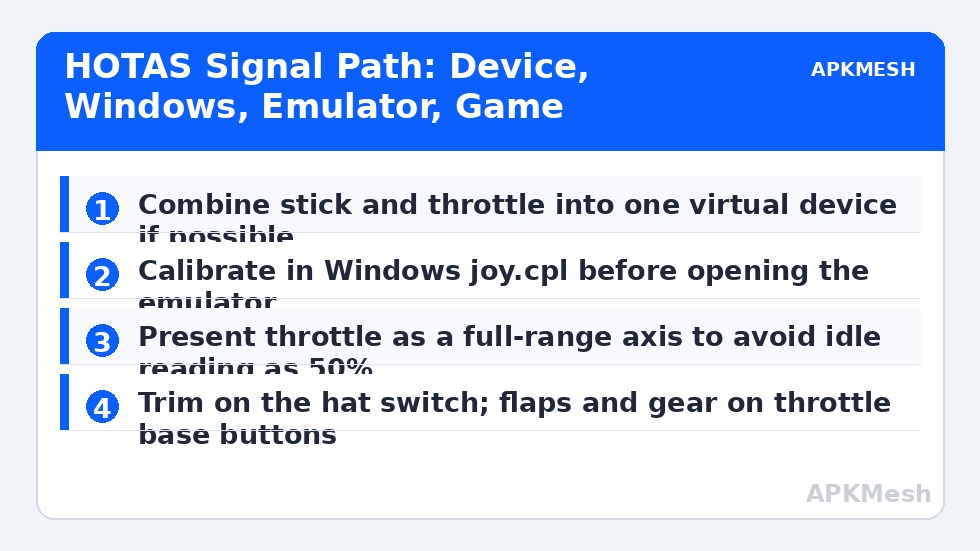
Plug the stick and throttle in as a single combined device if your hardware supports that mode, because an emulator that expects one gamepad can get confused when pitch arrives from one USB device and throttle from another. Open the Windows game controllers panel (joy.cpl) and move every axis slowly from stop to stop. Watch for spikes, dead spots at the extremes, and a throttle that reports as buttons or as a single shared axis. Calibrate in Windows first if the panel offers it, centre the stick physically before confirming the centre point, and only then start the emulator. A mapping built on an uncalibrated stick bakes the hardware error into every profile you make.
Decide which axes you will actually use. A typical mobile flight game needs pitch, roll, throttle and yaw. If your stick twists for rudder, keep that twist as your yaw source. If it does not, yaw belongs on the throttle unit’s rudder rocker or, as a last resort, on two buttons for left and right rudder, which is crude but workable for taxiing and gentle corrections. Buttons used as an axis will never feel smooth, so be honest with yourself about which manoeuvres will suffer and avoid flight models that demand constant fine rudder work if that is your only option.
| Control | Preferred source | Emulator mapping | Fallback |
|---|---|---|---|
| Pitch and roll | Stick X and Y axes | Virtual joystick / gamepad stick zone | None sensible; a stick is the point of this setup |
| Throttle | Throttle lever axis | Analogue throttle control if game supports it, else staged tap zones | Two keys for increase and decrease |
| Yaw / rudder | Stick twist or rudder rocker | Second stick axis or D-pad style zone | Q and E style keys for left and right |
| Trim | Hat switch up and down | Tap spots on trim buttons | Keyboard keys beside the stick hand |
| Flaps and gear | Throttle base buttons | Tap spots, one per function | Number row keys |
| Wheel brakes | Stick trigger or base button, held | Tap spot set to hold behaviour | B key while taxiing |
Throttle Behaviour: The Centre-Detent Problem
Aircraft throttles travel from idle to full power in one direction, while a gamepad stick axis rests at centre. If the emulator or translation layer presents your throttle as half of a centred axis, the game may read a physically idle throttle as 50 percent power, and the aircraft will creep or surge on the runway. The fix is to present the throttle as a full-range axis wherever the software allows it, or to map it to the game’s own throttle slider touch zone so the lever position corresponds to slider position along its whole travel. Test on the ground with brakes held: move the lever slowly and confirm that indicated power starts near zero, rises smoothly, and reaches full only at the forward stop.
Some mobile flight games offer only touch buttons for throttle steps. With those, map lever zones if your stick software supports banded output, or accept keys for throttle steps and keep the lever for a title that supports analogue input. Forcing an analogue lever into a stepped game through repeated taps creates jittery power changes on final approach, exactly when you want the smoothest control of descent. Choosing the right game for your hardware is part of setup, not an admission of failure.
Lag risk: —
Buttons, Hat Switch and Camera Discipline
Assign buttons by frequency in flight, not by what looks symmetrical on the throttle base. Trim is used constantly in many flight models, so the hat switch under your stick thumb should carry pitch trim up and down, with roll trim on hat left and right if the game models it. Flaps and gear are used at predictable moments and can live on the throttle base. The camera view button belongs on the stick, because looking around during approach is time-critical; if the game uses a free camera drag, consider keeping camera on the mouse and flying a stable approach rather than trying to make a hat switch imitate a drag.
Weapons and stores release, in combat flight titles, deserve a guarded-feeling position: the main trigger is tempting, but an accidental release during a bumpy landing roll is a real risk on a desk setup. Many players put release on a base button or a two-step combination the emulator scheme can express, and keep the trigger for brakes or push-to-talk in multiplayer. Whatever you choose, write it on a small card beside the stick for the first week. HOTAS setups fail socially, not technically, when a guest or a tired pilot presses the interesting red button at the wrong time.
First Flights: A Shakedown Routine
Do your first emulator flight in free-flight or training mode, in daylight, with the simplest aircraft the game offers. Taxi in a straight line and confirm rudder centres, then perform gentle turns at altitude before attempting a landing. Specifically test three things: that releasing the stick returns the aircraft to a near-neutral attitude rather than a slow roll, that throttle changes are smooth through the middle of the range where approach power lives, and that trim actually relieves stick pressure instead of adding a hidden offset you must fight. If any test fails, land or pause and fix the mapping layer responsible; do not compensate with technique, because the error will return at a worse moment.
Save the finished scheme with the aircraft and game named in its title, and export it before experimenting with a second aircraft. Flight models differ enough that a transport and a fighter rarely share one perfect profile, and a named, exported known-good scheme is what lets you experiment bravely on the next one.
Related Keymapping Guides
Begin at the APKMesh homepage for all emulator guides, and pair this setup with:
- racing wheel and pedal setup for the separate-axes lessons that apply to pedals and throttles alike
- connecting Xbox and PlayStation controllers for the Windows device checks every external controller deserves first
- calibrating controller dead zones and stick drift to give your stick a clean centre before mapping
- emulating tilt and gyro controls for flight titles that were built around tilting the phone
Frequently Asked Questions
Can an emulator use my HOTAS as one device if Windows sees two?
Sometimes, but it is the most common source of trouble. If your stick and throttle can be combined into one virtual device in their own software, do that first so the emulator sees a single gamepad. If they cannot combine, map the stick through the emulator and throttle steps through keys, and choose games that tolerate that split.
Why does my aircraft have power applied when the throttle is at idle?
Your throttle axis is probably being read as half of a centred stick axis, so physical idle registers as mid-power. Present the throttle as a full-range axis or map it onto the game’s throttle slider zone, then verify on the ground with brakes held that indicated power starts near zero at the rear stop.
Should I use the stick trigger for weapons release?
Only if accidental release is harmless in your game. The trigger is the easiest control to squeeze during a hard landing or a desk bump. Many players keep the trigger for brakes or push-to-talk and move release to a base button. Consistency matters more than convention here, so document your choice and keep it across profiles.
Will force feedback or trim motors work through an emulator?
No. Android flight games do not generate force feedback or motorised trim signals, so there is nothing for the emulator to pass through. Any resistance you feel comes from the stick’s own springs. Set centre spring strength in the device software to a level that helps you find centre without tiring your wrist.
Why does my aircraft slowly roll when the stick looks centred?
Either the stick’s centre calibration is off in Windows, or the emulator’s stick zone is placed slightly off the game’s true centre. Recalibrate in the Windows panel first, then re-centre the mapping zone. Do not hide the error with trim, because the offset will vary with how the stick settles each session.