Every program that launches itself at sign-in is making a small withdrawal from the same account your emulator draws on: RAM, CPU time, and disk attention during the first minutes of a session. A proper windows startup programs audit emulator pc owners can finish in twenty minutes removes the withdrawals that buy you nothing. This is not about chasing a mythical clean boot with three processes running — Windows needs its services — it is about the vendor updaters, game launchers, chat overlays, and trial assistants that quietly reserve memory and wake up mid-game to check for updates while you are trying to hold 60 FPS in a ranked match. Here is the audit method, what each common entry actually does, and how to disable with a safety net.
Why Startup Load Hits Emulator PCs Harder
On a 16GB desktop with eight fast cores, fifteen startup apps are an untidiness. On the low-end machines this site is about — 8GB of RAM, a four-core processor, a hard drive or a small SSD — they are a performance feature in reverse. Three mechanisms matter. First, resident memory: launchers and helpers that sit in the tray still hold working sets of 50–300MB each, and across a dozen entries that is memory your emulator instance cannot allocate. Second, background wake-ups: updaters and telemetry helpers do not run once at boot and sleep forever; they poll, sync, and scan on timers, and a two-second CPU spike that a desktop absorbs becomes a visible frame-time hitch on a saturated emulator PC. Third, boot contention itself: if you launch the emulator while Windows is still starting a queue of programs, the first minutes of play happen on a machine that is still busy — many users misdiagnose this as an emulator problem.
The audit fixes all three by reducing what starts, which is safer and more reversible than the service-disabling surgery covered in our background services guide. Startup entries are user-level programs with an off switch designed for exactly this purpose.
Take the Inventory: Three Places Startup Programs Hide
- Task Manager → Startup apps. The main list. It shows each entry’s publisher and a Startup impact rating (Low, Medium, High) that reflects measured CPU and disk use at boot. Sort by impact to see your worst offenders first.
- Settings → Apps → Startup. The same underlying list in a friendlier view, with toggle switches. Either tool works; changes in one appear in the other.
- The Startup folder and scheduled tasks. Press Win + R and run shell:startup to see shortcuts placed there manually. Separately, a few aggressive programs relaunch themselves through Task Scheduler — if something you disabled keeps returning, look for its task there and disable the task rather than fighting the toggle.
Before changing anything, screenshot the list or note it in a text file with the current state of each entry. Audits without a record become mysteries three weeks later when some feature behaves oddly and you cannot remember what you turned off.
Lag risk: —
The Sorting Pass: Keep, Delay, Disable
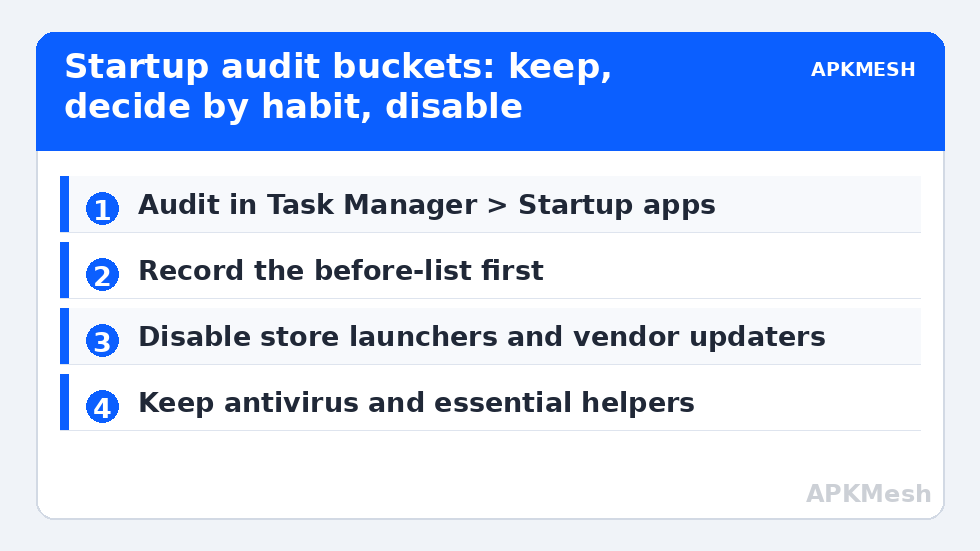
Work down the list and put every entry into one of three buckets. Keep anything that is security or hardware-essential: your antivirus (Windows Security’s own tray entry is harmless), touchpad and audio control panels on laptops if you use their special keys, and GPU control software only if you actively use its per-game profiles — the driver itself loads regardless. Disable the clear freeloaders: game store launchers (you can open Steam, Epic, or EA when you actually want them), chat apps you do not need from minute one, vendor update checkers and registration reminders, Adobe/Office preloaders and updaters, Spotify and similar media apps, and manufacturer “assistant” bundles on OEM laptops. Decide by habit on the middle group — cloud sync such as OneDrive or Google Drive: if you rely on instant sync, keep it; if the PC is a dedicated emulator box, disable the startup entry and run it manually, because a large sync during play is a classic stutter source on HDD systems.
| Typical entry | Verdict | Why |
|---|---|---|
| Steam / Epic / EA app autostart | Disable | Launch manually; the stores check for updates mid-session otherwise |
| Discord / Teams autostart | Your call | Needed for voice with friends? Keep. Otherwise disable |
| Vendor updater / support assistant | Disable | Check for updates yourself monthly |
| Antivirus tray component | Keep | Protection itself runs as a service regardless; the tray is light |
| OneDrive / Drive sync | Disable on gaming-only PCs | Sync bursts contend for disk and CPU during play |
| Unknown entry, no publisher | Investigate, then decide | Right-click → Open file location; unnamed autostarts deserve suspicion |
Apply, Reboot, and Measure the Difference Properly
Disable in Task Manager by right-clicking each chosen entry and choosing Disable — nothing is uninstalled, and re-enabling is the same gesture in reverse. Then reboot and do two checks. First, Task Manager’s Startup page now shows a shorter Last BIOS time chain and, more usefully, the Performance → Memory view shows a lower in-use figure at idle desktop; on a typical OEM laptop audit, users commonly reclaim several hundred megabytes, occasionally over a gigabyte when a trial security suite’s helpers are among the disabled. Second, play the emulator scene you always test with and watch for the disappearance of the periodic hitch, which is the real prize — averages barely move, worst-case frame times improve.
Live with the new configuration for a few days before declaring victory. If a disabled entry turns out to be something you miss — the classic case is a laptop hotkey helper that controlled the fan or keyboard lighting — re-enable that single entry. This incremental regret-and-restore loop is exactly why the audit beats debloat scripts. For the next layer of background load, pair this audit with our bloatware removal guide, and if shutdowns or wake timers bother your sessions, the small power tweaks in our pagefile relocation guide include the fast-startup setting that interacts with both. A full map of the PC Optimization series lives on the APKMesh homepage.
Frequently Asked Questions
Will disabling startup programs break anything in Windows?
Disabling a startup entry only stops that program from launching automatically; it does not uninstall or damage it, and every entry can be re-enabled in seconds from the same Task Manager list. Genuine breakage is limited to convenience features — a hotkey helper or sync client not running until you open it manually. Keep your before-list and any surprise is a one-minute fix.
How much RAM can a startup audit realistically free?
On a fresh OEM laptop with the usual bundle, typically 300MB to just over 1GB of resident usage disappears from the idle desktop figure. On a clean self-installed Windows the saving may be under 100MB, which is still useful information: it tells you your stutter comes from somewhere else and stops you wasting time here.
Task Manager says an entry has High impact. Should I always disable those?
Impact measures boot-time CPU and disk cost, not whether the program matters to you. A High-impact entry you genuinely need at sign-in, like a work VPN or your primary chat app, can stay. Use the rating to prioritise your review order, then decide by function — impact alone is not a verdict.
Something I disabled keeps re-enabling itself. Why?
Some programs rewrite their startup entry when they update or when you run them manually. Check whether the app has its own “launch at startup” setting inside its options and turn it off there too. Persistent offenders sometimes use a scheduled task instead; disabling that task in Task Scheduler ends the cycle without uninstalling anything.
Is it safe to disable Microsoft entries like OneDrive and Teams?
Yes, with eyes open about the trade. Disabling OneDrive’s startup pauses automatic sync until you launch it, which is fine on a dedicated gaming PC and annoying on your main work machine. Teams and Edge preload entries are similarly optional. Nothing in Windows depends on these tray programs to boot or to run your emulator.