When an emulator starts crashing after months of stability, or a new build stutters on a machine that ran the last one fine, the graphics driver is the first suspect — and “update graphics drivers for emulator stability” is usually the right instinct, with two qualifications. First, update from the GPU maker’s official channel only; driver-aggregator sites are a malware delivery mechanism wearing a helpful hat. Second, newer is not automatically better: the correct move is a clean, deliberate update (or, occasionally, a clean rollback), tested against the exact game that was misbehaving. Here is the process for NVIDIA, AMD, and Intel, plus how to recover when an update makes things worse.
Identify What You Actually Have
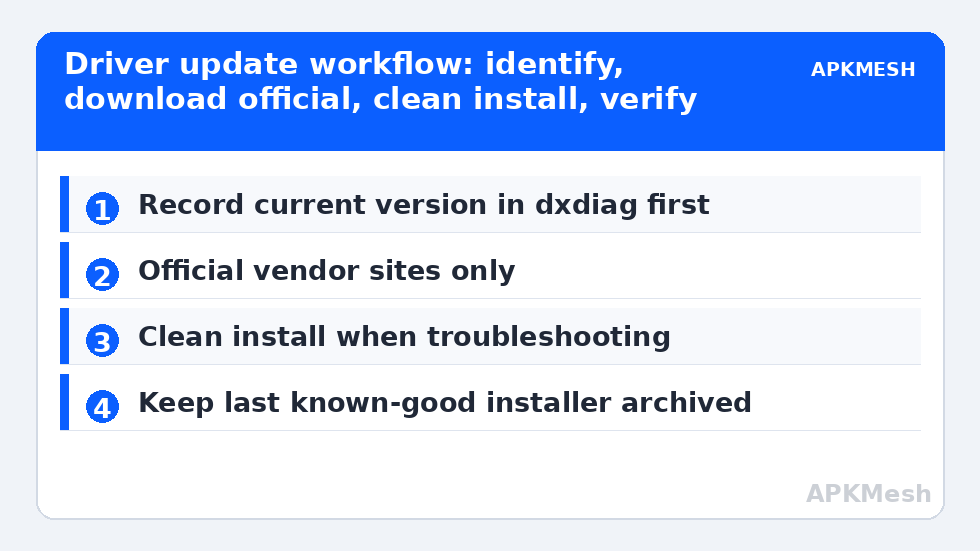
- Press Win + R → dxdiag → Display tab: note the GPU name and the driver version/date.
- On dual-GPU laptops there are two Display tabs’ worth of hardware (integrated + discrete). Both drivers matter; the integrated GPU drives the desktop and often the emulator window even when the discrete card renders.
- Write down the current version before changing anything. If the update fails you need to know where you started.
NVIDIA: GeForce App or Manual Download
Use the NVIDIA app/GeForce Experience or the manual driver search at nvidia.com with your exact card and Windows version. Choose the Game Ready driver for gaming/emulation use. During installation, select Custom (Advanced) → Perform a clean installation when you are troubleshooting instability — it resets driver profiles and removes leftover settings that survive a normal Express install. Skip the clean install for routine updates; it also wipes your per-game profiles, which you will then have to rebuild.
Laptop note: if your laptop maker ships a customised NVIDIA package (common on some OEM models), the generic NVIDIA driver usually still installs and works; if the installer refuses, use the OEM’s support page for your exact model instead — that is still an official source.
AMD: Adrenalin, with the Factory Reset Option
Download AMD Software: Adrenalin Edition from amd.com for your GPU/APU. For troubleshooting, the installer’s Factory Reset option plays the clean-install role. APU users (Ryzen with Radeon iGPU — very common in budget emulator laptops) should take particular care: your “graphics driver” is also closely tied to chipset drivers, so grab the current chipset package from AMD or the laptop maker as well. Windows Update has a habit of silently replacing a good AMD driver with an older WHQL build; if Adrenalin suddenly reports it is incompatible with the installed driver, that is what happened — reinstall the AMD package over it.
Lag risk: —
Intel: The iGPU Driver Everyone Forgets
Intel integrated graphics power a huge share of emulator laptops, and their drivers ship through Intel’s Driver & Support Assistant (IDSA) or the manual download center at intel.com. Intel’s generic driver will warn if your OEM has customised the package; on most consumer laptops installing the generic Intel driver is fine and often months newer than the OEM’s. If the warning makes you cautious, check the OEM page first and compare dates. Arc discrete cards use the same channel.
The Clean-Install Tool of Last Resort: DDU
If a driver update leaves you with persistent corruption — installer failures, control panel that will not open, crashes that survive reinstall — Display Driver Uninstaller (DDU) used in Windows Safe Mode strips a graphics driver completely so you can install fresh. Use it only when normal clean installs have failed: it is powerful, third-party (download it only from its official site, Wagnardsoft), and it removes things a normal user never needs removed. Routine updates do not require DDU; guides that make it step one are optimising for drama.
After Updating: Verify Like an Engineer
- Reboot (driver installs that “don’t need” one often do).
- Confirm the new version number in dxdiag matches what you installed.
- Run the exact workload that was unstable: same emulator build, same game, same scene, at least ten minutes. Emulator graphics bugs are frequently scene-specific.
- Watch temperatures once while you are at it — the method is in our MSI Afterburner monitoring guide. A “driver problem” that arrives with a 100°C GPU is a cooling problem wearing a disguise.
When the New Driver Is Worse: Roll Back Properly
Occasionally a release genuinely regresses an emulator’s render path (Vulkan extensions are the usual friction point). The fix is not panic: download the previous version from the same official archive (all three vendors keep prior releases available) and install it cleanly. In Device Manager, the Roll Back Driver button works only for the immediately previous driver and only if Windows kept it. Keep the installer of the last known-good version in a folder; it costs 600MB and saves a bad evening.
Driver discipline is a recurring theme in the PC Optimization hub because it interacts with everything else — HAGS support in our HAGS guide depends on driver generation, and shader-cache weirdness after a driver swap is handled in the shader cache guide.
Emulator-Specific Driver Notes
Not all emulators lean on the driver equally. Vulkan render paths (LDPlayer and MuMu options, BlueStacks’ Vulkan mode where offered) exercise the driver’s Vulkan ICD directly, so emulator releases occasionally require a minimum driver version for a new Vulkan extension — the emulator’s changelog is the authority, and “your driver is too old” errors from the emulator itself are literal, not boilerplate. OpenGL paths are more forgiving but more sensitive to the control-panel’s per-profile settings: if you once forced anisotropic filtering or threaded optimisation globally in NVIDIA Control Panel or Adrenalin for a PC game, those overrides apply to the emulator too, and weird shimmer or crashes can follow you across driver versions until you reset the global profile. When troubleshooting after an update, set the control panel to defaults once and re-test before concluding the driver itself is broken.
Finally, keep perspective on magnitude: a driver update fixes crashes, corruption, and missing-extension failures. It does not meaningfully raise FPS on a stable system — typical deltas are within noise unless the old driver was ancient or broken. If performance is the goal, the driver is hygiene, not a lever; the levers are allocation, thermals, and storage, covered across this category.
Frequently Asked Questions
How often should I update graphics drivers?
When you have a reason: a new emulator release misbehaving, a game with graphical corruption, a Windows feature update, or a security advisory. “Every release, immediately” exposes you to day-one regressions; “never” leaves compatibility fixes uninstalled. For an emulator-focused machine, checking every couple of months plus problem-driven updates is a sane cadence.
Windows Update keeps replacing my AMD driver. How do I stop it?
Reinstall the AMD package first (that alone resolves the mismatch message). If Windows repeatedly downgrades it, use the official “Show or hide updates” troubleshooter approach or the Device Installation Settings dialog (sysdm.cpl → Hardware tab) to tell Windows not to install driver software from Windows Update — understanding this also reduces your ability to get other device drivers automatically, so note the change.
Are “studio” drivers better for emulators than game drivers?
No. NVIDIA Studio drivers prioritise stability in creative applications and lag behind on game/emulator fixes. For emulation, the Game Ready line is the right channel. The same logic applies to AMD: the mainstream Adrenalin release, not the enterprise Pro build.
My emulator worked until a driver update and broke. Is the driver guilty?
Sometimes — but also check the two confounders: the emulator itself may have auto-updated at the same time, and a driver update clears the DirectX shader cache, causing temporary stutter that resolves after a session or two. If crashes persist across a clean reinstall of the driver, roll back one version and re-test before blaming the emulator.
Should I update the chipset driver too?
On AMD systems, yes, periodically — chipset drivers govern power management and PCIe behaviour and ship alongside graphics updates. On Intel systems the chipset “driver” is mostly informational. Either way, same rule: motherboard/laptop maker or CPU vendor’s official page only.