
The game shows its logo, maybe a loading spinner, then drops you back to the Android home screen — or freezes the whole emulator. Sometimes it crashes every single launch; sometimes it worked for a month and stopped today. A systematic approach to fixing a game crashing on startup in Android emulators treats the crash as evidence: when it dies (logo, login, first 3D scene) and what changed (game update, emulator update, new instance) narrows the cause before you change a single setting. This guide orders the causes by probability and keeps every fix reversible.
Step 0: Read the Crash Like a Diagnostic
- Dies at the logo, before any loading: compatibility — architecture, Android version, or the game’s emulator checks.
- Dies at login/account sync: Play services state, network, or account problems — a cousin of the sign-in errors family.
- Dies when the first real 3D scene renders: renderer/GPU path, or resource limits.
- Worked yesterday, broken today, nothing changed by you: the game updated itself overnight. Hold that thought — it changes the fix entirely.
- Only this game crashes; others are fine: the problem lives in this title’s data or its relationship with this emulator — not your whole setup.
Cause 1: Corrupt Game Data or a Bad Game Update
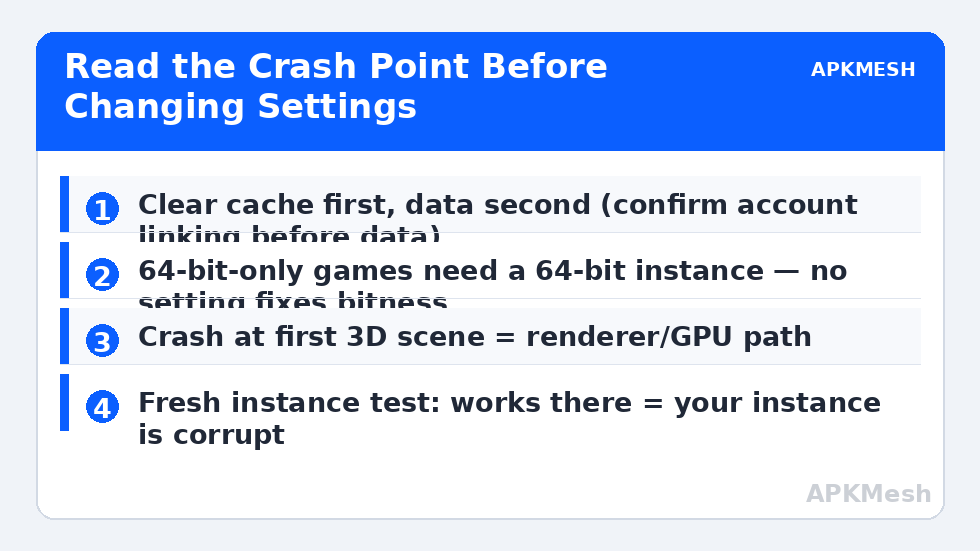
The cheapest fix first: Android Settings → Apps → the game → Storage → Clear cache (not data). Relaunch. If it persists, clear data as well — you will re-download assets and sign in again, so confirm your account is linked before doing this. If the crash began with a game update, clearing data forces a clean asset download, which resolves the large share of post-update crashes caused by mismatched old/new files. If clearing data on a freshly-updated game does not help and the game’s community is reporting the same crash, the update itself is broken — the honest fix is waiting for the developer’s hotfix, not demolishing your emulator.
Cause 2: Architecture or Android Version Mismatch
A 64-bit-only game on a 32-bit instance will typically fail the Play Store check — but sideloaded or carried-over installs reach launch and die instantly. The same applies to games that raised their minimum Android version. Verify you are on a current 64-bit instance (Android 11/13 class) for modern titles. The background is in the device incompatible guide: the Store normally shields you from these mismatches, which is why crashes of this type usually follow manual installs or instance migrations. The cure is moving to a correct instance, not patching the wrong one.
Cause 3: Renderer and GPU Path
Crashes at the first 3D scene, or a freeze with a black/white flash, point at rendering. In emulator graphics settings, change the renderer (Vulkan ↔ DirectX ↔ OpenGL) and restart fully. On switchable-graphics laptops, confirm Windows is running the emulator on the discrete GPU. Update the GPU driver from the vendor if it is old; roll back if the crashes started with a new driver. White-screen variants of this fault on MuMu/Nox have their own walkthrough in the white screen glitch guide.
Resources are the other half of this cause: a game unpacking large assets into an instance with too little RAM or a nearly-full virtual disk dies at startup in ways indistinguishable from a bug. Check both — free disk space inside Android, and allocations your host can honour:
Lag risk: —
Cause 4: The Emulator’s Own State — Instance or Build
Test the same game in a fresh instance. Three outcomes, three verdicts:
- Works in the fresh instance: your main instance’s data is corrupt — migrate to the fresh one.
- Crashes identically in the fresh instance: the game + this emulator build combination is the problem — update the emulator, or try the game in a different emulator if it matters to you.
- Everything crashes everywhere: drop to the machine level — recent driver changes, Windows updates, or failing hardware; the engine-level checks in the engine start guide become relevant.
Cause 5: Root Detection, Integrity Checks, and Emulator Blocking
Some games refuse to run on rooted instances or fail integrity checks, presenting as an instant close or a brief warning. If your instance has root enabled from experimentation, disable it (emulator settings) and remove root-management apps, then retry. Separately, a minority of competitive titles block emulators by policy; their crash-at-launch is deliberate, usually accompanied by a notice, and there is no legitimate settings fix — play those on a phone or the publisher’s PC client. Do not chase “bypass” tools: they violate the game’s terms and are a common malware lure.
How to Verify the Fix
Three consecutive cold launches reaching gameplay — not the menu, actual gameplay — including once after a full PC reboot. Then play ten minutes: some “startup” crashes are really early-gameplay resource crashes wearing a disguise. If you changed several things, note which single change preceded success; future-you will want that note when the next update shakes things loose.
When This Will Not Work
Server-side blocks, genuinely broken game updates, and titles whose minimum specs exceed your hardware do not yield to local fixes. Neither does a physically failing GPU or RAM — if crashes spread to Windows applications, stop and diagnose the PC. Timing also matters: a game mid-maintenance crashes at login for everyone; check the publisher’s channels before an evening of troubleshooting. Remaining scenarios are indexed across the lag and error fixes library.
Collecting Evidence When Nothing Works
If a game still crashes after the full sequence, gather the facts that separate “your setup” from “their bug” before spending more evenings on it. Record: the exact emulator version, instance Android version and bitness, GPU and driver version, and the precise crash point (seconds in, screen shown). Test the same game on your phone with the same account if possible — a crash that follows the account/device class is publisher-side. Check the game’s official channels for a known-issues post; publishers confirm broken updates there first. Android’s own crash evidence also exists inside the emulator: Settings → Apps → the game will sometimes show repeated-crash notices, and a logcat viewer app (developer tools) can capture the actual exception — a fatal signal in a graphics library confirms the renderer cause, an out-of-memory line confirms resources. With that dossier, vendor or community support stops being guesswork. Without it, everyone is guessing, including you.
A quick word on beta and test builds: if you opted into a game’s beta channel or the emulator’s beta program, startup crashes are part of the admission price and are fixed on the developer’s schedule, not yours. For a daily-driver setup, run release builds of both, and if you want to test betas, do it in a separate throwaway instance so the experiment cannot take your main library down with it.
Frequently Asked Questions
The game crashes at the exact same percentage every time. Why?
Deterministic crashes mean the same asset or step fails repeatedly — usually a corrupt download chunk or one specific shader/renderer operation. Clear the game’s data for a full re-download first; if it persists at the same point, change the renderer.
Should I reinstall the emulator when one game crashes?
Almost never as a first move. The fresh-instance test separates game/instance faults from emulator faults in minutes; reinstall only when fresh instances fail identically across multiple games.
Could low storage inside Android crash a game at launch?
Yes. Games unpack and verify assets at startup and abort when the virtual disk cannot fit the working set. Keep a few GB free inside the instance, not just on the Windows drive.
It crashes only when I play on my second monitor / TV.
That points at the display path — different GPU output, resolution, or refresh on that screen. Test renderer and resolution there specifically; hybrid-graphics routing differs per output.
The crash started after the emulator updated, not the game.
Then suspect the build: check the emulator’s changelog/community for your title, and if it is a known regression, use the previous stable build from the official site until a fix lands. Keep your working version noted.