

Your Ryzen system should crush Android emulation — plenty of cores, strong single-thread performance — yet the emulator stutters, locks to low FPS, or throws virtualization warnings that make no sense. Learning how to fix AMD Ryzen virtualization performance issues in emulators means working through the AMD-specific stack: SVM in the BIOS, how Windows’ hypervisor and security features interact with Ryzen, chipset drivers, and a couple of traps (nested paging state, core-parking behaviour, RAM configuration) that Intel-focused guides never mention. The causes are ordered by how often they are the real culprit on Ryzen machines.
Cause 1: SVM Is Off, or On But Not Reaching Windows
SVM (Secure Virtual Machine) is AMD’s hardware virtualization. Confirm the end state first: Task Manager → Performance → CPU → “Virtualization: Enabled.” If it says Disabled:
- Enter BIOS (Del/F2 on most boards). Find SVM Mode — typically Advanced → CPU Configuration (ASUS), OC → CPU Features (MSI), or Advanced CPU Settings (Gigabyte). Enable it.
- Also enable IOMMU if listed nearby (harmless, occasionally required by hypervisor paths).
- Save (F10), boot, recheck Task Manager.
If SVM is enabled in BIOS but Task Manager still says Disabled, Windows is configured against it — the hypervisor state fixes in the engine-start guide (bcdedit, feature states) apply identically on AMD. And if the BIOS lacks an SVM option entirely on an old A-series APU or early AM4 board with an ancient BIOS, a BIOS update from the board vendor is the legitimate unlock — read their notes carefully before flashing anything. The general VT background, including why some Windows features sit on the layer, is in the VT error guide.
Cause 2: Windows Security Features Tax Ryzen Emulation Specifically
Memory Integrity (Core Isolation) and Virtual Machine Platform impose overhead on any machine, but the way they intercept the hypervisor path tends to punish emulator frame pacing on Ryzen systems noticeably. If emulation is this PC’s job, the tested configuration is:
- Memory Integrity: Off (Windows Security → Device security → Core isolation). Trade-off stated plainly: this disables a real kernel-protection feature. Many home gaming PCs accept this; a work machine should not.
- Windows Features: Hyper-V, Virtual Machine Platform, Windows Hypervisor Platform unchecked if you are using the emulator’s own hypervisor path.
- Restart after changing these; partial states produce the worst behaviour of all.
Cause 3: Chipset Drivers — The Silent Ryzen Tax
Ryzen performance under Windows depends on AMD’s chipset driver package (power plans, CPPC behaviour, scheduler hints) more than Intel users ever experience. If you never installed it — common on self-built PCs running on Windows’ inbox drivers — download the current chipset drivers for your socket (AM4/AM5) from AMD’s official site and install them, then select the AMD Ryzen Balanced or High Performance power plan it provides. Users routinely chase emulator settings for a problem that lives entirely here. While on AMD’s site, note your AGESA/BIOS version too: early-AM5 and early-Zen BIOS revisions had real virtualization and fTPM stutter bugs that later AGESA releases fixed — an occasional, brief system-wide hitch every few minutes on Ryzen is a known fTPM symptom, cured by BIOS update, and it masquerades as emulator stutter (compare combat FPS drop patterns to distinguish it: fTPM hitches freeze the whole PC, including the mouse, for a second or two).
Cause 4: RAM Configuration — Ryzen Cares About This
Ryzen CPUs are unusually sensitive to memory configuration because the Infinity Fabric clock historically scales with memory speed. Two sticks in the correct slots (A2/B2 on most boards) with XMP/EXPO enabled is the baseline; a single stick (single-channel) can cost double-digit percentages in emulation, which is CPU-latency-sensitive work. Check in Task Manager → Memory: correct total, correct speed (an EXPO profile not enabled shows the kit running at base JEDEC speed — 4800/5200 on DDR5, 2133/2400 on DDR4), and “Slots used” matching your sticks. If XMP/EXPO is unstable on your kit, a modest manual speed one step down often holds — but change one variable at a time and stability-test outside the emulator too.
Then allocate within that reality — Ryzen core counts tempt people to over-allocate to the emulator and starve the host scheduler:
Lag risk: —
Cause 5: Core Parking and CCD Behaviour (High-Core-Count Chips)
On 12- and 16-core Ryzen parts (and dual-CCD models especially), Windows may park cores or schedule emulator threads across CCDs, adding latency. Symptoms: mediocre FPS despite low reported CPU utilisation. Practical steps: use the Ryzen Balanced/High Performance plan (reduces parking), avoid third-party “core unparking” utilities (they fight the scheduler and are a malware-adjacent download category), and if your emulator exposes CPU affinity or core-count settings, giving it 4–6 cores that sit on one CCD treats it better than 8 scattered ones. Game Mode in Windows 11 also helps keep background work off the game’s cores — leave it On.
How to Verify the Fix
Baseline first, or you are flying blind: record FPS in a fixed scene (same game, same map, same settings) before changes. Apply one fix at a time and re-measure the same scene. Targets: Task Manager confirms Virtualization Enabled; the emulator offers multi-core allocation; sustained combat FPS rises or stabilises; and whole-system hitches (if present) are gone after the relevant BIOS/chipset step. Three cold launches plus a reboot confirm the state persisted.
When This Will Not Work
First-generation Ryzen and low-end APUs (2200G-class) have real ceilings in demanding titles; settings discipline (720p, capped FPS) is the honest outcome there. A mechanically failing component — unstable RAM that only XMP exposes, a dying SSD — will keep sabotaging emulation no matter the tuning; memtest and disk checks outrank emulator tweaks when instability is system-wide. And locked-down OEM BIOS builds that hide SVM entirely end the conversation until the vendor unlocks it. Broader emulator faults remain in the lag and error fixes library.
Quick Wins Checklist for Ryzen Emulator Rigs
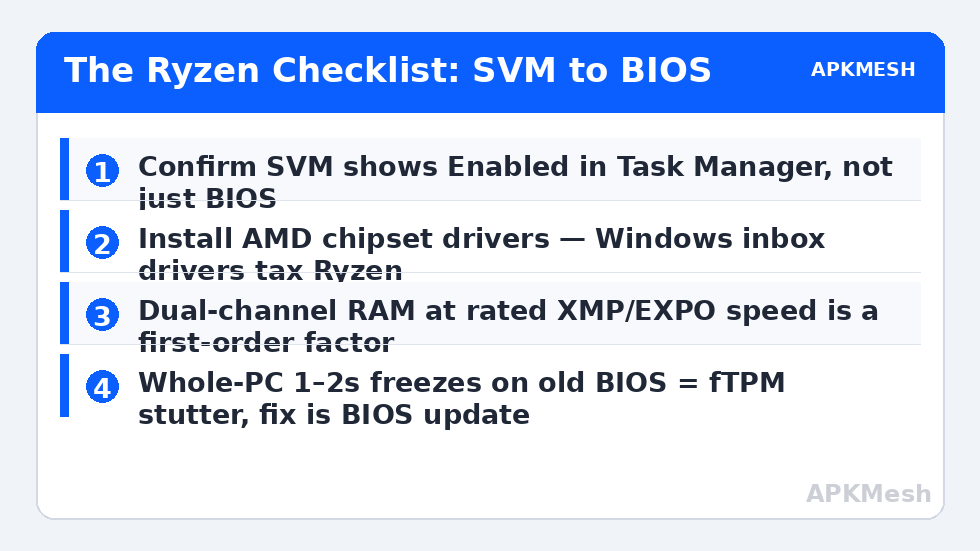
Distilled from the causes above, the order that fixes most Ryzen machines: (1) SVM confirmed Enabled in Task Manager; (2) AMD chipset drivers installed from AMD, Ryzen power plan selected; (3) Memory Integrity and competing Windows hypervisor features in a consistent state for the emulator’s mode; (4) RAM running dual-channel at its rated XMP/EXPO speed; (5) BIOS reasonably current (fTPM stutter and AGESA fixes live there); (6) emulator allocated half the physical cores, RAM within the table limits. Work it top to bottom, rebooting where instructed, and test the same scene after the full pass — individual items interact (a chipset driver changes power behaviour, which changes thermals, which changes clocks), so the checklist is a system, not six separate lotteries.
On dual-CCD Ryzen chips (the 12- and 16-core parts), one further diagnostic separates configuration problems from silicon behaviour: run the emulator with processor affinity temporarily restricted to a single CCD’s cores — Task Manager’s Details tab, right-click the process, Set affinity. If the stutter pattern disappears under affinity and returns without it, your remaining problem is cross-CCD latency, not settings. Some users keep the affinity permanently via a shortcut or Process Lasso; treat that as a legitimate final tuning step, and re-test after AGESA updates, which have repeatedly changed how Windows schedules these chips.
Frequently Asked Questions
Is SVM the same thing as Intel VT-x?
Yes in purpose — both are the CPU’s hardware virtualization extensions. AMD calls it SVM (you may also see “AMD-V” in documentation). Emulators need it enabled regardless of brand.
Why does my whole PC freeze for a second every few minutes, even outside games?
On Ryzen systems with older BIOS versions, that pattern is characteristic of the fTPM stutter bug. Update the BIOS from your board vendor. It is not an emulator problem; the emulator just makes you notice it.
Should I disable SMT (Simultaneous Multithreading) for emulators?
Generally no. Modern emulators and Windows scheduling handle SMT well, and disabling it cuts your total throughput. The rare exception is a specific old emulator build; test only if everything else is exhausted, and measure.
Does RAM speed really matter, or is that enthusiast folklore?
On Ryzen it genuinely matters because of how the Infinity Fabric couples to memory clocks, and single- vs dual-channel matters even more. This is one of the few platforms where the memory configuration is a first-order emulation variable.
My emulator says virtualization is unavailable but SVM is on. What now?
The Windows layer is intercepting it. Align the hypervisor-related features (Cause 2), run the bcdedit check from the engine-start guide, and confirm you are not running another hypervisor simultaneously.