
A game or app opens in MuMu Player or NoxPlayer and instead of its interface you get a flat white rectangle — sometimes the whole emulator window, sometimes just the app area, sometimes with sound playing behind it. Knowing how to fix the white screen glitch in emulators means recognising it as the sibling of the black screen: Android is usually alive, but the surface the app renders to is not being composited to your screen. The two faults share DNA (renderer, GPU driver, display path) but the defaults and one or two app-side causes differ on MuMu and Nox, so this guide is written for those two specifically, with the shared groundwork kept brief.
First: Is It the App, the Instance, or Everything?
- One app white, others fine: app-level cause — its rendering mode, its data, or its compatibility with this emulator. Go to Fix 3.
- Every app white, home screen visible: instance rendering configuration. Fix 1 and Fix 2.
- Entire emulator window white including the Android desktop: display pipeline/driver level — the same territory as a full black screen at startup, but on these emulators. Fix 2 and Fix 4.
- White only when the app loads something specific (a web login page, an ad, a video): likely that app’s web-view or video layer — Fix 3’s WebView note.
Also note when it started. White screen immediately after an emulator update, a GPU driver update, or switching monitors is a strong hint you can use to skip half this guide.
Fix 1: Renderer and Rendering Mode in MuMu / Nox Settings
MuMu Player
- Open Settings (top-right menu) → Advanced/Graphics settings.
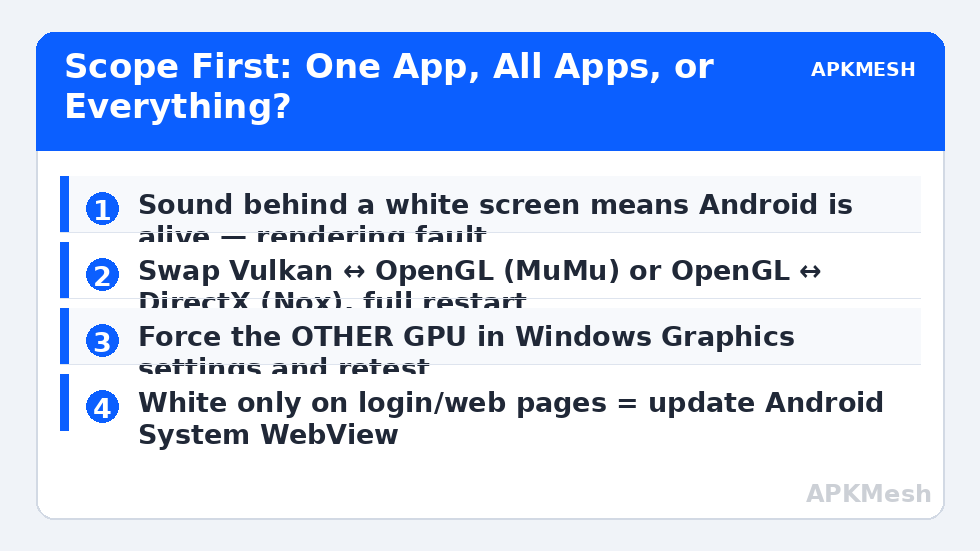
- Change the graphics renderer: if on Vulkan, switch to OpenGL; if on OpenGL, try Vulkan (MuMu exposes both on current builds).
- If a “graphics rendering mode” or compatibility/performance toggle exists in your build, choose the compatibility/stable option for testing.
- Also toggle the “dedicated GPU” / discrete-graphics option if present, save, and fully restart MuMu.
NoxPlayer
- Open System Settings → Performance settings / Graphics rendering mode.
- Switch between OpenGL and DirectX; Nox also offers a “compatible mode” (OpenGL compatibility) on many builds — that is the safest test setting.
- Set the graphics card rendering option to your discrete GPU if Nox offers the selection.
- Save and restart the instance completely.
Change one variable, restart fully, test the same app. Renderer changes without a restart test nothing.
Fix 2: The GPU Driver and the Wrong-GPU Problem
Laptops with both integrated and discrete graphics are the usual habitat of this fault: MuMu/Nox bind to the iGPU whose driver handles their surface badly, or a driver update changes surface behaviour. Actions:
- Windows Settings → System → Display → Graphics → add the emulator’s .exe → set to High performance (discrete GPU).
- Update the GPU driver from NVIDIA/AMD/Intel directly; if the white screens started with a driver update, roll back instead (Device Manager → GPU → Properties → Driver → Roll Back).
- In the GPU control panel, leave emulator profiles at defaults while testing — forced anti-aliasing/anisotropic overrides can break emulator compositing in ways that look exactly like this.
Games that die rather than white-screen on this same path are handled in the game crashing on startup guide — the boundary between “white” and “crash” is often just how the app fails.
Fix 3: App-Level Causes — WebView, Data, and Rendering Flags
- Android System WebView: apps that show web content (login pages, shops, news) render through WebView. If white screens concentrate on web content inside otherwise working apps, update Android System WebView and Chrome in the Play Store, then clear the affected app’s cache.
- App data corruption: clear the app’s cache (then data, after confirming account linking) in Android Settings → Apps. A corrupted shader/asset cache whites out some engines deterministically.
- In-app graphics settings: if the app has its own renderer/graphics API option, switch it — some titles default to a Vulkan path that a given emulator build handles poorly.
- ASTC/texture options in the emulator (where offered): test with texture-decoding extras disabled; texture pipeline helpers occasionally produce blank surfaces on specific GPUs.
While instances are open and misbehaving, beware the resource angle: an instance starved of RAM can fail surface allocation under load. Confirm your allocations are within the host’s real capacity:
Lag risk: —
Fix 4: Resolution, Multi-Monitor, and Remote Sessions
Custom resolutions and DPI are recurring suspects: reset the instance to a standard 1920×1080 / 240–320 DPI, restart, test. If the white screen occurs only on a second monitor or over remote desktop, the display path differs there (different GPU output or a virtual display driver) — reproduce on the primary panel to confirm, then fix the routing (force the discrete GPU for that output) rather than the emulator. And if the entire desktop environment shows white/blank windows in several apps, stop: your Windows graphics stack needs attention before the emulator does.
How to Verify the Fix
The previously white app renders correctly across three cold launches, after a PC reboot, and — if your case was app-specific — in its heaviest screen (the one that whitened). Also open two other 3D apps to confirm you fixed the layer, not just appeased one title. Note the winning renderer/mode in the instance’s name or a text file; emulator updates love to reset it.
When This Will Not Work
A small number of apps are simply incompatible with a given emulator’s current build — if the same app whites out on a fresh instance with both renderers while everything else works, that is a compatibility verdict, and a different emulator (or an update) is the answer. Failing GPUs and corrupt Windows graphics components also sit beyond settings. The neighbouring display faults — black screens, startup hangs, and the rest — are gathered in the lag and error fixes library.
Order of Operations, On One Line Each
When time is short, this is the sequence experienced troubleshooters run: note which scope (one app / all apps / whole window) — it halves the search space. Restart the emulator fully and retest before changing anything (transient surface faults are common after sleep). Swap the renderer and restart. Force the other GPU in Windows graphics settings and restart. Reset resolution/DPI to standard values. Clear the affected app’s cache, then data. Update or roll back the GPU driver based on which event preceded the problem. Test a fresh instance. Only then consider reinstalling the emulator. Each step is minutes; the discipline is in not skipping the cheap ones and not repeating the expensive ones — and in writing down which step worked, because emulator updates will eventually reset your renderer and you will want the note.
Frequently Asked Questions
What is the difference between the white screen and black screen faults?
Mechanically they are close relatives — a rendering surface not reaching your display. White tends to mean the surface exists but is cleared/blank (often app or WebView-level), black tends to mean nothing is being presented at all (boot or pipeline level). The triage steps overlap heavily.
Sound plays but the screen is white. Should I reinstall?
Not yet. Sound means Android and the app are running. Work the renderer swap and wrong-GPU fixes first — reinstalling preserves the same settings and usually preserves the same white screen.
Why does it only happen with one game?
That game uses a rendering path (API level, texture format, or its own graphics setting) that this emulator build mishandles. App-level fixes, an in-game graphics change, or testing the other renderer are the targeted answers.
Does switching to the discrete GPU always help?
No — on some laptops the iGPU path is the stable one and the dGPU driver is the problem. The point of Fix 2 is to test the other GPU from whichever you are on, not to assume discrete is better.
The white screen appears only in the login page of apps. Why?
Login pages are usually WebView content. Update Android System WebView and Chrome inside the emulator, then clear the app’s cache — this specific pattern is WebView far more often than it is the main renderer.