

A gaming laptop has a thermal budget measured in tens of watts and a fan system the size of two postage stamps. Emulator sessions are long, CPU-heavy, and often paired with a hot GPU — the exact profile that exhausts that budget. Resolving thermal throttling on a gaming laptop for emulator work starts with diagnosis, not parts: proving that clocks fall because temperature hits its ceiling, and distinguishing the three different ceilings (CPU package, GPU, and the motherboard’s skin/VRM limits) plus the impostor — a PCIe or power-delivery bottleneck that drops GPU clocks for electrical rather than thermal reasons. This guide walks the diagnostic order and the fixes ranked by effectiveness, from free (clean the vents) to involved (repasting), with the measurements that tell you when you are done.
Confirm It Is Really Throttling
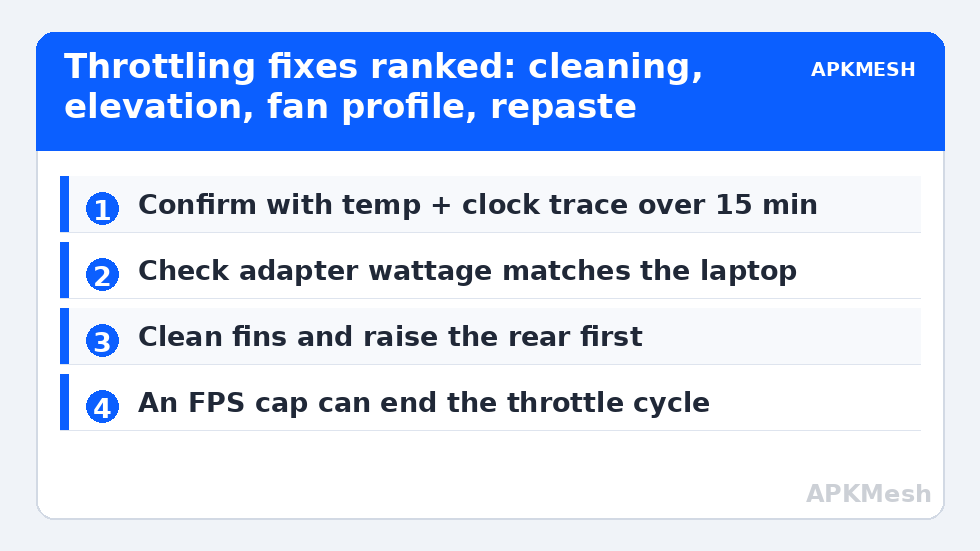
Use the overlay/logging method from our Afterburner monitoring guide: play your worst scene for fifteen minutes and watch the triad — temperature, clock speed, and the throttling indicators (HWiNFO exposes explicit “Thermal Throttling: Yes/No” flags for CPU cores; Afterburner’s graph shows the pattern). The signature is unambiguous: temperature pinned at the limit (commonly 95–100°C CPU, ~86–87°C GPU on many laptop firmwares), clocks stepping down in stages, FPS following them down. If temperatures are in the low 80s while clocks still fall, suspect power limits instead: the laptop’s PL1/PL2 wattage caps or a battery-saver profile engaging — check the vendor control app’s performance mode and whether the machine is truly on its full-wattage adapter (a 65W travel charger cannot feed a 140W gaming laptop under load; the firmware knows and throttles accordingly).
The PCIe and Power Impostors
Three non-thermal causes imitate the same symptom. Adapter wattage: covered above — verify the original or equivalent-rated charger. PCIe link width reduction: rarely user-fixable on laptops, but on desktops a GPU seated in the wrong slot or a lane-sharing M.2 configuration can run the card at x4/x8; GPU-Z’s Bus Interface line shows the live width under load (click the “?” render test). VRM/skin temperature limits: some thin laptops throttle on chassis or VRM sensors well before the CPU’s own limit; the CPU temperature looks acceptable while a “system” limit engages. The vendor’s control software sometimes exposes the active limit reason; HWiNFO’s throttling flags (including “Power Limit Exceeded”) are the practical differentiator.
Lag risk: —
Fixes Ranked by Effect per Unit of Effort
| Fix | Typical temperature effect | Effort/risk |
|---|---|---|
| Clean fans and heatsink fins (compressed air, fans held still) | −3 to −12°C on a dusty machine | Low; do it powered off, from outside first |
| Raise the rear / use a stand for intake clearance | −2 to −6°C | Trivial; bottom intakes suffocate on flat desks |
| Vendor performance mode + max fan profile for play sessions | −3 to −8°C under load | Noise cost only |
| Cap emulator FPS to a level the cooling sustains | Ends the throttle cycle entirely | You give up peak FPS you were losing anyway |
| Repaste CPU/GPU (quality paste or PTM7950-type pad) | −5 to −15°C on 2–4-year-old machines | Moderate skill; warranty implications on some models |
| Undervolting (where firmware allows) | −4 to −10°C at equal clocks | Requires stability testing; many modern laptops lock it |
| Cooling pad | −1 to −4°C typically | Money for little; a plain stand usually matches it |
Ranges are typical outcomes, not guarantees — a clean, well-pasted machine has nothing to recover, which the diagnosis tells you before you spend anything.
The FPS-Cap Insight Most People Resist
If your laptop can hold 60 FPS for hours but throttles chasing 90, the fastest stable configuration is a cap at 60, not a cooling project. Emulator frame caps live in the emulator’s settings; RTSS also enforces a global cap. Sustained performance is what gameplay feels; peak performance in minute three is a screenshot. Match ambition to the thermal budget and the “throttling problem” often evaporates without opening the chassis.
Repasting, Briefly and Honestly
Thermal paste dries and pumps out over years of heat cycles. On a machine older than about three years with rising temperatures despite clean fans, fresh paste (or a phase-change pad, which many enthusiasts now prefer for laptops because it does not pump out) is the legitimate deep fix. It is also the first fix in this guide that can void a warranty or damage a board in careless hands: screws strip, ribbon cables tear, liquid-metal products are conductive and unforgiving. If the laptop is in warranty, exhaust the free fixes and let the vendor’s service do it. Out of warranty and comfortable with a screwdriver, model-specific teardown videos plus patience make it a routine job. The maintenance cadence that keeps you out of this territory is in our preventive maintenance checklist, and the whole tuning family sits in the PC Optimization hub.
Room, Season, and the Obvious Variables
Thermal headroom is environmental arithmetic that no setting overrides. A laptop that holds its clocks in a 21°C room in January may throttle in the same workload at 32°C in August, because every degree of ambient temperature is a degree added to the whole curve. Before concluding a fix failed — or worked — note the room conditions of your test, and prefer testing in the warm conditions you actually play in. Likewise the surface matters in the literal sense: a soft bed or sofa session blocks bottom intakes completely and can cost 10°C by itself, a failure mode that presents as “the laptop is fine at my desk but dies on the couch” and is solved by a tray, not a teardown. Exhaust direction counts too: side-venting models pushed against a wall or a monitor stand recycle their own hot air. These mundane variables explain a large share of “mystery” throttling reports, and checking them costs nothing, which is why they sit in this guide ahead of paste and pads despite being less exciting.
Also inspect the fan profile hiding in your manufacturer’s control app before reaching for tools. Many gaming laptops ship with a ‘silent’ or ‘whisper’ profile selected — sometimes re-selected by the app’s own updates — that caps fan speed well below maximum and manufactures throttling that no paste job will cure. Run your confirmation benchmark once on the balanced or performance profile and once on silent; if frame times smooth out on the louder profile, your fix was a radio button, and it belongs in your notes so an app update never quietly unfixes it.
Frequently Asked Questions
How hot is too hot for a gaming laptop CPU?
Modern laptop CPUs are designed to run at up to 95–100°C under boost and will manage themselves at that ceiling — the chip is not being damaged at its rated limit. The problem is performance, not safety: at the ceiling, clocks must fall. Sustained operation in the high 80s/low 90s with stable clocks is a healthy working state for this class of machine.
My laptop throttles after exactly 15–20 minutes every time. Why so predictable?
That is heat soak arithmetic: the cooling system absorbs and sheds heat at a fixed rate, and the chips produce slightly more than that rate, so temperatures creep to the limit over a consistent interval. Short benchmarks hide it entirely. Any fix that adds dissipation (clean fins, raised rear, fan profile) lengthens the interval or removes the ceiling from your session length — measure with the same long test.
Does a cooling pad actually work?
Marginally, on some designs. Laptops that intake from the bottom benefit a little from forced air; most of the measured benefit comes from the elevation the pad provides, which a book or a plain stand duplicates for free. Spend on cleaning and (when due) repasting before pads.
Why does throttling hit the emulator harder than native games?
Emulation is sustained CPU work with spiky translation loads, so the CPU lives near its power limit continuously, while many native games are GPU-bound and let the CPU breathe between frames. The same laptop can therefore hold clocks in a native title and throttle in an emulator — the diagnosis is per-workload, which is why this guide tests with the emulator itself.
Is undervolting safe?
Properly done — small steps, stability-tested — it reduces heat without reducing performance and carries no hardware risk (worst case is instability you revert). The obstacles are practical: many recent laptops lock voltage control in firmware for security reasons. If yours is locked, the remaining levers are the physical and FPS-cap ones above.