

BlueStacks 5 stops at launch with a message that virtualization is disabled, unavailable, or “not supported on this PC,” and the engine never starts. Learning how to fix the virtualization tech error in BlueStacks 5 starts with one fact most guides skip: in roughly nine cases out of ten, your CPU supports VT perfectly well. The setting is switched off in the BIOS, something in Windows is sitting on top of the hypervisor layer, or BlueStacks is misreading the state of your machine. Work through the causes below in order, because each fix assumes the previous checks passed.
What the VT Error Actually Means
Android emulators run a full Android system inside a virtual machine. That requires hardware virtualization extensions — Intel VT-x on Intel processors, AMD-V (SVM) on AMD processors. When BlueStacks reports a VT error, one of four things is true:
- Virtualization is disabled in BIOS/UEFI firmware. The most common cause, especially on prebuilt desktops and laptops that ship with it off.
- Windows features are intercepting the hypervisor. Hyper-V, Virtual Machine Platform, Windows Hypervisor Platform, Memory Integrity (Core Isolation), and some credential-guard policies can reserve the virtualization layer so BlueStacks cannot use it directly.
- An old or corrupt BlueStacks install is reporting a stale status.
- The CPU genuinely lacks VT-x/AMD-V. Rare, and mostly limited to very old or low-end chips. Check this last, not first.
Step 1: Confirm Whether VT Is On or Off
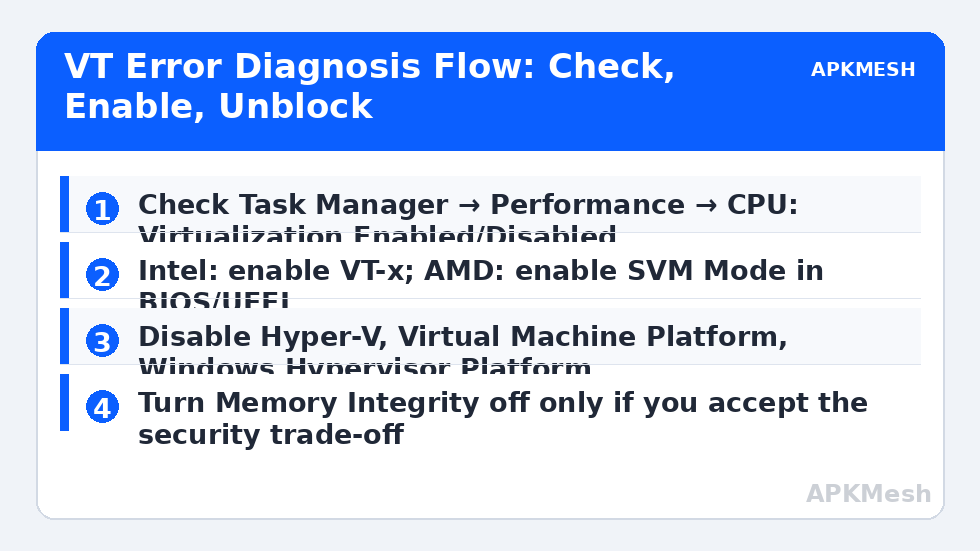
Do not guess. Open Task Manager (Ctrl + Shift + Esc), go to the Performance tab, click CPU, and read the line labelled “Virtualization.” It will say Enabled or Disabled. Also note your exact CPU model shown at the top — you will need it if you end up checking manufacturer documentation.
- If it says Disabled, the fix is in your BIOS. Go to Step 2.
- If it says Enabled but BlueStacks still complains, skip to Step 3 — something in Windows is conflicting with it.
Step 2: Enable Virtualization in BIOS/UEFI
Restart the PC and enter firmware setup. Common entry keys are Del or F2 (most desktops), F1/F10 (many Lenovo and HP laptops), or Esc then F10 (HP). If the keys flash past too fast, use Windows instead: Settings → System → Recovery → Advanced startup → Restart now → Troubleshoot → Advanced options → UEFI Firmware Settings.
Once inside, find the setting. Names and locations differ by vendor:
| Brand | Setting name | Typical location |
|---|---|---|
| Intel (generic boards) | Intel Virtualization Technology / VT-x | Advanced → CPU Configuration |
| AMD (generic boards) | SVM Mode | Advanced → CPU Configuration |
| ASUS | Intel VT-x / SVM Mode | Advanced → CPU Configuration |
| MSI | Virtualization Technology / SVM Mode | OC → CPU Features |
| Gigabyte | VT-d / SVM Mode | M.I.T. → Advanced CPU Settings |
| Dell | Virtualization Support → Virtualization | Advanced / Virtualization Support |
| Lenovo | Intel Virtualization Technology / SVM | Configuration or Security tab |
| HP | Virtualization Technology (VTx) | System Configuration / BIOS Setup → Advanced |
Set it to Enabled, save and exit (usually F10), and let Windows boot fully. Recheck Task Manager — it should now read “Virtualization: Enabled.” Then launch BlueStacks.
Step 3: Remove Windows Features That Block BlueStacks
If VT is enabled in firmware but the error persists, Windows is likely holding the hypervisor. BlueStacks 5 can run on top of the Windows hypervisor in many builds, but mixed states cause exactly this error. The reliable path is to turn off the competing features:
- Open Turn Windows features on or off (search it in Start).
- Uncheck: Hyper-V, Virtual Machine Platform, Windows Hypervisor Platform, and Windows Sandbox.
- Click OK and restart when prompted.
- Turn off Memory Integrity: Settings → Privacy & security → Windows Security → Device security → Core isolation → Memory integrity: Off. Restart again.
Honest trade-off: Memory Integrity is a real security control that protects against malicious kernel drivers. Turning it off lowers that protection. For a gaming PC this is a common and accepted compromise, but if the machine also handles sensitive work, weigh it — and turn it back on if you ever stop using emulators. The same applies to Hyper-V: if you actively use WSL2 or Docker, note that disabling Virtual Machine Platform will break them, and you should instead use a BlueStacks build designed to run with Hyper-V enabled rather than stripping features out.
Not sure how much CPU and RAM headroom you have left once VT is on? Run your specs through the calculator before changing allocations:
Lag risk: —
Step 4: Repair or Clean-Reinstall BlueStacks
If firmware and Windows are both correct, suspect the install. Download the official BlueStacks cleanup tool from the BlueStacks support site (only from the official domain — never a third-party “fixer”), run it to remove all instances, restart, then reinstall the latest BlueStacks 5 from the official site and create a fresh Pie 64-bit instance. A clean reinstall also clears the stale instance data behind several related errors in this category, including hypervisor and failed-to-start-engine failures.
How to Verify the Fix Worked
- Task Manager → Performance → CPU shows “Virtualization: Enabled.”
- BlueStacks boots to the home screen without the VT warning.
- Open Settings → Performance inside BlueStacks and confirm it lets you allocate more than 1 CPU core — single-core-only is a tell-tale sign VT is still unavailable.
- Launch a game and confirm the frame counter moves above slideshow territory; persistent stutter after VT works is a different problem — see fixing FPS drops during combat scenes.
When This Fix Will Not Work
If your CPU predates mainstream VT-x/AMD-V (very old Core 2 era chips, some early Atom and Celeron models), no setting will add the hardware feature — Task Manager will not even list the virtualization line. The same applies inside a virtual machine whose host does not expose nested virtualization, and on a few locked-down corporate laptops where the BIOS option is hidden behind an admin password. In those cases your realistic options are a lighter emulator, cloud gaming, or different hardware. Everything else in this lag and error fixes library assumes VT is available, so confirm this one first.
Two Confusing Variants Worth Knowing
The error appears only in one emulator. If BlueStacks complains about VT while another emulator runs fine on the same machine, virtualization itself is healthy — the fault is that specific installation’s detection or its hypervisor mode setting. Check whether that emulator is set to a Hyper-V mode while your Windows features are in the disabled state (or the reverse), align them, and update the emulator before reinstalling it.
The error appears after waking from sleep or hibernation. A few firmware/driver combinations report virtualization inconsistently after resume. A full restart (not sleep) restores the correct state; if it recurs, disable Fast Startup in Windows power options, which is technically a partial hibernation and produces several faults of this family.
Frequently Asked Questions
Does enabling VT slow down or harm my PC?
No. Enabling VT-x or SVM simply unlocks a CPU feature that stays idle until software uses it. It does not overclock anything, does not change voltages, and has no measurable effect on normal Windows performance.
Task Manager says Virtualization: Enabled, but BlueStacks still shows the VT error. Why?
Usually a Windows feature is reserving the hypervisor — Memory Integrity and Virtual Machine Platform are the most frequent culprits. Follow Step 3, restart after each change, and update BlueStacks to the latest build before reinstalling.
Is SVM Mode the same as VT-x?
Functionally yes. SVM (Secure Virtual Machine) is AMD’s name for its hardware virtualization extension, equivalent to Intel VT-x. Enable SVM Mode on AMD boards and Intel Virtualization Technology on Intel boards.
Will enabling VT void my warranty or break Windows?
No. It is a standard, manufacturer-exposed firmware setting. Windows will boot normally; at most, features that conflict with emulators (like some Hyper-V components) behave differently, which is unrelated to the firmware toggle itself.
I enabled VT but my games still lag badly. What next?
VT being on is the entry ticket, not the performance fix. Allocate at least 2–4 CPU cores and 4 GB RAM inside the emulator, switch the graphics renderer, and work through the combat-stutter guide linked above if frames drop mainly in heavy scenes.