
The lobby runs at a clean 60 FPS, menus are smooth, and then the first real fight starts — explosions, ten players on screen, particles everywhere — and the game collapses into a stuttering mess. Learning how to fix emulator FPS drops and stuttering means understanding why combat is the worst-case load: the emulator is simultaneously translating more draw calls, compiling new shaders, streaming textures, and syncing game state than at any other moment. Any single weak link in that chain shows up exactly when the action peaks. This guide orders the causes from most to least common and fixes them in that order.
First, Identify Which Kind of Stutter You Have
“Lag” covers at least four different faults, and each has a different fix:
- Shader-compilation stutter: sharp single hitches the first time an effect appears (first grenade, first ultimate), which fade after a few matches. Normal on a fresh install; largely self-healing.
- Sustained low FPS in fights: frames drop and stay low while the scene is busy — a throughput problem (CPU allocation, renderer, resolution, or thermal throttling).
- Frame-time spikes every few seconds: rhythmic hitches — usually background software, RAM pressure forcing pagefile use, or another process waking up.
- Input-feel lag with good FPS: the counter says 60 but controls feel drunk — that is latency, often V-Sync, fullscreen behaviour, or a display issue, not raw performance.
Turn on the emulator’s FPS display and watch when it dips. That observation decides which section below applies to you — guessing wastes an afternoon.
Cause 1: Too Few CPU Cores Allocated (or Too Many)
Emulator CPU settings are the single biggest lever. Open your emulator’s performance settings and use these rules:
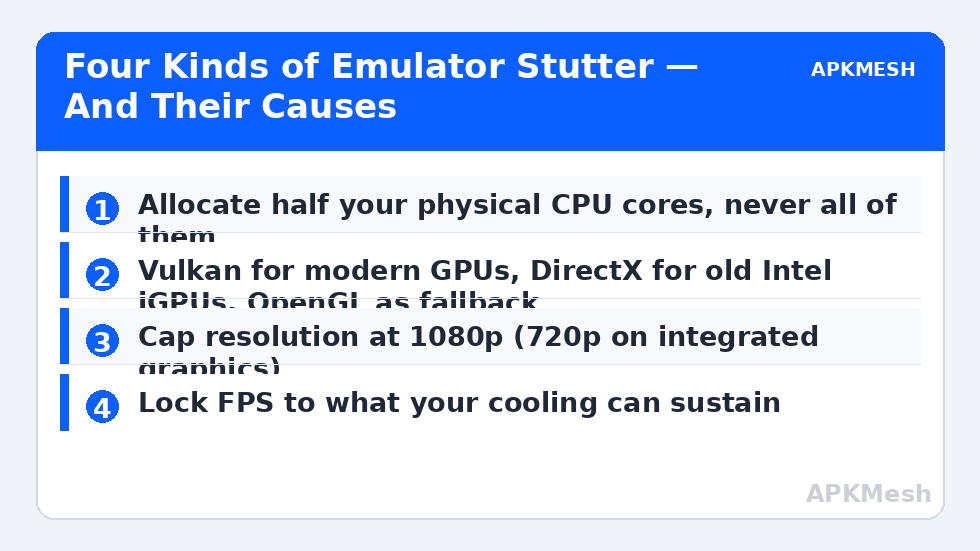
- Allocate half your physical cores as a starting point: 4 cores on an 8-core CPU, 2 on a quad-core.
- Never allocate all cores — Windows and the game itself still need CPU time, and starving the host causes the rhythmic-spike stutter described above.
- On older dual-core and weak quad-core chips, fewer emulator cores with a capped frame rate is smoother than max settings that constantly miss their frame budget.
If the emulator refuses to offer more than one core at all, virtualization is not reaching it — fix that first via the VT error guide before touching anything else here.
Cause 2: Wrong Renderer for Your GPU
The graphics renderer decides how Android draw calls become work for your GPU:
- Vulkan: usually best on modern AMD and NVIDIA cards and recent Intel iGPUs; lower CPU overhead in busy scenes.
- DirectX: often the most stable on older Intel integrated graphics under Windows.
- OpenGL: the compatibility fallback; fine for 2D and light 3D, usually the slowest in heavy 3D combat.
Change one variable, restart the emulator fully, and play the same game mode for five minutes before judging. Renderer changes only take effect after a restart in most emulators, and first-match shader hitches will poison your comparison if you judge too early. Relatedly, if the whole emulator freezes rather than stutters, treat it as a crash problem instead — see fixing games that crash on startup.
Cause 3: Resolution and DPI Set for Looks, Not Frames
Rendering at 1440p or 4K inside the emulator multiplies GPU work per frame, and combat effects scale with pixel count. For competitive smoothness:
- Set the emulator display to 1920×1080 maximum; on integrated graphics use 1280×720.
- Keep DPI moderate (240–320). Very high DPI makes UI rendering heavier than players expect.
- Use the in-game graphics settings too: shadows and post-processing are the first things to lower; texture quality can usually stay.
Guessing allocations wastes time — check what your hardware can actually sustain before locking settings in:
Lag risk: —
Cause 4: Thermal Throttling on Laptops
A laptop that is smooth for ten minutes and then degrades is almost always heat-limited, not settings-limited. The CPU/GPU hits its temperature ceiling and clocks down mid-match. Confirm it with Task Manager (CPU speed dropping well below base clock during play) or any hardware monitor. Mitigations, safest first:
- Raise the rear of the laptop or use a stand so the intakes breathe; never game on a bed or sofa fabric.
- Set the Windows power plan to Best Performance while plugged in, and always play plugged in — most gaming laptops cap clocks hard on battery.
- Cap the in-emulator frame rate to a level the cooling can sustain (a locked 40–50 FPS feels far better than bouncing between 25 and 60).
- Clean dust from vents if the machine is more than a year old; this is maintenance, not a tweak.
Cause 5: RAM Pressure and Background Software
When system RAM fills, Windows swaps to the pagefile and the emulator hitches in regular spikes. Keep total usage below ~85% during play: close browsers with dozens of tabs, game launchers updating in the background, and screen recorders you are not using. Allocate the emulator 4 GB on a 16 GB system; on an 8 GB system, 2–3 GB for the emulator plus disciplined background apps beats giving the emulator half and starving Windows. If usage is high even at idle on the desktop, work through the high CPU and memory usage guide next.
How to Verify the Fix
Replay the exact scenario that stuttered — same game, same mode, busiest fight you can find — for at least two matches. Judge three things: the FPS counter’s lowest sustained value in combat (not the lobby number), whether the rhythmic spike pattern is gone, and whether first-match shader hitches reduce across matches (they should, as the cache builds). Change only one setting between tests, or you will not know what helped.
When These Fixes Will Not Work
Some ceilings are real. A dual-core CPU with integrated graphics from 2013 will not hold 60 FPS in a modern battle royale at any settings — the honest target there is a stable 30. Emulator-specific game incompatibilities also exist: if one title micro-stutters on every renderer while others run cleanly on the same machine, the problem is that game’s profile in that emulator version, and an emulator update (or a different emulator for that title) is the actual fix. Finally, if stutter arrived suddenly with no settings changed, suspect failing hardware or a bad driver update before endless tweaking. More scenarios like this live in the lag and error fixes section.
Keeping a Settings Log (So You Stop Going in Circles)
Stutter troubleshooting fails most often through lost track, not wrong ideas. Keep a plain text note per game: date, renderer, resolution, cores/RAM, FPS cap, and one line on how combat felt. Change one variable per session, play the same mode, and write the result down before touching anything else. Within three or four sessions the pattern for your hardware becomes obvious — which renderer it prefers, which cap it can hold — and future updates can be judged against your own baseline instead of forum folklore for different machines. This discipline is also how you will notice slow changes like thermal degradation: your log shows the same settings scoring worse in summer, and no setting in the emulator explains weather.
Frequently Asked Questions
Why is my FPS fine in menus but terrible in fights?
Menus render a mostly static scene. Combat adds characters, effects, physics and network sync all at once, multiplying draw calls and shader work. It is the genuine worst case, so settings that “feel fine” in the lobby often collapse there.
Should I turn on the emulator’s “high frame rate” mode?
Only if your hardware can hold that rate steadily. A locked lower rate is smoother than an unlocked rate that oscillates. Match the cap to what your CPU/GPU sustains in combat, not what it hits in menus.
Does more RAM allocation always help?
No. Past the game’s needs, extra emulator RAM does nothing, and over-allocating on an 8 GB system pushes Windows into swapping, which creates the very stutter you are chasing. Balance beats maximum.
Why did stutter start only after a week of playing fine?
Common triggers: a game update with new effects (fresh shader cache), a GPU driver update, Windows starting to index or back up, or dust/heat creep. Note what changed first instead of randomising your settings.
Is V-Sync good or bad for emulator stutter?
It prevents tearing but adds input latency and can cause judder when FPS can’t match the refresh rate. If controls feel delayed while FPS looks fine, test with V-Sync off and compare honestly.