
You open the Play Store inside your emulator, search for the game you installed the emulator to play, and get a grey notice: “Your device isn’t compatible with this version.” Knowing how to fix the device incompatible error on the Play Store in emulators means knowing what the Store is actually checking. The Play Store does not test your real hardware — it reads the device profile the emulator presents (model, Android version, CPU architecture, screen specs, and a certification flag) and compares it against the developer’s requirements. When the verdict is wrong, you fix the profile, not the PC. Here are the mismatches that cause it, most common first.
Cause 1: The Emulator Instance Is 32-Bit, the Game Is 64-Bit Only
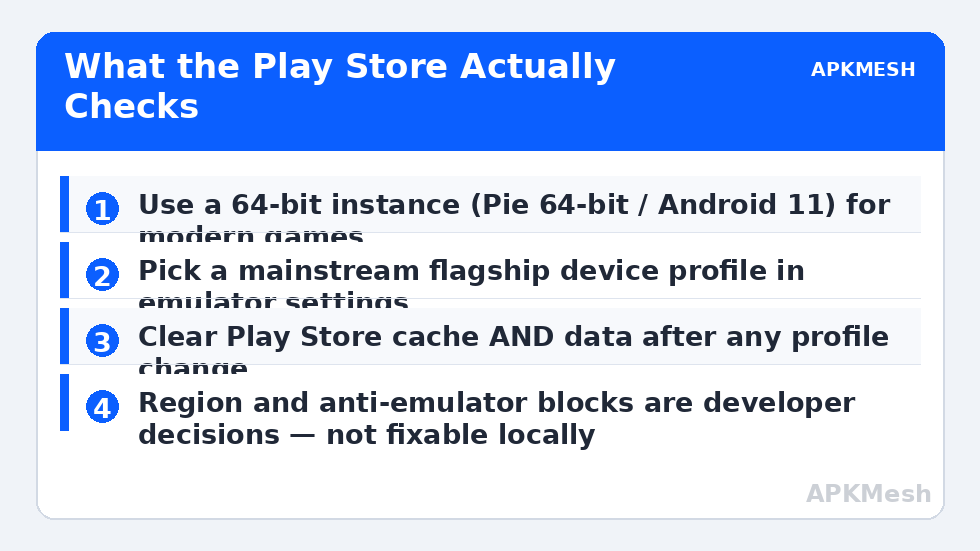
This is the number-one cause and the most misdiagnosed. Many modern games ship 64-bit-only builds. If your instance is a 32-bit (Nougat 32-bit) instance, the Store hides or blocks those games entirely, and no setting inside that instance can change its bitness.
- Open the emulator’s Multi-Instance Manager.
- Create a new instance explicitly labelled 64-bit (BlueStacks: “Pie 64-bit” or “Android 11”; LDPlayer: choose the 64-bit version at install/instance creation).
- Sign into the Play Store on the new instance and search again — for most users the game simply appears.
The reverse case exists too: a genuinely old 32-bit-only app can refuse a 64-bit-only environment, which is a different and rarer situation covered by the architecture guides. But for “device incompatible” on current games, bitness is the first suspect, every time.
Cause 2: The Device Profile Is Too Old, Too Obscure, or Flagged
Developers can exclude specific device models, require a minimum Android version, or require Play Integrity/certification signals that emulators do not fully provide. Within what you can control:
- Switch the device profile: BlueStacks (Settings → Phone → device profile) and LDPlayer (Settings → Model) let you pick a mainstream flagship profile (a recent Galaxy or Pixel). A popular real-device profile passes far more developer filters than a generic “Tablet X” profile.
- Use a newer Android instance: if the game requires Android 10+ and your instance is Android 7, the Store verdict is correct. Create an Android 11/13 instance instead of fighting it.
- Clear Play Store data after changing profiles: Android Settings → Apps → Google Play Store → Storage → Clear cache and Clear data, then reopen the Store. The Store caches compatibility verdicts aggressively; without this step, profile changes often appear to “not work.”
Cause 3: Region and Account Restrictions Masquerading as Incompatibility
If the game is not released in your account’s country, the Store sometimes shows compatibility-style blocking instead of a clear region message. Clues: the same game installs fine on your physical phone with the same account (then it is not region) or does not (then it probably is). Also check Play Store → Settings → General → Account preferences for the country on the account. Region locks are the developer’s/publisher’s decision; the legitimate paths are waiting for release or contacting the publisher — do not use VPN-plus-account tricks that violate Play policy and risk the account.
Cause 4: Corrupt Play Services Data After Sign-In Problems
A half-broken Play services state produces random incompatibility and download errors. Fix sequence: clear cache/data for Google Play Store and Google Play services, remove and re-add the Google account in the instance, and restart the instance fully. If sign-in itself is erroring (server communication errors, endless “checking info”), stop and repair that first with the Google sign-in errors guide — compatibility verdicts are meaningless until the account layer is healthy.
While you are changing instances and profiles, use the estimator to make sure the new 64-bit instance gets allocations your PC can sustain — a compatible game that runs at 12 FPS is not a win:
Lag risk: —
What About Installing the APK Directly?
Sideloading the game’s APK from the developer’s own website or a store you trust can bypass a wrong Store verdict, and emulators support drag-and-drop install. Two honest warnings: first, if the Store verdict reflects a real architecture or Android-version mismatch, the sideloaded app will crash on launch anyway — that failure mode is covered in the game crashing on startup guide. Second, random APK download portals are a primary malware channel; never install “modded” or “unlocked” builds, both for security and because they violate the game’s terms. If the developer does not offer a direct download, the correct fix remains correcting the profile or instance.
How to Verify the Fix
Success: the game’s Store page shows an Install button, the download completes, and the game launches and plays for several minutes. Also confirm on a second title that previously showed the same message — if everything unblocked at once, you fixed a profile-level cause; if only one app changed, it was app-specific.
When This Will Not Work
Some exclusions are deliberate and correct: games with strict anti-emulator policies block emulator environments at the server level regardless of profile; titles requiring hardware features emulators do not expose (specific camera/AR/NFC capabilities) will stay incompatible; and a game that dropped your Android version cannot be argued with. In those cases the answer is a physical device or the publisher’s own PC client if one exists — not increasingly sketchy workarounds. More Store- and account-layer faults are collected in the lag and error fixes section.
A Word About Safety Ratings and “Unlock” Tools
Search results for this error are full of tools and modified Play Store files promising to “unlock incompatible apps.” Treat all of them as hostile: modified store clients and patchers are a documented malware channel, they typically require disabling the very protections that keep an account safe, and they cannot change what a developer’s server allows anyway. Everything legitimate lives in three places — the emulator’s own profile settings, the instance’s architecture and Android version, and the Play Store’s own data. If an app remains blocked after those three are correct, the block is a policy decision by the developer, and the ecosystem’s answer is a supported device. The same discipline applies to APK sources throughout this site: developer websites and official stores, or not at all.
One related check while you are in the Store: open the game’s page in a browser on your PC while signed into the same Google account and use the “install on device” device list. If your physical phone appears as compatible but the emulator instance does not even appear, the instance has not registered properly with the Store yet — open the Play Store app inside the emulator, let it sit signed-in for a few minutes to complete registration, fully restart the instance, and check again before changing profiles.
Frequently Asked Questions
The game works on my phone but the Store blocks it in the emulator. Why?
Your phone presents a certified, mainstream device profile. The emulator presents a different model, architecture, and certification state. Matching the profile (mainstream model + correct bitness + current Android version) removes most artificial blocks.
Will changing the device profile break my installed games?
Changing the profile in an existing instance can reset some apps’ device checks and occasionally sign-ins. The safer route is a fresh instance with the correct profile from the start, which is why this guide orders it that way.
Does clearing Play Store data delete my apps or purchases?
No. It clears the Store app’s local cache and settings. Your library, purchases, and installed apps are tied to your Google account and remain intact; you may need to re-accept the Store’s terms prompt once.
The game page says my Android version is too old but my instance is new. What gives?
Stale cached verdict, usually. Clear Play Store data after creating the new instance, fully restart the emulator, and make sure you are searching inside the new instance — not the old one still open in another window.
Is using a different device profile against the rules?
Selecting among profiles the emulator itself offers is a normal configuration feature. What crosses lines is spoofing to bypass payment, region pricing, or anti-cheat systems — this guide stays on the configuration side of that line.