
You launch a game in fullscreen, the emulator takes over the display — and your mouse pointer is gone. You can still click (things highlight when you happen to hover them), but aiming, looting, and menus become guesswork. Learning how to fix the mouse cursor disappearing in fullscreen emulators starts with a distinction: is the cursor hidden by design (shooter mode, where the emulator deliberately captures the mouse and shows a crosshair or nothing), or lost by fault (the pointer should be visible but the display pipeline is not drawing it)? The fixes are opposites — one is a keypress, the other is driver work — so identify your case first.
Case 1: The Cursor Is Captured on Purpose (Shooter / FPS Mode)
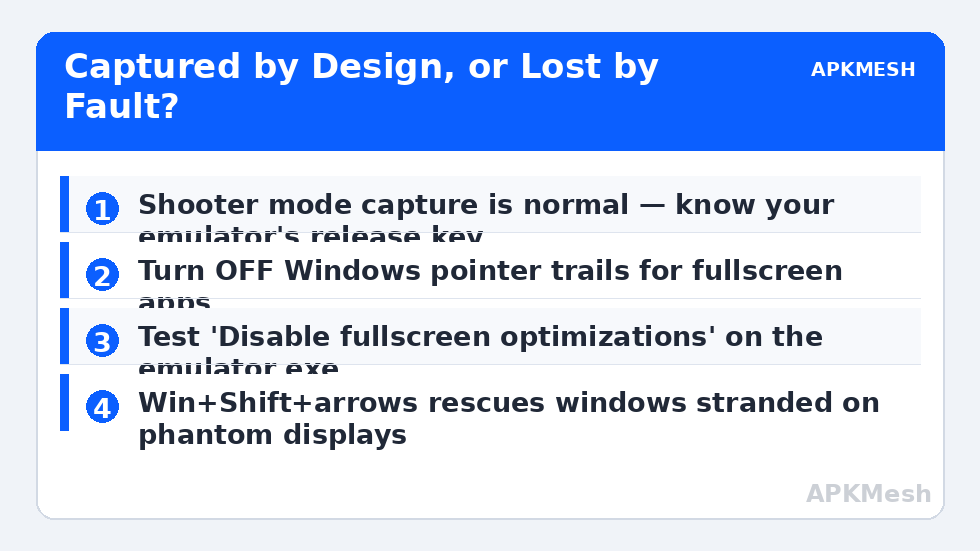
Emulators hide the Windows pointer in shooting mode because the mouse is steering the camera; the game shows its own crosshair instead. This is correct behaviour, and the “fix” is knowing the release key:
- BlueStacks: press F1 to lock/unlock the cursor to the game window (the on-screen controls editor also has a lock toggle); the default “show cursor” behaviour in shooting mode is set per game scheme.
- LDPlayer: the mouse locks when you click into the game in shooting mode; press Ctrl (default) or the key shown in the keymapping panel to release it. Right-click is often the toggle in some schemes.
- MuMu/Nox: similar capture toggles live in their keymapping/control panels — check the scheme for the “mouse lock” binding rather than assuming a fault.
If the cursor returns the instant you press the release key or alt-tab, nothing was broken. Adjust the scheme so the toggle is a key you will not hit accidentally mid-fight, and disable the emulator’s “hide cursor in fullscreen” type options if your emulator exposes them and you prefer a visible pointer outside shooter titles. Keymapping layers cause several adjacent mysteries — if inputs behave oddly beyond the cursor, the input-lag and keymapping checks in the stuttering guide overlap with this territory.
Case 2: The Cursor Is Missing When It Should Be Visible
2a. Fullscreen optimisation and display mode
Toggle the emulator between true fullscreen and borderless/windowed-fullscreen if it offers both, and test. In Windows, find the emulator’s .exe → Properties → Compatibility → check “Disable fullscreen optimizations” — this changes how Windows composes the window and restores cursors in several emulators. Also test a different fullscreen resolution: a non-native resolution that your monitor/GPU scales can fail to composite the hardware cursor while the game itself draws fine.
2b. Hardware cursor vs software cursor
Some emulator builds render the pointer in software; others rely on the GPU’s hardware cursor plane, which certain driver versions mishandle (the pointer exists in screenshots but not on the physical screen — a telltale sign). If your emulator or the game offers a cursor-rendering option, switch it. Otherwise the fix is the GPU driver: update from the vendor, or roll back if the vanishing began with a driver update. Display-pipeline trouble clusters together — a cursor fault that arrives with other rendering oddities often shares roots with black screen at startup problems.
2c. Windows pointer settings that bite
- Pointer trails: Settings → Bluetooth & devices → Mouse → Additional mouse settings → Pointer Options — turn Display pointer trails OFF. Trails are a legacy feature that breaks cursor compositing in several fullscreen apps, and “short trails” is a decades-old workaround for invisible cursors.
- “Hide pointer while typing”: same panel — irrelevant in games but worth disabling while you are here.
- High-DPI scaling: emulator .exe → Compatibility → Change high DPI settings → try “Override high DPI scaling behaviour: Application” if your Windows display scaling is 125%+ and the cursor is offset or invisible at the screen edges.
2d. Multi-monitor and capture software
On multi-monitor setups the cursor may be rendered on the other display’s coordinate space while the game is fullscreen on the primary. Test with a single monitor connected, and check whether the pointer reappears when you move it far left/right (it was never gone — just exiled). Screen-recording and overlay software (capture tools, FPS overlays, chat overlays) can also swallow the composited cursor; disable overlays one at a time to find the thief. If a controller is your primary input anyway, note the related fault family in the controller disconnection guide.
If the cursor only vanishes once games get heavy, suspect load rather than display: an instance starved of CPU renders the UI erratically. Sanity-check allocations before deeper surgery:
Lag risk: —
How to Verify the Fix
Enter and exit fullscreen ten times. Move the mouse to all four corners (edge cases reveal offset/compositing faults). Toggle the shooter-mode capture on and off deliberately. Then play a full match including menus and inventory screens, which use the pointer differently from gameplay. Only call it fixed if it survives a PC restart with the same settings.
When This Will Not Work
A game that hard-captures the pointer with no release binding is designed that way — the answer is the game’s own settings or a different control scheme, not Windows tweaks. Faulty GPU hardware that drops the cursor plane will show cursor problems in other fullscreen applications too; that is a driver/hardware issue beyond the emulator. And if you are remoting into the PC (RDP/Parsec-style), cursor rendering is negotiated by the remote layer, and fixes belong there. The rest of the input and display faults live in the lag and error fixes library.
When Only One Game Hides the Cursor
If the pointer vanishes in a single title but behaves in every other game and menu, stop changing Windows settings: the scope has narrowed to that game’s control scheme in the emulator. Open the scheme for that game and inspect its mouse-look configuration — a scheme imported from another player or converted from another emulator version can carry a “hide cursor” state with no obvious release binding. Resetting that one scheme to the emulator’s default for the genre, then re-adding your custom keys, cures the persistent cases. Also check the game’s own settings for a fullscreen cursor option; a few titles manage the pointer themselves and conflict politely with the emulator’s capture. Single-game scope is a gift: it rules out drivers, Windows, and hardware in one observation.
Also worth a quick test: swap the mouse itself. A failing mouse sensor or a wireless mouse with a dying battery/receiver can produce dropouts that look like a vanishing cursor in fullscreen (the pointer freezes or disappears during fast movement) while behaving innocently on the desktop. Thirty seconds with any spare wired mouse separates peripheral faults from software faults — and wireless gaming mice at low battery are repeat offenders here, because fullscreen games poll them at rates that expose the weakness.
Frequently Asked Questions
Why does pressing Ctrl bring my cursor back in LDPlayer?
Because the cursor was never broken — LDPlayer’s shooting mode locks the pointer to steer the camera, and Ctrl is its default release key. You can rebind it in the keymapping panel if Ctrl conflicts with a game action.
My cursor shows in screenshots but not on screen. What does that mean?
The software-rendered pointer exists in the frame buffer, but the hardware cursor plane your monitor actually displays is failing. That signature points at GPU driver or fullscreen-composition issues: update/roll back the driver and toggle fullscreen optimisations.
Does Windows display scaling really affect the in-game cursor?
Yes. At 125–150% scaling, some emulators miscalculate the pointer’s position or clip it at edges in fullscreen. Forcing application-controlled DPI scaling on the emulator executable is the standard correction.
The cursor flickers rather than disappearing. Same fixes?
Largely — flicker is compositing struggling rather than failing. Start with pointer trails off, fullscreen optimisations toggled, and overlays disabled; those three cover most flicker cases too.
Can I force a visible crosshair instead of the Windows pointer?
In shooter titles, yes — emulator control schemes let you show the game’s crosshair while the OS pointer stays captured, which is the intended experience. In menus, the schemes restore the normal pointer when capture releases.