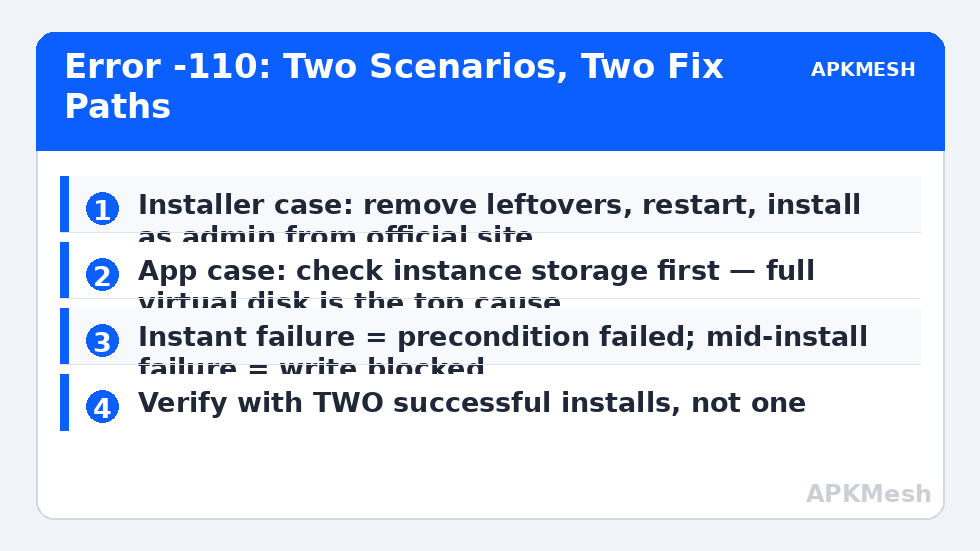
LDPlayer’s installation — or an app install inside it — halts with Error Code -110, sometimes alongside a failed-to-install message, and retrying produces the same code instantly. Working out how to fix error code 110 in LDPlayer installations requires knowing that -110 is not one fault: it is LDPlayer’s generic “this install could not complete” bucket, thrown for storage exhaustion, corrupted package caches, leftover files from a previous install, and permission problems alike. The skill is in reading which bucket your case falls into, because the fixes do not overlap much. This guide separates the two scenarios first — installing LDPlayer itself vs installing an app inside it — then works each in order.
Scenario A: Error -110 While Installing LDPlayer Itself
A1. Leftover files from a previous install
The leading cause. A previous LDPlayer (or a failed attempt minutes ago) leaves folders and services that the new installer trips over:
- Uninstall LDPlayer from Windows Settings → Apps if an entry exists.
- Restart the PC (this releases locked files and dead services).
- Delete leftover folders if present: the old installation directory (commonly under
C:\Program Files\ldplayeror a custom path you chose) and the data directoryC:\Users\<you>\Documents\XuanZhi/ LDPlayer data folders — only if you have no instance data you need; deleting data folders deletes instances. - Run the installer again, as administrator, from a fresh download off the official LDPlayer website.
A2. Disk space and path problems
The installer needs working room beyond the final size (it stages and extracts). Keep at least 10 GB free on the target drive. Also avoid installing into paths with unusual characters or very deep nesting, and if your Windows username contains special characters and installs keep failing across apps, install LDPlayer to a simple path like D:\LDPlayer to sidestep profile-path issues.
A3. Antivirus blocking the installer mid-write
Real-time scanning can lock or quarantine installer components mid-extraction and produce exactly this class of failure. Check the quarantine first. If LDPlayer components were flagged, download the installer only from the official site and add an exclusion for the install folder — the full reasoning is in the antivirus blocking emulators guide. Never “fix” this by turning protection off and installing software of uncertain origin; with the official installer plus an exclusion, protection stays on.
Scenario B: Error -110 While Installing an App Inside LDPlayer
B1. The instance is out of storage
Android-side storage exhaustion is the most common in-emulator cause: the package manager aborts installs when the virtual disk is effectively full. Inside LDPlayer, check Settings → Storage. If you are near the ceiling, clear app caches, uninstall dead weight, or expand the instance’s disk size in LDPlayer settings (disk management option) and restart the instance. The mechanics of emulator virtual disks — and why “full” arrives earlier than the headline size — are detailed in the storage full error guide.
B2. Corrupted package or Play cache
For Play Store installs failing with errors: clear cache and data for Google Play Store and Google Play services (Android Settings → Apps), restart the instance, retry. For direct APK installs failing: the APK file itself is the suspect — re-download it from the developer’s official source; a truncated download passes casual inspection and fails at install with generic codes. Also confirm architecture fit: a 64-bit-only app cannot install on a 32-bit LDPlayer build, and vice versa in rare legacy cases — that mismatch family is explained in the device incompatible guide.
B3. The instance’s system image is damaged
If every install fails in one instance while another instance installs fine, stop debugging packages: the instance is damaged. Create a fresh instance, verify installs work there, migrate, and discard the broken one through the multi-instance manager. Repeated -110s across unrelated apps are the signature.
While rebuilding, set allocations deliberately — an instance given too little RAM can fail large installs during the verification stage in ways that mimic corruption:
Lag risk: —
How to Verify the Fix
For Scenario A: LDPlayer installs, launches to the home screen, and survives a PC restart. For Scenario B: the originally failing app installs and a second unrelated app installs, then the first app launches. One success could be luck (a transient lock clearing); two installs plus a launch is a pattern you can trust.
When This Will Not Work
If your Windows drive is failing or your Windows installation has corrupted system components, installers across many programs — not just LDPlayer — will fail similarly; that is a machine problem (check disk health and run system file checks), not an LDPlayer problem. Some enterprise PCs block emulator installation by policy entirely; no user-level fix overrides an admin policy, and you should not try. Finally, if the app you are installing is itself region-locked or server-withdrawn, installation workarounds do not create a legitimate copy. More LDPlayer and general install faults are grouped in the lag and error fixes library.
Prevention and Housekeeping for Install Reliability
Most -110 cases are self-inflicted by accumulation: three half-removed LDPlayer versions, a system drive at 98%, and an installer fighting both. A short routine keeps installs boring. Keep one current LDPlayer installation, installed from the official site, and remove old versions fully (uninstall plus a restart) before major upgrades rather than installing over the top repeatedly. Keep at least 15 GB free on the system drive at all times — installers, Windows updates, and pagefile all draw from the same pool, and -110-class failures cluster in the week a drive fills up. Before a big install or upgrade, close other emulators and heavy apps so file locks and memory pressure do not sabotage the extraction stage. Finally, keep LDPlayer itself updated through its built-in updater: the vendor patches installer edge cases (new Windows builds, new antivirus behaviours) in point releases, and a two-year-old build failing with -110 is often simply out of its supported world. None of this is glamorous, which is exactly why it works — installation reliability is a hygiene property, not a setting.
One more diagnostic that costs nothing: watch where the failure lands relative to other software. If a completely unrelated program’s installer also failed this week with a generic error, stop treating -110 as an LDPlayer story — two installers failing in the same week is a system story (disk, permissions, or security software), and the disk-health and exclusion checks in this guide matter more than anything LDPlayer-specific. Conversely, if every other installer on the machine sails through, the leftover-files explanation (A1) climbs back to the top of the list, because it is the only cause that singles out this one product.
Frequently Asked Questions
Is error -110 a virus or a sign my PC is infected?
No. It is an installation failure code. Malware only enters the picture if you downloaded LDPlayer itself from an unofficial mirror — which is why this guide insists on the official site for every download step.
Will deleting the XuanZhi/data folders delete my games?
Yes — those folders hold instance data. Only delete them when reinstalling LDPlayer itself (Scenario A) and only after accepting that instances will be recreated. Account-synced game progress returns on sign-in; local guest data does not.
Why does the error appear instantly instead of mid-install?
Instant failure means a precondition failed: leftover locks, no space, blocked file, or a corrupt package detected at verification. Mid-install failures lean toward disk-write and antivirus interference. The timing is a genuine diagnostic clue.
The same APK installs on my phone but fails in LDPlayer with -110.
Check architecture and Android version fit first (32-bit vs 64-bit build, minimum Android version), then instance storage. A phone succeeding rules out a corrupt file only if it is the identical file — re-downloads can differ.
Should I install an older LDPlayer version to dodge the error?
Only as a diagnostic, from the official site’s version archive if offered. If an older build installs, the issue was the newer installer’s interaction with your system state — report it and keep the working build updated later rather than freezing forever.