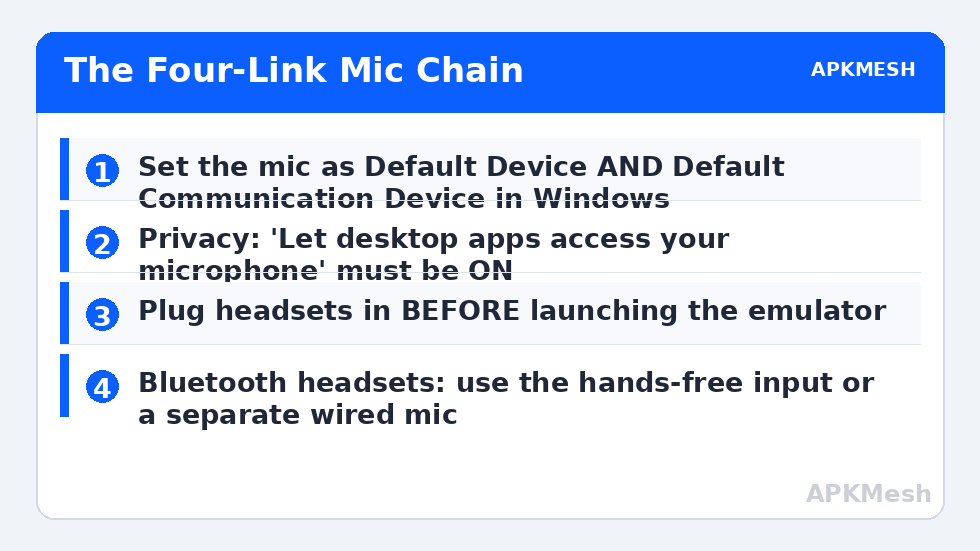
You join a squad match, your teammates hear nothing, and the game’s mic indicator never lights — or worse, it lights but transmits robotic static. Knowing how to fix a microphone not working in emulator voice chat is about tracing a chain with four links: the physical mic into Windows, Windows privacy permission, the emulator’s audio-input selection, and the app’s own permission inside Android. Any single broken link produces total silence, so this guide tests each link with a recording check before moving to the next — no guessing, no reinstall roulette.
Link 1: Prove the Microphone Works in Windows
- Settings → System → Sound → Input: select your microphone and use “Test your microphone” — speak and confirm the level bar moves.
- If it does not move here, nothing downstream matters: check the physical mute switch on headsets, the cable/connector, and if it is a 3.5mm headset on a combo jack, that you are using a splitter or a TRRS-compatible port.
- Set the correct device as default if you have several (webcam mics love to steal default status): Sound settings → More sound settings → Recording tab → right-click your mic → Set as Default Device and Default Communication Device.
Link 2: Windows Microphone Privacy Permission
Windows can block desktop apps from the mic at the OS level, and emulators are desktop apps. Go to Settings → Privacy & security → Microphone and confirm:
- Microphone access is On.
- Let apps access your microphone is On.
- Let desktop apps access your microphone is On — this last toggle is the one that governs emulators, and it is the one people miss because the per-app list above it only shows Store apps.
While you are in Sound settings, open your mic’s Properties → Levels and set the level to 80–100 with any “boost” modest (+10 dB at most). Excess boost is the top cause of the distorted/robotic variant of this fault, and the echo problems covered in the audio delay and echo guide start here too.
Link 3: The Emulator’s Own Audio Input Selection
Most emulators pass through whichever input Windows reports, but several expose their own selection or require a restart to notice a newly plugged device:
- BlueStacks: it uses the Windows default input. If you plugged the headset in after launching BlueStacks, restart BlueStacks — it enumerates devices at start.
- LDPlayer: check the settings/sidebar audio options if your build exposes them, and likewise restart after changing hardware.
- Headset discipline: plug the headset in before launching the emulator, every time. USB headsets that appear mid-session are the most common “it worked yesterday” cause — yesterday you plugged it in first.
- Bluetooth headsets: when a Bluetooth headset enters call mode it switches to the low-quality HFP profile; if the emulator grabbed the stereo (A2DP) endpoint instead, the mic silently does nothing. In Windows Sound settings, make sure the hands-free/headset recording device is the selected input when using Bluetooth, or use a separate USB/wired mic and keep Bluetooth for output only — the reliable competitive setup.
Link 4: Permission Inside Android and In the Game
Android gates the mic per app. Inside the emulator: Settings → Apps → your game → Permissions → Microphone → Allow. Then in the game itself, check its voice settings: push-to-talk vs open mic (PTT means silence until the bound key is held — a classic false alarm), voice channel selection (team/all/none), and input volume threshold, which if set too high clips quiet speakers into silence. Test in the game’s own mic-test or a practice lobby before a ranked match.
Verify each link with the Android sound recorder or the game’s test: record five seconds, play it back. If playback works in the recorder but not the game, the chain is healthy up to the game — the remaining fault is inside that title’s settings or servers, similar to how network faults isolate to one app.
One more environmental factor: an under-resourced instance can starve audio processing. If your allocations are guesses, validate them:
Lag risk: —
Static, Distortion, and “Underwater” Variants
- Robotic/distorted: sample-rate mismatch or excessive boost. In classic Sound settings → Recording → your mic → Advanced, set the default format to 44100 Hz or 48000 Hz (match the other devices if possible), disable audio enhancements, and reduce boost.
- Very quiet: raise Levels (Link 2), lower the game’s input threshold, and check the headset’s inline volume/mute wheel — embarrassingly common.
- Mic works in menus, dies in matches: usually the game switching audio devices when a match starts, or Bluetooth profile switching. The wired-mic workaround in Link 3 resolves most cases.
How to Verify the Fix
Record and play back inside Android (proves links 1–4), then join a real voice channel with a friend or a test account and confirm intelligible speech at normal volume, including during actual gameplay (CPU load changes behaviour). Retest after a full emulator restart so you know the fix survives the device-enumeration order on a cold start.
When This Will Not Work
A physically dead mic or cable stays dead in every app — the Windows test in Link 1 exists to catch that in thirty seconds. Some games’ voice systems are region- or account-restricted, and a small number of titles block emulator voice paths server-side; if one game is silent while the Android recorder and other games work, that is a title limitation, not your setup. And if the whole emulator has no audio in either direction, you have a broader audio-stack fault than this guide’s input chain. Everything related is indexed in the lag and error fixes section.
A Note on Voice Apps vs Game Voice
Test with a plain voice app (a recorder, or a chat app’s voice-note feature) as well as your game, because the two fail differently. Recorder works, game silent: the game’s permission, channel, or PTT settings — Link 4. Recorder silent too: Windows or emulator layer — Links 1–3. Dedicated voice apps (Discord-style) inside the emulator add their own input selector and noise processing; set their input explicitly to the default/system device rather than a named device if behaviour is inconsistent, since named devices shift when hardware is replugged. And if teammates report your voice is fine in the dedicated app but broken in game voice, suspect the game’s voice service or its per-channel settings rather than reinstalling anything — cross-app comparison is the fastest separation tool in this whole category.
Exclusive mode is the quiet saboteur of emulator voice chat. If a desktop app — a meeting client, a recorder, OBS — has seized your microphone exclusively, the emulator may see the device yet receive silence. Open Sound settings, open the microphone’s properties, and on the Advanced tab untick ‘Allow applications to take exclusive control of this device’ as a test. If voice immediately returns inside the emulator, the other application was the culprit; close it before gaming sessions, or give the emulator its own inexpensive USB microphone and end the contention permanently.
Frequently Asked Questions
Why can teammates hear game sounds but not my voice?
The app is capturing the wrong input — often a “Stereo Mix” or a monitor of the output device instead of your mic. Re-check the Windows default recording device and any input selector in the emulator/game, then retest with a recording.
Does push-to-talk work through emulators?
Yes, but the keybind must be set in the game, and the emulator window must have focus. If PTT works in the lobby but not in matches, check whether the emulator’s keymapping layer is intercepting that key.
My USB headset mic worked yesterday and vanished today. What changed?
Enumeration order. Windows updates, a different USB port, or launching the emulator before plugging in can reshuffle devices and defaults. Re-run Link 1 and Link 3 — it takes two minutes and is the fix in most “suddenly” cases.
Will a dedicated USB microphone work better than a headset mic?
For emulator voice chat, usually yes: one device, one driver, no Bluetooth profile switching, and it stays the Windows default permanently. It removes two of the four links’ worth of failure modes.
The game shows my mic as muted with a slash icon permanently.
That is the app-level state: check in-game mute (tap the mic icon), account-level voice restrictions, and the Android permission (Link 4). If all three are open, the game’s voice service itself may be down — test another voice app to separate the two.