
Your gun fires, and the bang arrives a beat later. Your voice comes back at you from a teammate’s speakers half a second after you speak. Rhythm games are unplayable and cutscenes feel dubbed. To fix audio delay and echo in Android emulators, separate the two faults: delay is a pipeline problem (buffers, Bluetooth, audio enhancements adding latency between the emulator and your ears), while echo is a routing problem (sound taking a round trip it should not — your mic hearing your speakers, or the emulator’s audio being captured and replayed). They often arrive together but are fixed in different places, so this guide handles delay first, then echo, each safest-step-first.
Delay: Find Where the Milliseconds Are Hiding
1. Bluetooth is the default suspect
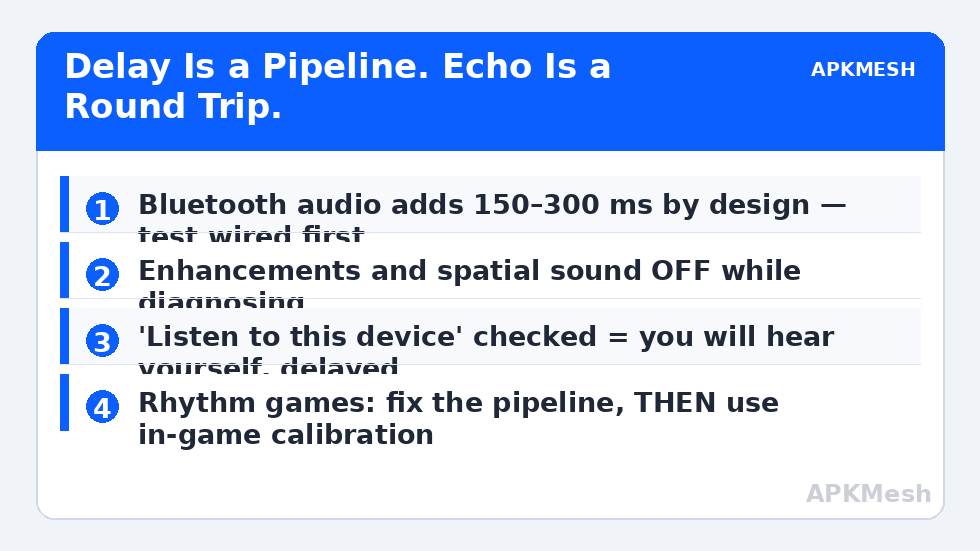
Standard Bluetooth audio (SBC/AAC) carries 150–300 ms of latency by design — fine for video (players compensate), ruinous for games. If you are on Bluetooth earbuds or a headset, test with any wired output before changing a single setting. If delay vanishes wired, your diagnosis is complete: use wired output for gaming, or Bluetooth gear that supports a low-latency codec/mode (aptX Low Latency / dedicated gaming modes on some headsets), accepting that choice is limited by what both devices support. Bluetooth input problems sit in the same neighbourhood as the controller disconnection patterns — the 2.4 GHz band is crowded real estate.
2. Windows audio enhancements and spatial sound
Right-click the speaker icon → Sound settings → your output device → turn Audio enhancements Off, and set Spatial sound to Off while testing. Vendor “surround” processors and enhancement chains add buffering you can hear. Also match sample rates: in classic sound settings, set the output’s default format to 48000 Hz — mismatched rates between Windows, the emulator, and a USB device cause resampling delay (and the crackling family of faults that travels with microphone problems).
3. The emulator’s own audio settings
Some emulators expose audio buffer/output options or a “low latency” audio mode — smaller buffers reduce delay at the cost of crackle risk on weak CPUs. If yours offers it, step the buffer down one notch at a time and test in a busy scene; the moment crackling appears, step back up. Also close other audio-heavy apps: an exclusive-mode application elsewhere in the chain can force the whole Windows audio engine into a slower path.
Echo: Find the Round Trip
1. Your microphone is hearing your speakers
The most common echo in voice chat is not software at all: game audio leaves your speakers, enters your mic, and your squad hears themselves. Fixes in ascending order of effectiveness: lower speaker volume / move the mic closer and lower its gain (better ratio), enable the game’s or chat app’s echo cancellation and noise suppression if offered, or use any headset — even cheap wired earbuds eliminate this echo type completely because the audio never enters the room.
2. The emulator or Windows is monitoring an input
If you hear yourself with a delay, something is playing your mic back to you: classic Sound settings → Recording → your mic → Listen tab → “Listen to this device” must be unchecked (unless you deliberately monitor). Also check the emulator/chat app isn’t set to output a “Stereo Mix” or loopback device, and that you do not have the same voice app open both inside the emulator and on Windows — two instances of you, slightly delayed, is a perfect echo machine.
3. Double audio paths from the same app
HDMI-to-monitor sound plus headset sound simultaneously, or a capture/streaming tool (OBS-style) monitoring the emulator while you also hear direct output, creates delayed doubles. Pick one monitoring path. Streamers: monitor through the capture software only, or direct only — never both.
Load matters too: audio crackle and delay worsen when the CPU is saturated, because audio threads miss their deadlines. If delay arrives only in heavy scenes alongside frame drops, it is a symptom, not a separate disease — validate headroom before blaming the audio stack:
Lag risk: —
A Systematic Test That Ends the Guessing
Change the setup to the known-plain baseline: wired headphones straight into the PC, enhancements off, spatial off, 48000 Hz everywhere, emulator audio at defaults, speakers unplugged/muted. Test a game with a sharp sound cue (menu clicks, a gunshot, a rhythm-game note). If the baseline is clean — it usually is — reintroduce one element at a time (Bluetooth, your USB DAC, the enhancement suite) until delay or echo returns. The element that brings it back owns the fault, and now you are fixing a specific thing instead of the entire stack. This baseline method also cleanly separates emulator faults from Windows faults, much as the fresh-instance test does in crash diagnosis.
How to Verify the Fix
Subjective “feels better” is not enough. Use a rhythm or music game section, or a shooter range: the sound of a shot should feel simultaneous with the muzzle flash at your normal setup, and a voice test with a teammate should confirm no echo of their voice returns to them. Then reboot and retest once — audio settings changed in classic panels occasionally fail to persist, and you want to learn that now, not mid-match.
When This Will Not Work
Bluetooth’s latency floor is physics and codec design; no emulator setting makes standard Bluetooth earbuds instantaneous — wired or genuinely low-latency hardware is the only fix. A phone-call-quality Bluetooth headset profile (HFP) engaged by voice chat will also degrade game audio on the same headset; separate devices for voice and game audio are the structural answer. And if delay exists in every Windows application including local video files, your audio driver/hardware chain is the fault, not the emulator. Remaining audio and input faults are indexed in the lag and error fixes library.
Rhythm and Music Games: The Special Case
Rhythm games judge audio latency in single-digit milliseconds and are the one genre where a merely “good” setup still feels broken. Most have an in-game audio calibration/offset tool — use it after the pipeline fixes in this guide, not instead of them: calibration compensates for a fixed delay, but it cannot fix variable delay, and Bluetooth’s delay varies. The competitive answer for rhythm titles is wired output, enhancements off, and then calibration to absorb the small fixed remainder. If a rhythm game feels different between sessions, suspect something in the chain renegotiating (a Bluetooth reconnect at a different codec, a sample-rate change) — the baseline test sequence in this guide, run once, will show you which element wobbles.
Frequently Asked Questions
How much audio delay is normal in an emulator?
On a wired setup, delay should be small enough to be unnoticeable in action games — tens of milliseconds. Noticeable lip-sync error in cutscenes or a clear gap after a gunshot means something in this guide applies to you.
Why does the echo only happen when I play with one particular friend?
Because the echo is probably their setup: their mic hears their speakers, so everyone hears themselves through that one member. The test is muting them — if the echo dies, the fix lives on their desk, not yours.
Does lowering the audio buffer always reduce delay?
Until it doesn’t. Smaller buffers mean less queued audio (lower latency) but less tolerance for CPU hiccups (crackle/dropouts). The right buffer is the smallest one that stays clean in your heaviest game scene.
My voice echoes back to me but teammates sound fine to each other.
That is local monitoring: “Listen to this device” is on, or a capture tool is monitoring your mic into your headphones. Teammates never hear it because it exists only in your output path. Check the Listen tab first.
Can a VPN or network lag cause audio delay in voice chat?
It causes voice transmission delay (your words arrive late to others) but not local game-audio delay. If menu sounds are late too, the fault is the local audio pipeline covered here; if only your voice is late to the squad, look at the network side.