Windows browses fine, but inside the emulator every app insists there is no internet: the Play Store says “No connection,” games fail at login, and the browser shows DNS errors. Knowing how to fix network connection errors inside emulators means knowing that the emulator runs its own tiny network behind yours — Android apps talk to the emulator’s virtual router, which forwards through Windows to your real router. A break at any hop kills connectivity for Android while Windows stays happily online. This guide tests each hop in order, then covers the two structural fixes: DNS correction and bridge mode.
First, Localise the Break (Three Minutes)
- Windows side: confirm the host PC itself is online and note whether you are on Wi-Fi or Ethernet, and whether a VPN is active on the host.
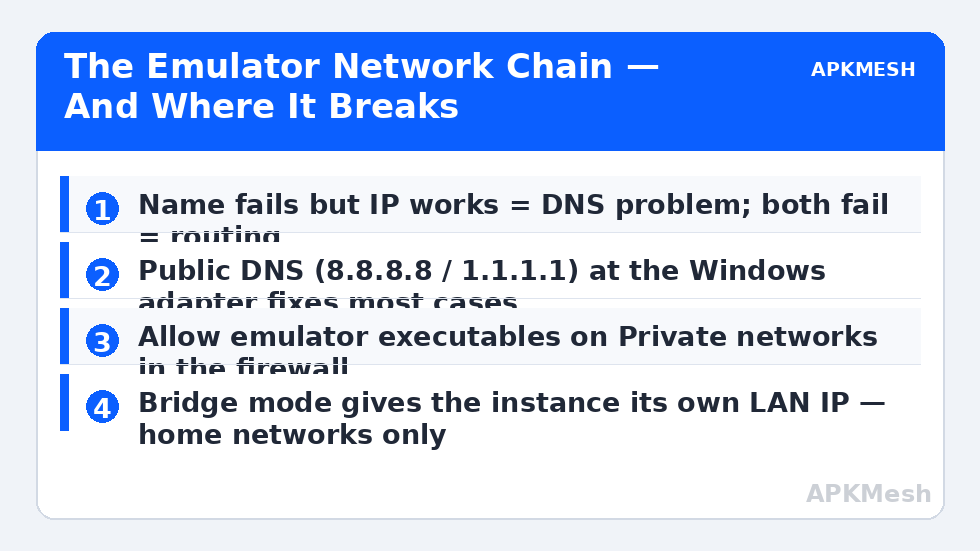
- Emulator browser test: open the Android browser inside the emulator and try a plain website by name (e.g. example.com) and then, if your router’s IP is 192.168.1.1, try opening the router page by number. Name fails but number works = DNS problem. Both fail = routing problem.
- Time check: look at the clock inside Android. A wildly wrong date/time breaks HTTPS and presents as random connection failures — set it to automatic.
Write down which pattern you have. Changing DNS will not fix a routing break, and reinstalling will not fix either.
Cause 1: DNS Resolution Failing Inside the Emulator
The most common single cause. The emulator inherits DNS from Windows; when the host uses a router’s flaky resolver, an ISP resolver having a bad day, or a VPN that has disconnected, Android inherits the breakage. Fix it at the Windows adapter level so the emulator inherits working resolvers:
- Settings → Network & internet → Advanced network settings → your adapter → More adapter options (or Control Panel → Network and Sharing Center → Change adapter settings).
- Right-click the active adapter → Properties → Internet Protocol Version 4 → Properties.
- Select “Use the following DNS server addresses” and enter a public resolver pair, e.g. 8.8.8.8 and 8.8.4.4 (Google) or 1.1.1.1 and 1.0.0.1 (Cloudflare).
- Restart the emulator completely so it picks up the new configuration.
Alternatively, inside Android: Settings → Network → Private DNS — set it to a hostname like dns.google or one.one.one.one for a per-instance override. Some emulators also expose their own DNS field in network settings; using any one of these layers is enough — stacking all three just confuses diagnosis.
Cause 2: Firewall or Antivirus Blocking the Emulator’s Network Components
The emulator’s networking runs through its own executables and a virtual adapter. Security software that blocks one of those silently produces exactly this symptom — everything else online, emulator dead. Open Windows Security → Firewall & network protection → “Allow an app through firewall” and confirm the emulator’s executables are allowed on Private networks. Then check your antivirus’s blocked-applications history. As always in this library: the fix is an allow rule, not switching protection off. The wider pattern is covered in the antivirus blocking guide, and note that sign-in failures ride on top of network failures — if apps open but accounts won’t authenticate, the sign-in errors guide is the follow-up once connectivity is restored.
Cause 3: VPN and Proxy Interference
A host VPN changes Windows routing, and emulator virtual networks do not always follow. Test with the VPN fully disconnected (not just paused). Inside Android, check Settings → Network → VPN shows none, and Wi-Fi proxy is set to None — a leftover proxy entry from a previous experiment blackholes all traffic. Corporate/school networks with captive portals also break emulators: the portal login happens in the host browser, but the emulator’s virtual network may still be treated as unauthenticated. On such networks, phone-tethering the PC for a test tells you immediately whether the network or your setup is at fault.
The Structural Fix: NAT vs Bridge Mode
By default, emulators use NAT: Android sits behind the emulator’s virtual router, sharing the host’s connection. NAT occasionally breaks with specific routers, VPNs, or games that need direct LAN presence. Several emulators (LDPlayer and NoxPlayer most notably) offer a network bridge driver mode, where the instance gets its own IP on your real LAN like a separate device:
- In emulator settings → Network, enable bridge mode and install the bridge driver when prompted (this requires admin rights and a restart of the emulator).
- Confirm the instance receives an IP in your router’s range (e.g. 192.168.1.x) — visible in Android Wi-Fi details.
- Retest the failing apps.
Trade-offs, plainly: bridge mode puts the Android instance directly on your LAN, visible to other devices like any computer. On a home network that is usually fine and can improve game connectivity and local-server discovery; on shared or untrusted networks NAT is the safer default. Bridge drivers are also one more moving part — if an emulator update breaks the driver, symptoms return until it is reinstalled.
Before blaming the network stack for what is actually resource starvation (a choked instance can fail connections under load), validate your allocations:
Lag risk: —
Cause 4: Corrupt Network State in the Instance
If one instance is offline while a fresh instance on the same emulator connects fine, the instance’s network configuration is damaged. In Android: Settings → System → Reset options → “Reset Wi-Fi, mobile & Bluetooth” (wording varies). This resets the virtual network state without deleting apps. Last resort for a stubborn instance is the fresh-instance migration described in the 99% loading guide — engine-level resets follow the same pattern.
How to Verify the Fix
Test in the Android browser (a page by name and a page reload), then in the Play Store (browse and start a small download), then in the game that failed. Finally, restart the emulator and the PC and test once more — DNS and driver changes that do not survive reboot were not actually applied. If your original problem was in-game disconnects rather than total failure, play a full match; lobby connectivity and sustained gameplay exercise different paths.
When This Will Not Work
If the host PC’s own connection is unstable, the emulator faithfully inherits the instability — fix the router/ISP side first. Some emulators’ bridge drivers do not support certain Wi-Fi chipsets, in which case NAT plus correct DNS is the ceiling. And networks that require per-device registration (hotels, campuses) may never authorise a bridged instance; there, NAT mode and patience with the portal are the honest answer. More faults like these are indexed in the lag and error fixes section.
One cause hides between the ‘connected’ and ‘works’ states: MTU mismatch. A VPN client, a PPPoE connection, or a tethered phone can shrink the effective packet size on the host, and the emulator’s virtual adapter inherits a value its games do not expect — logins succeed, then sessions stall when large packets fragment or vanish. Test from the host with ping -f -l 1472 against your router, stepping the size down until replies come back cleanly. Whatever ceiling you find points at the host connection, and the fix belongs there, not inside Android.
Frequently Asked Questions
Why does the emulator say “connected, no internet” on Wi-Fi?
Android validates connectivity by reaching Google’s servers. If that check fails — blocked DNS, captive portal, or filtered network — Android reports no internet even when some traffic flows. The browser test in the localisation step reveals which case you have.
Which DNS should I use?
Any reputable public resolver (Google 8.8.8.8, Cloudflare 1.1.1.1) is fine for testing. If your router’s own DNS works reliably, keeping it is equally valid — the point is replacing a broken resolver, not the brand of the new one.
Does bridge mode make games faster?
It can reduce NAT-related connection quirks and help LAN discovery, but it does not increase your internet bandwidth. Raw speed is your connection; bridge mode is about reachability and compatibility.
The Play Store works but my game cannot connect. Different problem?
Possibly game-specific servers, maintenance, or the game requiring ports/protocols your network blocks. If only one title fails while everything else connects, treat it as that game’s issue before rebuilding your network settings.
Should I reinstall the emulator for a network error?
Almost never as an early step. Network faults live in DNS, firewall rules, drivers, and instance state — all repairable in place. Reinstall is the last resort after the fresh-instance test also fails.