

“There was a problem communicating with Google servers.” “Couldn’t sign in.” An endless “Checking info…” spinner. When you set out to fix Google sign-in errors on an emulator, the temptation is to keep retrying the password — resist it. Sign-in is a chain: the emulator’s clock, its network path, Google Play services’ local state, and finally your account’s security posture. A failure message almost never tells you which link broke, but each link has a cheap test, and this guide walks them in order so you stop resetting the wrong thing.
Link 1: Date, Time, and Basic Connectivity
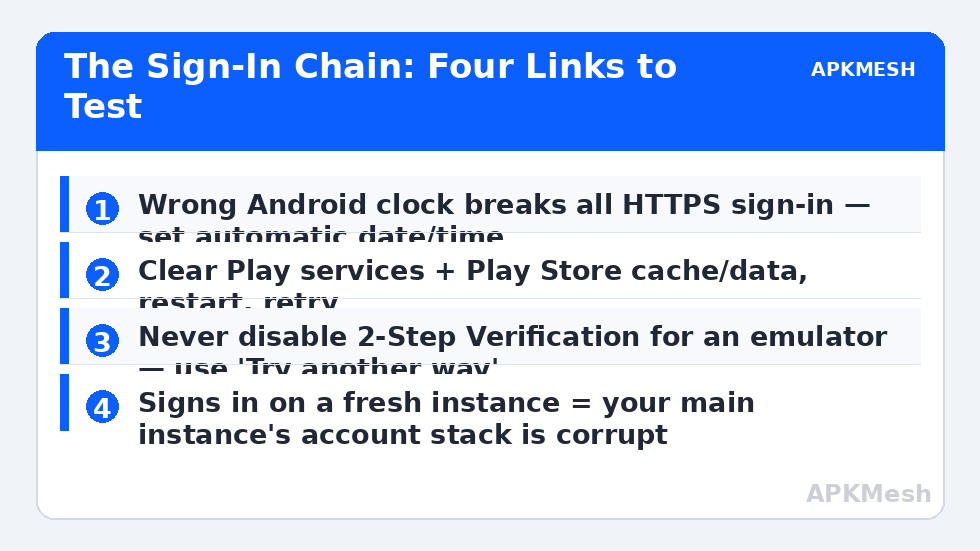
Google’s sign-in is HTTPS with certificate validation. If the Android clock inside the emulator is wrong by more than a small margin — common after restoring snapshots or cloning instances — every secure connection fails with vague errors. Inside the emulator: Settings → System → Date & time → turn on automatic date/time and automatic time zone, then fully restart the instance. While you are there, open the Android browser and load a plain web page: if that fails, you do not have a sign-in problem, you have the network connection problem wearing a sign-in costume. Fix connectivity first; sign-in cannot be diagnosed on a dead network.
Link 2: Google Play Services and Play Store State
Stale or corrupted Play services data is the most common true sign-in fault:
- Android Settings → Apps → Google Play services → Storage → Clear cache.
- Same for Google Play Store: clear cache, then Clear data.
- Restart the emulator completely and try signing in again.
- If it persists, remove the account (Settings → Accounts → Google → Remove account) — you must know the password before doing this — restart, and add it fresh.
Also verify the emulator’s Android version is not ancient: current Play services has dropped graceful support for very old Android builds, and sign-in on an Android 7 instance fails in ways an Android 11 instance simply does not. If your emulator only offers old instances, update the emulator itself. Compatibility weirdness beyond sign-in — apps refusing to appear or install — belongs to the neighbouring territory of device incompatible errors, which shares these account-health steps.
Link 3: Two-Step Verification and App Password Confusion
Accounts with 2-Step Verification sometimes stall in emulator sign-in flows, especially in older in-emulator browsers that cannot complete the verification web view — the symptom is a blank or looping verification page after the password. Workarounds that are legitimate:
- Complete the sign-in prompt approval on your phone (“Yes, it’s me”) if offered — the emulator flow waits for it.
- Use a verification code (SMS/authenticator) via the “Try another way” option if the web view struggles.
- Temporarily sign in first inside the emulator’s Chrome/browser at a Google page, which sometimes primes the account session for the system flow.
What not to do: do not disable 2-Step Verification on your Google account to make an emulator happy. That trades a real, account-wide security control for a local convenience — the same bad bargain as disabling antivirus for an install error. If a specific very old emulator build cannot handle modern verification at all, the correct move is a current emulator build, not a weaker account.
Link 4: “This device isn’t Play Protect certified” and Related Blocks
Emulators are, by nature, not certified physical devices. Most consumer sign-ins work regardless, but you may meet warnings, and a few services (some banking/streaming apps, certain enterprise accounts) refuse uncertified environments outright. Within your control: use mainstream device profiles offered by the emulator, keep Play services updated through the Store, and avoid rooted instances for accounts you care about (root state triggers additional refusals). Work/school (managed) Google accounts may be blocked by their admin’s device policy — that is the organisation’s decision, and the fix is asking the admin or using a personal account, not circumventing policy.
One resource note: Play services in a retry loop can also present as mysterious CPU burn — if the emulator is hot and busy while sign-in fails, you are watching services retry. That pattern is diagnosed in the high CPU and memory guide. And once sign-in works, give the instance sane allocations so the account stack stays responsive:
Lag risk: —
Link 5: The Nuclear Option — Fresh Instance
If the account signs in fine on a fresh instance (test this before concluding anything about your account), your main instance’s account stack is corrupt in a way cache-clearing did not reach. Migrate: the fresh instance becomes home, apps reinstall from your library, cloud saves follow the account. This test takes five minutes and prevents the worst outcome — changing your Google password and security settings chasing a fault that lived in one virtual disk all along.
How to Verify the Fix
Signed in and stable: the account appears in Android Settings → Accounts, the Play Store opens to the home feed (not a sign-in wall), a free app downloads and installs, and everything still works after a full emulator restart and a PC reboot. Verify over a day before declaring victory if the failure was intermittent — token refresh happens in the background and is where marginal fixes relapse.
When This Will Not Work
If Google has actually restricted the account (suspicious-activity lock, password changed elsewhere), only Google’s account recovery resolves it — emulator troubleshooting cannot. Region-restricted services and admin-managed accounts follow their owners’ rules. And an emulator build so old that its sign-in web view cannot render modern verification pages is simply end-of-life software. The neighbouring account-and-store faults are collected in the lag and error fixes library.
Keeping Sign-In Healthy Afterwards
Two habits prevent most returns of this fault. First, keep the emulator itself updated: sign-in flows are a moving target (Google changes verification pages regularly), and emulator vendors patch their web views and Play services integration in response — an emulator a year out of date is the single best predictor of sign-in weirdness. Second, treat instances as appliances, not archives: if you clone or snapshot instances, re-check the clock and account state on first boot of each clone, since time drift and stale tokens are inherited by copies. If you run several instances for several games, signing each into the same account in the same session is fine — but stagger first-time verifications, since a burst of sign-ins from “new devices” in minutes is exactly the pattern that triggers Google’s extra security challenges.
Frequently Asked Questions
Why does sign-in work on my phone but fail in the emulator with the same password?
Because the failure is rarely the password. Clock skew, Play services state, verification web views, and certification checks all differ between a phone and an emulator. The chain test in this guide isolates which one differs on your machine.
Should I turn off 2-Step Verification to get signed in?
No. Use the “Try another way” code path or approve the prompt on your phone. Weakening account security for a local software issue leaves the account exposed long after the emulator problem is forgotten.
What does “Couldn’t sign in — browser or app may not be secure” mean?
Google is rejecting the embedded sign-in browser in that emulator build as too old or untrusted. Update the emulator; if the build is current, sign in via the account-add flow after updating Play services, or test a fresh instance to confirm it is build-level.
Will removing and re-adding my account delete my game progress?
Progress synced to that Google account (Play Games and publisher accounts) is stored server-side and returns on sign-in. Only unsynced local data tied to the removed account’s apps can be lost — link accounts before removing anything.
The verification page is blank white. Is that this guide’s problem?
Partly — a blank verification web view is Link 3 territory. If the whole emulator shows blank/white app screens beyond sign-in, you may instead have the rendering fault covered in the white screen glitch guide.