

An Android emulator’s virtual disk is a lie your storage has to maintain: a VDI or VMDK file that starts at a few gigabytes and quietly inflates until a “64GB” emulated device has eaten 40GB of a real SSD that also holds Windows, your pagefile, and everything else. Knowing how to clean temp files to free virtual disk space means attacking three different piles — Windows temp and cache locations, the emulator’s own cache and instance data, and the space trapped inside the virtual disk file itself, which Windows cannot see into. Done in the right order, a neglected low-end PC commonly gives back 10–30GB. Done carelessly, you delete your game data. This guide separates the safe, the conditional, and the never-touch.
First, Find Out Where the Space Actually Went
Guessing wastes an hour; measuring takes two minutes. Open Settings → System → Storage for the per-drive breakdown (Apps, Temporary files, Other). For a folder-level view, note the size of your emulator’s data directory: LDPlayer stores instances under its install folder (LDPlayer\LDPlayer9\vms by default), BlueStacks 5 under C:\ProgramData\BlueStacks_nxt\Engine, MuMu under its install path’s vms folder. Each instance folder is one emulated device; its size is almost entirely the virtual disk plus snapshots and logs. If one instance you no longer use is 25GB, no amount of temp cleaning beats deleting that instance — from inside the emulator’s multi-instance manager, never by hand-deleting folders while the emulator is running.
Pile One: Windows Temp and System Junk
- Settings → System → Storage → Temporary files: tick Windows Update Cleanup, Temporary files, Recycle Bin (check its contents first), Thumbnails, and Delivery Optimization Files. Leave “Downloads” unticked unless you have reviewed it — Storage Sense treats Downloads as disposable, which surprises people.
- Run Disk Cleanup (cleanmgr) → Clean up system files for the older-style categories including previous Windows installations (Windows.old) if present after a feature update — that alone can be 10–20GB, and it is dead weight once you are sure the update is stable.
- Clear the user temp folder manually if an app has filled it: Win + R → %TEMP%, select all, delete; files in use will refuse, skip them. Repeat for C:\Windows\Temp (admin prompt).
- Browser caches and the DirectX shader cache live here too — the shader cache has its own rebuild behaviour and is covered in our DirectX shader cache guide.
What not to use: third-party “PC cleaner” utilities that promise registry cleaning and one-click miracles. Registry cleaning has no measurable performance effect and a real breakage record; everything legitimate in this guide is built into Windows.
Lag risk: —
Pile Two: The Emulator’s Own Accumulation
Inside the emulator, Android accumulates exactly like a phone: app caches, downloaded game resource packs you no longer play, and media in shared folders. Work through:
- Per-app cache: Android Settings → Apps → (large games) → Storage → Clear cache. Cache only — “Clear storage/data” deletes saves and logins for that app.
- Shared folders: the emulator’s PC-shared folder (where screenshots, recorded videos, and exported files land) is stored on your real drive outside the virtual disk and is easy to audit from Windows Explorer.
- Uninstalled-app residue: games removed from inside Android normally free their space in the virtual disk’s accounting, but the host file does not shrink — that is Pile Three.
- Logs and crash dumps in the instance folder: small individually, occasionally gigabytes after a crashing phase. Safe to delete while the emulator is closed.
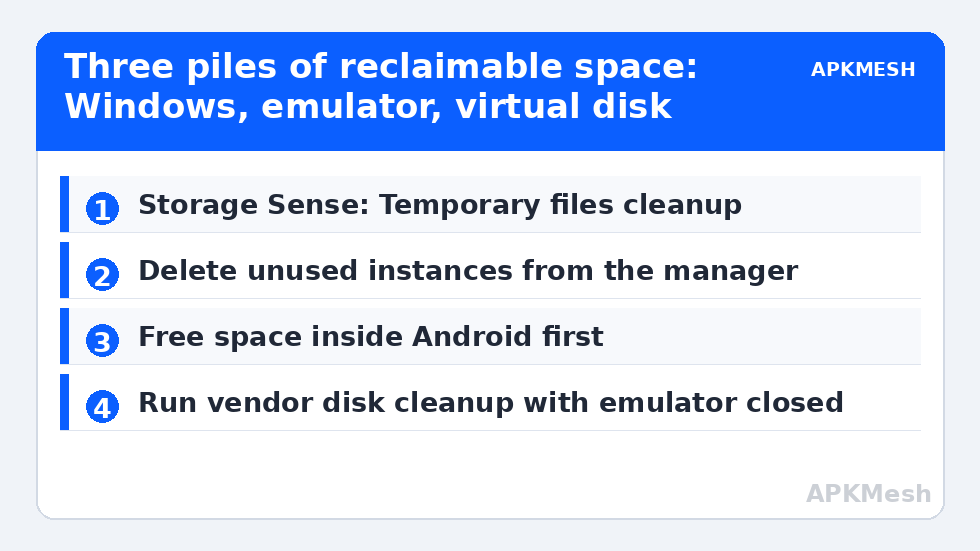
Pile Three: Shrinking the Virtual Disk File Itself
Virtual disks grow to their high-water mark and stay there, because freed blocks inside the guest are not automatically returned to the host. The fix differs by emulator:
Emulators with a built-in disk cleanup
LDPlayer has a disk-cleanup/cleanup function in its settings and multi-instance manager that compacts instance disks. BlueStacks provides a Disk Cleanup tool in its settings (and a standalone cleanup utility in some versions) that trims unused space after you free it inside Android. MuMu offers instance disk cleanup in its multi-instance tool. Always run the in-Android freeing first (Pile Two), close the emulator fully, then run the vendor’s cleanup. Search your emulator’s settings for “disk cleanup” before reaching for generic VDI tools.
What never to do
- Never delete or rename VDI/VMDK files of an instance you still use, and never edit them while the emulator process is running.
- Never run a “defrag” tool inside the emulator’s Android — meaningless on a virtual disk and pure wear on an SSD.
- Do not use random third-party VDI compactors on a format you cannot verify; a corrupted disk means a lost instance. Back up the instance (every major emulator has an export/backup function) before experimenting.
Keep It From Refilling: Storage Sense and Habits
Enable Settings → System → Storage → Storage Sense to run automatically when space runs low, set Recycle Bin and temp cleanup cadence, and exclude Downloads if you use it as working storage. Then set a monthly five-minute routine — it is item one in our preventive maintenance checklist. The deeper optimisation context for all of this lives in the PC Optimization hub, and if the underlying problem is that your emulator lives on a nearly full mechanical drive, the virtual disk cleanup and defrag guide covers host-side file placement properly.
Why Emulator PCs Fill Up Faster Than Normal PCs
Three compounding habits make emulator machines special cases. First, multi-instance users clone devices: a base instance of 8GB becomes five working instances of 15–30GB each once games and their multi-gigabyte resource packs land, and most people never audit the clones they stopped using. Second, emulators encourage downloads — every game trial, every APK sideload test, every recorded gameplay video sits somewhere, either inside a virtual disk or in the host shared folder, and neither location nags you about it. Third, Windows itself stages feature updates twice a year, and on a 128GB or 256GB drive that is already 80% full of emulator data, the update cache and Windows.old alone can push the drive into the red zone where SSDs slow down and pagefile behaviour gets erratic.
The discipline that prevents all three is boring but effective: one in-use instance per game, a hard rule that screenshots and recordings are exported and deleted monthly, and keeping at least 15% of the system drive free as working headroom. Storage hygiene is not glamorous, but on low-end hardware it is worth more FPS stability than most registry “tweaks” combined, because a choked drive degrades everything the emulator touches — asset streaming, shader cache writes, and Windows paging alike.
Frequently Asked Questions
How much space can I realistically recover?
On a machine that has never been cleaned: typically 10–30GB across Windows Update leftovers, Windows.old, temp folders, and one compacted emulator disk. A maintained machine yields far less — which is the point of maintaining it. If Storage shows the space is mostly your own media and installed apps, no cleaner changes that math.
Is it safe to delete everything in %TEMP%?
Yes, with two caveats: close running programs first (installers sometimes stage files there mid-install), and expect some files to refuse deletion because they are in use — skip those rather than forcing them. Nothing Windows needs permanently lives in the user temp folder.
Why is my emulator folder still huge after I deleted games inside Android?
Because the virtual disk file records its largest-ever size, not its current contents. Freeing space inside the guest only makes blocks reusable inside the disk. You must also run the emulator vendor’s disk cleanup/compaction with the emulator closed to return space to Windows.
Will clearing caches make my emulator slower?
Briefly and trivially: apps rebuild caches on next launch, which can add a few seconds once. The DirectX shader cache is the noticeable one — the first run of each game stutters slightly while shaders recompile. That is a one-time cost, and clearing a corrupted cache is still the right fix when stutter is persistent.
Should I use CCleaner or a similar tool instead?
The built-in Windows tools cover everything legitimate: Storage settings, Disk Cleanup, and Storage Sense. Third-party cleaners add registry cleaning (no benefit, some risk) and upsells. If you already use one, limit it to temp-file duty and skip every registry feature it offers.