Core Isolation’s Memory Integrity feature — also labelled HVCI — is one of the few Windows 11 security features with a real, measurable performance cost, and emulator users feel it more than most because Android emulators are themselves virtualization workloads. The question in this guide — core isolation memory integrity emulator speed — comes down to a trade-off you should make with open eyes: turning Memory Integrity off removes a genuine layer of protection against malicious kernel drivers, and in exchange you typically recover somewhere between nothing and roughly 10% performance, with virtualization-heavy workloads at the top of that range and ordinary native games at the bottom. Below: what the feature does, how to check whether it is even running, how to turn it off and back on, and how to decide if the trade is worth it on your machine.
What Memory Integrity Actually Does
Memory Integrity is part of Windows Core Isolation. It uses the Windows hypervisor to create an isolated virtual environment (VBS — Virtualization-Based Security) and then enforces code-integrity rules inside it: kernel-mode drivers and system processes can only run if their code pages are validated, and once a code page is marked executable it cannot be modified. This blocks a whole class of attacks where malware injects or patches kernel code, which is why Microsoft enables it by default on clean Windows 11 installs that meet the hardware requirements.
The cost is structural. Every driver interaction crosses a virtualization boundary, and workloads that make heavy use of virtualization themselves — Android emulators using Hyper-V, Windows Hypervisor Platform, or their own VT-x paths — can end up with nested overheads: the emulator’s hypervisor behaviour interacts with VBS, page translations get more expensive, and CPU-heavy emulation loses a few percent. Microsoft itself acknowledges a performance impact and has historically suggested gamers may choose to disable it. On a high-end desktop the loss is background noise; on a 4-core laptop already at 100% CPU inside an emulator, 5–10% is the difference between 55 and 60 FPS.
Security Trade-Off, Stated Plainly
- Memory Integrity meaningfully raises the bar for kernel-level malware and cheat-style driver exploits. It is not cosmetic security.
- Turning it off does not “disable your antivirus.” Windows Defender, SmartScreen, and standard protections keep working. You lose one specific hardening layer.
- If the machine is used for banking, work, or by less technical family members, the conservative answer is to leave it on and find performance elsewhere — see our PC Optimization hub for tweaks with no security cost.
- If this is a dedicated gaming/emulation machine, you download software only from official sources, and you understand the change is reversible in two minutes, disabling it is a defensible, informed choice.
Anyone who tells you to turn it off without mentioning what it does is giving you half the information. The same applies to guides that bundle this with disabling Defender — do not do that; the performance case for it is negligible and the risk is not.
Step 1: Check Whether Memory Integrity Is Even On
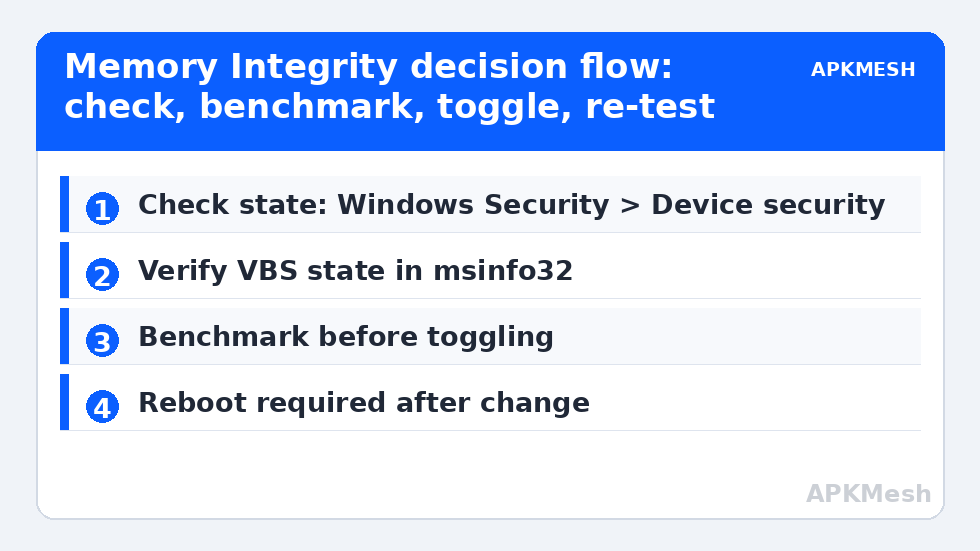
- Open Windows Security → Device security.
- Under Core isolation, click Core isolation details.
- Look at the Memory integrity toggle. If it is off (common on Windows 10 upgrades and older installs), there is nothing to gain here — stop and spend your time on the Windows 11 gaming mode tweaks instead.
- Alternatively run msinfo32 and check the “Virtualization-based security” line: “Running” means VBS is active.
Lag risk: —
Step 2: Measure First, Then Toggle
Benchmark before changing anything: one repeatable emulator scene, three minutes, note average FPS and 1% lows (method in our benchmarking guide). Then:
- Windows Security → Device security → Core isolation details.
- Switch Memory integrity to Off. If Windows warns about incompatible drivers, note which driver it names — that driver is also the reason the feature sometimes can’t be re-enabled later until it is updated.
- Restart the PC — the change requires a reboot to take effect.
- Re-run the identical benchmark scene and compare.
If the difference is inside run-to-run noise (±3%), turn it back on and keep the security. That outcome is common on modern desktops, and an honest result is still a useful result.
Step 3: The Related Settings People Confuse With This One
Virtual Machine Platform and Hyper-V
Emulators such as BlueStacks ship in versions that either use Hyper-V or conflict with it depending on the edition (the Pie 64-bit Hyper-V build versus the standard build). Disabling Hyper-V or Virtual Machine Platform in Windows Features is a different change from Memory Integrity, with different consequences: Windows Subsystem for Android/WSL2 and some sandbox features stop working. Only touch these if your specific emulator build requires it, and note that Memory Integrity can remain on with Hyper-V present.
“Game Mode off” folklore
Some guides claim VBS is disabled by turning off Game Mode. It is not. Game Mode and Memory Integrity are unrelated switches; changing Game Mode does not alter VBS state. Verify with msinfo32 rather than folklore.
Expected Gains by Workload
| Workload | Typical effect of disabling Memory Integrity |
|---|---|
| Emulator, CPU-bound low-end laptop | ~3–10% FPS, better 1% lows |
| Emulator, modern mid/high-end PC | 0–3%, often within noise |
| Native PC games | Usually 0–5%, title-dependent |
| General desktop use | None perceptible |
These are typical reported ranges, not measurements of your machine — which is the entire reason the before/after protocol above exists.
The Middle Ground Most Guides Skip: Test Per-Emulator, Not Per-Benchmark Suite
Synthetic toggle-testing hides an important detail: the penalty is not uniform across emulators, because they do not all virtualize the same way. An emulator build running on the Windows Hypervisor Platform already lives inside Microsoft’s virtualization stack, so VBS and the guest share infrastructure and the added cost is comparatively small. An emulator running its own VT-x engine alongside an active VBS session forces the two hypervisor layers to coordinate, and that is where the larger losses show up. Practical consequence: if you run two emulators (say, a Hyper-V build of one and a standard build of another), benchmark each separately with the toggle both ways. It is entirely possible that Memory Integrity costs one emulator 8% and the other nothing, and your decision can then be based on which emulator you actually play on rather than a blended average.
Also note the interaction with emulator anti-cheat and compatibility modes: some emulator releases explicitly check for VBS state at startup and warn that performance mode is limited. That warning reflects the emulator’s own engine choice, not a Windows fault — switching to the emulator’s Hyper-V-native build, where one exists, can recover the loss while letting you keep Memory Integrity on. That is the best outcome available: performance recovered, security kept. Check your emulator’s download page for alternate builds before reaching for the security toggle as a first resort.
Frequently Asked Questions
Is it dangerous to turn off Memory Integrity?
It removes a real protection against kernel-level attacks, so the risk is not zero. It does not disable Defender or your firewall. The sensible framing: on a carefully used, dedicated gaming machine the added risk is small; on a shared or work machine, keep it on. It can be re-enabled at any time from the same screen, followed by a reboot.
Why is the Memory Integrity toggle missing or greyed out?
Common causes: the PC lacks UEFI/Secure Boot configuration needed for VBS, an incompatible driver is installed (Windows names it when you try to toggle), or the machine was upgraded from Windows 10 where the feature was never enabled. If a driver is named, update it from the hardware maker’s official site — never a driver-aggregator site.
Does turning off Memory Integrity fix the VT error in my emulator?
Usually not directly. “Virtualization disabled” errors are about VT-x/AMD-V being off in the BIOS or blocked by an active hypervisor conflict. Memory Integrity uses the hypervisor but does not disable VT. Fix VT in the BIOS first; treat Memory Integrity as a performance tweak, not an error fix.
Windows turned Memory Integrity back on after an update. Why?
Feature updates and some security baselines can re-enable it. If your benchmark showed no benefit, leave it on. If it clearly helped and you accept the trade-off, you will need to switch it off again after major updates — another reason to only bother when the measured gain is real.
Does Memory Integrity affect emulator input lag or just FPS?
Primarily CPU throughput and frame pacing, which indirectly affects input responsiveness at low frame rates. It does not add a discrete block of latency the way a Bluetooth controller does. If input lag is your problem, work through controller connection and FPS cap settings first.