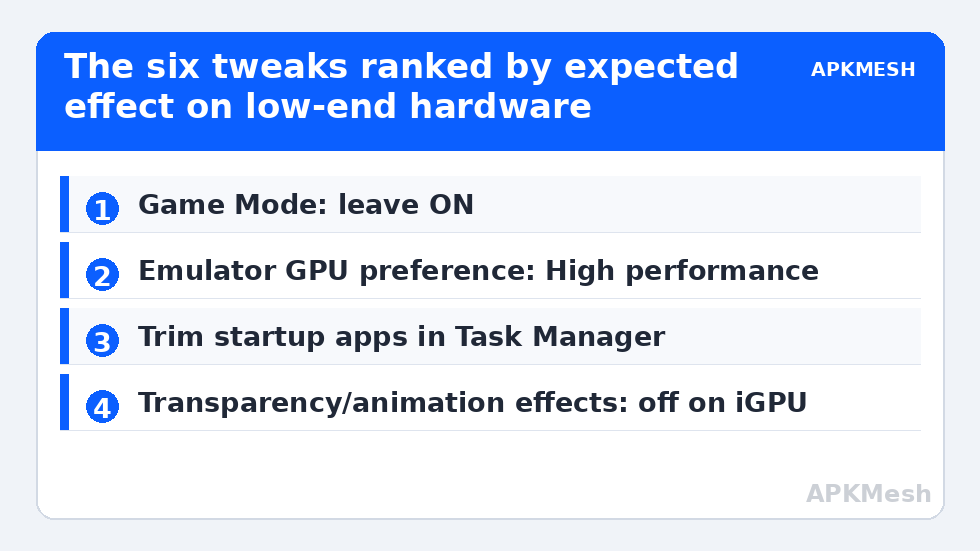
Most “ultimate Windows tweaks” lists are a junk drawer: forty toggles, no measurements, and a few changes that actively hurt security or stability. This guide takes the opposite approach to windows 11 gaming mode tweaks for an emulator PC — six settings with a plausible mechanism, ranked by expected effect on a low-end machine, each with the reason it might do nothing on yours. Total time: about twenty minutes. Total registry edits: zero. If a tweak below does not apply to your hardware, skip it rather than collecting it.
1. Game Mode: Leave It On (and Understand What It Does)
Windows 11 Game Mode (Settings → Gaming → Game Mode) does three useful things: it suppresses Windows Update driver installs and restart prompts mid-session, reduces background task scheduling priority, and stabilises frame delivery in supported titles. It does not overclock anything and it does not disable Defender. Older advice to turn Game Mode off dates from the Windows 10 era, when early implementations occasionally stuttered; on current Windows 11 builds, Microsoft’s own guidance and most independent re-testing lands on “leave it on.” For emulators there is a caveat: Game Mode’s optimisations engage per recognised game process and for the foreground app generally, so an emulator benefits from the background-quieting even when Windows does not classify it as a game. Expected effect: fewer mid-game interruptions and smoother frame pacing, not higher peak FPS. Cost: none. This is the baseline, not a tweak.
2. Xbox Game Bar: Keep the App, Kill the Pop-Ups
The Game Bar (Settings → Gaming → Xbox Game Bar) is mostly harmless and occasionally useful (its performance widget is a quick FPS/CPU readout). What hurts is the “Open Game Bar using this button” prompts and, on very weak CPUs, the background recording capture service. In Settings → Apps → Installed apps → Game Bar → Advanced options, set Background app permissions to Never if you never record. Do not attempt to uninstall system components with PowerShell scripts copied from forums — removing Game Bar packages occasionally breaks the Microsoft Store and Game Pass plumbing and saves no measurable CPU. Expected effect: near zero on most systems, small CPU relief on 2–4 core machines that were recording by default.
Lag risk: —
3. Per-App GPU Assignment for the Emulator
On dual-GPU laptops this is the single biggest item on this page. Settings → System → Display → Graphics: add each emulator’s executable and set it to High performance so it runs on the discrete GPU instead of silently using the integrated one. Laptops ship with power-saving defaults that sometimes misclassify emulator processes; verify by watching which GPU engine Task Manager’s Performance tab reports while a game runs. Desktops with one GPU: skip, the setting is inert. Expected effect: transformative when wrong (integrated → discrete), zero when already correct.
4. Visual Effects: Trim the Cheap Ones Only
Settings → Accessibility → Visual effects: turning off Transparency effects and Animation effects removes compositor work that, on integrated graphics, genuinely competes with the emulator for the same silicon. The old “Adjust for best performance” dialog (sysdm.cpl → Advanced → Performance Settings) that disables font smoothing and window thumbnails is desktop cosmetics, not emulation performance — the emulator renders its own window content regardless. Keep font smoothing on; your eyes work here too. Expected effect: small on iGPU laptops, none on anything with a discrete GPU.
5. Background Apps and Startup Load
Game Mode quiets background work during play, but the cheaper fix is not starting the work at all. Task Manager → Startup apps: disable the updaters, chat clients, and vendor “helpers” you do not need at boot (leave security software and driver control panels alone). This overlaps with, but is not a substitute for, the service-level work in our background services guide — startup apps are user-level programs, safer to trim, and on a 4GB RAM machine each one parked in memory is memory the emulator cannot use. Expected effect: shorter boot, a few hundred MB of RAM returned, minor FPS stability gains on RAM-starved systems.
6. Notifications and Focus: Stop the Alt-Tab Tax
Settings → System → Notifications: use the Do Not Disturb schedule/Focus sessions so a chat popup cannot steal focus mid-match — on some emulators a focus loss also drops the FPS cap to a background rate. This is quality-of-life, not throughput, but on a low-end PC an ill-timed Windows Update restart prompt or a Store notification is a real session killer. Game Mode already suppresses update restarts; Focus finishes the job.
What This Guide Deliberately Excludes
- Disabling Defender or Memory Integrity as a “gaming tweak” — a security trade-off requiring informed consent, covered separately in our Core Isolation guide.
- Registry “latency” edits (SystemResponsiveness, GPU priority forks) — effects unverifiable or already default; risk without evidence.
- Timer resolution tools — modern Windows and current emulator builds handle timer behaviour; third-party resident tools add a background process to fix a problem that largely no longer exists.
- Unparking CPU cores utilities — Windows’ scheduler parks and unparks correctly on current builds.
Done in a sensible order — Game Mode verified on, emulator pinned to the right GPU, startup trimmed — a low-end emulator PC is most of the way to its practical best. The remaining levers are structural (power plan, pagefile, storage), which the PC Optimization hub organises, and our Ultimate Performance power plan guide handles the biggest of them.
Order of Operations: The Twenty-Minute Session
Work top-down so you can stop early when the big win lands. Minute 0–5: confirm Game Mode is on and add the emulator to the Graphics list on High performance; immediately test — on misassigned laptops the job is already done. Minute 5–10: Task Manager startup pass; disable the obvious non-essentials and note what you changed in a text file so the session is reversible from memory rather than guesswork. Minute 10–15: visual effects trims (transparency and animation) and notification/Focus setup. Minute 15–20: final test in the same emulator scene you started with, comparing against the numbers you hopefully noted before touching anything (if you did not, at least compare against how the session feels in the known worst area of your test game).
Two process warnings. Change groups, not single toggles, but keep the groups thematically separate: if you adjust the power plan in the same session as Game Mode and the GPU assignment, attribute nothing — you will not know what helped, and when something regresses next week you will not know what to revert. And reboot once after the session before judging: several of these settings (startup load especially) only show their effect on a clean boot.
Frequently Asked Questions
Does Game Mode actually increase FPS in emulators?
Rarely by a measurable margin. Its value is consistency: fewer background interruptions, suppressed update activity, and steadier frame delivery. If a guide promises Game Mode alone will add 20 FPS, it is selling something. Measure with a fixed scene before and after if you want certainty on your machine.
Should I turn off Game Bar completely?
Turn off its background recording and pop-ups if you do not use them, but leave the component installed. Removing it with scripts can break Store/Game Pass functionality and the performance upside is negligible on anything but the weakest CPUs, where disabling background capture achieves the same thing safely.
What is the one tweak that matters most on a low-end laptop?
Verifying the emulator is running on the discrete GPU (Graphics settings → High performance), if the laptop has one. A misassigned emulator on integrated graphics loses more performance than every other setting in this guide combined. On single-GPU machines, startup trimming and a sane power plan matter most.
Do “gaming edition” Windows ISOs or debloat scripts do this better?
No — stripped custom ISOs remove components emulators and anti-cheat occasionally need, complicate updates, and are a licensing and security grey area. Every legitimate gain they claim is achievable with the supported settings above, reversibly, on a normal install.
Will these tweaks help on Windows 10 too?
Mostly yes: Game Mode, per-app GPU assignment, startup trimming, and visual-effects trims exist in Windows 10 with slightly different menu paths. HAGS and the windowed-games optimisation toggle are the Windows 11 (and late Windows 10) additions.