
Setting a process to High priority in Task Manager tells the Windows scheduler: when threads compete for CPU time, serve this program’s ready threads first. It is a real scheduling lever with a narrow effect — it does not create CPU capacity, it redistributes wait time. Knowing how to set an emulator process to high priority in Task Manager is genuinely useful for one specific scenario (a CPU-saturated machine where the emulator is losing cycles to background noise) and actively unhelpful in others, including one scenario where it makes overall smoothness worse. This guide covers the mechanics, the cases, the safer sibling setting (affinity), and how to automate priority without third-party tools.
What Priority Classes Actually Do
Windows schedules threads by priority numbers derived from the process priority class: Low, Below normal, Normal (the default for nearly everything), Above normal, High, and Realtime. An emulator at High wins contention against Normal background processes — its threads preempt theirs and wait less in the ready queue. Two consequences follow immediately. First, if nothing else is competing, priority changes literally nothing; a CPU at 60% load has idle cores for everyone. Second, at saturation the gain is taken from the other processes — including some you care about: audio pipelines, network handling, and the input stack also need timely threads, and starving them produces crackling sound, mouse hitches, and controller lag even as the game’s FPS counter holds up. This is why “High” is a surgical tool, not a default.
About Realtime priority: do not
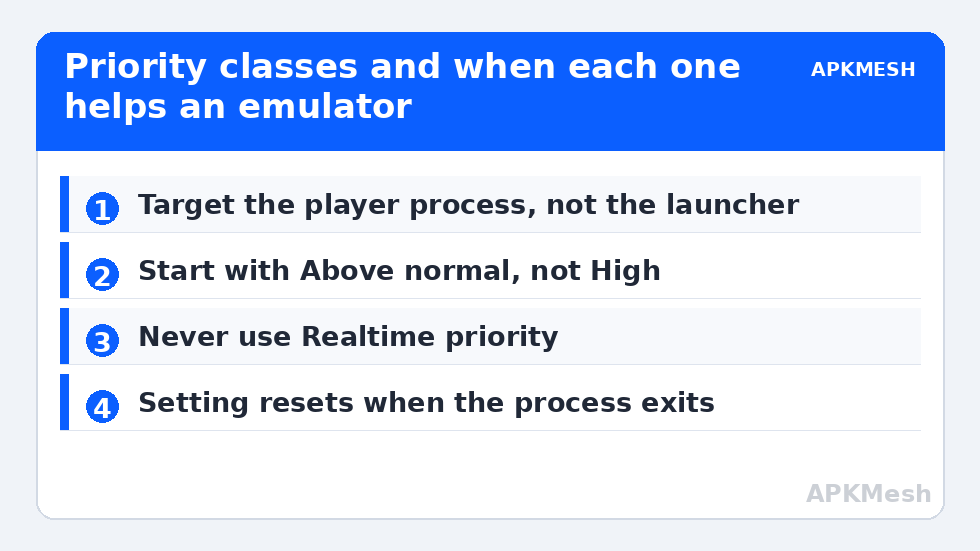
Realtime sits above most system threads. An emulator set to Realtime can starve mouse/keyboard input and disk/audio kernel work, producing a machine that benchmarks great and feels broken, with freezes that look exactly like the stutter you were trying to cure. Task Manager will let you do it anyway. Every credible guide, including Microsoft’s own documentation stance, says avoid it for applications. Above normal exists precisely as the reasonable escalation step.
The Procedure (Temporary, Per-Session)
- Start the emulator and load the game (priority set on the wrong helper process does nothing — you want the player/render process, which Task Manager’s Details tab shows by executable name; for BlueStacks it is the HD-Player process, for LDPlayer the player process).
- Open Task Manager → Details tab (Windows 11: right-click the taskbar → Task Manager → Details).
- Right-click the emulator process → Set priority → Above normal (start here) or High.
- Click Change priority to confirm. The setting applies immediately and survives until the process exits — restarting the emulator resets it to Normal.
Lag risk: —
When It Helps, When It’s Noise, When It Backfires
| Scenario | Effect of High priority |
|---|---|
| CPU at 100% with background tasks (updates, sync, indexing) interrupting play | Genuinely helps frame pacing: emulator threads jump the queue |
| CPU at 60–85%, nothing misbehaving | No measurable change — no contention to redistribute |
| GPU-bound session (GPU at 99%) | None; scheduling is not the constraint |
| Whole system near saturation including audio/network load (streaming while playing) | Can backfire: starves supporting threads, audio crackle, input weirdness — use Above normal instead |
Note the first scenario has a better permanent cure — removing the interrupting background load itself, which is the subject of our background services guide. Priority is the tourniquet; cleanup is the surgery.
Affinity: The Related Lever with Sharper Edges
Right-click → Set affinity restricts a process to chosen CPU cores. On modern hybrid CPUs (Intel Performance + Efficiency cores), Windows usually schedules the emulator’s heavy threads onto P-cores correctly, and manual affinity adds little. Where affinity still earns its keep: diagnosing whether E-core parking is hurting a specific emulator (pin it to P-cores and compare), and ancient dual-core machines where keeping the emulator and a noisy background app on separate cores smooths both. The risk is self-inflicted scarcity — pinning an emulator to two cores “for focus” on an 8-core machine just caps it. Test with the method in our benchmarking guide before keeping any affinity setting, and remember it also resets at process exit.
Making Priority Persistent Without Junk Software
Task Manager will not remember the setting, and the common advice — install a third-party “process manager” that runs forever — adds the very background resident you are trying to escape. The cleaner method is a launch shortcut: create a shortcut to the emulator with a target like cmd /c start “LDPlayer” /AboveNormal “C:\path\to\player.exe” (start supports /Low through /Realtime; use AboveNormal or High). Launching via that shortcut applies the priority each time with no resident tool. Some emulators also read their own config for process behaviour, but the shortcut method is universal and reversible: delete the shortcut and the experiment is over. More scheduling-adjacent settings live in our PC Optimization hub, including the power-plan side of CPU responsiveness in the Ultimate Performance guide.
Which Process? Getting the Target Wrong Is the Usual Failure
Emulators are not single processes. BlueStacks runs a host service, the player process, and helper renderers; LDPlayer similarly splits the player from background services. Raising the priority of the launcher or the tray service does precisely nothing for the game. Identify the working process empirically: open Task Manager’s Details tab while a game is running and sort by CPU — the player process consuming the CPU is the one earning the priority change. Its name typically matches the emulator’s main executable (HD-Player.exe for BlueStacks, dnplayer.exe for LDPlayer, MuMuPlayer.exe / MuMuVMMHeadless for MuMu components). Note also that multi-instance setups run one player process per instance; raising all of them to High multiplies contention among themselves and usually reduces total stability. If several instances run, Above normal for the foreground one and Normal for the rest is the sane configuration — or accept that priority games are a single-instance tool and heavy multi-instance work belongs to allocation and hardware.
Observation while you test: watch whether pagefile activity or disk spikes accompany your dips (Resource Monitor makes this easy). If they do, your dips were never scheduling losses and priority is the wrong drawer — the memory and storage guides in this category address that class directly.
File the experiment’s outcome with your other baselines: the scene, the setting, the measured difference. Priority is a setting whose value is entirely machine- and workload-specific, and the note you write today is what stops you re-running the same test from scratch after the next Windows reinstall.
Frequently Asked Questions
Does High priority increase FPS?
Only when the CPU is saturated and other processes are stealing cycles. In that case it improves consistency (fewer dips) more than averages. If your CPU has headroom, FPS will not move — there is no queue to jump. Measure a fixed scene before and after rather than trusting the feeling of having “done something.”
Why does my priority reset every time I restart the emulator?
By design: priority is a property of the running process, not a stored setting. Use the start-command shortcut method above to apply it at every launch, or accept re-applying it manually for the sessions that need it.
High priority made my audio crackle and mouse stutter. Why?
The emulator is winning contention against the audio and input threads. Drop to Above normal, which resolves most of these cases while keeping the benefit, and treat persistent crackle as a sign the machine is simply oversubscribed — background cleanup will help more than priority escalation.
Should I set the emulator to use all cores in affinity?
That is the default state — unrestricted. Setting affinity is only meaningful when you restrict to a subset, usually for diagnosis. Leaving affinity untouched is correct for nearly everyone.
Is there a risk of crashing Windows with priority changes?
At Above normal and High, no system damage — worst case is a choppy session that a restart cures. Realtime is the exception that justifies the warning label, because it can starve kernel-adjacent work and force a hard reset on a busy machine. It offers nothing High doesn’t for emulation.